
weelikeit P39W
weelikeit 10.95 inch Tablet User Manual
Model: P39W
1. Product Overview
The weelikeit 10.95 inch Tablet is a versatile device designed for entertainment, productivity, and communication. Featuring a 2K IPS display and powered by an MTK8183 Octa-Core processor, it offers a smooth user experience. This tablet runs on Android 13, providing enhanced privacy features and access to a wide range of applications via the Google Play Store.

Figure 1: weelikeit 10.95 inch Tablet with its accessories.
2. What's in the Box
Upon opening the package, please verify that all the following items are included:
- 1x 10.95 inch Tablet
- 1x Tablet Case
- 1x User Manual
- 1x AC Charger
- 1x USB-Type C cable
- 1x Screen Protector

Figure 2: Contents of the product package.
3. Product Features and Highlights
3.1 Display and Design
The tablet features a 10.95-inch 2K Ultra FHD display with a resolution of 2000x1200 pixels and a 16:10 aspect ratio, providing clear and vibrant visuals. Its slim profile measures 7.4mm in thickness and weighs approximately 504.3g, making it portable and comfortable to hold.
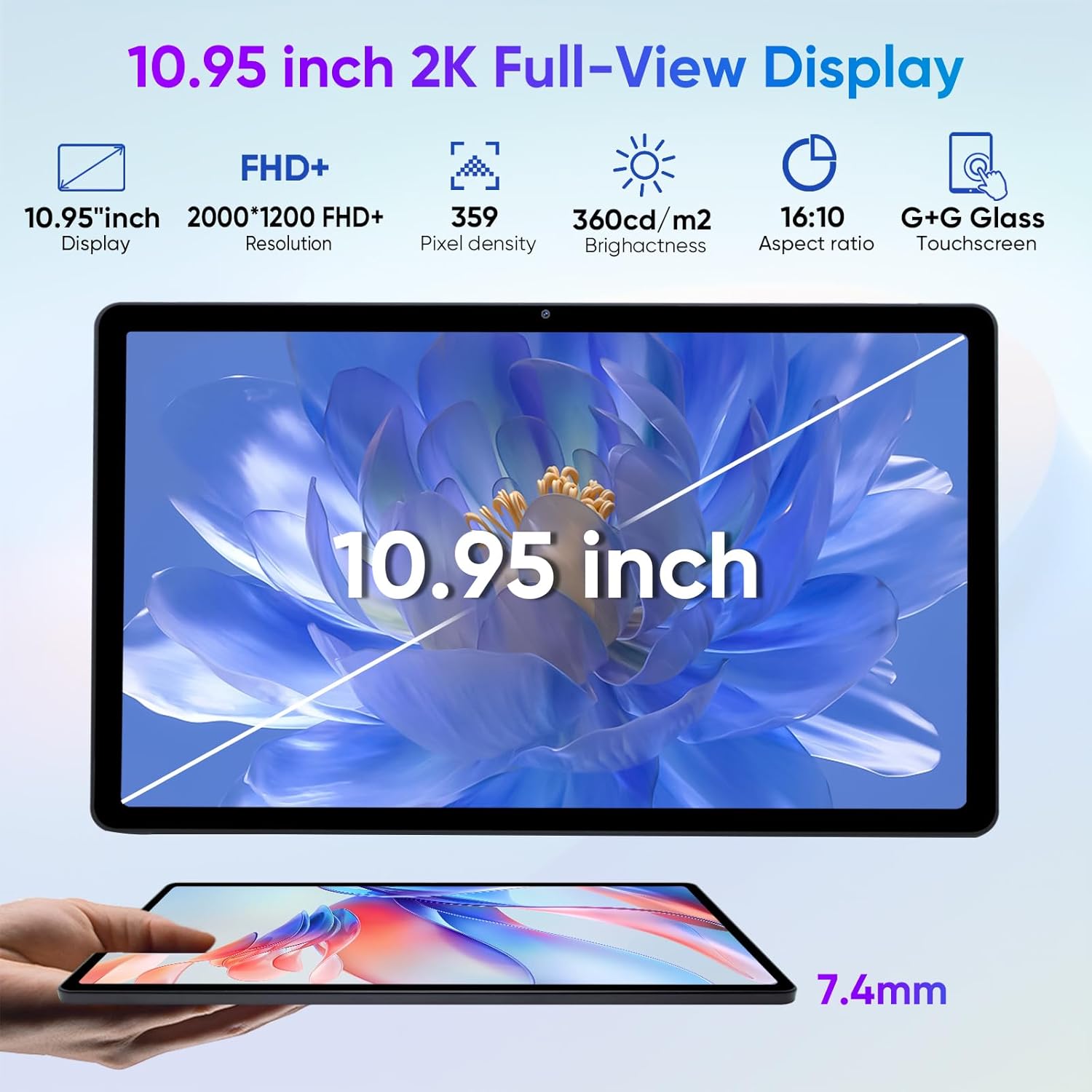
Figure 3: The 10.95-inch 2K Full-View Display.
3.2 Performance and Storage
Equipped with the MediaTek 8183 Octa-Core processor running at 2.0GHz, the tablet ensures smooth operation for various tasks. It comes with 6GB of RAM, expandable by an additional 6GB, and 128GB of internal storage. Storage can be further expanded up to 1TB using a Micro SD card.

Figure 4: Performance and storage capabilities.
3.3 Camera System
The tablet features a 5MP front-facing camera for video calls and selfies, and a 13MP rear-facing camera for capturing high-definition photos and videos.

Figure 5: Front and Rear Camera specifications.
3.4 Battery and Connectivity
A 7000mAh long-lasting battery powers the device, providing extended usage time. Connectivity options include 2.4GHz and 5GHz WiFi for stable and fast internet access, Bluetooth 5.0 for wireless accessories, and GPS for navigation.

Figure 6: Battery capacity and charging port.
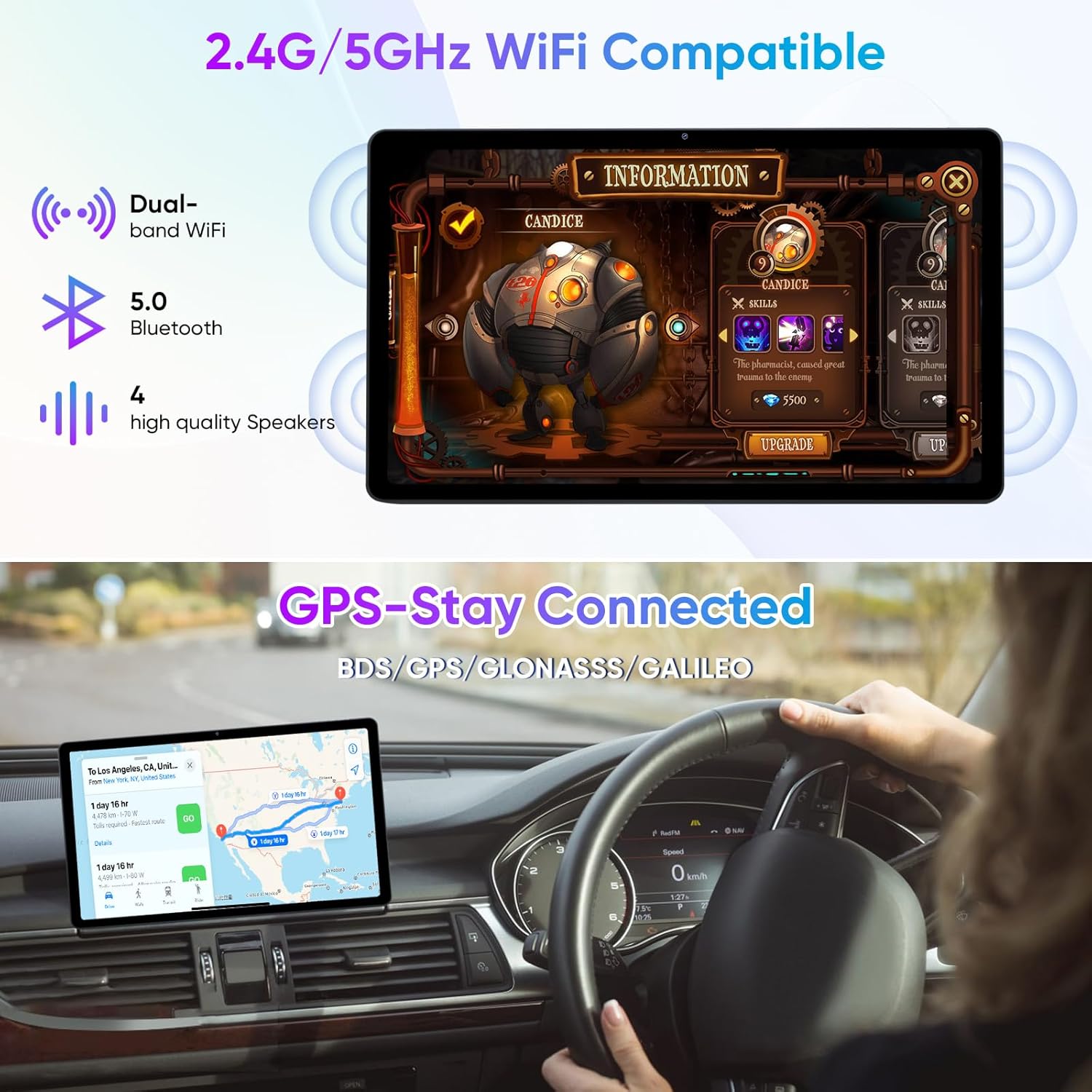
Figure 7: Wireless connectivity features.
4. Setup Guide
4.1 Initial Power On and Setup Wizard
- Charge the Tablet: Before first use, connect the tablet to the AC charger using the provided USB-Type C cable. Allow it to charge fully.
- Power On: Press and hold the Power button located on the side of the tablet until the screen lights up.
- Follow On-Screen Prompts: The Android 13 setup wizard will guide you through initial configurations, including:
- Language selection
- Wi-Fi network connection
- Google account sign-in or creation
- Date and time settings
- Privacy settings and permissions
- Install Screen Protector: Carefully apply the included screen protector to prevent scratches.
- Attach Tablet Case: Place the tablet into the provided protective case for added durability.
Video 1: An overview of the weelikeit tablet's features and components, including its display, cameras, and accessories. This video can assist with initial setup and understanding the device's physical aspects.
5. Operating Instructions
5.1 Android 13 Features
The tablet operates on the Android 13 system, which offers enhanced privacy controls, a stable user interface, and faster performance. You can download applications from the Google Play Store, which is GMS-certified.

Figure 8: Android 13 operating system features.
5.2 Parental Control with Google Family Link
To create a safe online environment for children, you can set up parental controls using Google's Family Link. This allows parents to supervise the tablet remotely, set screen time limits, and add restrictions to Google services.
5.3 Split-Screen Functionality
The tablet supports split-screen mode, enabling you to run and view two applications simultaneously. This feature enhances multitasking, allowing you to browse content while watching a video or chatting.

Figure 9: Tablet displaying split-screen functionality.
5.4 Wireless Projection
You can wirelessly project the tablet's screen to a larger TV or monitor for an enhanced viewing experience, ideal for movies, presentations, or gaming.

Figure 10: Wireless projection in use.
6. Maintenance and Care
- Cleaning: Use a soft, lint-free cloth to clean the screen and body of the tablet. Avoid abrasive cleaners or solvents.
- Temperature: Do not expose the tablet to extreme temperatures (hot or cold) or direct sunlight for prolonged periods.
- Water Exposure: The tablet is not waterproof. Avoid contact with liquids.
- Storage: When not in use for extended periods, store the tablet in a cool, dry place.
- Battery Care: To prolong battery life, avoid fully discharging the battery frequently. Charge the tablet regularly.
7. Troubleshooting
| Problem | Possible Cause | Solution |
|---|---|---|
| Tablet does not power on. | Low battery; system crash. | Charge the tablet for at least 30 minutes. Press and hold the Power button for 10-15 seconds to force restart. |
| Screen is unresponsive. | Temporary software glitch. | Restart the tablet. If issue persists, perform a factory reset (data will be lost). |
| Wi-Fi connection issues. | Incorrect password; router issue; tablet Wi-Fi disabled. | Ensure Wi-Fi is enabled. Re-enter Wi-Fi password. Restart your Wi-Fi router. |
| Applications crashing or freezing. | Insufficient RAM; app bug; outdated app. | Close background apps. Clear app cache/data. Update the app from Google Play Store. |
8. Specifications
| Feature | Detail |
|---|---|
| Brand | weelikeit |
| Model Name | P39W |
| Operating System | Android 13 |
| Screen Size | 10.95 Inches |
| Screen Resolution | 2000x1200 Pixels (2K FHD) |
| Processor | MediaTek 8183 Octa-Core, 2.0 GHz |
| RAM | 6GB (expandable by 6GB) |
| Internal Storage | 128GB |
| Expandable Storage | Up to 1TB Micro SD card |
| Front Camera | 5MP |
| Rear Camera | 13MP |
| Battery Capacity | 7000mAh |
| Wireless Connectivity | 2.4G/5G WiFi, Bluetooth 5.0 |
| Navigation | GPS |
| Dimensions (LxWxH) | 10.13 x 6.41 x 0.29 inches |
| Item Weight | 1.11 pounds |
| Color | Gray |
9. Warranty and Support
For warranty information, technical support, or service inquiries, please refer to the contact details provided on the product packaging or visit the official weelikeit website. Keep your purchase receipt as proof of purchase for warranty claims.
Online Support: For frequently asked questions and additional resources, please visit the weelikeit support page.
Related documentsP39W


Ask a question about this manual
Ask about setup, troubleshooting, compatibility, parts, safety, or missing instructions. Manuals+ will review the question and use this page’s manual context to help answer it.