
Introduction
This manual provides detailed instructions for the setup, operation, and maintenance of your MageGee SKY 87 75% Mechanical Gaming Keyboard. Designed for both gaming and office use, this compact 87-key keyboard features tactile brown switches, ice blue LED backlighting, and broad compatibility.
1. Setup
1.1 Package Contents
- MageGee SKY 87 Mechanical Gaming Keyboard
- USB-A Cable (Wired Connection)
- Keycap Puller (for maintenance)
1.2 Connecting the Keyboard
The MageGee SKY 87 keyboard uses a wired USB-A connection. To connect:
- Plug the USB-A cable into the USB port on the keyboard.
- Connect the other end of the USB-A cable to an available USB port on your computer (PC, Mac, or laptop).
- The keyboard is plug-and-play and should be recognized automatically by your operating system.
2. Operating Instructions
2.1 Backlighting Control
The keyboard features ice blue LED backlighting with multiple modes and adjustable settings.
- Change Backlighting Mode: Press Fn + PrtSc to cycle through 20 preset ice blue backlighting modes.
- Adjust Brightness: Press Fn + ↑ (Up Arrow) to increase brightness, and Fn + ↓ (Down Arrow) to decrease brightness.
- Adjust Flowing Speed: Press Fn + - to decrease flowing speed, and Fn + = to increase flowing speed (for dynamic modes).

Image: The MageGee SKY 87 keyboard showcasing its vibrant ice blue LED backlighting and customizable light effects.
2.2 Tactile Brown Switches
The keyboard is equipped with tactile brown switches, offering a balanced typing experience with a noticeable bump without a loud click, suitable for both typing and gaming.

Image: A close-up view of the keyboard demonstrating the tactile brown switches and a keycap puller for easy removal.
2.3 Ergonomic Design and Side Lighting
The keyboard features stepped keycaps and a two-stage adjustable stand for ergonomic comfort. Additionally, an ice blue LED light strip on the bottom provides enhanced visual effects.

Image: The keyboard highlighting its distinctive ice blue side lighting, which enhances the aesthetic in low-light conditions.

Image: An illustration detailing the two-step adjustable keyboard feet, allowing users to set the keyboard at high or low angles for personalized comfort.
2.4 Compact TKL Layout (87 Keys)
The 75% Tenkeyless (TKL) design provides a compact footprint with 87 keys, including independent arrow keys, saving desk space while retaining essential functionality.
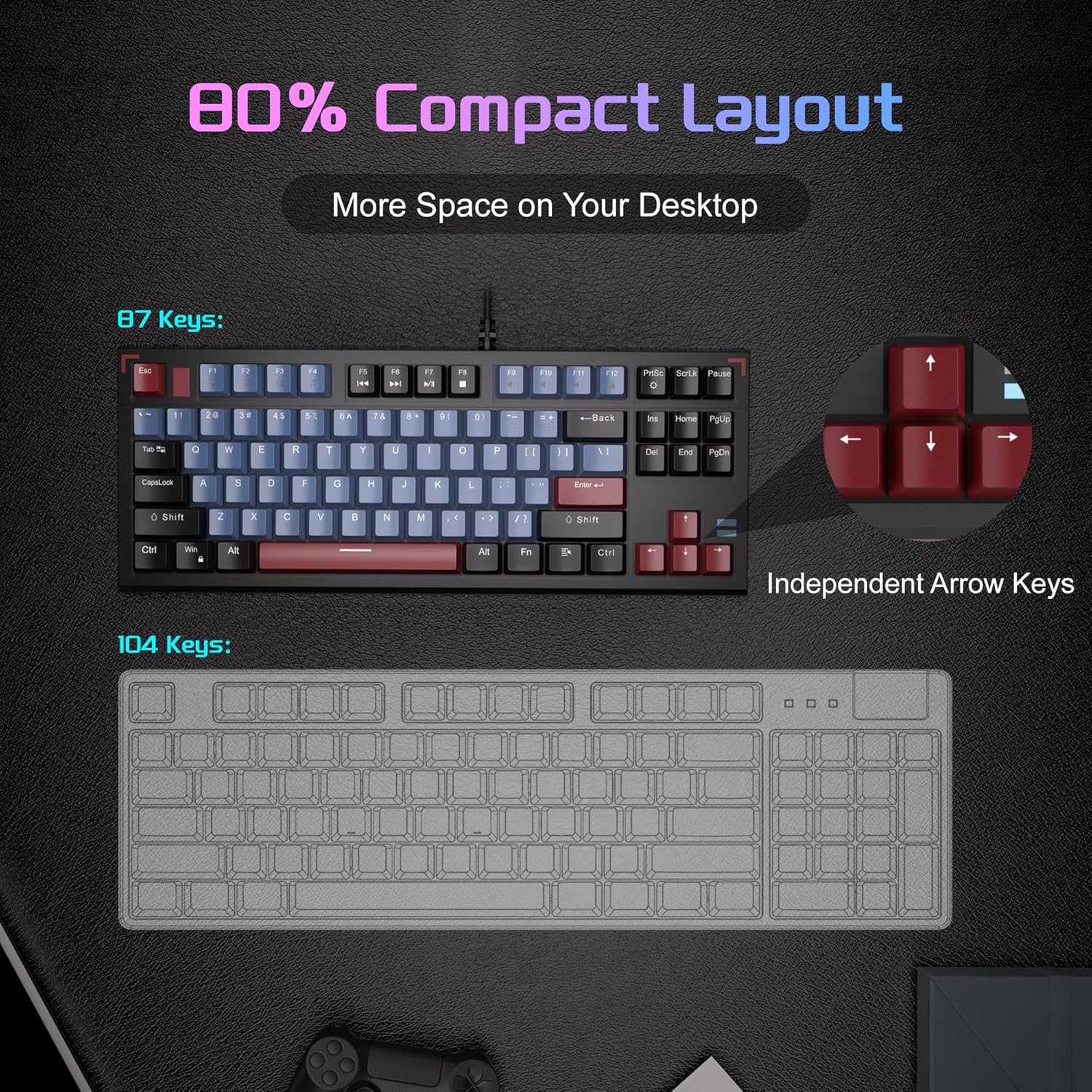
Image: A visual comparison illustrating the compact 87-key layout of the MageGee SKY 87 keyboard next to a standard 104-key keyboard, emphasizing space-saving benefits.
2.5 N-Key Rollover (Anti-Ghosting)
The keyboard supports 100% N-key rollover, meaning all keys can be pressed simultaneously without conflict, ensuring every keystroke is registered accurately during intense gaming or fast typing.

Image: A diagram showing how multiple key presses are registered simultaneously without ghosting, highlighting the N-key rollover feature.
2.6 Multimedia Shortcuts
Access various multimedia functions using the Fn key in combination with the F-keys.
| Function Key Combination | Description |
|---|---|
| Fn + F1 | My Computer |
| Fn + F2 | Search |
| Fn + F3 | Calculator |
| Fn + F4 | Media Player |
| Fn + F5 | Previous Track |
| Fn + F6 | Next Track |
| Fn + F7 | Play/Pause |
| Fn + F8 | Stop |
| Fn + F9 | Mute |
| Fn + F10 | Volume Down |
| Fn + F11 | Volume Up |
| Fn + F12 | Lock Screen |

Image: The keyboard layout highlighting the F-keys and their corresponding multimedia functions when used with the Fn key.
3. Maintenance
3.1 Cleaning the Keyboard
To ensure optimal performance and longevity, regular cleaning is recommended.
- Disconnect the keyboard from your computer before cleaning.
- Use a soft brush or compressed air to remove dust and debris from between the keycaps.
- For stubborn dirt, gently wipe the keycaps and keyboard surface with a slightly damp, lint-free cloth. Avoid excessive moisture.
- Do not use harsh chemicals or abrasive cleaners.
3.2 Keycap Removal and Replacement
The included keycap puller can be used to remove and replace keycaps for cleaning or customization.
- Gently attach the keycap puller to the keycap you wish to remove.
- Pull straight up with even pressure until the keycap detaches from the switch.
- To replace, align the keycap with the switch stem and press down firmly until it clicks into place.

Image: The keyboard with some keycaps removed, illustrating the possibility of customization or deep cleaning.
4. Troubleshooting
If you encounter issues with your MageGee SKY 87 keyboard, refer to the following common solutions:
- Keyboard Not Responding:
- Ensure the USB cable is securely connected to both the keyboard and the computer.
- Try plugging the keyboard into a different USB port on your computer.
- Restart your computer.
- Backlighting Not Working or Incorrect:
- Check if the brightness is set too low (Fn + ↑/↓).
- Cycle through lighting modes using Fn + PrtSc.
- Specific Keys Not Working:
- Remove the keycap and check for any obstructions or debris around the switch.
- If the issue persists, contact customer support.
5. Specifications
| Feature | Detail |
|---|---|
| Brand | MageGee |
| Model Number | SKY 87 |
| Connectivity Technology | USB-A (Wired) |
| Keyboard Description | Mechanical |
| Switch Type | Tactile Brown Switches |
| Number of Keys | 87 |
| Keyboard Layout | QWERTY |
| Backlighting | Ice Blue LED (Single Color) |
| Special Features | Backlit, Ergonomic, Multimedia Keys, Portable |
| Compatible Devices | Laptop, PC (Windows, Mac) |
| Product Dimensions (L x W x H) | 14.37" x 5.51" x 1.69" |
| Material | Acrylonitrile Butadiene Styrene (ABS) |
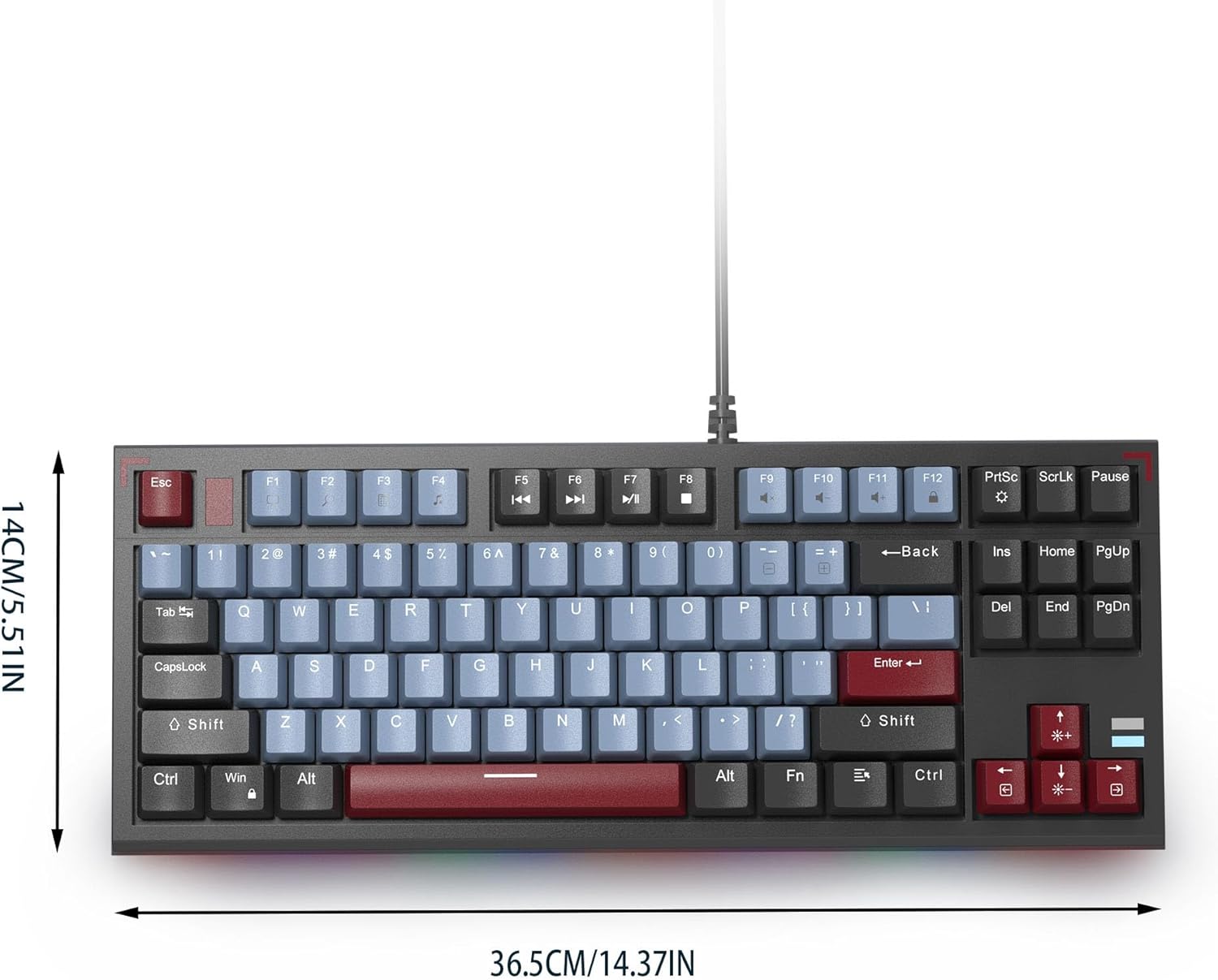
Image: The MageGee SKY 87 keyboard with its physical dimensions clearly indicated.
6. Warranty and Support
For warranty information and technical support, please refer to the official MageGee website or contact their customer service directly. Keep your purchase receipt for warranty claims.