
TCKN TCKN USB Charger Cable Cord
TCKN USB Type-C Charging and Data Cable User Manual
Model: TCKN USB Charger Cable Cord
Introduction
This manual provides detailed instructions for the safe and effective use of your TCKN USB Type-C Charging and Data Cable. This 2-in-1 cable is designed for both power charging and data transfer, offering reliable performance for a wide range of compatible devices. Please read this manual thoroughly before use to ensure optimal functionality and longevity of your cable.
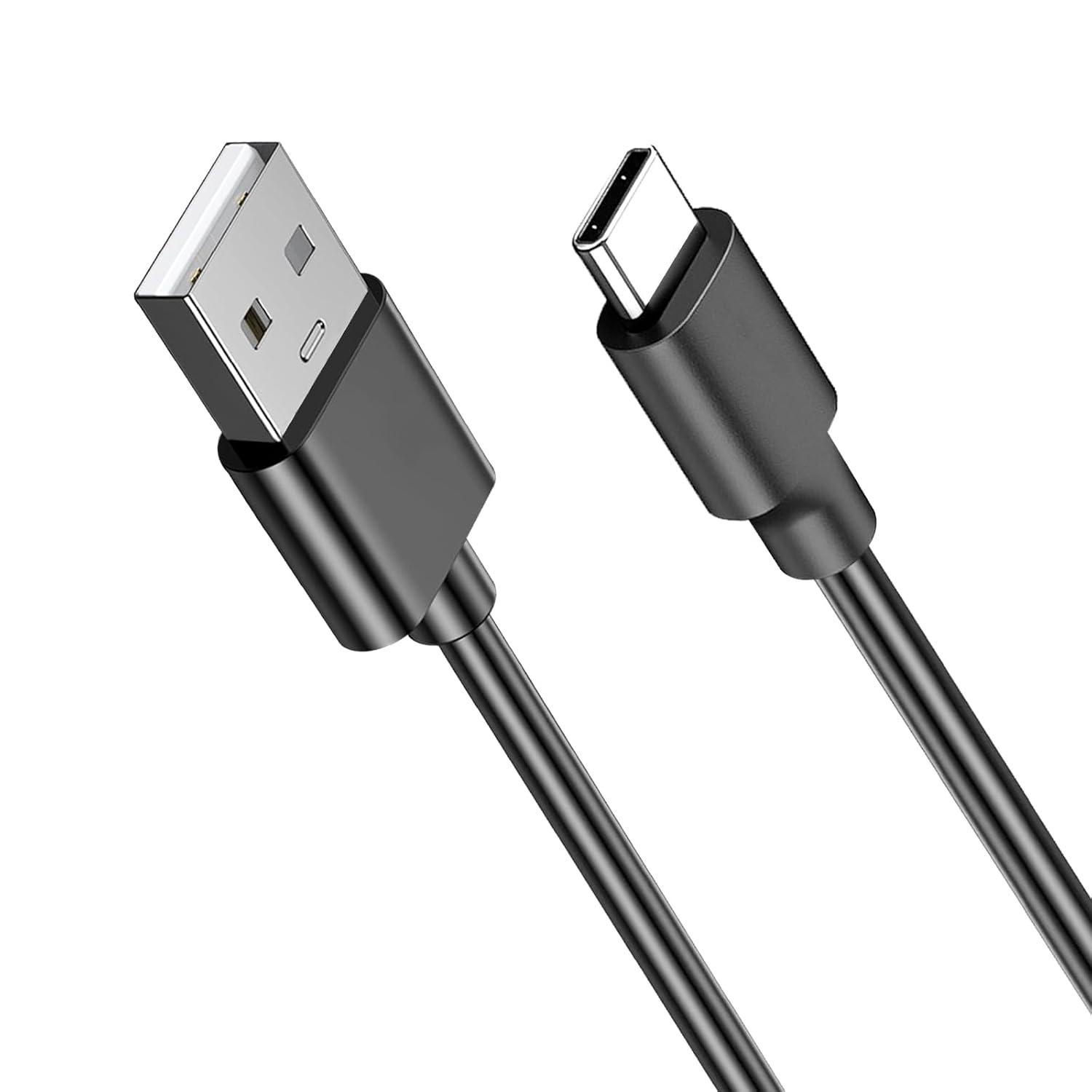
Image: The TCKN USB Type-C Charging and Data Cable, featuring a USB-A connector on one end and a USB-C connector on the other, designed for versatile connectivity.
Setup and Connection
The TCKN USB Type-C cable is designed for plug-and-play functionality. No special software or drivers are required for basic charging and data transfer.
Connecting for Charging:
- Identify the USB-A end of the cable. This end typically connects to a power source.
- Insert the USB-A end into a compatible USB wall adapter, power bank, computer USB port, or other charging device.
- Identify the USB Type-C end of the cable. This end connects to your device.
- Insert the USB Type-C end into the charging port of your compatible device (e.g., keyboard, mouse, headset, smartphone, tablet).
- Ensure both connections are secure. Your device should indicate that it is charging.
Connecting for Data Transfer:
- Insert the USB-A end into a USB port on your computer or host device.
- Insert the USB Type-C end into the USB-C port of your compatible device (e.g., smartphone, tablet, external hard drive).
- Once connected, your computer should recognize the device, allowing for data transfer operations. Follow your device's specific instructions for accessing and managing files.
Operating Instructions
The TCKN USB Type-C cable functions as a reliable conduit for both power and data. Its operation is straightforward, requiring only proper connection to compatible devices.
Charging Functionality:
When connected to a power source and a compatible device, the cable facilitates efficient power delivery. The cable supports fast charging protocols, enabling quicker replenishment of battery life for supported devices. Charging speed may vary based on the power source and the device's charging capabilities.

Image: A smartphone connected to a laptop via the TCKN USB Type-C cable, illustrating high-speed charging with an 80% charge achieved in 1 hour, demonstrating efficient power delivery.
Data Transfer Functionality:
Beyond charging, this cable also supports data synchronization. This allows you to transfer files, photos, videos, and other data between your computer and compatible USB-C devices. The data transfer speed will depend on the USB standard supported by both the host device and the connected peripheral (e.g., USB 2.0, USB 3.0).

Image: A smartphone connected to a laptop, demonstrating the cable's dual functionality for both charging and data transfer, highlighting its versatility.
Compatibility
The TCKN USB Type-C Charging and Data Cable is designed for broad compatibility with devices featuring a USB Type-C port for charging and data transfer. Key compatible devices include:
- Logitech G733 Headsets
- Turtle Beach Stealth 600 Gen 2 Headsets
- Turtle Beach Stealth 700 Gen 2 Headsets
- Logitech MX Keys Advanced Keyboard
- Logitech MX Master 3/3S Mouse
- Logitech MX Vertical Mouse
- Logitech Anywhere 3/3S Mouse
- Other USB-C port mice and keyboards
- Various smartphones, tablets, and other electronic devices with a USB Type-C charging port.
Note: Please verify the charging port type of your device before purchasing to ensure compatibility.

Image: An array of devices including tablets, Bluetooth headsets, PS5/Xbox Series controllers, and phones, demonstrating the universal compatibility of the TCKN USB Type-C cable.
Key Features
- 2-in-1 Functionality: Supports both fast charging and data synchronization simultaneously.
- Extended Length: The cable measures 6.6 feet (2 meters), providing ample reach for convenient use in various environments such as living rooms, bedrooms, offices, or vehicles.

Image: Various devices like game controllers, portable consoles, and laptops surrounding the 6.6-foot TCKN USB Type-C cable, illustrating its extended length and ease of use.
- Durability: Constructed with high-quality materials, the cable is rigorously tested to withstand over 10,000 bending and insertion cycles, ensuring a long service life and resistance to tensile stress.

Image: An illustration showing the cable's flexibility and durability, with a text overlay indicating "10000+ Bend Lifespan," highlighting its robust construction.
- Safety Features: Includes built-in short circuit protection to safeguard your devices during charging.
- Portable Design: Lightweight and easy to carry, making it ideal for travel and daily use.
Maintenance and Care
Proper care and maintenance will extend the lifespan of your TCKN USB Type-C cable.
- Storage: When not in use, coil the cable loosely. Avoid tight coiling or sharp bends, which can damage the internal wires. Store in a cool, dry place away from direct sunlight.
- Cleaning: If the cable or connectors become dirty, gently wipe them with a soft, dry, lint-free cloth. Do not use liquid cleaners or abrasive materials.
- Handling: Always grasp the connector head when plugging or unplugging the cable. Avoid pulling directly on the cable itself, as this can strain the connection points and lead to damage.
- Environmental Conditions: Do not expose the cable to extreme temperatures, humidity, or corrosive substances.
Troubleshooting
If you encounter issues with your TCKN USB Type-C cable, please refer to the following common solutions:
| Problem | Possible Cause | Solution |
|---|---|---|
| Device not charging. |
|
|
| Slow charging. |
|
|
| Data transfer not working. |
|
|
If the problem persists after trying these steps, please contact TCKN customer support for further assistance.
Specifications
| Model Number | TCKN USB Charger Cable Cord |
| Connector Type | USB Type A to USB Type C |
| Cable Length | 6.6 Feet (2 Meters) |
| Functionality | Charging and Data Transfer |
| Special Features | Fast Charging, Data Transfer, Short Circuit Protection, Easy to Carry |
| Material | Durable construction for long lifespan (10000+ bend lifespan) |
| Package Contents | 1x 6.6 Feet Type C Charging Cord |
Warranty and Support
TCKN is committed to providing high-quality products and excellent customer service.
Customer Support:
If you have any questions, concerns, or require assistance with your TCKN USB Type-C Charging and Data Cable, please do not hesitate to contact our customer service team. We provide 24-hour online service to assist you.
For inquiries, please refer to the contact information provided with your purchase or visit the official TCKN store on Amazon:
Visit the TCKN Store on Amazon
Warranty Information:
Specific warranty details may vary. Please retain your proof of purchase for any warranty claims. TCKN stands behind the quality of its products and will provide support for manufacturing defects.
Ask a question about this manual
Ask about setup, troubleshooting, compatibility, parts, safety, or missing instructions. Manuals+ will review the question and use this page’s manual context to help answer it.