
1. Introduction
Thank you for choosing the Tayfun Senna 43SN6000F Android Smart TV Remote Control. This remote is designed to provide seamless control over your compatible Android Smart TV, offering a wide range of functions from basic channel and volume adjustments to smart TV navigation and app shortcuts. Please read this manual carefully to ensure proper use and to maximize your viewing experience.
2. Safety Information
- Do not expose the remote control to direct sunlight, heat sources, or extreme temperatures.
- Avoid dropping the remote control or subjecting it to strong impacts.
- Do not immerse the remote control in water or any other liquid.
- Keep batteries out of reach of children. If swallowed, seek immediate medical attention.
- Replace all batteries at the same time. Do not mix old and new batteries or different types of batteries.
- Dispose of used batteries according to local regulations.
3. Package Contents
- 1 x Tayfun Senna 43SN6000F Android Smart TV Remote Control
4. Product Overview: Buttons and Functions
The Tayfun Senna 43SN6000F remote control features a comprehensive layout for intuitive operation of your Android Smart TV. Refer to the images below for a visual guide to the buttons.
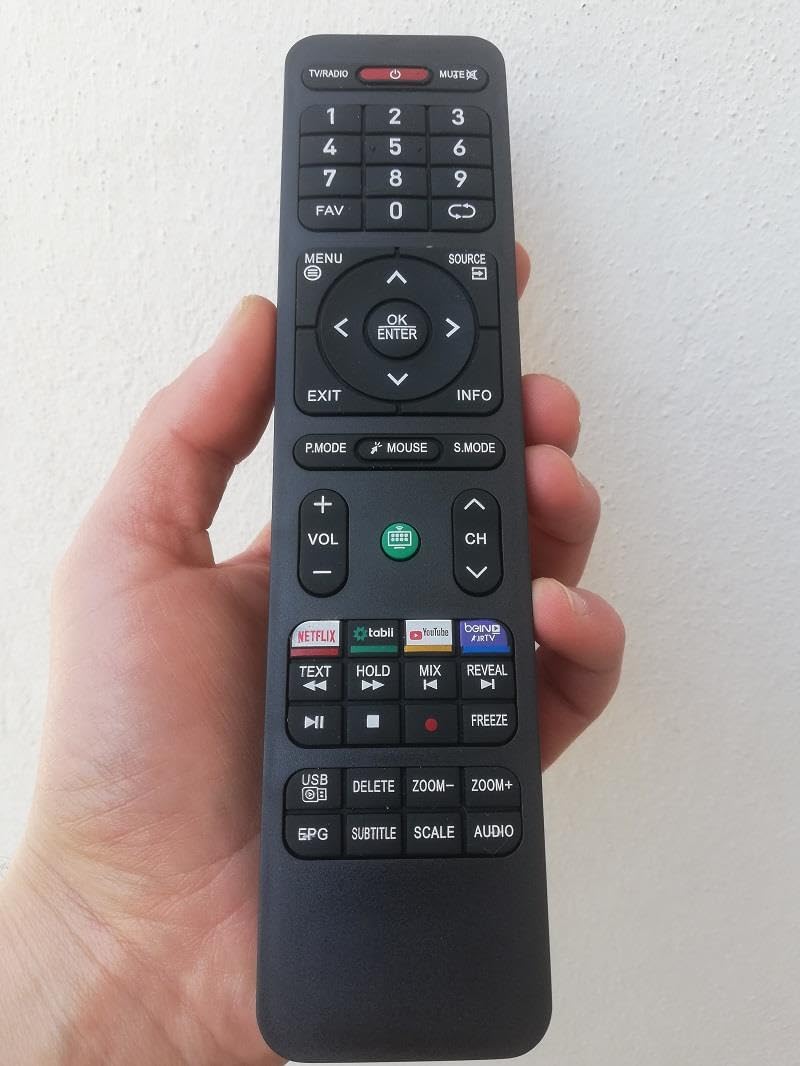
Figure 4.1: Front view of the Tayfun Senna 43SN6000F Android Smart TV Remote Control, showing all buttons and their layout.

Figure 4.2: The Tayfun Senna 43SN6000F remote control held in a hand, illustrating its ergonomic design and size.
Button Descriptions:
- TV/RADIO: Switches between TV and Radio modes.
- POWER (Red Button): Turns the TV on or off.
- MUTE: Mutes or unmutes the TV sound.
- 0-9 (Number Pad): Directly selects channels or enters numerical input.
- FAV: Accesses favorite channels list.
- SOURCE: Selects input sources (HDMI, AV, etc.).
- MENU: Opens the main menu of the TV.
- EXIT: Exits the current menu or function.
- Navigation Pad (Up, Down, Left, Right, OK/ENTER): Navigates through menus and confirms selections.
- INFO: Displays information about the current program or input.
- P.MODE: Cycles through picture modes.
- MOUSE: Activates/deactivates mouse pointer function (if supported by TV).
- S.MODE: Cycles through sound modes.
- VOL +/-: Adjusts the volume level.
- CH ^/v: Changes channels up or down.
- NETFLIX, tabii, YouTube, D-Smart Go (App Shortcut Buttons): Direct access to specified streaming applications.
- TEXT: Opens teletext (if available).
- HOLD: Holds teletext page.
- MIX: Mixes teletext with TV picture.
- REVEAL: Reveals hidden teletext information.
- Media Control Buttons (Play/Pause, Stop, Rewind, Fast Forward): Controls media playback.
- FREEZE: Freezes the current screen.
- USB: Accesses USB media content.
- EPG: Opens Electronic Program Guide.
- DELETE: Deletes selected items.
- SUBTITLE: Toggles subtitles on/off.
- ZOOM -/+: Zooms in or out on the screen.
- SCALE: Adjusts screen aspect ratio.
- AUDIO: Selects audio tracks or languages.
5. Setup
5.1. Battery Installation
- Locate the battery compartment cover on the back of the remote control.
- Slide the cover downwards or press the latch to open it.
- Insert two AAA batteries (not included), ensuring the positive (+) and negative (-) terminals match the diagrams inside the compartment.
- Replace the battery compartment cover, sliding it back into place until it clicks securely.
5.2. Initial Use
The Tayfun Senna 43SN6000F remote control operates using infrared (IR) technology. No complex pairing is required. Simply point the remote control directly at the IR receiver on your compatible TV. Ensure there are no obstructions between the remote and the TV.
6. Operating Instructions
6.1. Basic TV Control
- Power On/Off: Press the POWER button once.
- Volume Adjustment: Use the VOL +/- buttons.
- Channel Change: Use the CH ^/v buttons or the Number Pad for direct entry.
- Input Source: Press the SOURCE button to cycle through available inputs (HDMI, AV, etc.).
6.2. Smart TV Navigation
- Access Menu: Press the MENU button to open the TV's main menu or smart interface.
- Navigate: Use the Up, Down, Left, Right arrows on the navigation pad to move through options.
- Select: Press the OK/ENTER button to confirm a selection.
- Exit: Press the EXIT button to return to the previous screen or exit the menu.
6.3. App Shortcuts
Dedicated buttons for NETFLIX, tabii, YouTube, and D-Smart Go provide quick access to these popular streaming services. Simply press the desired button to launch the application directly (internet connection and subscription may be required).
7. Maintenance
- Cleaning: Wipe the remote control with a soft, dry cloth. Do not use abrasive cleaners or solvents.
- Battery Replacement: If the remote control's range decreases or it becomes unresponsive, replace the batteries as described in Section 5.1.
- Storage: When not in use for extended periods, remove the batteries to prevent leakage and store the remote in a cool, dry place.
8. Troubleshooting
- Remote not working:
- Check if the batteries are inserted correctly with the correct polarity.
- Replace old batteries with new ones.
- Ensure there is a clear line of sight between the remote control's IR emitter and the TV's IR receiver.
- Make sure the TV is powered on.
- Limited functionality:
- Verify that your TV is a compatible Android Smart TV model (Senna 43SN6000F or similar Tayfun models).
- Some advanced functions or app shortcuts may require specific TV software versions or internet connectivity.
9. Specifications
| Brand | Tayfun |
| Model | Senna 43SN6000F |
| Connectivity Technology | Infrared (IR) |
| Compatible Devices | Televisions (specifically Tayfun Senna Android Smart TVs like 43SN6000F) |
| Power Source | 2 x AAA Batteries (not included) |
10. Warranty and Support
For warranty information and customer support, please refer to the documentation provided with your television or contact the retailer where the remote control was purchased. Keep your purchase receipt as proof of purchase.