
Introduction
This manual provides detailed instructions for the setup, operation, maintenance, and troubleshooting of your ZTE MC888 Ultra 5G Router. The MC888 Ultra is a high-performance 5G router designed to deliver fast and reliable internet connectivity. It supports download speeds up to 3.8 Gbps and upload speeds up to 280 Mbps, features dual Gigabit LAN/WAN ports, and includes an RJ11 port for voice calls via VoIP, VoLTE, or VoNR.
Safety Information
- Read all instructions carefully before using the device.
- Do not open or modify the device. Unauthorized modifications can void your warranty and create safety hazards.
- Use only the power adapter and accessories supplied with the router.
- Keep the device away from water, moisture, and extreme temperatures.
- Ensure proper ventilation around the router to prevent overheating.
- Avoid placing the router near strong electromagnetic fields.
Package Contents
Verify that all items are present in your package:
- ZTE MC888 Ultra 5G Router
- Power Adapter
- Ethernet Cable
- Quick Start Guide (not included in this manual)
Device Overview
Familiarize yourself with the ports and indicators on your ZTE MC888 Ultra 5G Router.
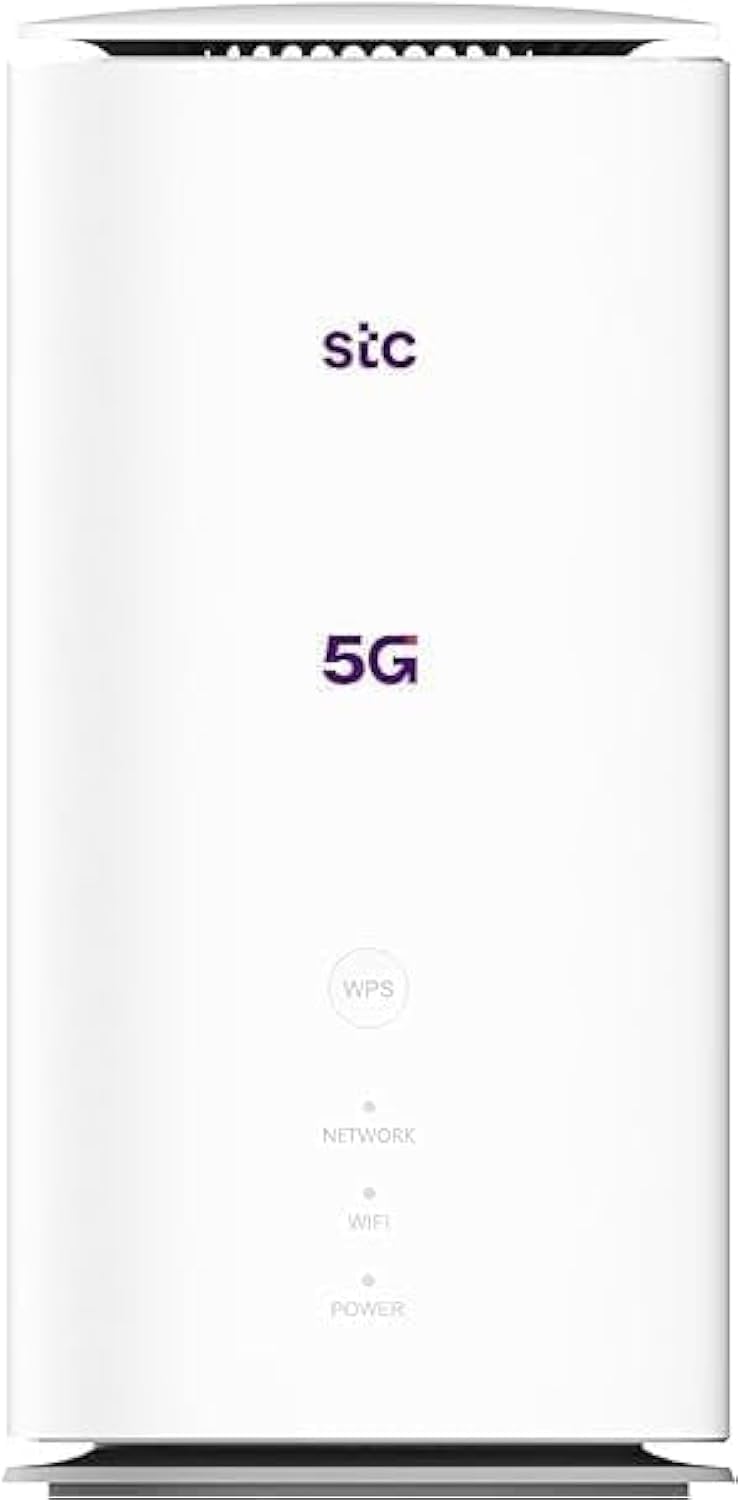
Image: Front and rear view of the ZTE MC888 Ultra 5G Router, showing LED indicators, SIM card slot, power port, LAN/WAN ports, and RJ11 port.
Front Panel Indicators:
- Power LED: Indicates power status.
- Network LED: Indicates 5G/4G network connection status.
- Wi-Fi LED: Indicates Wi-Fi activity.
Rear Panel Ports:
- Power Port: Connects to the power adapter.
- LAN/WAN Ports (x2): Gigabit Ethernet ports for wired connections or WAN input.
- RJ11 Port: For connecting a telephone for VoIP, VoLTE, or VoNR calls.
- SIM Card Slot: For inserting your 5G/4G SIM card.
- Reset Button: Used to restore factory default settings.
Setup
1. Insert SIM Card
- Ensure the router is powered off.
- Locate the SIM card slot on the rear panel.
- Insert a standard Nano-SIM card into the slot with the gold contacts facing down and the notched corner oriented correctly. Push until it clicks into place.
2. Connect Power
- Connect the supplied power adapter to the router's power port.
- Plug the other end of the power adapter into a wall outlet.
3. Power On
- The router will automatically power on. Wait for the Power LED to turn solid, and the Network LED to indicate a stable 5G/4G connection. This may take a few minutes.
4. Connect Devices
- Wi-Fi Connection: Find the Wi-Fi network name (SSID) and password printed on the label at the bottom of the router. Select this network on your device (smartphone, laptop, etc.) and enter the password.
- Ethernet Connection: Use the provided Ethernet cable to connect your computer or other network device to one of the LAN/WAN ports on the router.
Operating
Accessing the Web Interface
- Open a web browser on a device connected to the router.
- Enter the router's default IP address (e.g., 192.168.0.1 or 192.168.1.1) into the address bar and press Enter. The exact IP address is usually found on the router's label.
- Enter the default username and password (also found on the router's label) to log in.
Changing Wi-Fi Settings
From the web interface, navigate to the Wi-Fi settings section to change your SSID, password, security type, or enable/disable guest networks.
RJ11 Voice Call Functionality
The RJ11 port allows you to connect a standard analog telephone. You can manage sending and receiving calls via a configured VoIP account, or through VoLTE or VoNR, depending on your mobile operator's compatibility and SIM card support. Refer to your service provider for specific setup details.
Access Point Mode
The router supports Access Point (AP) mode, allowing it to extend an existing wired network wirelessly. This feature can be configured through the web interface under network settings.
Maintenance
Firmware Updates
Periodically check the router's web interface for available firmware updates. Keeping your firmware up-to-date ensures optimal performance, security, and access to new features. Follow the on-screen instructions for safe updating.
Cleaning
Clean the router with a soft, dry cloth. Do not use liquid cleaners or aerosols. Ensure the device is powered off before cleaning.
Factory Reset
If you experience persistent issues or forget your login credentials, you can perform a factory reset. With the router powered on, use a pin to press and hold the Reset button on the rear panel for approximately 5-10 seconds until the indicators flash. The router will restart with default settings.
Troubleshooting
- No Internet Connection: Check the Network LED. If it's off or red, ensure the SIM card is correctly inserted and has an active data plan. Try restarting the router.
- Slow Wi-Fi Speed: Ensure your devices are within range. Reduce interference from other electronic devices. Try changing the Wi-Fi channel in the web interface.
- Cannot Access Web Interface: Verify your device is connected to the router via Wi-Fi or Ethernet. Double-check the IP address and login credentials. Try clearing your browser's cache.
- Wi-Fi Disconnections: Update router firmware. Ensure the router is placed in a central location. Check for conflicting Wi-Fi networks.
Specifications
| Brand | ZTE |
| Model Name | MC888 Ultra |
| Model Number | MC888 ULTRA |
| Connectivity Technology | Wi-Fi, 5G/4G Cellular |
| Wireless Standard | 802.11ac |
| Frequency Band Class | Dual-Band |
| Max Download Speed | 3.8 Gbps |
| Max Upload Speed | 280 Mbps |
| LAN Port Bandwidth | 1000 Mbps (Gigabit) |
| Number of Ports | 2 x Gigabit LAN/WAN, 1 x RJ11 |
| Antenna Type | Internal |
| Security Protocol | WPS |
| Special Features | Access Point Mode, RJ11 for VoIP/VoLTE/VoNR |
| RAM | 4 GB |
| Compatible Devices | PC, Laptop, Smartphone, Tablet, Gaming Console, Smart TV, Surveillance Camera, Printer, Ethernet-enabled devices |
| Included Components | Router, Ethernet Cable, Charger |
Warranty and Support
Warranty Information
The ZTE MC888 Ultra 5G Router comes with a 2-year agent warranty. Please retain your proof of purchase for warranty claims. The warranty covers manufacturing defects and malfunctions under normal use. It does not cover damage caused by misuse, accidents, unauthorized repairs, or acts of nature.
Customer Support
For technical assistance, warranty service, or further inquiries, please contact your local ZTE authorized service center or the retailer from whom you purchased the product. You may also visit the official ZTE website for support resources and FAQs.


