
Introduction
This manual provides detailed instructions for setting up and operating your Majority Frameo Snap10 WiFi Digital Picture Frame. This 10.1-inch digital frame allows you to display photos and videos shared via the Frameo app, offering a convenient way to share memories with family and friends. It features a touchscreen, 32GB of internal storage, auto-rotate functionality, and a motion sensor for efficient use.

The Majority Frameo Snap10 Digital Picture Frame, showcasing a family photo on its 10.1-inch screen.
What's in the Box
Please check the package contents to ensure all items are present:
- Majority Frameo Snap10 Digital Picture Frame
- Kickstand
- Power Adapter
- Remote Control
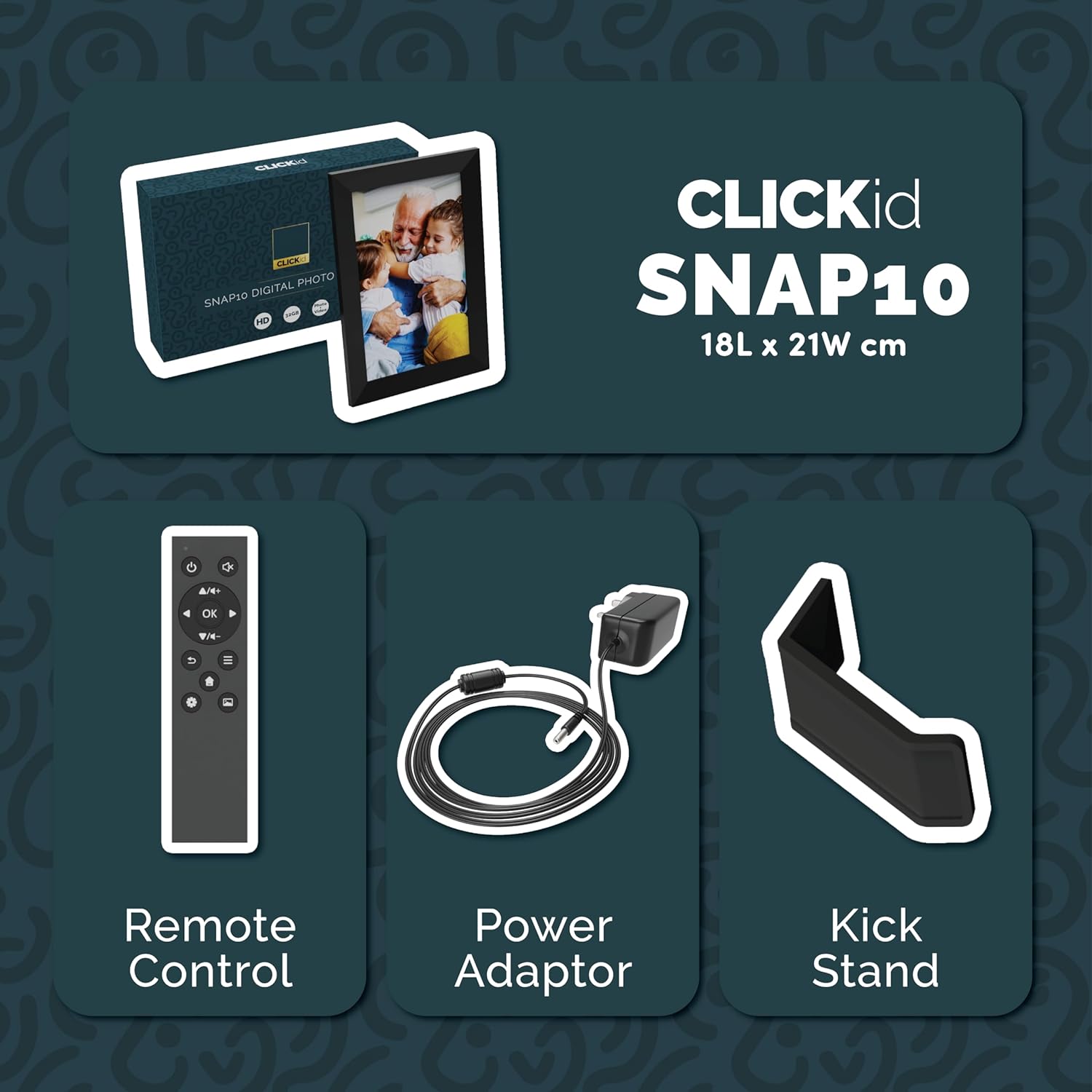
Included accessories: Remote Control, Power Adapter, and Kickstand.
Setup Guide
- Unpack the Frame: Carefully remove the digital picture frame and all accessories from the packaging.
- Attach the Kickstand: Insert the kickstand into the designated slot on the back of the frame. The frame supports both horizontal and vertical orientations.
- Connect Power: Plug the power adapter into the DC port on the back of the frame, then connect it to a power outlet. The frame will automatically power on.
- Initial Setup: Follow the on-screen instructions to select your language, time zone, and connect to a Wi-Fi network.
- Install Frameo App: Download the "Frameo" app from your smartphone's app store (available for iOS and Android).
- Connect Frame to App: Open the Frameo app and create an account. On your digital frame, tap "Add Friend" to get a unique code. Enter this code into the Frameo app on your smartphone to link the devices.

The back of the frame features essential ports for power, USB, and Micro SD card.
Operating Instructions
Sending Photos and Videos
Once your frame is connected to the Frameo app, you can easily send photos and short videos from your smartphone.
- Open the Frameo app on your smartphone.
- Select the photos or videos you wish to send.
- Choose the connected digital frame as the recipient.
- Add a caption if desired, then tap "Send."

The Frameo app simplifies photo and video uploads from your smartphone.
Using the Touchscreen
The 10.1-inch LCD touchscreen allows for intuitive navigation. Swipe left or right to browse photos, tap to view options, and pinch to zoom.
Remote Control Functions
The included remote control provides convenient access to various frame functions from a distance.
- Navigation: Use arrow keys to move through menus and photos.
- OK/Enter: Confirm selections.
- Back: Return to the previous screen.
- Play/Pause: Control slideshows or video playback.
- Volume: Adjust audio for videos.

The included remote control for convenient operation.
Motion Sensor
The integrated motion sensor can be enabled to automatically turn the display on when movement is detected and off when the area is vacant, conserving energy. This setting can be adjusted in the frame's system settings.
Auto-Rotate Function
The frame automatically adjusts the photo orientation (portrait or landscape) based on how the frame is positioned. Ensure the auto-rotate feature is enabled in the settings for optimal display.

The auto-rotate feature adjusts display based on frame orientation.
Features Overview
- 10.1-inch LCD Touchscreen: Provides a clear display and interactive control.
- 32GB Internal Storage: Ample space to store thousands of photos and videos.
- Wi-Fi Connectivity: Enables seamless photo and video sharing from anywhere via the Frameo app.
- Frameo App Integration: Manage your frame, send media, and invite friends/family to share their moments.
- Motion Sensor: Automatically turns the screen on/off to save energy.
- Auto-Rotate: Adjusts photo orientation automatically.
- Weather and Calendar Display: Integrated widgets provide current weather and calendar information.
- Memory Card Slot: Supports Micro SD cards for additional storage or direct media import.
Maintenance
- Cleaning: Use a soft, dry cloth to clean the screen and frame. Avoid abrasive cleaners or sprays directly on the screen.
- Software Updates: The frame may receive automatic software updates via Wi-Fi. Ensure your frame is connected to the internet to receive the latest features and improvements.
- Storage Management: Periodically review your stored photos and videos. You can delete unwanted media directly from the frame or through the Frameo app to free up space.
Troubleshooting
- Frame not powering on:
- Ensure the power adapter is securely connected to both the frame and a working power outlet.
- Cannot connect to Wi-Fi:
- Verify your Wi-Fi password. Ensure the frame is within range of your Wi-Fi router. Try restarting your router and the frame.
- Photos not appearing on the frame:
- Confirm that the frame is connected to Wi-Fi and linked to your Frameo app account. Check the Frameo app to ensure photos were successfully sent. Allow some time for photos to download, especially large batches.
- Frame is stuck on a white screen with a loading bar:
- This may indicate a software issue. Try performing a soft reset by disconnecting the power for 30 seconds and then reconnecting. If the issue persists, a factory reset might be necessary (refer to the frame's settings for this option, noting it will erase all data).
- Remote control not working:
- Check if the batteries in the remote control need replacement. Ensure there are no obstructions between the remote and the frame's IR receiver.
Specifications
| Brand | Majority |
| Model Number | Snap10 |
| Color | Black |
| Screen Size | 10.1 Inches |
| Resolution | 800*1280 |
| Aspect Ratio | 2.10:1 |
| Memory Storage Capacity | 32 GB |
| Connectivity Technology | Wi-Fi |
| Control Method | App, Touchscreen, Remote |
| Power Source | Corded Electric |
| Item Weight | 491 Grams |
| Item Dimensions (L x W) | 7.08"L x 8.26"W |
Warranty and Support
The Majority Frameo Snap10 Digital Picture Frame comes with a 2-Year Extended Warranty. Registration is required to activate the extended warranty. Please refer to the product packaging or the manufacturer's website for details on how to register your product.
For technical support, troubleshooting assistance, or warranty claims, please contact Majority customer service through their official website or the contact information provided in your product documentation.
Product Video
This video demonstrates the ease of sharing photos and videos with the Frameo app and viewing them on the digital picture frame, highlighting its use for connecting family members.