Introduction
The Apple AirTag is a small, elegant accessory designed to help you keep track of and find your important items. By leveraging Apple's vast Find My network, you can locate anything from your keys and wallet to luggage and backpacks. This manual provides comprehensive instructions for setting up, operating, and maintaining your AirTag.

Image: Front view of the Apple AirTag, showcasing its compact, circular design with the Apple logo.
Setup
Setting up your AirTag is a simple one-tap process that instantly connects it with your iPhone or iPad.
- Unpack the AirTag: Remove the AirTag from its packaging. You may need to pull a tab to activate the battery.
- Bring Near Device: Hold your AirTag close to your iPhone or iPad.
- Connect: A setup animation will appear on your device's screen. Tap "Connect."
- Name Your AirTag: Choose a name from the list or select "Custom Name" to give it a personalized name (e.g., "Keys," "Wallet," "Backpack").
- Register: Confirm your Apple ID to register the AirTag to your account.
- Finish: Tap "Done." Your AirTag is now set up and visible in the Find My app.

Image: A hand holding an Apple AirTag, demonstrating its small and portable size.
Operating Instructions
Once set up, you can use the Find My app on your Apple device to locate your AirTag. The AirTag can be easily placed inside bags, wallets, or attached to keychains.
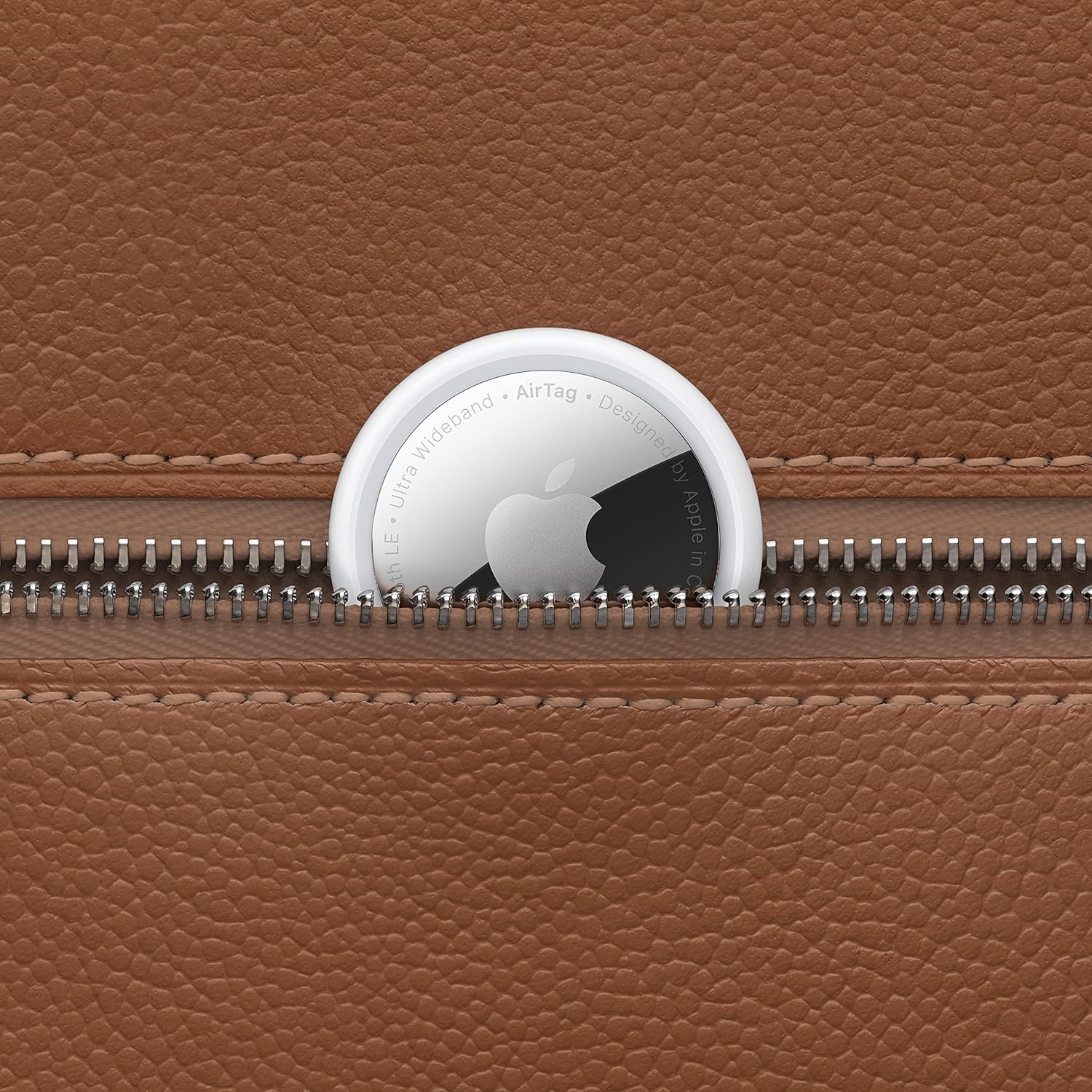
Image: An Apple AirTag peeking out from a partially unzipped brown leather bag, illustrating how it can be discreetly carried with personal items.
Using the Find My App and Playing a Sound
- Open Find My: Launch the Find My app on your iPhone, iPad, or Mac.
- Select Items Tab: Tap the "Items" tab at the bottom of the screen.
- View Location: Your AirTag will appear on the map, showing its current or last known location.
- Play Sound: If your AirTag is nearby but out of sight, select your AirTag and tap "Play Sound." The AirTag will emit a series of beeps to help you locate it. Tap "Stop Sound" when you've found your item.

Image: An iPhone displaying the Find My app interface, showing an AirTag's location on a map alongside a key ring with an AirTag attached.
Precision Finding (iPhone 11 and later)
For select iPhone models (iPhone 11 and later) equipped with the U1 chip, Precision Finding provides visual, haptic, and audio feedback to guide you directly to your AirTag when it's nearby.
- In the Find My app, select your AirTag.
- Tap "Find."
- Follow the on-screen directions, which will indicate distance and direction to your AirTag.

Image: An iPhone screen displaying the Precision Finding feature, showing an arrow and distance (e.g., "4 ft ahead") guiding the user to the AirTag.
Lost Mode
If your AirTag is lost, you can put it into Lost Mode. When detected by another device in the Find My network, you'll be notified of its location. You can also provide a contact phone number or email address.
- In the Find My app, select your AirTag.
- Scroll down to "Lost Mode" and tap "Enable."
- Follow the prompts to enter your contact information.
Maintenance
Battery Replacement
The AirTag uses a standard CR2032 coin cell battery, which typically lasts over a year. The Find My app will notify you when the battery is low.
- Open Battery Compartment: Press down on the polished stainless steel battery cover of the AirTag and rotate counterclockwise until it stops.
- Remove Cover: Lift the cover to reveal the battery.
- Replace Battery: Remove the old CR2032 battery and insert a new one with the positive (+) side facing up.
- Close Cover: Replace the stainless steel cover, press down, and rotate clockwise until it locks into place.
Water and Dust Resistance
AirTag is IP67 water and dust resistant, meaning it can withstand submersion in up to 1 meter of water for up to 30 minutes. This resistance is not permanent and may decrease as a result of normal wear. Do not intentionally submerge your AirTag.
Troubleshooting
- AirTag Not Connecting: Ensure your iPhone or iPad is running the latest version of iOS/iPadOS. Try resetting the AirTag by removing and reinserting the battery.
- Cannot Find AirTag: Check if the AirTag battery is dead. Ensure Bluetooth is enabled on your device. If far away, rely on the Find My network's last known location.
- Precision Finding Not Working: Ensure you have an iPhone 11 or later. Make sure you are within range of the AirTag.
- Battery Drains Quickly: Ensure you are using a fresh, high-quality CR2032 battery. Excessive use of "Play Sound" or "Precision Finding" can slightly reduce battery life.
Specifications
| Feature | Detail |
|---|---|
| Product Dimensions | 3.25 x 3.25 x 0.5 inches |
| Item Weight | 0.39 ounces |
| Model Number | MX532LL/A |
| Battery Type | 1 CR2032 (included) |
| Connectivity | Bluetooth LE, Ultra Wideband (UWB) |
| Water & Dust Resistance | IP67 (maximum depth of 1 meter up to 30 minutes) |
| Compatible Devices | iPhone, iPad, iPod touch models with iOS/iPadOS 14.5 or later |
| Manufacturer | Apple |
| Country of Origin | China |
Warranty and Support
Apple AirTag comes with a standard limited warranty. For detailed warranty information, please refer to the warranty card included with your product or visit the official Apple support website.
For technical support, troubleshooting assistance, or service, please visit support.apple.com/airtag or contact Apple Support directly.


