
Introduction
The BoxWave AllReader SD Card Reader is a versatile device designed for easy transfer of files between various devices and SD or microSD cards. It features multiple interfaces for broad compatibility, enabling quick access to photos, music, videos, and other data.

Product Features
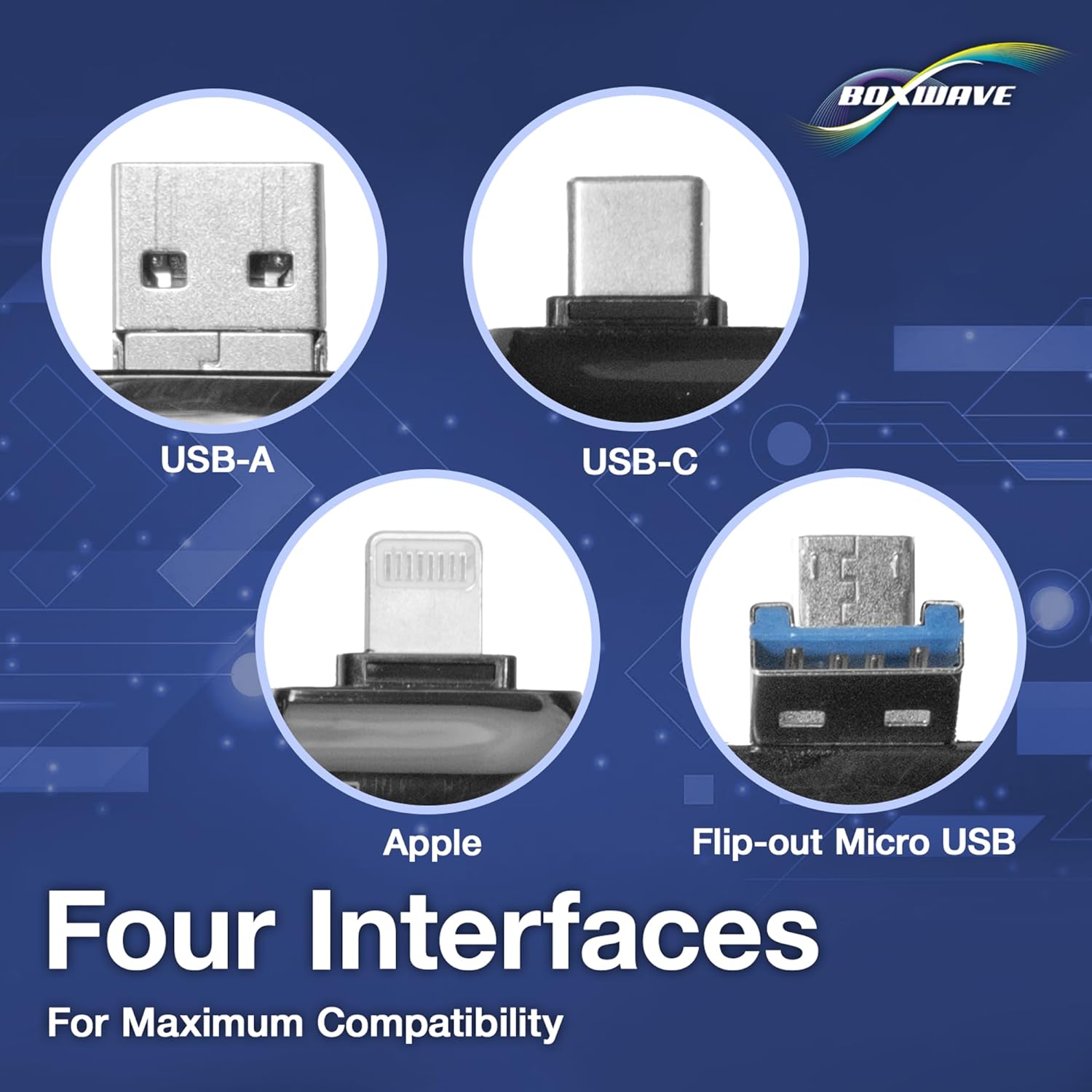
- Four Interfaces: Equipped with USB-C, USB-A, Micro-USB, and Apple (Lightning) connectors for wide compatibility with various devices.
- Easy File Transfer: Facilitates quick and straightforward transfer of files between memory cards and smartphones, tablets, or computers.
- Plug and Play: No drivers or software installation required; simply connect and use.
- Compact Design: Small and portable, making it easy to carry for on-the-go use.
- Universal Card Support: Compatible with both standard SD cards and microSD cards.


Setup Instructions
- Insert Memory Card: Gently insert your SD card or microSD card into the appropriate slot on the AllReader. Ensure the card is fully seated.
- Connect to Device: Select the correct connector (USB-C, USB-A, Micro-USB, or Apple) for your smartphone, tablet, or computer. Plug the AllReader into your device's port.
- Device Recognition: Your device should automatically detect the AllReader and the inserted memory card. A notification or file explorer window may appear.

Operating Instructions
Once the AllReader is connected and recognized by your device, you can access and manage files on the memory card.
- Accessing Files:
- On computers, open "This PC" (Windows) or "Finder" (macOS) and locate the removable drive corresponding to the card reader.
- On smartphones/tablets, use a file manager application to browse the connected storage.
- Transferring Files:
- To copy files from the card to your device: Select the desired files on the memory card, then copy and paste them to a folder on your device.
- To copy files to the card from your device: Select the desired files on your device, then copy and paste them to a folder on the memory card.
- Ejecting Safely: Before disconnecting, always safely eject the memory card reader from your operating system to prevent data corruption.


Maintenance
- Cleaning: Use a soft, dry cloth to clean the exterior of the card reader. Avoid liquid cleaners or abrasive materials.
- Storage: Store the card reader in a cool, dry place away from direct sunlight and extreme temperatures.
- Handling: Avoid dropping the device or subjecting it to strong impacts. Do not force memory cards or connectors into slots.
- Connector Care: Keep the connectors free from dust and debris.
Troubleshooting
| Problem | Possible Cause | Solution |
|---|---|---|
| Device not recognized | Incorrect connection, faulty port, or incompatible device. | Ensure the AllReader is fully plugged into the correct port. Try a different port or device. Verify your device supports external storage. |
| Memory card not reading | Card not inserted correctly, damaged card, or incompatible card format. | Re-insert the memory card firmly. Try a different memory card. Ensure the card is not physically damaged. Check if the card format is supported by your device. |
| Slow transfer speeds | Older USB standard, slow memory card, or large file sizes. | Ensure you are using a USB 3.0 or higher port if available. Use a high-speed memory card. Transfer fewer or smaller files at a time. |
| Files not appearing | Hidden files, corrupted card, or incorrect file path. | Check your device's settings to show hidden files. Try accessing the card on another device. Consider formatting the card (this will erase all data). |
Specifications
- Interfaces: USB-C, USB-A, Micro-USB, Apple (Lightning)
- Card Compatibility: SD, microSD
- Weight: Approximately 6 ounces
- Manufacturer: BoxWave
Warranty Information
BoxWave products typically come with a limited warranty. For specific details regarding your product's warranty period and terms, please refer to the warranty card included with your purchase or visit the official BoxWave website.
Support
For technical assistance, troubleshooting, or general inquiries, please contact BoxWave customer support through their official website. You may find FAQs, driver downloads, and contact information on their support pages.
Website: www.boxwave.com