1. Introduction
This manual provides essential information for the safe and efficient operation of your JVC LT-32VAH3355 32-inch Android HD Smart TV. Please read this manual thoroughly before using the television and retain it for future reference.
The JVC LT-32VAH3355 combines modern HD Ready resolution with Android TV functionality, offering a comprehensive entertainment experience. Key features include HDR10 support, Super Resolution, Micro Dimming, and an integrated triple tuner (DVB-C/T2/S2) for versatile reception options. The Android operating system provides access to numerous applications via the Google Play Store, Google Assistant voice control, and Chromecast built-in.

Image 1.1: Front view of the JVC LT-32VAH3355 32-inch Android HD Smart TV.
2. Safety Information
Always observe the following safety precautions to prevent electric shock, fire, or damage to the device.
- Do not expose the TV to rain or moisture.
- Do not open the TV casing; refer all servicing to qualified personnel.
- Ensure proper ventilation around the TV.
- Unplug the TV during lightning storms or when unused for long periods.
- Keep the TV away from direct sunlight, heat sources, and strong magnetic fields.
- Use only the power cord supplied with the TV.
3. Package Contents
Verify that all items are present in the packaging:
- JVC LT-32VAH3355 Television
- Remote control with 2 AAA batteries
- TV feet (stand)
- User Manual (this document)
- Power cable
4. Setup
4.1 Attaching the Stand
- Carefully place the TV face-down on a soft, flat surface to prevent screen damage.
- Align the TV feet with the corresponding slots on the bottom of the TV.
- Secure the feet using the provided screws.
4.2 Wall Mounting (Optional)
The TV supports VESA M4 75x75mm wall mounts. Ensure the wall mount can support the weight of the TV and follow the wall mount manufacturer's instructions.

Image 4.1: TV dimensions and VESA mounting specifications.
4.3 Connecting External Devices
Connect your external devices to the appropriate ports on the TV. The TV includes:
- 2x HDMI ports (CEC + ARC support)
- 1x USB port (for media playback)
- Antenna (RF/F) input
- Digital Audio Output
- Headphone jack
- CI Slot

Image 4.2: Overview of available connection ports on the TV.
4.4 Initial Power On and First-Time Setup
- Connect the power cable to the TV and then to a power outlet.
- Press the power button on the remote control or the TV to turn it on.
- Follow the on-screen instructions to select your language, country, and connect to a Wi-Fi network.
- Sign in with your Google account to access Android TV features and the Google Play Store.
- Perform a channel scan for DVB-C/T2/S2 if you have connected an antenna or cable.
4.5 Optimal Viewing Distance
For an optimal viewing experience, consider the recommended seating distance based on screen size and resolution:

Image 4.3: Recommended seating distances for various TV sizes and resolutions.
5. Operating Instructions
5.1 Remote Control Functions
The remote control allows you to navigate the TV's interface and control various functions. Insert the two AAA batteries into the remote control, ensuring correct polarity.

Image 5.1: The remote control for the JVC LT-32VAH3355, featuring dedicated buttons for popular streaming services.
- Power Button: Turns the TV on or off.
- Number Buttons: Select channels directly.
- Volume +/-: Adjusts the volume level.
- Channel P +/-: Changes channels sequentially.
- Navigation Buttons (Up/Down/Left/Right) & OK: Navigate menus and confirm selections.
- Back/Exit: Returns to the previous screen or exits a menu.
- Home: Accesses the Android TV home screen.
- App Buttons (Netflix, YouTube, Prime Video, Google Play): Direct access to these applications.
5.2 Smart TV Features (Android TV)
Your JVC TV runs on Android TV, providing access to a wide range of smart features:
- Google Play Store: Download and install your favorite apps, games, and streaming services.
- Google Assistant: Use voice commands to control your TV, search for content, get information, and manage smart home devices. Simply say "OK Google" or press the Google Assistant button on your remote.
- Chromecast Built-in: Cast content (videos, photos, music) from your compatible smartphone, tablet, or computer directly to your TV screen.
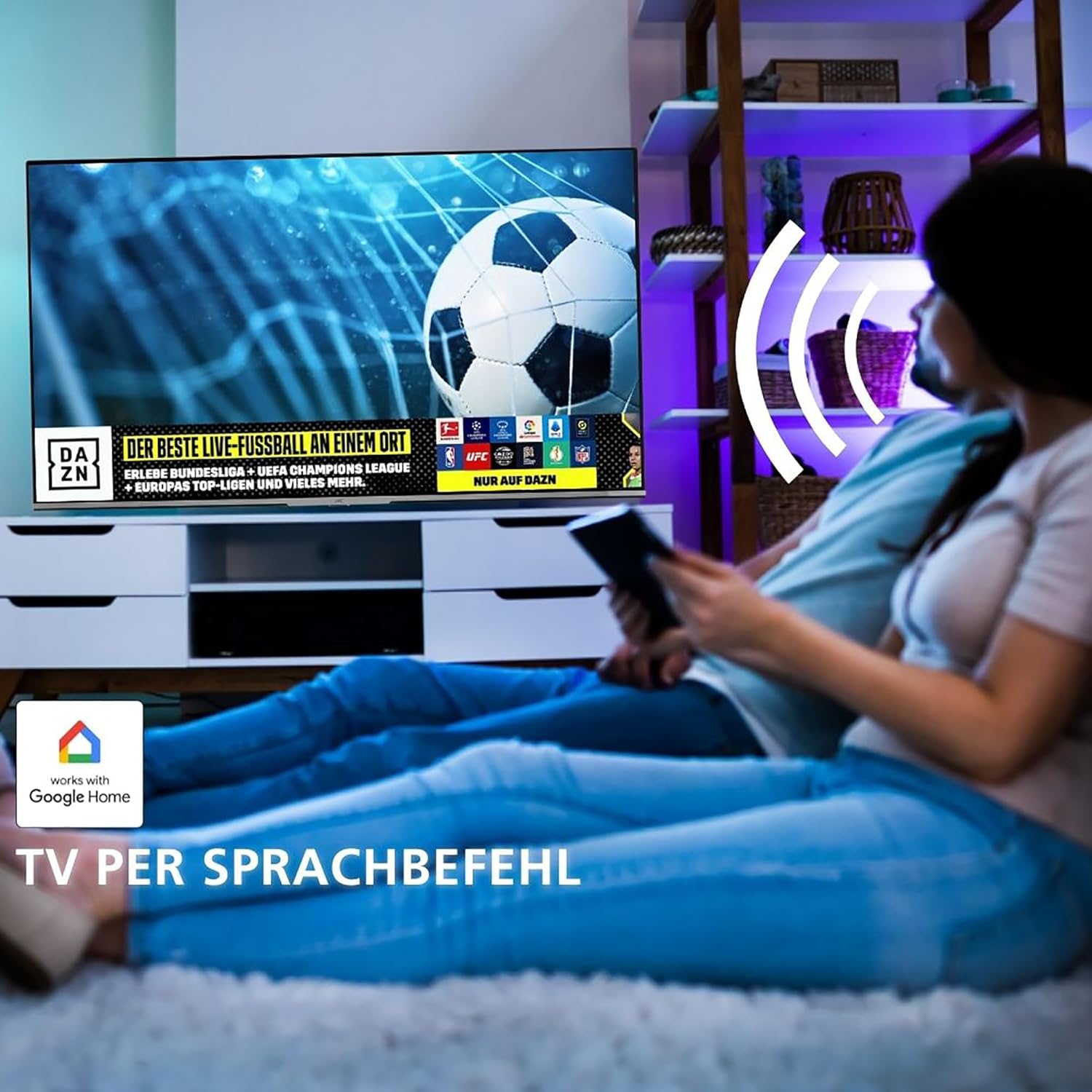
Image 5.2: Voice control functionality with Google Assistant on the JVC Android TV.
5.3 Picture and Sound Settings
Adjust picture and sound settings to enhance your viewing experience:
- Picture Modes: Select from various preset modes (e.g., Standard, Dynamic, Movie, Game) or customize settings like brightness, contrast, color, and sharpness.
- HDR10 Support: Experience enhanced contrast and a wider color gamut with HDR10 content.
- Super Resolution & Micro Dimming: These technologies optimize image quality by enhancing detail and local contrast.
- Sound Modes: Choose from preset audio modes (e.g., Standard, Music, Movie, Speech) or adjust equalizer settings.

Image 5.3: The TV's display capabilities with HDR10 for improved detail and contrast.

Image 5.4: Visual representation of Super Resolution and Micro Dimming enhancing picture quality.
6. Maintenance
6.1 Cleaning the TV
- Always unplug the TV before cleaning.
- Use a soft, dry, lint-free cloth to wipe the screen and cabinet.
- For stubborn marks, lightly dampen the cloth with water or a mild, non-abrasive screen cleaner. Never spray liquid directly onto the screen.
- Avoid using alcohol, benzene, thinners, or other volatile substances.
6.2 Software Updates
Your Android TV may receive software updates periodically to improve performance and add new features. Ensure your TV is connected to the internet to receive these updates. You can check for updates manually in the TV's settings menu.
7. Troubleshooting
If you encounter issues with your TV, refer to the following common problems and solutions:
| Problem | Possible Solution |
|---|---|
| No power | Check if the power cable is securely connected and the power outlet is working. Try a different outlet. |
| No picture, but sound is present | Check input source. Ensure external devices are powered on and connected correctly. |
| No sound, but picture is present | Check volume level and mute status. Verify audio cables for external devices. |
| Remote control not working | Replace batteries. Ensure no obstructions between remote and TV. |
| Cannot connect to Wi-Fi | Check router and modem. Restart TV and router. Re-enter Wi-Fi password. |
| Apps are slow or freezing | Close unused apps. Clear app cache. Restart the TV. Ensure sufficient internet speed. |
8. Specifications
Below are the technical specifications for the JVC LT-32VAH3355 TV:
| Feature | Specification |
|---|---|
| Brand | JVC |
| Model Number | LT-32VAH3355 |
| Screen Size | 32 Inches (80 cm diagonal) |
| Display Technology | LED |
| Resolution | 768p (1366x768 pixels) |
| Operating System | Android TV |
| Special Features | Android TV, Google Assistant, Google Play Store, Micro Dimming, Super Resolution, HDR10 |
| Connectivity | HDMI (2), USB (1), Wi-Fi, Bluetooth |
| Refresh Rate | 50 Hz |
| Tuners | DVB-C/T2/S2 (Triple Tuner) |
| Dimensions (WxHxD with stand) | 72.8 x 46.7 x 16.7 cm |
| Color | Black |
| Energy Efficiency Class | E |
| Power Consumption (SDR) | 26.0 W |
| Power Consumption (HDR) | 45.0 W |
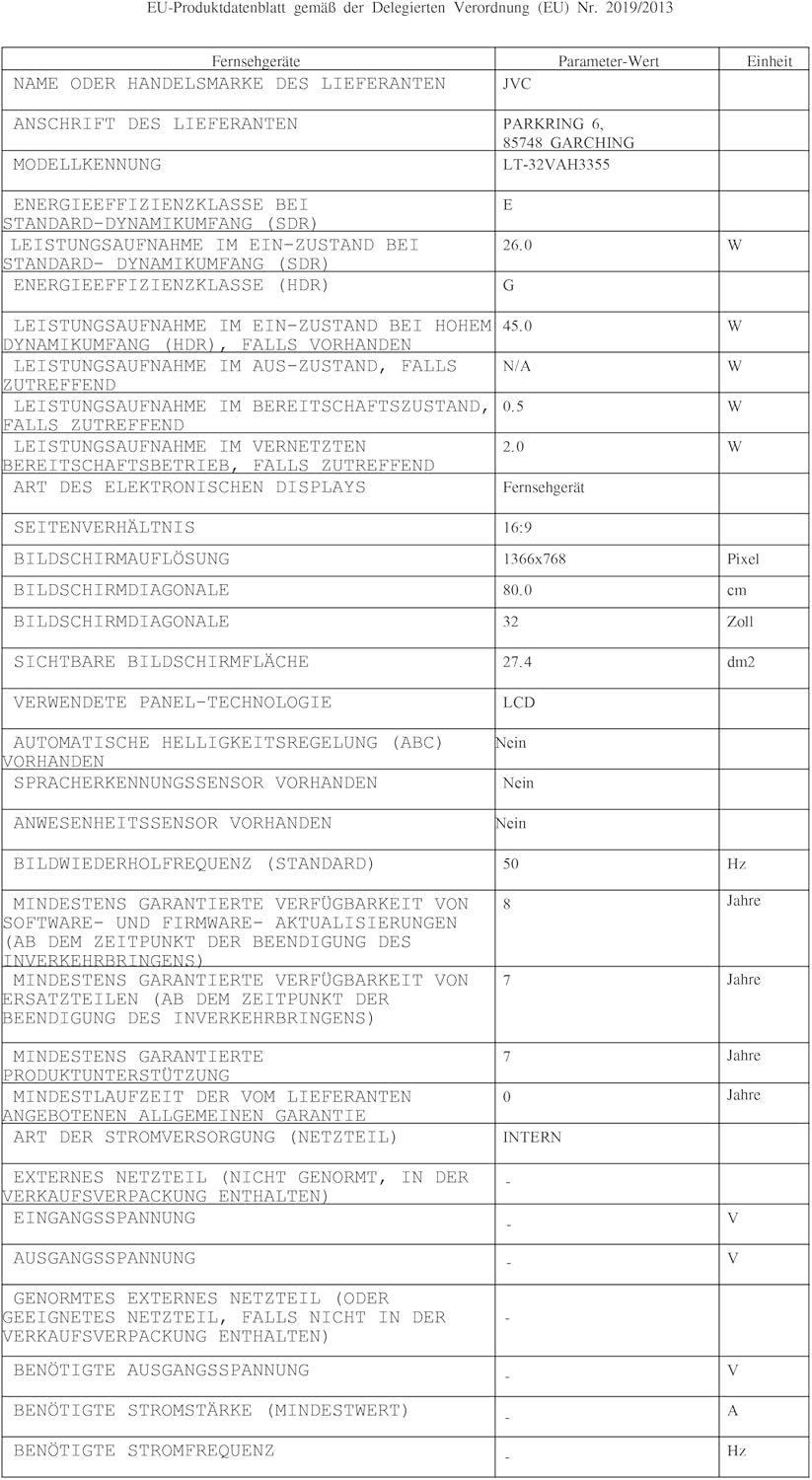
Image 8.1: EU Product Data Sheet providing detailed technical specifications.

Image 8.2: EU Energy Label indicating the energy efficiency class and power consumption.
For more detailed information, you can refer to the EPREL database using the QR code on the energy label or by visiting https://eprel.ec.europa.eu/qr/1838123.
9. Warranty and Support
JVC provides a warranty for this product in accordance with local regulations. Please retain your proof of purchase for warranty claims.
- Spare Parts Availability: Spare parts are guaranteed to be available for 7 years from the end of production.
- Software Updates: Information regarding guaranteed software updates is not available.
For technical support, service, or warranty inquiries, please contact your local JVC customer service or authorized dealer. Contact information can typically be found on the JVC official website for your region.


