
1. Product Overview
The JRHC S-8103T is a versatile 3-in-1 wireless barcode scanner designed for efficient data collection and inventory management. It supports scanning of both 1D and 2D barcodes, offering robust recognition capabilities. This device is suitable for various applications including warehouses, medical facilities, retail stores, supermarkets, banks, logistics services, and libraries.
The scanner features a compact, ergonomic design for comfortable handheld use and portability. It connects wirelessly via a 2.4G USB receiver, ensuring long-distance transmission and compatibility with common operating systems and office software.

Image 1.1: JRHC S-8103T Multifunctional Portable Wireless Barcode Scanner showing its key features like intelligent decoding, wireless transmission, large battery capacity, quick upload, HD screen, and long-distance scanning.
2. Device Components
Familiarize yourself with the main components of your JRHC S-8103T barcode scanner:
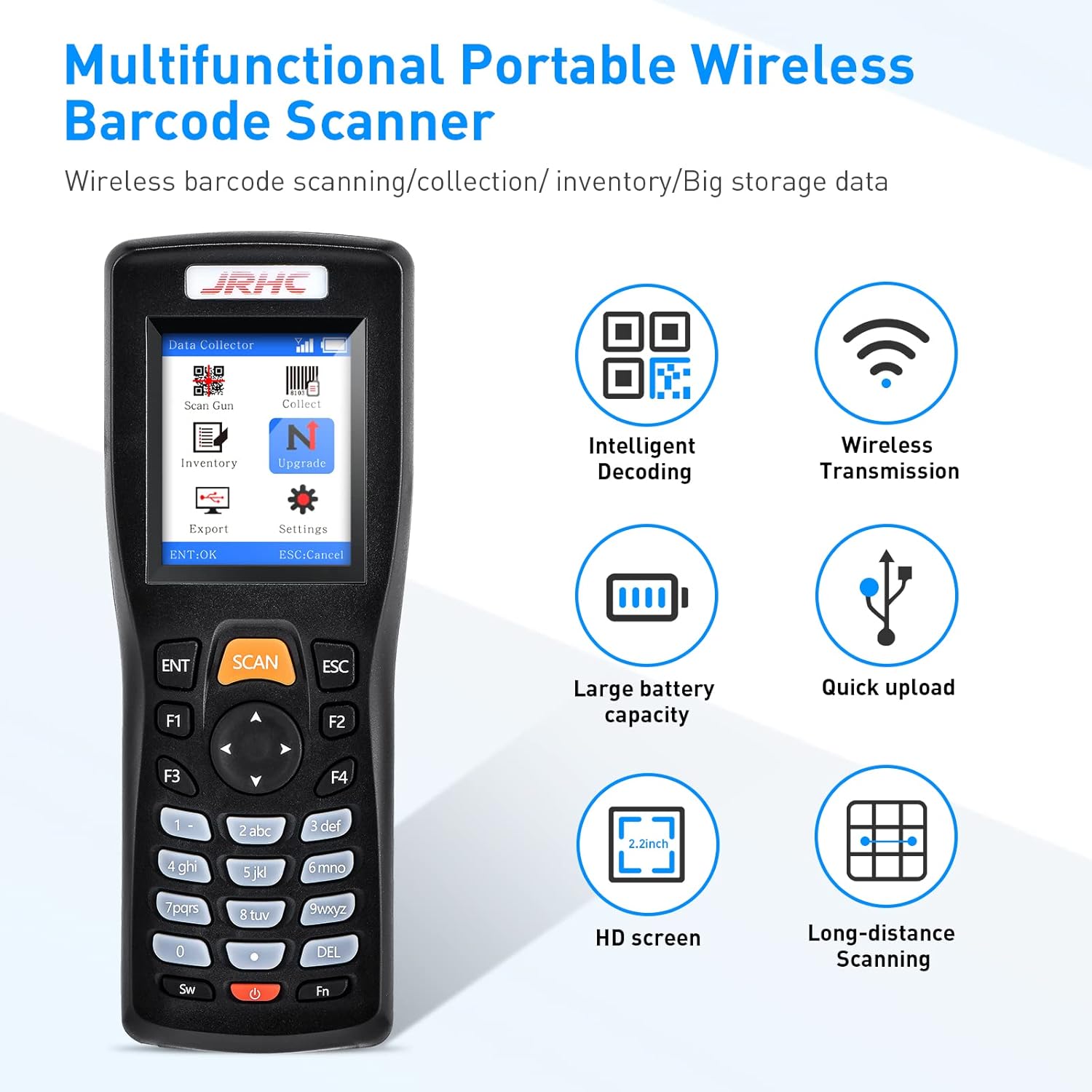
Image 2.1: Diagram illustrating the various buttons and features of the JRHC S-8103T scanner, including the 2.2 HD screen, ENT (Enter), SCAN, ESC (Cancel) buttons, F1-F4 function buttons, directional pad, number buttons, delete button, power switch, and reset hole.
- 2.2 HD Screen: Displays operational information and data.
- ENT Button: Used to confirm selections or enter data.
- SCAN Button: Activates the scanning function.
- ESC Button: Used to cancel operations or go back.
- F1-F4 Function Buttons: Programmable or pre-assigned functions.
- Directional Pad: For navigation and cursor movement.
- Number Buttons: For manual data input.
- DEL Button: Deletes characters or data.
- SW (Power Switch): Turns the device on/off.
- Fn Button: For accessing secondary functions.
- Reset Hole: Used to reset the device if it becomes unresponsive.
- Buzzer: Provides audio feedback for scans and operations.
3. Setup and Connectivity
The JRHC S-8103T barcode scanner is designed for plug-and-play operation, requiring no driver installation.
3.1 Initial Setup
- Insert the 2.4G wireless USB receiver into an available USB port on your computer.
- Turn on the barcode scanner using the power switch (SW button).
- The scanner will automatically connect to your computer. No additional software or driver installation is required.
3.2 System Compatibility
The scanner is compatible with Windows XP/7/8/10 operating systems and integrates seamlessly with common office software such as Microsoft Word, Excel, and Notepad for data input.
3.3 Wireless Transmission Range
The 2.4G wireless connection offers a significant operating range:
- Up to 200 meters (700 feet) in open, obstacle-free environments.
- Up to 50 meters (500 feet) in environments with obstacles or enclosed spaces.
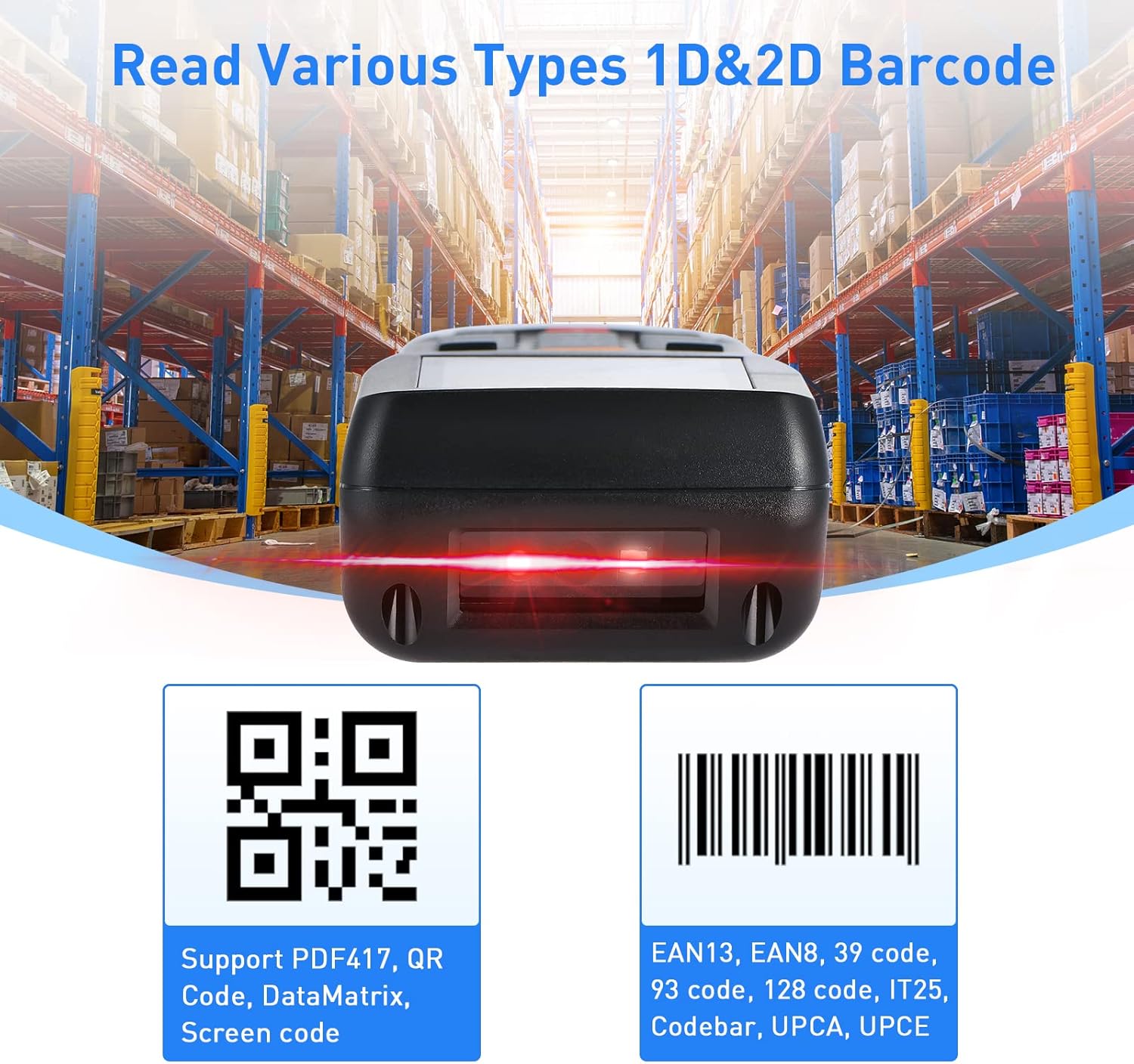
Image 3.1: Illustration demonstrating the long transmission range of the JRHC S-8103T scanner, showing effective distances with and without obstacles.
4. Operating Modes
The JRHC S-8103T offers three distinct operating modes to suit various scanning and data management needs:

Image 4.1: Visual representation of the three scanning modes: Scan Gun Mode, Collection Mode, and Inventory Mode, with brief descriptions of each.
4.1 Scan Gun Mode
In Scan Gun Mode, the scanner functions as a direct input device. Scanned data is immediately transmitted to the connected computer. If the scanner goes offline or loses wireless signal, scanned data will be temporarily stored and automatically sent once the connection is re-established.
4.2 Collection Mode
Collection Mode allows for safer and more controlled data input. In this mode, you can set the scanner to prevent repeated scanning of the same barcode, ensuring data accuracy for specific tasks.
4.3 Inventory Mode
Inventory Mode is designed for accumulating barcode data. The device automatically stores scanned barcodes. You can also browse and modify incorrect data directly on the scanner's screen before exporting.
4.4 Data Storage and Export
The scanner is equipped with 4MB of internal flash memory, capable of storing up to 100,000 barcode entries when operating offline or out of wireless range. Data can be stored on the device and exported to the computer when needed, providing flexibility for mobile operations.
5. Barcode Recognition
The JRHC S-8103T scanner offers powerful recognition capabilities for a wide range of 1D and 2D barcodes, readable in all directions.
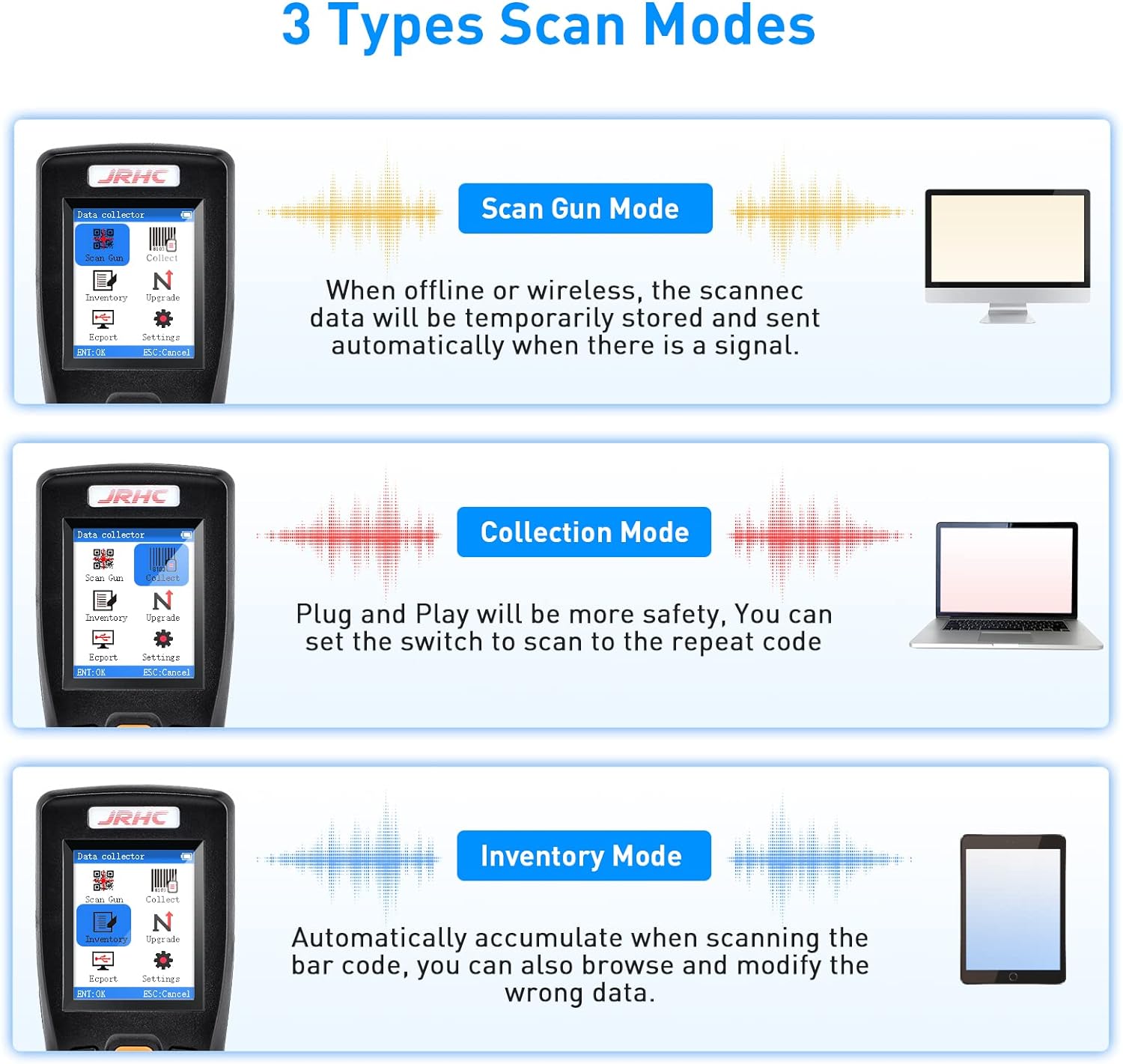
Image 5.1: The JRHC S-8103T scanner in operation, highlighting its ability to read various 1D and 2D barcode types, including QR codes and PDF417.
5.1 Supported 1D Barcodes
- Codabar
- Code 11
- Code 93
- MSI
- Code 128
- EAN (EAN13, EAN8)
- UPC (UPC-A, UPCE)
- Code 39
- ISBN
- Industrial 25
- Standard 25
- Matrix 2 of 5
5.2 Supported 2D Barcodes
- QR Code
- DataMatrix
- PDF417
- Aztec Code
- Micro PDF417
The scanner can also read QR codes displayed on other smart device screens.
6. Maintenance and Battery
6.1 General Maintenance
- Keep the scanner clean and free from dust and debris. Use a soft, dry cloth for cleaning.
- Avoid exposing the device to extreme temperatures, humidity, or direct sunlight.
- Handle the scanner with care to prevent physical damage.
6.2 Battery Information
The JRHC S-8103T is powered by a built-in 1400mAh rechargeable lithium polymer battery, providing up to 24 hours of continuous operation on a full charge. It supports USB quick charging.
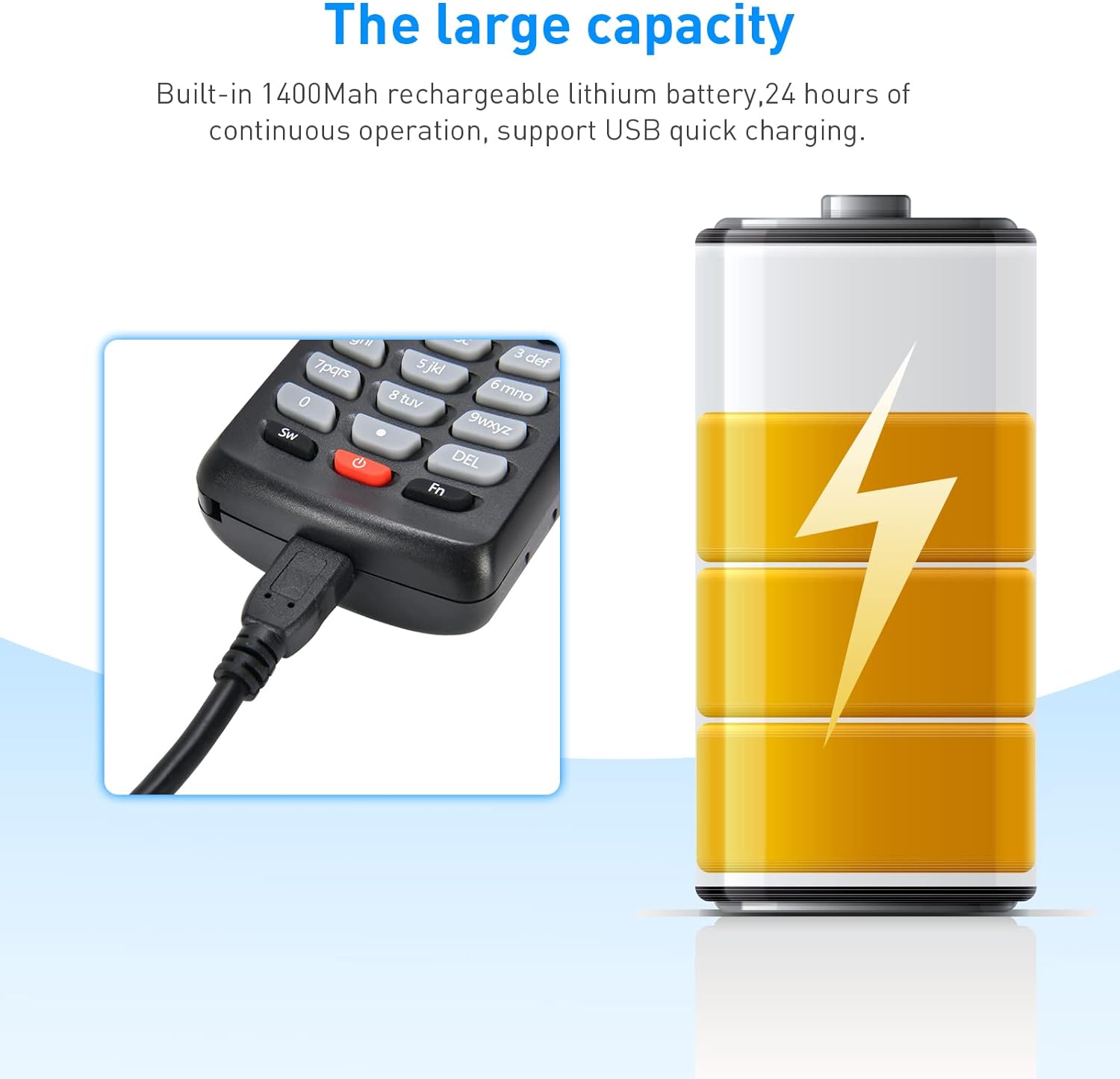
Image 6.1: The JRHC S-8103T scanner connected via USB for charging, illustrating its large capacity 1400mAh battery.
To charge the device, connect it to a power source using the provided USB cable. Ensure the device is fully charged before initial use for optimal battery life.
7. Troubleshooting
If you encounter issues with your JRHC S-8103T scanner, refer to the following common troubleshooting steps:
- No Connection: Ensure the 2.4G USB receiver is properly inserted into the computer and the scanner is powered on. Try re-pairing the scanner if necessary (refer to specific pairing instructions in the full manual if available).
- Scanning Issues: Check if the barcode is clean and undamaged. Ensure the scanner's lens is clean. Verify that the correct scanning mode is selected.
- Data Not Transmitting: In Scan Gun Mode, ensure the scanner is within wireless range. If in Inventory Mode, ensure data is explicitly exported.
- Device Unresponsive: If the device freezes, use a thin object (like a paperclip) to press the reset hole (refer to Image 2.1 for location).
- Battery Not Charging: Ensure the USB cable is securely connected to both the scanner and the power source. Try a different USB port or charging adapter.
For persistent issues, please contact customer support.
8. Specifications
Detailed technical specifications for the JRHC S-8103T Wireless Barcode Scanner:
| Feature | Specification |
|---|---|
| Brand | JRHC |
| Model | S-8103T |
| Compatible Devices | Laptop, Desktop Computer, Smartphone |
| Power Source | Battery Powered |
| Connectivity Technology | 2.4G Wireless USB |
| Number of Batteries | 1 Lithium Polymer (Included) |
| Product Dimensions (DxWxH) | 3.4 x 6 x 15.8 cm |
| Operating Voltage | 5 Volts |
| Compliance | CE, FCC, RoHS |
| True Viewing Angle | 60 degrees |
| Manufacturer | JRHC |
9. Warranty and Support
This product is eligible for a 30-day return period. For specific warranty details, technical support, or further assistance, please refer to the product packaging or contact your retailer.
