
1. Introduction
This manual provides essential information for setting up, operating, maintaining, and troubleshooting your Acer Aspire Lite AL15-41 laptop. Please read this manual thoroughly to ensure proper use and longevity of your device.
Key Features
- Processor: AMD Ryzen 3 7330U processor with AMD Radeon Graphics for efficient performance.
- Display: 15.6" Full HD TN 1920 x 1080 high-brightness TFT LCD with a 16:9 aspect ratio and ultra-slim design.
- Memory & Storage: 16 GB DDR4 RAM (upgradable up to 32GB) and 512 GB PCIe Gen3 NVMe SSD (upgradable up to 1 TB).
- Ports: Comprehensive connectivity including 2 x USB 2.0 (Type A), 1 x USB 3.2 Gen 1 (Type A), and 1 x USB 3.2 Gen 2 (Type C).
- Keyboard: 100-/101-/104-key keyboard with independent numeric keypad and international language support.
- Design: Premium and stylish A & D Cover Metal Chassis, 19.7mm thin, and 1.59 Kg weight for portability.
- Hinge: 180-degree hinge with screen rotation for flexible viewing and collaboration.
What's in the Box
- 1N Laptop
- 1N Power Cord
- 1N Adapter
- 1N User Manual

Figure 1.1: Front view of the Acer Aspire Lite AL15-41 laptop.
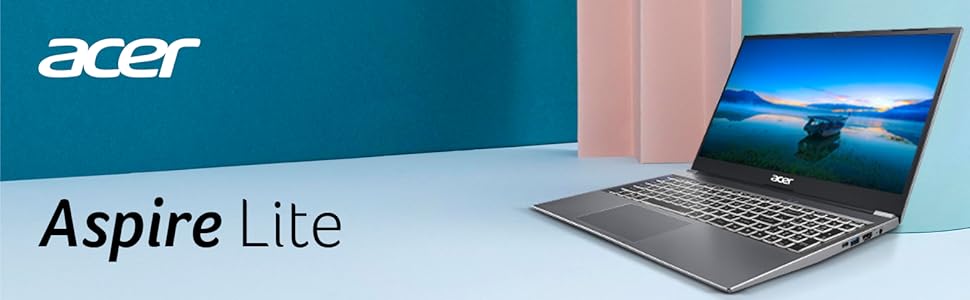
Figure 1.2: Acer Aspire Lite branding and key features overview.
2. Initial Setup
Follow these steps to set up your new Acer Aspire Lite laptop for the first time.
2.1 Unboxing and Power Connection
- Carefully remove the laptop and all accessories from the packaging.
- Connect the power adapter to the laptop's power input port.
- Plug the power cord into a wall outlet. It is recommended to fully charge the battery before first use.

Figure 2.1: Side view of the laptop illustrating port locations, including the power input.
2.2 Initial Boot-up and Windows Setup
- Open the laptop lid and press the power button, usually located on the keyboard or side.
- The laptop will boot up and guide you through the Windows 11 Home setup process. Follow the on-screen instructions to select your region, language, connect to Wi-Fi, and create a user account.
- Complete the setup by agreeing to the terms and conditions.
2.3 Connecting Peripherals
Your Acer Aspire Lite laptop supports various peripherals. Refer to the specifications section for a complete list of ports.
- USB Devices: Connect USB mice, keyboards, external hard drives, or flash drives to the available USB 2.0, USB 3.2 Gen 1, or USB 3.2 Gen 2 (Type C) ports.
- External Display: Use the HDMI port to connect an external monitor or projector.
- Audio Devices: Connect headphones or external speakers to the audio jack.

Figure 2.2: Detailed view of the laptop's various connectivity ports.
3. Operating Your Laptop
This section covers the basic operation and features of your Acer Aspire Lite laptop.
3.1 Keyboard and Touchpad
- Keyboard: The full-size keyboard includes a numeric keypad for efficient data entry. Familiarize yourself with function keys (Fn) for quick access to system controls like volume, brightness, and Wi-Fi.
- Touchpad: The precision touchpad supports multi-touch gestures for navigation. Refer to Windows settings for customizing touchpad sensitivity and gestures.

Figure 3.1: Close-up view of the laptop's keyboard, highlighting the AMD processor.
3.2 Display Features
- Full HD Display: Enjoy crisp visuals on the 15.6-inch Full HD (1920 x 1080) display.
- 180-Degree Hinge: The laptop features a 180-degree hinge, allowing the screen to lay flat. This is useful for sharing content or collaborating in small groups. To rotate the screen, use the Function+R key combination.

Figure 3.2: The laptop demonstrating its 180-degree hinge capability.

Figure 3.3: The sleek design and thin profile of the Acer Aspire Lite laptop.
3.3 Audio and Video Conferencing
- Audio: The laptop is equipped with integrated speakers. For enhanced audio experience, connect external speakers or headphones.
- Webcam and Microphone: The integrated HD webcam and dual microphone array with noise cancellation technology are ideal for video calls and online meetings.

Figure 3.4: Laptop in use for a video conference, demonstrating its conferencing capabilities.

Figure 3.5: The laptop's display optimized for clear conferencing.
4. Maintenance and Care
Proper maintenance ensures the longevity and optimal performance of your laptop.
4.1 Cleaning Your Laptop
- Screen: Use a soft, lint-free cloth slightly dampened with water or a screen cleaner. Do not spray liquid directly onto the screen.
- Keyboard and Chassis: Use a soft, dry cloth. For stubborn dirt, a slightly damp cloth can be used. Avoid harsh chemicals or abrasive materials.
- Ports: Keep ports free of dust and debris. Use compressed air if necessary, but avoid inserting objects into the ports.
4.2 Battery Care
- Avoid extreme temperatures, as they can degrade battery life.
- For long-term storage, charge the battery to about 50% and store the laptop in a cool, dry place.
- It is normal for battery capacity to decrease over time.
4.3 Software Updates
- Regularly check for and install Windows updates to ensure system stability and security.
- Update device drivers (e.g., graphics, audio) from the Acer support website to maintain optimal performance.
4.4 Storage Management
- Periodically clean up unnecessary files and applications to free up storage space.
- Consider using cloud storage or external drives for large files to keep your internal SSD optimized.
5. Troubleshooting
This section provides solutions to common issues you might encounter.
5.1 Power and Boot Issues
- Laptop does not turn on: Ensure the power adapter is securely connected to both the laptop and a working power outlet. Check if the power indicator light is on. Try a different outlet.
- Laptop turns on but no display: Connect an external monitor to check if the issue is with the laptop's display. Try pressing Fn + F5 (or the key with a display icon) to toggle display output.
5.2 Performance Issues
- Slow performance: Close unnecessary applications. Check Task Manager (Ctrl+Shift+Esc) for high CPU, memory, or disk usage. Ensure Windows and drivers are up to date.
- Overheating: Ensure ventilation vents are not blocked. Use the laptop on a hard, flat surface. Avoid using it on soft surfaces like beds or couches that can obstruct airflow.
5.3 Connectivity Problems
- Wi-Fi not connecting: Ensure Wi-Fi is enabled (check Fn + F3 or network settings). Restart your router and laptop. Reinstall or update Wi-Fi drivers.
- Bluetooth device not pairing: Ensure Bluetooth is enabled in Windows settings. Make sure the device is in pairing mode and within range. Update Bluetooth drivers.
5.4 Audio and Video Issues
- No sound: Check volume levels in Windows and on external speakers/headphones. Ensure correct audio output device is selected. Update audio drivers.
- Webcam not working: Check privacy settings in Windows to ensure camera access is allowed for applications. Update webcam drivers.
6. Technical Specifications
Detailed specifications for the Acer Aspire Lite AL15-41 laptop.
| Feature | Specification |
|---|---|
| Brand | Acer |
| Series | Aspire Lite |
| Model Number | AL15-41 |
| Colour | Steel Gray |
| Form Factor | Laptop |
| Standing Screen Display Size | 15.6 Inches |
| Screen Resolution | 1920 x 1080 pixels (Full HD) |
| Product Dimensions | 9.1 x 33.5 x 49.2 cm |
| Item Weight | 2.64 kg |
| Processor Brand | AMD |
| Processor Type | AMD Ryzen 3 7330U |
| Processor Speed | 2.6 GHz |
| Processor Count | 1 |
| RAM Size | 16 GB |
| Memory Technology | DDR4 |
| Computer Memory Type | DDR4 SDRAM |
| Maximum Memory Supported | 32 GB |
| Hard Drive Size | 512 GB |
| Hard Disk Description | SSD (Solid State Drive) |
| Hard Drive Interface | Solid State |
| Audio Details | Speakers |
| Graphics Coprocessor | AMD Radeon Graphics |
| Graphics Chipset Brand | AMD |
| Graphics Card Description | Integrated |
| Graphics RAM Type | DDR4 SDRAM |
| Graphics Card Interface | Integrated |
| Connectivity Type | Wi-Fi |
| Wireless Type | Bluetooth |
| Number of USB 2.0 Ports | 2 |
| Number of USB 3.0 Ports | 2 (Note: JSON lists 1x USB 3.2 Gen 1 Type A and 1x USB 3.2 Gen 2 Type C, which are often grouped under USB 3.x) |
| Number of HDMI Ports | 1 |
| Wattage | 65 Watts |
| Operating System | Windows 11 Home |
| Average Battery Life (in hours) | 7 Hours |
| Lithium Battery Energy Content | 36 Watt Hours |
| Number of Lithium Ion Cells | 3 |
| Country of Origin | China |
| Date First Available | 29 February 2024 |
7. Warranty Information
Your Acer Aspire Lite AL15-41 laptop comes with a standard manufacturer's warranty. The specific terms and duration of the warranty may vary by region and point of purchase. Please refer to the warranty card included with your product or visit the official Acer website for detailed warranty information applicable to your location.
Keep your proof of purchase (receipt or invoice) as it will be required for any warranty claims.
8. Customer Support
For further assistance, technical support, or service inquiries regarding your Acer Aspire Lite AL15-41 laptop, please contact Acer customer support through the following channels:
- Online Support: Visit the official Acer support website for FAQs, driver downloads, and online troubleshooting guides. You can typically find this by searching for "Acer Support" and your region.
- Contact Numbers: Check the Acer website for regional customer service phone numbers.
- Service Centers: Information on authorized service centers can also be found on the Acer support website.
When contacting support, please have your laptop's model number (AL15-41) and serial number ready. The serial number is usually located on a sticker on the bottom of the laptop.


