
Introduction
This manual provides detailed instructions for the installation, operation, and maintenance of your Biorunn Android Car Radio Stereo. Please read this manual thoroughly before installation and use to ensure proper functionality and safety. This unit is designed for specific Toyota Camry models from 2018 to 2020.
Compatibility and Pre-Installation Check
Before proceeding with installation, it is crucial to verify compatibility with your vehicle. This unit is specifically designed for Toyota Camry models from 2018, 2019, and 2020. Please inspect your car's center console carefully.

Image: Compatibility check for Toyota Camry center console. The top row shows a compatible console (green checkmark) where the original screen is separate from the climate controls. The bottom row shows incompatible consoles (red X) where the original center control is a single, non-separated piece. If your original center control is one piece and not separated, this unit cannot be installed.
Important Note: If your original center control is a single, unseparated piece, this car stereo cannot be installed. Please ensure your vehicle's dashboard matches the compatible configuration shown in the image.
What's in the Box
The package includes the following components:
- Biorunn Car Stereo Head Unit (10.1 Inch)
- Power Cable
- RCA Cable
- Reversing Camera Cable (Note: Rear camera itself is not included)
- Microphone (MIC)
- GPS Antenna
- USB Cable
- Mounting Hardware
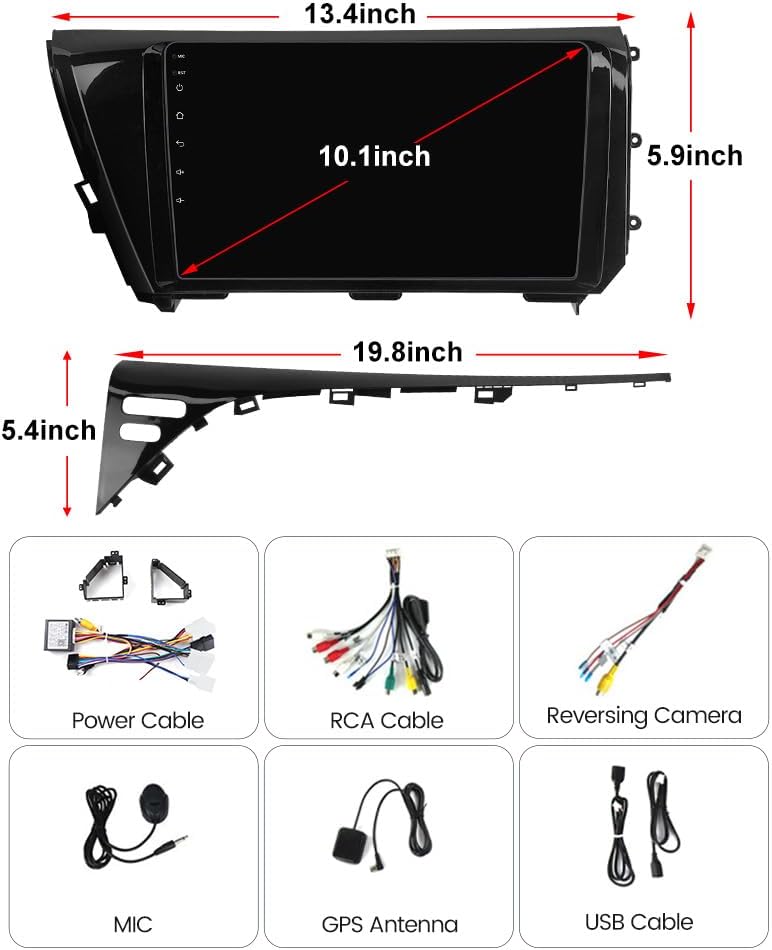
Image: Overview of the included components, featuring the car stereo unit, power cable, RCA cable, reversing camera cable, microphone, GPS antenna, and USB cable.
Installation
Professional installation is recommended. Ensure the vehicle's battery is disconnected before beginning installation. Refer to your vehicle's service manual for specific dashboard disassembly instructions.
Installation Steps Overview:
- Carefully remove the original car radio and dashboard trim.
- Connect the provided power cable, RCA cable, and other necessary wiring harnesses to the new Biorunn head unit and the vehicle's wiring.
- Connect the GPS antenna and position it for optimal signal reception.
- If installing a reversing camera (sold separately), connect its cable to the designated input on the head unit.
- Mount the new head unit securely into the dashboard opening.
- Reassemble the dashboard trim.
- Reconnect the vehicle's battery and test all functions.

Image: A visual comparison showing the car's dashboard with the original stereo (top) and the same dashboard after the Biorunn car stereo has been installed (bottom).
Operating Instructions
Basic Operation:
- Power On/Off: Press and hold the power button on the unit or use the vehicle's ignition.
- Volume Control: Adjust using the on-screen controls or steering wheel buttons.
- Touchscreen Interface: Navigate through menus and applications by tapping and swiping on the 10.1-inch IPS touchscreen.
- Home Screen: Access the main menu with various applications and settings.

Image: The main user interface of the car stereo, displaying customizable application icons, navigation, Bluetooth compatibility, and radio controls.
Key Features:
- Built-in Wireless Car-Play/Android Auto: Connect your smartphone wirelessly to access navigation, music, calls, and messages directly from the car stereo display.

Image: The car stereo display showing the Car-Play interface with various apps. Below, two smartphones illustrate the wireless connection for Android Auto and Wireless Car-Play.
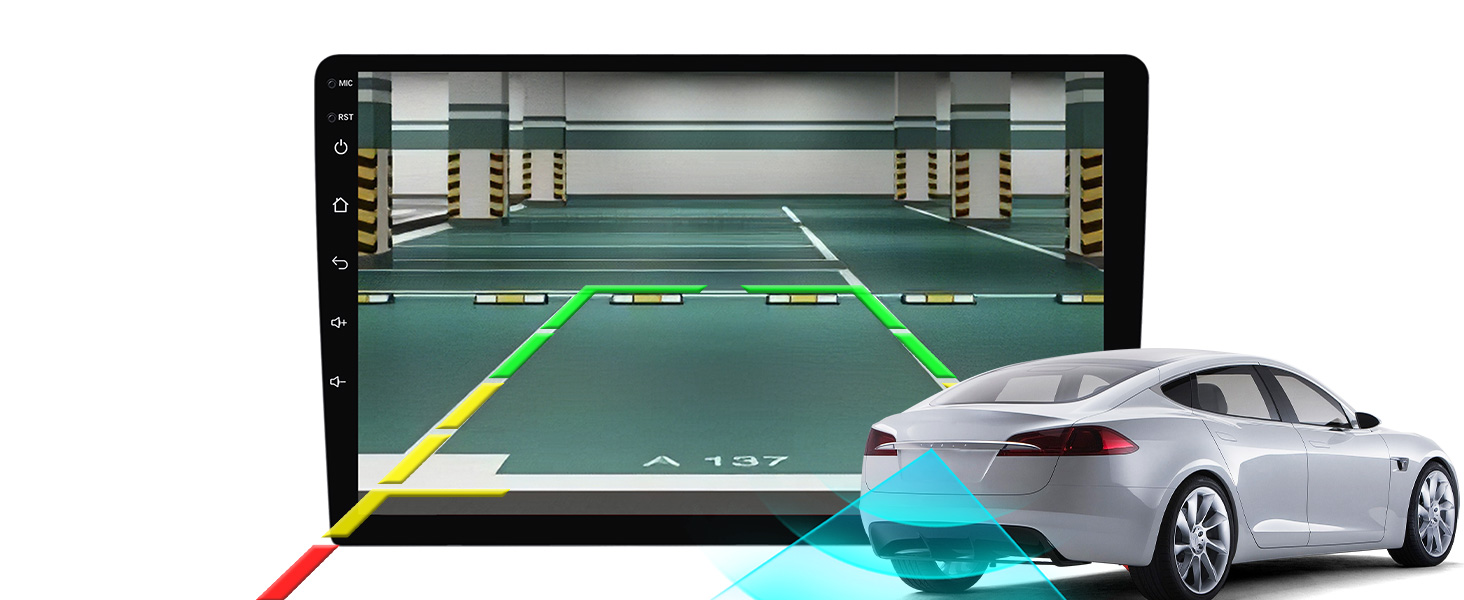
Image: Detailed connection steps for both Wireless Car-play and Wireless Android Auto, showing the process of connecting via Bluetooth and then using the 'Car Link' application.
- Bluetooth 5.0: Supports hands-free calling, phone book download, and music streaming from your Bluetooth-enabled devices.
- FM/AM RDS Radio: Features 18 preset stations and supports automatic and manual channel searching. RDS (Radio Data System) provides additional information like station name and program type.
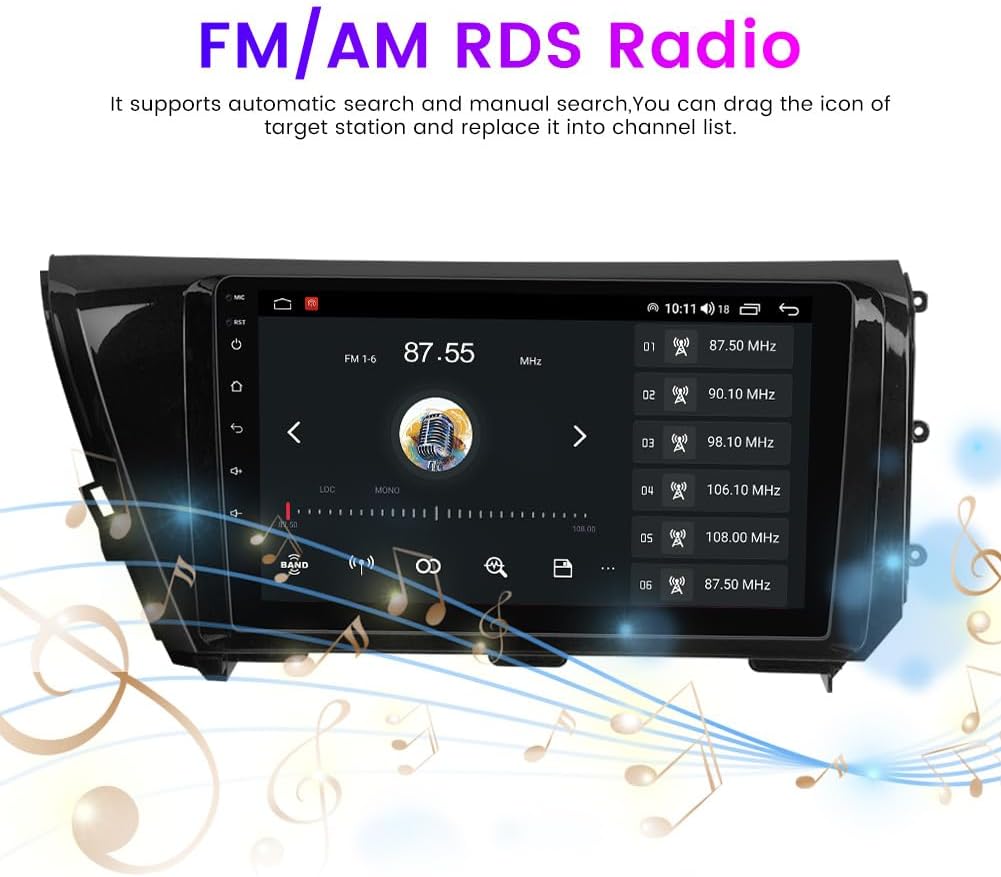
Image: The car stereo display showing the FM radio interface, including the current frequency (87.55 MHz) and a list of preset stations. Musical notes are depicted around the unit.
- Steering Wheel Control (SWC): Compatible with your vehicle's original steering wheel controls for safe and convenient operation of audio and calling functions.

Image: A car steering wheel with control buttons highlighted, alongside the car stereo screen displaying a learning interface for mapping steering wheel controls. This allows for safe and portable operation.
- Reversing Video Input: Supports input from an external reversing camera (not included) to display a clear view of the rear of your vehicle when in reverse gear.

Image: The car stereo display showing a reversing camera view with dynamic parking guidelines. A car is depicted backing up, illustrating the function. Note: Rear camera is not included.
- GPS Navigation: Integrated GPS system with worldwide map support.

Image: The car stereo display showing a detailed GPS navigation map with route information, estimated arrival time, and distance to destination.
Maintenance
To ensure the longevity and optimal performance of your car stereo, follow these maintenance guidelines:
- Screen Cleaning: Use a soft, lint-free cloth to gently wipe the touchscreen. For stubborn smudges, slightly dampen the cloth with water or a screen-safe cleaner. Avoid harsh chemicals or abrasive materials.
- Software Updates: Periodically check for available software updates to ensure the system runs efficiently and has the latest features. Follow the on-screen prompts for updates.
- Environmental Conditions: Avoid exposing the unit to extreme temperatures, direct sunlight for prolonged periods, or excessive moisture.
- Cable Connections: Ensure all cables are securely connected. Loose connections can lead to intermittent issues.
Troubleshooting
If you encounter issues with your Biorunn car stereo, refer to the following common troubleshooting steps:
| Problem | Possible Cause | Solution |
|---|---|---|
| Unit does not power on | Loose power connection, blown fuse, vehicle battery issue | Check power cable connections. Inspect vehicle fuses. Verify vehicle battery charge. |
| No sound | Volume too low, incorrect audio source, speaker wiring issue | Increase volume. Select correct audio source. Check speaker connections. |
| Touchscreen unresponsive | Temporary software glitch, screen calibration needed | Restart the unit. Perform a factory reset if necessary (refer to settings menu). |
| GPS signal lost or inaccurate | GPS antenna obstruction, poor satellite reception | Ensure GPS antenna has a clear view of the sky. Check antenna connection. |
| Car-Play/Android Auto not connecting | Bluetooth not paired, incorrect settings, phone compatibility issue | Ensure Bluetooth is enabled and paired. Check Car-Play/Android Auto settings on both phone and unit. Update phone OS. |
If these steps do not resolve the issue, please contact customer support.
Specifications
| Feature | Detail |
|---|---|
| Brand | Biorunn |
| Model Name | For Toyota Camry 2018 2019 2020 |
| Screen Size | 10.1 Inches |
| Operating System | Android |
| Processor | 8-Core |
| RAM | 6GB |
| Memory Storage Capacity | 128 GB |
| Display Type | LED IPS Touchscreen |
| Resolution | 720 x 1280 |
| Connectivity Technology | Wireless (BT, Wi-Fi, Ethernet) |
| Special Features | Bluetooth, Touchscreen, Wireless Android Auto, Wireless Car-play, FM/AM RDS, DSP |
| Supported Navigation System | GPS (Worldwide Map Type) |
| Audio Output Mode | Stereo |
| Mounting Type | Dashboard Mount |
Warranty
This Biorunn Car Radio Stereo comes with a 1-year warranty from the date of purchase. This warranty covers manufacturing defects and malfunctions under normal use. Please retain your proof of purchase for warranty claims. The warranty does not cover damage caused by improper installation, misuse, accidents, or unauthorized modifications.
Customer Support
For technical assistance, troubleshooting, or any questions regarding your Biorunn Car Radio Stereo, please contact RongNan International, the seller. They offer 24-hour technical support.
You can typically find a 'Contact Seller' or 'Ask a question' option on the product's purchase page or through your order history on the platform where you purchased the item. Please provide your order number and a detailed description of your issue for prompt assistance.
Image: An illustration demonstrating how to access customer support, typically through an 'Ask a question' link on the seller's page or product listing.