
Introduction
Welcome to the user manual for your Targus EcoSmart Keyboard AKB868FR. This keyboard is designed for efficiency and sustainability, featuring solar power generation, antimicrobial protection, and versatile wireless Bluetooth 5.0 connectivity. It offers a comfortable typing experience with a backlit QWERTY (French) layout and durable scissors key switches. This manual provides essential information for setting up, operating, maintaining, and troubleshooting your keyboard.
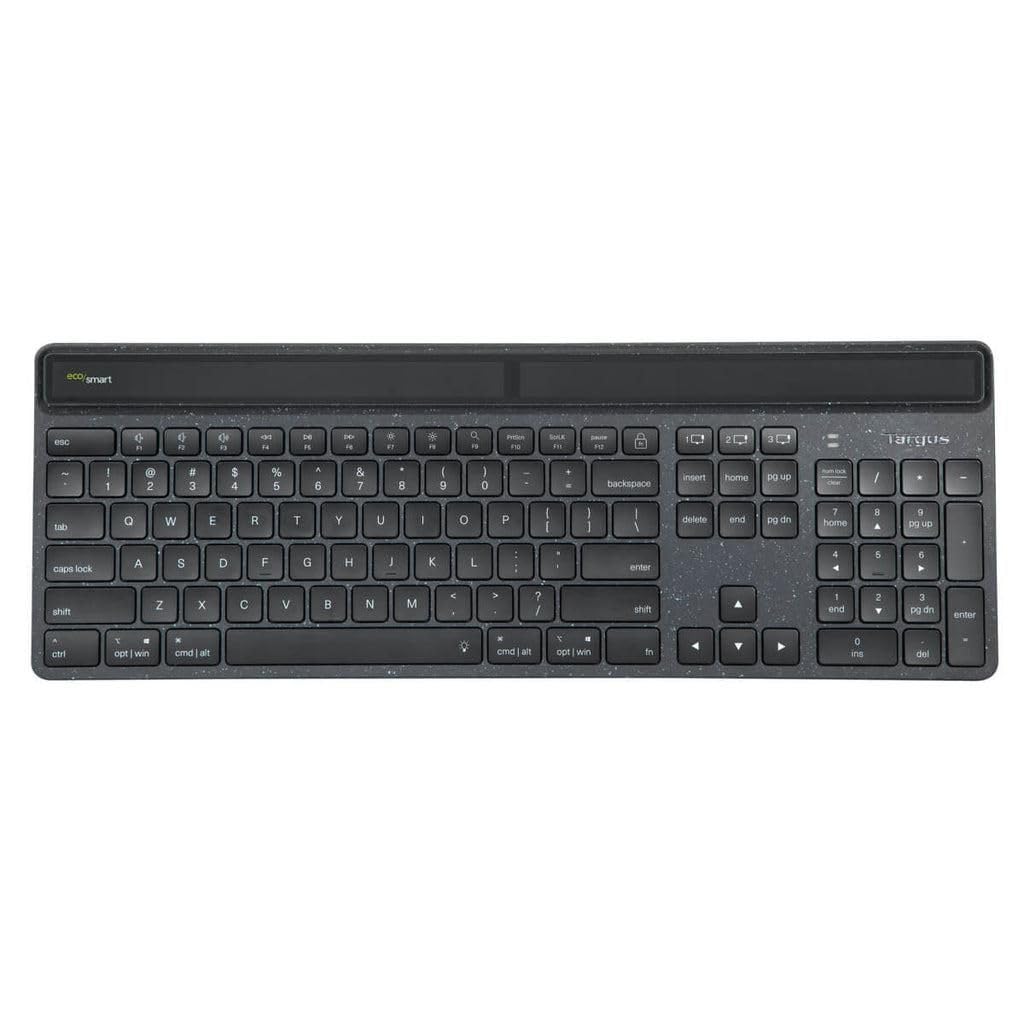
Figure 1: Front view of the Targus EcoSmart Keyboard AKB868FR, showcasing its sleek design and key layout.
Setup
1. Unboxing
Carefully remove the keyboard from its packaging. Ensure all components are present. The package typically includes the Targus EcoSmart Keyboard AKB868FR and this user manual.
2. Initial Power and Charging
The Targus EcoSmart Keyboard is equipped with solar power generation. For optimal performance, expose the keyboard's solar panel (located on the top edge) to light. Direct sunlight or strong indoor lighting will charge the internal battery. A full charge ensures extended use, even in low-light conditions.
3. Bluetooth Pairing
- Power On: Locate the power switch on the keyboard (usually on the side or back) and slide it to the 'ON' position.
- Activate Pairing Mode: Press and hold the Bluetooth pairing button (often indicated by a Bluetooth icon or a specific Fn key combination, refer to keyboard markings) for 3-5 seconds until the Bluetooth indicator light begins to flash. This indicates the keyboard is in pairing mode.
- Enable Bluetooth on Your Device: On your computer, tablet, or smartphone (Windows®, macOS®, Chrome OS®, iPadOS®, iOS®, Android™), navigate to the Bluetooth settings.
- Select Keyboard: In the list of available Bluetooth devices, locate and select "Targus AKB868FR" or a similar name.
- Confirm Pairing: Follow any on-screen prompts to complete the pairing process. You may be asked to enter a code displayed on your screen using the keyboard, then press Enter. Once paired, the Bluetooth indicator light on the keyboard will stop flashing and remain solid or turn off.
Your keyboard is now ready for use. The keyboard can typically remember multiple paired devices, allowing for quick switching between them (refer to specific keyboard markings for multi-device switching functions).
Operating Instructions
1. Basic Keyboard Use
The Targus EcoSmart Keyboard AKB868FR functions as a standard QWERTY (French) layout keyboard. Simply begin typing after successful pairing. The scissors key switches provide a responsive and comfortable typing experience.
2. Special Function Keys (Fn)
Many keys on the top row (F1-F12) and other keys may have secondary functions, indicated by icons. To activate these functions, press and hold the Fn key (usually located near the bottom left of the keyboard) simultaneously with the desired function key. Common functions include media control (play/pause, volume), screen brightness, and application shortcuts.
3. Backlight Control
The keyboard features a backlight for improved visibility in low-light conditions. Use the dedicated backlight control keys (often an Fn key combination, e.g., Fn + F5/F6 or a specific backlight icon key) to:
- Turn the backlight on or off.
- Adjust backlight brightness levels.
The backlight will automatically turn off after a period of inactivity to conserve battery life.
4. Power Management
The integrated solar panel continuously charges the keyboard's internal battery when exposed to light. For optimal battery life, ensure the solar panel is not obstructed. The keyboard is designed to enter a low-power sleep mode after a period of inactivity to conserve energy. Press any key to wake it up.
Maintenance
1. Cleaning the Keyboard
To clean your keyboard, power it off first. Use a soft, lint-free cloth slightly dampened with water or a mild, non-abrasive cleaning solution. Avoid spraying liquids directly onto the keyboard. For cleaning between keys, use compressed air or a soft brush. Do not use harsh chemicals or abrasive materials.
2. Antimicrobial Protection
The Targus EcoSmart Keyboard features an antimicrobial coating designed to inhibit the growth of microorganisms. To maintain its effectiveness, clean the keyboard regularly as described above. Avoid scratching or damaging the surface, as this may compromise the coating.
Troubleshooting
| Problem | Possible Solution |
|---|---|
| Keyboard not connecting via Bluetooth. |
|
| Keys are not responding. |
|
| Backlight is not working or is dim. |
|
| Battery not charging effectively. |
|
Specifications
- Model: AKB868FR
- Connectivity: Bluetooth 5.0
- Key Switch Type: Scissors Key
- Layout: QWERTY (French)
- Power Source: Solar Powered
- Antimicrobial Protection: Yes
- Backlight: Yes
- Compatible Operating Systems: Chrome OS®, Windows®, macOS®, iPadOS®, iOS®, Android™
- Material: Plastic
- Color: Plain (Black)
Warranty and Support
Targus products are backed by a limited warranty. For detailed warranty information, product registration, and technical support, please visit the official Targus website or contact your local Targus customer service. Keep your proof of purchase for warranty claims.
Targus Official Website: www.targus.com


