
Rapoo E9310M
Rapoo E9310M Multi-Device Wireless Keyboard User Manual
Model: E9310M | Brand: Rapoo
Introduction
This manual provides detailed instructions for the setup, operation, maintenance, and troubleshooting of your Rapoo E9310M Multi-Device Wireless Keyboard. This keyboard is designed for versatile use across multiple operating systems and devices, offering a seamless typing experience.

Image: The Rapoo E9310M Multi-Device Wireless Keyboard, showcasing its sleek design.
What's in the Box
- 1 x Rapoo E9310M Wireless Keyboard
- 1 x User Guide
- 2 x AAA Batteries (pre-installed or included separately)
Setup
1. Battery Installation
The Rapoo E9310M keyboard operates on 2 AAA batteries. Ensure batteries are correctly inserted according to polarity markings. The keyboard is designed for extended battery life, lasting up to 12 months with upgraded low-energy Bluetooth technology.

Image: The Rapoo E9310M keyboard on a desk, highlighting its extended battery life feature.
2. Connectivity Options
The keyboard supports multi-device connectivity via two methods:
- Bluetooth 5.0/4.0: For wireless connection to up to three devices.
- 2.4GHz USB Receiver: For a stable wireless connection to one device.

Image: Diagram illustrating multi-device and multi-OS connectivity options for the keyboard.
3. Pairing with Devices
- For 2.4GHz USB Receiver: Insert the USB receiver into an available USB port on your computer. The keyboard should connect automatically.
- For Bluetooth Pairing (up to 3 devices):
- Press and hold the Fn + 1, Fn + 2, or Fn + 3 key combination for 3 seconds to enter Bluetooth pairing mode for the desired channel. The indicator light above the '1', '2', or '3' key will flash rapidly.
- On your device (PC, tablet, smartphone), navigate to Bluetooth settings and search for new devices.
- Select "Rapoo E9310M" from the list of available devices to complete the pairing process. The indicator light will stop flashing once connected.

Image: A close-up view of the USB receiver being inserted into a laptop, demonstrating 2.4GHz connectivity.
4. Switching Between Connected Devices
To switch between paired Bluetooth devices or the 2.4GHz connection, simply press the corresponding key:
- Press Fn + 1, Fn + 2, or Fn + 3 to switch to a Bluetooth-connected device.
- Press Fn + 4 to switch to the device connected via the 2.4GHz USB receiver.
5. System Switching (Windows/Mac)
The keyboard layout is optimized for both Windows and Mac OS. To switch between operating system modes:
- Press Fn + Q for Mac OS mode.
- Press Fn + W for Windows OS mode.
This ensures that function keys and modifier keys (like Command/Alt) operate correctly for your specific operating system.
Operating Instructions
1. 99-Key Compact Layout
The E9310M features a compact 99-key layout that includes a full number pad, providing essential functionality without occupying excessive desk space.

Image: Overhead view of the Rapoo E9310M keyboard, illustrating its compact 99-key layout with integrated number pad.
2. Low-Profile Chiclet Keycaps
The keyboard is equipped with low-profile chiclet keycaps and an incurve rounded design, offering a quiet, precise, and comfortable typing experience similar to a laptop keyboard.

Image: A close-up detail of the low-profile chiclet keycaps, showing their design and spacing.
3. Multimedia Keys
Access 12 widely used function keys for multimedia control (e.g., play/pause, volume up/down, mute) by pressing the Fn key in combination with the corresponding F1-F12 keys. These shortcuts are supported on both Windows and Mac OS.
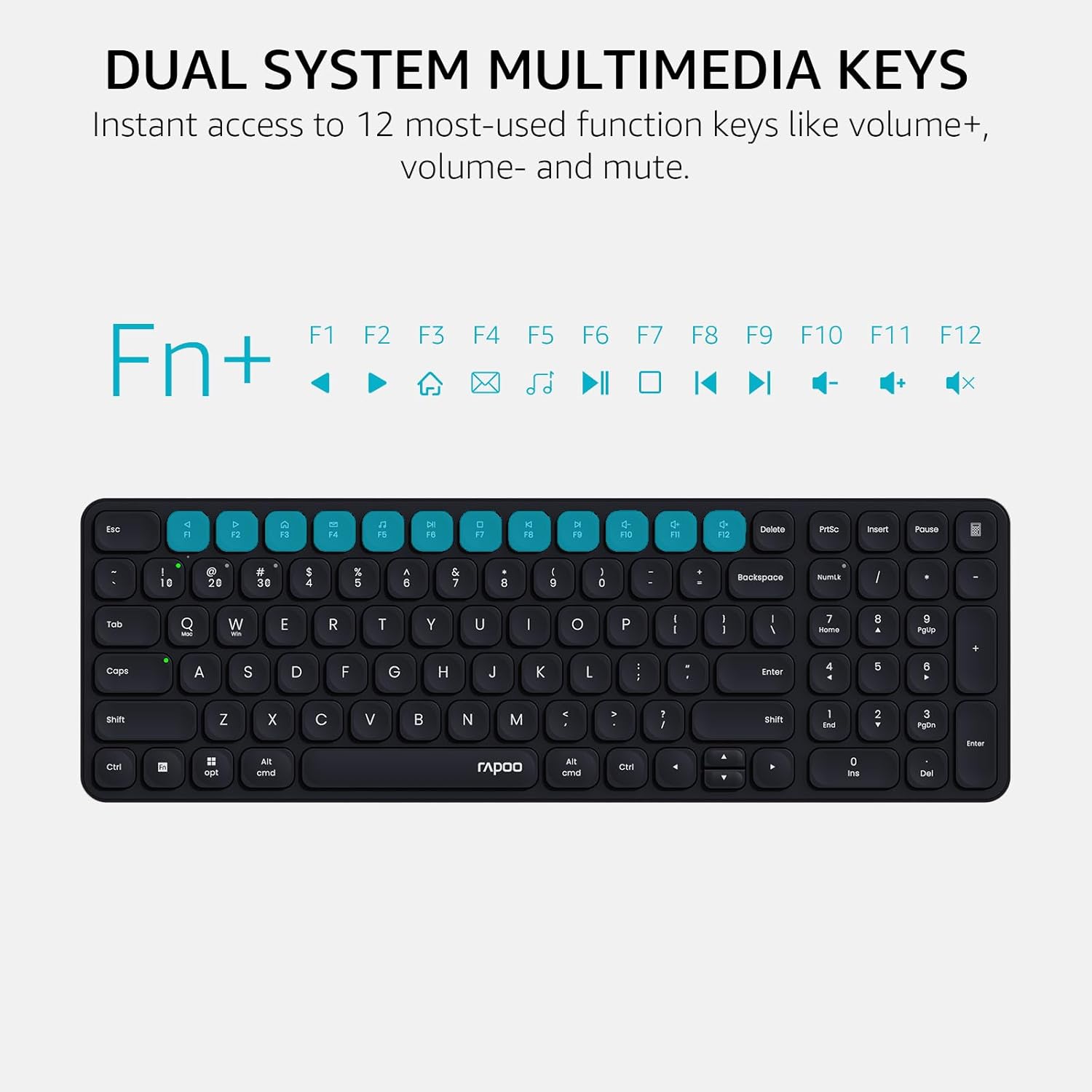
Image: A visual guide highlighting the multimedia functions accessible via the Fn key combinations.
4. Device and Capitalization Indicator Lights
The keyboard includes indicator lights to show which device channel is currently active and whether Caps Lock is engaged. This provides immediate visual feedback on the keyboard's status.

Image: Close-up view of the keyboard's indicator lights for device connection and Caps Lock status.
Maintenance
- Cleaning: Use a soft, dry cloth to clean the keyboard surface. For deeper cleaning, a slightly damp cloth with mild soap can be used, ensuring no liquid enters the key switches or internal components.
- Battery Replacement: Replace AAA batteries when the low battery indicator appears or when connectivity issues arise due to power.
- Storage: Store the keyboard in a cool, dry place away from direct sunlight and extreme temperatures when not in use for extended periods.
Troubleshooting
| Problem | Possible Cause | Solution |
|---|---|---|
| Keyboard not connecting via Bluetooth. | Keyboard not in pairing mode; device Bluetooth off; interference; low battery. | Ensure keyboard is in pairing mode (Fn + 1/2/3 for 3s). Check device Bluetooth settings. Move closer to the device. Replace batteries. |
| 2.4GHz connection not working. | USB receiver not properly inserted; driver issue; low battery. | Re-insert USB receiver into a different port. Ensure keyboard is switched to 2.4GHz mode (Fn + 4). Replace batteries. |
| Keys not responding or typing incorrectly. | Low battery; incorrect operating system mode; physical obstruction. | Replace batteries. Switch to correct OS mode (Fn + Q for Mac, Fn + W for Windows). Clean under keycaps. |
| Multimedia keys not functioning. | Incorrect operating system mode; software conflict. | Ensure correct OS mode is selected. Check if any software on your device is overriding keyboard functions. |
Specifications
| Feature | Detail |
|---|---|
| Model | E9310M |
| Connectivity | Bluetooth 5.0/4.0, 2.4GHz RF (USB Receiver) |
| Multi-Device Support | Up to 4 devices (3 via Bluetooth, 1 via 2.4GHz) |
| Compatible Operating Systems | Windows, Mac OS, Linux, Chrome OS, iOS, Android |
| Key Layout | 99-Key Compact with Number Pad |
| Key Type | Low-Profile Chiclet Keycaps |
| Special Features | Multimedia Hotkeys, Device & Caps Lock Indicators, Portable |
| Power Source | 2 x AAA Batteries (included) |
| Battery Life | Up to 12 months (estimated) |
| Material | Aluminum |
| Dimensions (L x W x H) | 11.18 x 4.69 x 0.79 inches (28.39 x 11.91 x 2.01 cm) |
| Weight | 10.9 ounces (309 grams) |
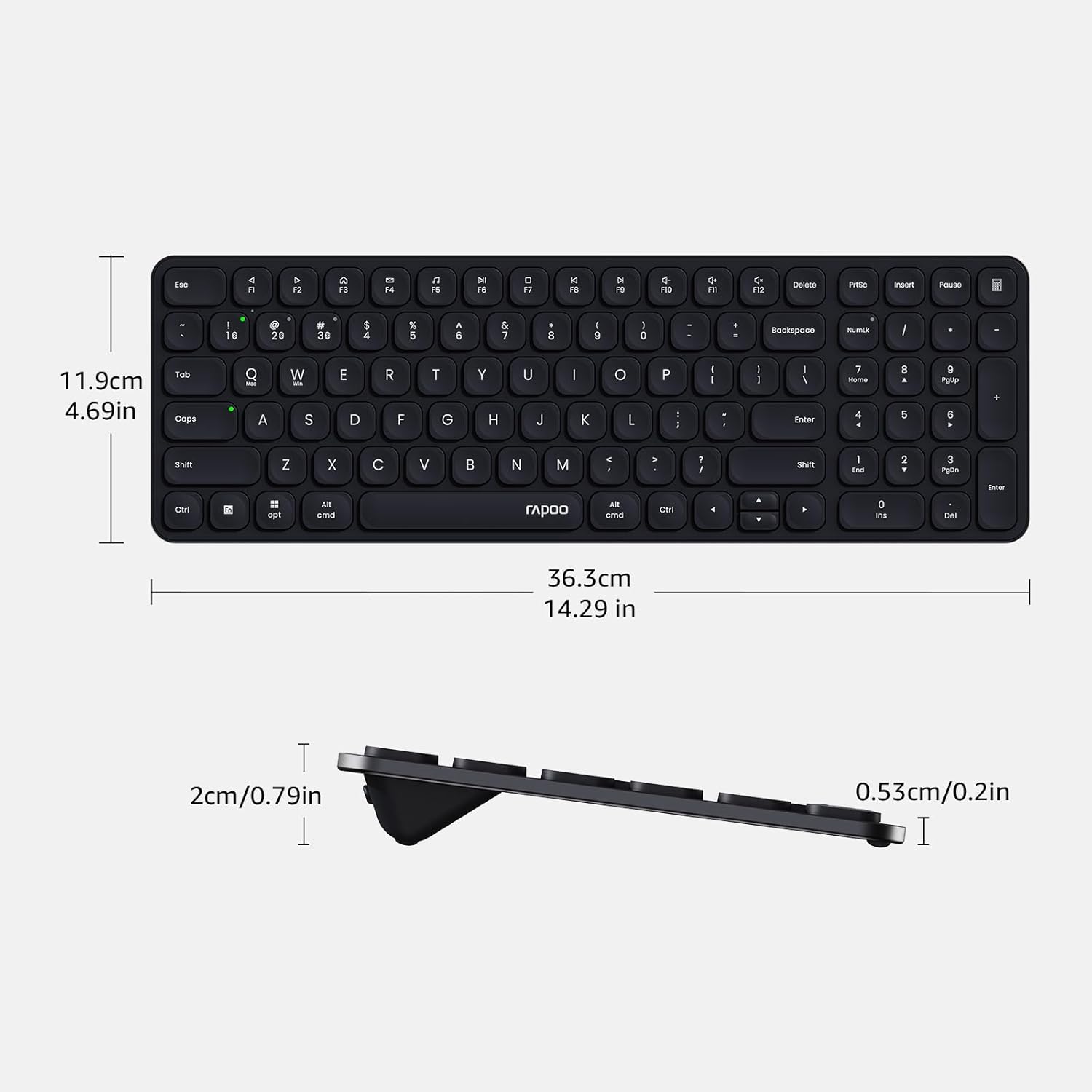
Image: Diagram showing the precise dimensions of the Rapoo E9310M keyboard in both centimeters and inches.
Warranty and Support
Rapoo products are designed for reliability and performance. For any issues or inquiries, please refer to the following:
- Return Window: A 30-day return window is typically offered for product returns. Please check your purchase details for specific terms.
- Customer Support: For technical assistance or product support, please contact Rapoo customer service. Refer to the official Rapoo website or your purchase documentation for contact information.
Safety Information
- Do not expose the keyboard to liquids or excessive moisture.
- Avoid extreme temperatures or direct sunlight.
- Do not attempt to disassemble or modify the keyboard.
- Keep out of reach of children.
Related documentsE9310M



Ask a question about this manual
Ask about setup, troubleshooting, compatibility, parts, safety, or missing instructions. Manuals+ will review the question and use this page’s manual context to help answer it.