
1. Introduction
The TERRAMASTER F4-212 is a high-performance 4-bay Network Attached Storage (NAS) device designed for home and SOHO users. It features an ARM v8 quad-core 1.7GHz CPU and 1GB RAM, supporting 4K video decoding and uPnP/DLNA protocols for multimedia streaming. The F4-212 offers cross-platform file services including SMB, NFS, SFTP/FTP, AFP, iSCSI, and WebDAV, with robust user and folder permission management. It provides advanced backup solutions like Duple Backup, TSSS, TFM Backup, and CloudSync to protect valuable data. Installation is simplified with online tutorials and videos, and it supports 3.5-inch and 2.5-inch SATA HDDs, and 2.5-inch SATA SSDs, with up to 22TB per bay (88TB total in RAID 0).
Key Features:
- Optimized for Home & SOHO: Runs on the latest TOS 5.1 operating system, ideal for personal and small office use.
- Powerful Hardware: Equipped with an ARM v8 quad-core 1.7GHz CPU and 1GB RAM, supporting high-performance 4K video decoding and multimedia streaming via uPnP/DLNA.
- Cross-Platform File Services: Supports SMB, NFS, SFTP/FTP, AFP, iSCSI, WebDAV, and more, with comprehensive user and group permission management for diverse network environments.
- Advanced Backup Solutions: Integrates multiple backup applications such as Duple Backup, TSSS, TFM Backup, and CloudSync to ensure data safety in various scenarios.
- Simple & Fast System Installation: Provides practical online tutorials and videos for quick setup. Supports 3.5-inch and 2.5-inch SATA HDDs, and 2.5-inch SATA SSDs, with up to 22TB per bay (88TB total in RAID 0).
2. Package Contents
Please ensure all items are present in the package:
- TERRAMASTER F4-212 NAS Unit
- Power Adapter
- Ethernet Cable
- Quick Installation Guide
- Accessory Kit (screws for 2.5" drives)
3. Hardware Setup
3.1. Installing Hard Drives (3.5-inch HDD)
The F4-212 supports tool-less installation for 3.5-inch HDDs. Follow these steps:
- Gently pull the drive tray out from the NAS unit.
- Flex the sides of the drive tray to fit the 3.5-inch HDD into the tray. The HDD should snap securely into place without screws.
- Slide the loaded drive tray back into the NAS unit until it clicks into place.

Image: A 3.5-inch hard drive is shown securely fitted into a drive tray, ready for insertion into the NAS.

Image: A visual guide demonstrating the simple, tool-less process of installing a 3.5-inch HDD into the NAS drive tray.
3.2. Installing Hard Drives (2.5-inch HDD/SSD)
For 2.5-inch HDDs or SSDs, you will need to use the provided screws:
- Gently pull the drive tray out from the NAS unit.
- Place the 2.5-inch drive into the tray, aligning the screw holes on the bottom of the drive with the corresponding holes on the tray.
- Secure the drive to the tray using the small screws provided in the accessory kit.
- Slide the loaded drive tray back into the NAS unit until it clicks into place.
Video: This video demonstrates the installation process for HDDs in a D8-Hybrid device, which uses a similar tray mechanism. The steps for securing 2.5-inch drives with screws are applicable.
3.3. Connecting the NAS
- Connect the Ethernet cable from the NAS to your router or network switch.
- Connect the power adapter to the NAS and then plug it into a power outlet.
- Press the power button on the rear of the NAS to turn it on.
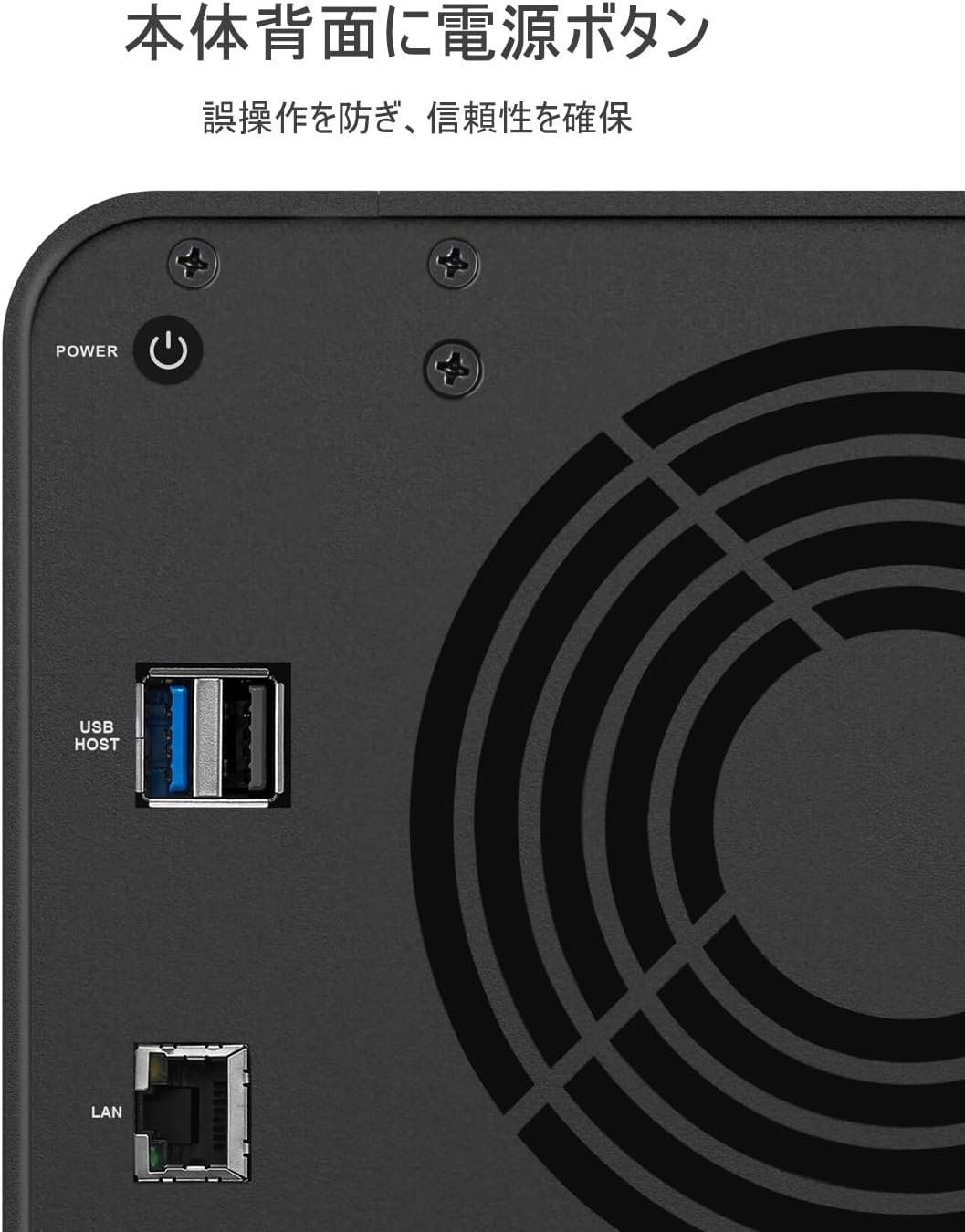
Image: The rear panel of the F4-212, highlighting the LAN ports, USB ports, and the power input and button.
4. Initial Software Setup
Once the hardware is connected and powered on, you can proceed with the software setup. The F4-212 uses the TOS 5.1 operating system.
- Open a web browser on a computer connected to the same network as the NAS.
- Access the NAS by entering its IP address or using the TerraMaster TNAS PC client software to discover it on the network.
- Follow the on-screen instructions to initialize the system, create an administrator account, and configure storage volumes (RAID setup).
Video: This video provides an overview of the TerraMaster F4-223, a similar 4-bay NAS model. It showcases the general interface and capabilities, which are largely consistent with the F4-212's TOS 5.1 system.
5. Operating System Features (TOS 5.1)
The F4-212 runs on TerraMaster Operating System (TOS) 5.1, offering a user-friendly interface and a wide range of applications.
5.1. File Services and Access
Access your files from various devices and operating systems:
- SMB/CIFS: For Windows, macOS, and Linux clients.
- AFP: For macOS clients.
- NFS: For Linux/UNIX clients.
- FTP/SFTP: For secure file transfer.
- WebDAV: For web-based file access.
- iSCSI: For block-level storage access.
Manage user accounts, groups, and folder permissions through the TOS web interface to control access to your data.
5.2. Backup Solutions
Protect your valuable data with integrated backup features:
- Duple Backup: Create redundant backups to another NAS or external storage.
- TSSS (TerraMaster Snapshot Solution): Take snapshots of your data for point-in-time recovery.
- TFM Backup (TerraMaster File Manager Backup): Backup files and folders directly from the file manager.
- CloudSync: Synchronize data with various public cloud services.
- Smartphone Data Transfer: Use the TDAS mobile app to easily transfer data from your smartphone to the NAS.
Video: This video illustrates how to transfer data from a smartphone to a TerraMaster DAS (Direct Attached Storage) device using the TDAS mobile app. The process is similar for NAS devices for backing up mobile data.
5.3. Multimedia Center
Transform your F4-212 into a home multimedia center:
- 4K Video Decoding: Enjoy high-resolution video playback.
- uPnP/DLNA Support: Stream media content to compatible devices on your network.
- Plex/Emby Server: Install popular media server applications for organizing and streaming your media library.
6. Maintenance
6.1. Cooling and Noise Reduction
The F4-212 is designed with efficient cooling and low noise operation:
- Features a smart fan and optimized ventilation to dissipate heat and extend product lifespan.
- Incorporates noise reduction measures to minimize operational sound, typically around 19dB(A).

Image: The rear of the F4-212, showing the large cooling fan designed for efficient heat dissipation.

Image: The F4-212 placed in a bedroom setting next to an alarm clock, illustrating its quiet operation suitable for home environments.
6.2. Drive Compatibility
To ensure stable performance, it is recommended to use dedicated NAS drives. Using incompatible hard drives may lead to connection issues, reduced operating speed, or unrecognized drives. Please check the TerraMaster compatible hard drive list before purchase.
7. Troubleshooting
If you encounter issues with your F4-212 NAS, consider the following common troubleshooting steps:
- Power Issues: Ensure the power cable is securely connected and the power outlet is functional. If the device fails to power on or repeatedly shuts down, try a different power outlet or cable.
- Network Connectivity: Verify that the Ethernet cable is properly connected to both the NAS and your router/switch. Check the network status lights on the NAS and your router.
- Drive Recognition: If a hard drive is not recognized, ensure it is correctly seated in its tray and the tray is fully inserted into the NAS. Confirm the drive is on the TerraMaster compatible hard drive list.
- Software Freezing/Unresponsiveness: If the NAS operating system becomes unresponsive, try restarting the device. If the issue persists, consider re-initializing the system (note: this will erase data, so ensure backups are available).
- Slow Performance: Ensure you are using compatible NAS-grade hard drives. Network congestion or heavy usage can also impact performance.
- Access Issues (e.g., AFP on Mac): Some users have reported issues with specific protocols like AFP. Ensure your TOS is updated to the latest version and consider using alternative protocols like SMB if problems persist.
For persistent issues or complex configurations, please contact TerraMaster support.
8. Specifications
| Feature | Detail |
|---|---|
| Brand | TERRAMASTER |
| Model Number | F4-212-1G |
| Color | Black |
| Product Dimensions (D x W x H) | 22.2 x 17.9 x 15.4 cm |
| Compatible Devices | Windows OS, Mac OS, Linux OS, iOS 14.0+, Android 10.0+ |
| Assembly Required | No |
| Warranty Content | 2 Years |
9. Warranty and Support
The TERRAMASTER F4-212 comes with a 2-year warranty. For product defects, setup questions, or any other inquiries, please contact the TerraMaster Support Center. Manufacturer direct sales ensure Japanese language support is available.
You can find additional resources and contact information on the official TerraMaster website or through the support links provided with your product.