
1. Introduction
This manual provides instructions for the Mecer Xpress Smartlife 10.1-Inch M17QF7-4G Android 11 Tablet. It covers initial setup, operation, maintenance, and troubleshooting to ensure optimal use of your device.
Package Contents
- Mecer Xpress Smartlife 10.1-Inch M17QF7-4G Android 11 Tablet
- Charger
- Folio-type case
- User Manual (this document)
2. Product Overview
The Mecer Xpress Smartlife tablet features a 10.1-inch IPS display, an octa-core processor, 4GB RAM, and 64GB internal storage. It runs on Android 11 and supports 4G connectivity.
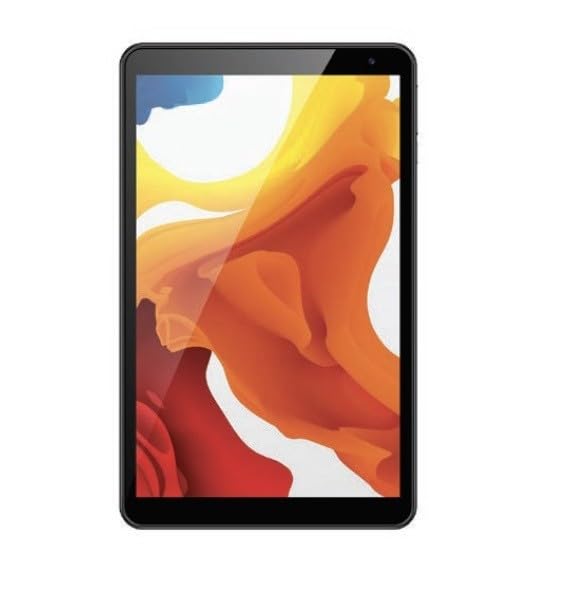
Figure 2.1: Mecer Xpress Smartlife M17QF7-4G Tablet. This image displays the tablet's front view, highlighting its 10.1-inch screen and sleek design.
Physical Features
- Power Button: Typically located on the side or top edge, used to power on/off or wake/sleep the device.
- Volume Buttons: Adjust audio levels.
- USB Port (Type-C or Micro-USB): For charging and data transfer.
- Headphone Jack: For connecting wired headphones.
- SIM/MicroSD Card Slot: For inserting SIM cards for 4G connectivity and a microSD card for storage expansion.
- Front Camera: Located above the screen, for video calls and selfies.
- Rear Camera: Located on the back, for taking photos and videos.
- Speakers: For audio output.
3. Setup
3.1 Initial Charging
- Connect the charger to the tablet's USB port.
- Plug the charger into a power outlet.
- Allow the tablet to charge completely before first use. The battery indicator on the screen will show charging status.
3.2 Powering On/Off
- To Power On: Press and hold the Power button until the Mecer logo appears.
- To Power Off: Press and hold the Power button until the power options appear on the screen, then select "Power off".
- To Sleep/Wake: Briefly press the Power button.
3.3 Inserting SIM and MicroSD Cards
The tablet supports dual SIM cards for 4G connectivity and a microSD card for additional storage.
- Locate the SIM/MicroSD card slot on the side of the tablet.
- Use the provided tool (if any) or your fingernail to open the tray.
- Carefully place the SIM card(s) and/or microSD card into the designated slots on the tray, ensuring correct orientation.
- Gently push the tray back into the slot until it clicks into place.
4. Operating Instructions
4.1 Basic Navigation
- Touch Screen: Tap to select, swipe to scroll, pinch to zoom.
- Home Screen: The central hub for your apps and widgets.
- Notifications Panel: Swipe down from the top of the screen to access quick settings and notifications.
- App Drawer: Swipe up from the bottom of the screen to view all installed applications.
4.2 Connectivity (Wi-Fi and 4G)
- Wi-Fi:
- Go to Settings > Network & internet > Wi-Fi.
- Toggle Wi-Fi on.
- Select your desired network and enter the password if prompted.
- 4G/Mobile Data:
- Ensure a valid SIM card is inserted.
- Go to Settings > Network & internet > Mobile network.
- Toggle Mobile data on.
4.3 Google Play Store
Access millions of apps, games, books, and movies through the pre-installed Google Play Store. You will need a Google account to download content.
4.4 Camera Usage
The tablet features a 0.3MP front camera and a 2.0MP rear camera.
- Open the Camera app.
- Tap the shutter button to take a photo.
- Switch between front and rear cameras using the camera switch icon.
- Select video mode to record videos.
5. Maintenance
5.1 Cleaning the Tablet
- Use a soft, lint-free cloth to clean the screen and body.
- Avoid using harsh chemicals, abrasive cleaners, or aerosol sprays.
- Ensure the tablet is powered off and unplugged before cleaning.
5.2 Software Updates
Regularly check for and install software updates to ensure optimal performance and security.
- Go to Settings > System > System update.
- Follow the on-screen instructions to download and install any available updates.
5.3 Battery Care
- Avoid exposing the tablet to extreme temperatures.
- Do not allow the battery to fully discharge frequently.
- Use only the original charger or a certified compatible charger.
6. Troubleshooting
| Problem | Possible Solution |
|---|---|
| Tablet does not power on. | Ensure the battery is charged. Connect the charger and wait a few minutes before attempting to power on again. |
| Cannot connect to Wi-Fi. | Check if Wi-Fi is enabled in settings. Verify the Wi-Fi password. Restart your router and the tablet. |
| Apps are crashing or freezing. | Close background apps. Clear the cache of the problematic app (Settings > Apps > [App Name] > Storage > Clear cache). Restart the tablet. |
| Slow performance. | Close unused apps. Free up storage space by deleting unnecessary files or apps. Consider a factory reset as a last resort (backup data first). |
| 4G/Mobile data not working. | Ensure a valid SIM card is inserted and mobile data is enabled in settings. Check your data plan with your service provider. |
7. Specifications
| Feature | Detail |
|---|---|
| Brand | Mecer |
| Model Name | Xpress Smartlife |
| Model Number | M17QF7-4G |
| Screen Size | 10.1 Inches |
| Display Resolution Maximum | 1280x800 pixels |
| Operating System | Android 11 |
| Colour | Black |
| RAM Memory Installed Size | 4 GB |
| Hard-Drive Size | 64 GB |
| Expandable Storage | microSD |
| Processor Brand | Intel |
| Processor Description | Intel Octa-core |
| Wireless Connectivity | 802.11 b/g/n Wi-Fi, Bluetooth 4.2 |
| Cellular Technology | 4G/HSPA+ (Voice and Data, 21Mbps) |
| Front Camera | 0.3MP |
| Rear Camera | 2.0MP |
| Battery Cell Type | Lithium Polymer |
| Battery Energy Content | 6000 mAh |
| Item Dimensions (L x W x Thickness) | 25L x 1W x 15Th centimetres |
| Human-Interface Input | Touchscreen |
| Special Feature | 4G Voice Call Support |
| Country of Origin | South Africa |
8. Warranty and Support
8.1 Warranty Information
The Mecer Xpress Smartlife M17QF7-4G Tablet comes with a 1 Year Limited Warranty. Please retain your proof of purchase for warranty claims. The warranty covers manufacturing defects under normal use conditions.
8.2 Customer Support
For technical assistance, troubleshooting beyond this manual, or warranty inquiries, please contact Mecer customer support. Refer to the Mecer official website or product packaging for the most current contact information.