
1. Introduction
This manual provides essential information for the setup, operation, maintenance, and troubleshooting of your SAMSUNG 65-Inch Class QLED 4K QN90D Series Smart TV. Please read this manual thoroughly before using your TV to ensure safe and correct operation.
The SAMSUNG QN90D Series TV features a 65-inch QLED 4K display, Neo Quantum HDR+, Dolby Atmos sound, Object Tracking Sound+, Motion Xcelerator 144Hz, and Real Depth Enhancer Pro for an enhanced viewing experience.
2. What's in the Box
Verify that all components are present in the packaging:
- SAMSUNG 65-Inch Class QLED 4K QN90D Series Smart TV
- Power Cable
- Remote Control (requires CR2032 battery)
- User Manual (this document)
- Stand Components (if applicable, for tabletop setup)

Image: The SAMSUNG QN90D Series TV with its stand and remote control, representing the main components included in the box.
3. Setup
3.1 Unpacking and Placement
Carefully remove the TV from its packaging. It is recommended to have at least two people for this process due to the size and weight of the unit. Place the TV on a stable, level surface or mount it on a wall using a compatible VESA mount (400 x 300 mm).
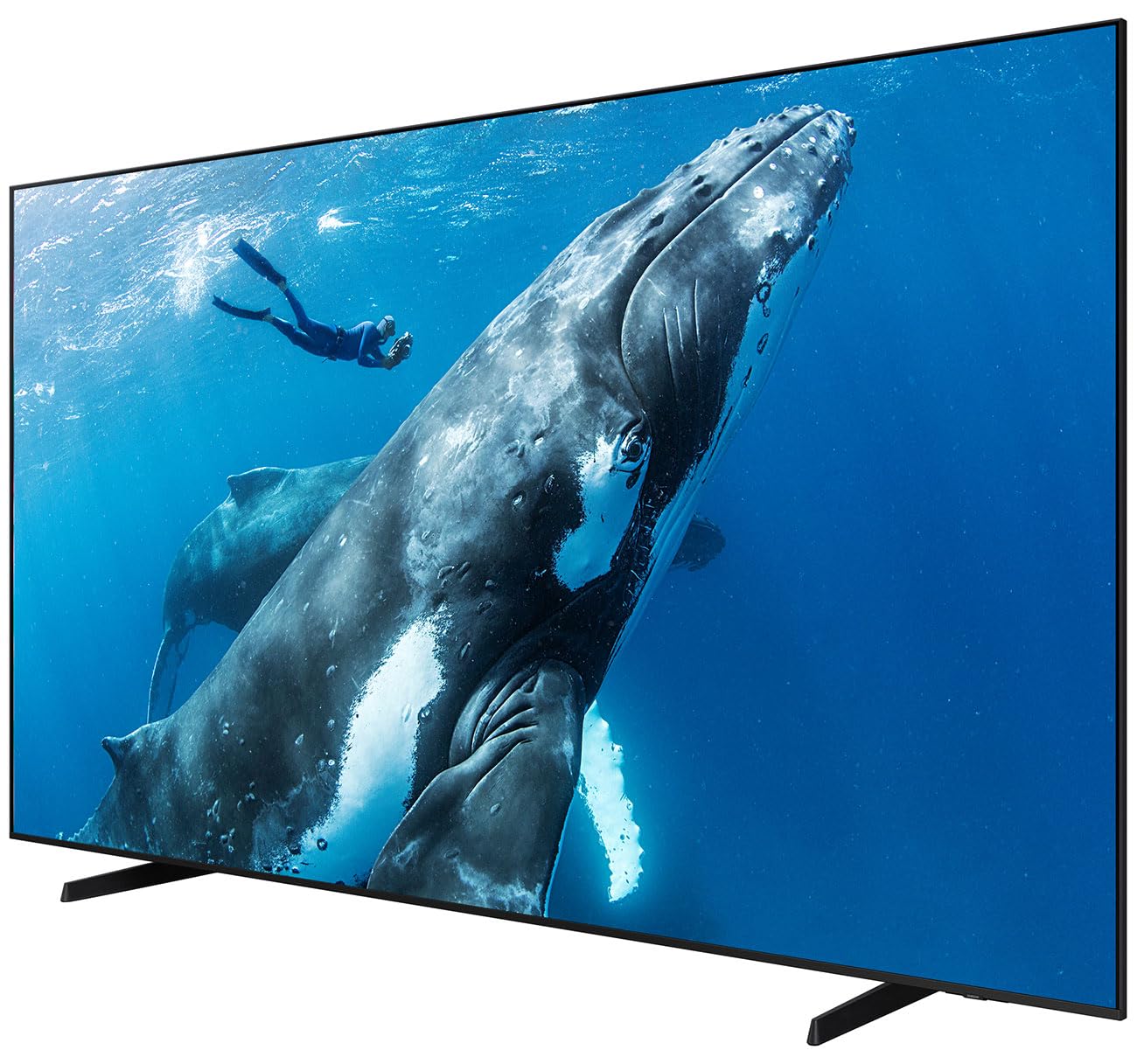
Image: A diagram showing the dimensions of the SAMSUNG QN90D Series TV, including its width (56.9"), height (35.1"), and depth (10.7").
3.2 Connecting the Stand (Optional)
If you are not wall-mounting, attach the stand to the TV. Refer to the separate stand assembly guide for detailed instructions. Ensure all screws are securely fastened.
3.3 Power Connection
Connect the power cable to the TV's power input and then to a wall outlet. Do not plug in the TV until all other connections are made.
3.4 External Device Connections
The TV features multiple ports for connecting external devices:
- HDMI Ports: 4 HDMI ports for connecting Blu-ray players, game consoles, soundbars, etc.
- USB Ports: 2 USB ports for connecting USB storage devices.
- Antenna/Cable Input: For connecting an antenna or cable TV signal.
- Ethernet Port: For a wired internet connection.
For optimal performance, use high-quality HDMI cables for video and audio connections.
3.5 Initial Setup Wizard
Once powered on, the TV will guide you through the initial setup process, including:
- Language selection (English, Spanish, French)
- Network connection (Wi-Fi or Ethernet)
- Channel scanning
- Smart Hub setup
4. Operating Instructions
4.1 Remote Control
The included remote control allows you to navigate the TV's menus, change channels, adjust volume, and access Smart Hub features. Insert a CR2032 battery into the remote control.
4.2 Smart Hub and Applications
Access the Smart Hub to browse and launch applications, streaming services, and connected devices. The TV runs on the Tizen operating system and includes a built-in browser.
4.3 Picture Settings
Adjust picture settings to optimize your viewing experience. Key features include:
- Picture Mode: Select from various presets (e.g., Standard, Dynamic, Movie, Filmmaker Mode).
- Brightness/Contrast: Fine-tune display levels.
- Color Volume: The TV supports 100% Color Volume for rich and accurate colors.
- Neo Quantum HDR+: Enhances contrast and brightness for HDR content.
- Real Depth Enhancer Pro: Optimizes depth perception.
- Motion Xcelerator 144Hz: Reduces motion blur for fast-paced content and gaming.

Image: The SAMSUNG QN90D TV screen displaying a vibrant 4K image of elephants in a landscape, highlighting the high resolution and HDR capabilities.

Image: The SAMSUNG QN90D TV screen showing a high-speed car race, illustrating the smooth motion provided by the 144Hz refresh rate and Motion Xcelerator technology.
4.4 Sound Settings
Customize audio output for an immersive experience:
- Sound Mode: Choose from various sound presets (e.g., Standard, Adaptive Sound, Amplify).
- Dolby Atmos: Integrated surround sound for a three-dimensional audio experience.
- Object Tracking Sound+: Audio moves with the on-screen action.
- Speaker Output: The TV features a 4.2.2CH speaker system with 60 Watts output.

Image: The SAMSUNG QN90D TV displaying a drummer, with visual representations of sound waves emanating from the screen, illustrating the Dolby Atmos and Object Tracking Sound+ features.
4.5 Connectivity
The TV supports various connectivity options:
- Wi-Fi: Connect to your home wireless network.
- Bluetooth 5.2: Connect wireless headphones, soundbars, or other compatible devices.
- Mobile to TV / TV to Mobile: Content sharing capabilities with compatible smartphones.
5. Maintenance
5.1 Cleaning the Screen
Gently wipe the screen with a soft, dry microfiber cloth. For stubborn smudges, lightly dampen the cloth with water or a specialized screen cleaner. Do not use harsh chemicals, abrasive materials, or spray liquids directly onto the screen.
5.2 Cleaning the TV Body
Wipe the TV frame and stand with a soft, dry cloth. Avoid using solvents or waxes.
5.3 Software Updates
Periodically check for and install software updates to ensure optimal performance and access to new features. Updates can typically be found in the TV's settings menu under "Support" or "Software Update."
6. Troubleshooting
If you encounter issues with your TV, refer to the following common problems and solutions:
6.1 No Power
- Ensure the power cable is securely connected to both the TV and a working wall outlet.
- Check if the outlet is receiving power by plugging in another device.
- Press the power button on the TV itself, not just the remote.
6.2 No Picture or Poor Picture Quality
- Verify that the correct input source is selected (e.g., HDMI 1, TV).
- Check all cable connections (HDMI, antenna) for looseness or damage.
- Adjust picture settings (brightness, contrast, sharpness) in the TV menu.
- If using an external device, test it with another display to rule out device issues.
6.3 No Sound or Poor Sound Quality
- Increase the volume on both the TV and any connected external audio devices.
- Check audio cable connections.
- Ensure the TV is not muted.
- Select the correct audio output in the TV's sound settings (e.g., TV Speakers, Optical, HDMI ARC).
6.4 Remote Control Not Working
- Replace the CR2032 battery in the remote control.
- Ensure there are no obstructions between the remote and the TV's sensor.
- Try pairing the remote again if it's a Bluetooth remote (refer to TV's on-screen instructions).
6.5 Network Connection Issues
- Restart your router and modem.
- Check Wi-Fi password and network settings in the TV menu.
- If using Wi-Fi, try moving the router closer or using a wired Ethernet connection.
7. Specifications
| Feature | Detail |
|---|---|
| Brand | Samsung |
| Model Name | QN65QN90D (CRT2SAMQN65QN90DA) |
| Screen Size | 65 Inches |
| Display Technology | QLED (Mini-LED Backlight) |
| Resolution | 4K (3840 x 2160) |
| Refresh Rate | 120 Hz (Motion Xcelerator 144Hz) |
| Processor | NQ4 AI Gen2 Processor |
| HDR Format Supported | HDR10/HDR10+/Hybrid Log Gamma (Neo Quantum HDR+) |
| Operating System | Tizen |
| Audio Channels | 4.2.2CH (7.1.2 Integrated Surround Sound) |
| Speaker Output Power | 60 Watts |
| Integrated Surround Sound | Dolby Atmos |
| Connectivity | Wi-Fi, Bluetooth 5.2, Ethernet |
| HDMI Ports | 4 |
| USB Ports | 2 |
| Product Dimensions (WxHxD) | 56.9"W x 35.1"H x 10.7"D (with stand) |
| Item Weight | 60.6 Pounds (with stand) |
| VESA Mount Standard | 400 x 300 mm |
| Remote Battery Size | CR2032 |
| Color | Graphite Black |
| Supported Languages | English, Spanish, French |
8. Warranty and Support
8.1 Warranty Information
This SAMSUNG QN90D Series TV is a manufacturer-refurbished unit and comes with a 90-day limited warranty. This warranty covers defects in materials and workmanship under normal use. For specific terms and conditions, please refer to the warranty documentation included with your product or contact Samsung customer support.
For returns or replacements within the warranty period, please contact the seller (Woot) or Amazon Renewed support.
8.2 Customer Support
For further assistance, technical support, or service inquiries, please contact Samsung customer support or refer to the official Samsung website for your region. You may also contact the seller, Woot, for support related to your renewed product purchase.
When contacting support, please have your TV's model number (QN65QN90D or CRT2SAMQN65QN90DA) and serial number ready.


