
MoKo Keyboard Case for iPad Air 13 Inch (2024/2025) and iPad Pro 12.9 (2018-2022)
MoKo Keyboard Case User Manual
For iPad Air 13 Inch (2024/2025) & iPad Pro 12.9 (2018-2022)
1. Introduction
This manual provides detailed instructions for the MoKo 2-in-1 detachable Bluetooth keyboard case. Designed to enhance your tablet experience, this case offers robust protection, versatile viewing angles, and a comfortable typing experience with its backlit wireless keyboard. Please read this manual thoroughly before use to ensure proper setup and operation.
2. Compatibility
This keyboard case is specifically designed for the following iPad models:
- New iPad Air 13 Inch M3 2025: Models A3268, A3269, A3271
- iPad Air 13 Inch M2 2024: Models A2898, A2899, A2900
- iPad Pro 12.9 Inch 2022/2021/2020/2018: Models A2436, A2764, A2437, A2766, A2378, A2461, A2379, A2462
Please verify your iPad model number before use. The keyboard layout is QWERTY.

Image: Compatibility chart for MoKo Keyboard Case, detailing supported iPad Air 13-inch (2024/2025) and iPad Pro 12.9-inch (2021/2022) models with their specific model numbers.
3. Package Contents
The package includes the following items:
- 1x MoKo Keyboard Case (for iPad Air 13 Inch 2025/2024 or iPad Pro 12.9 2022/2021/2020/2018)
- 1x Removable Bluetooth Keyboard
- 1x Type-C USB Charging Cable
Please note: This item does not include a stylus pen.
4. Setup
4.1 Installing Your iPad
- Gently align your iPad with the protective frame of the case.
- Press firmly around the edges of the iPad until it is securely seated within the case. Ensure all ports and buttons are accessible through the precise cutouts.
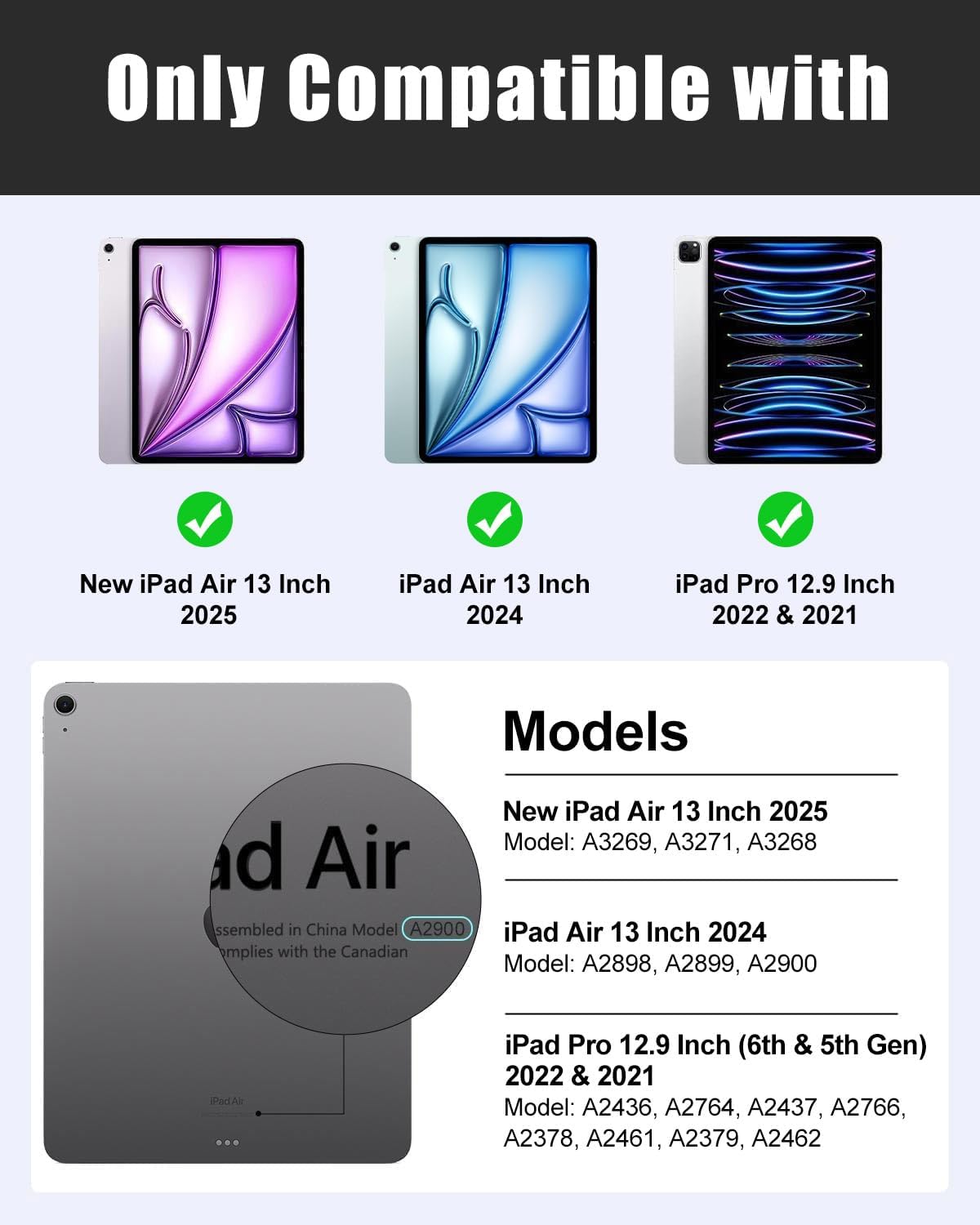
Image: The MoKo Keyboard Case with an iPad securely fitted, highlighting the protective design and precise cutouts for device access.
4.2 Connecting the Bluetooth Keyboard
- Ensure the keyboard is powered on and fully charged. Locate the ON/OFF switch on the keyboard and slide it to the "ON" position.
- Press the "Connect" button on the keyboard. The Bluetooth indicator light will begin to flash.
- On your iPad, go to Settings > Bluetooth and turn Bluetooth "On".
- Your iPad will search for available devices. Select "Bluetooth Keyboard" from the list to pair.
- Once paired, the Bluetooth indicator light on the keyboard will stop flashing.

Image: Step-by-step guide illustrating how to connect the detachable Bluetooth keyboard to your iPad.
Video: Official product video demonstrating the connection process for the MoKo Keyboard Case's Bluetooth keyboard.
4.3 Charging the Keyboard
Connect the provided Type-C USB charging cable to the keyboard's charging port and plug the other end into a USB power adapter (not included). The charging indicator light will illuminate during charging and turn off when fully charged.

Image: The keyboard's Type-C charging port, illustrating how to connect the charging cable for power.
5. Operating Instructions
5.1 Adjusting Viewing Angles
The case features 3 non-slip grooves that allow you to adjust your iPad to multiple stable viewing angles. Simply place the edge of your iPad into one of the grooves to achieve your desired angle for typing, watching, or drawing.
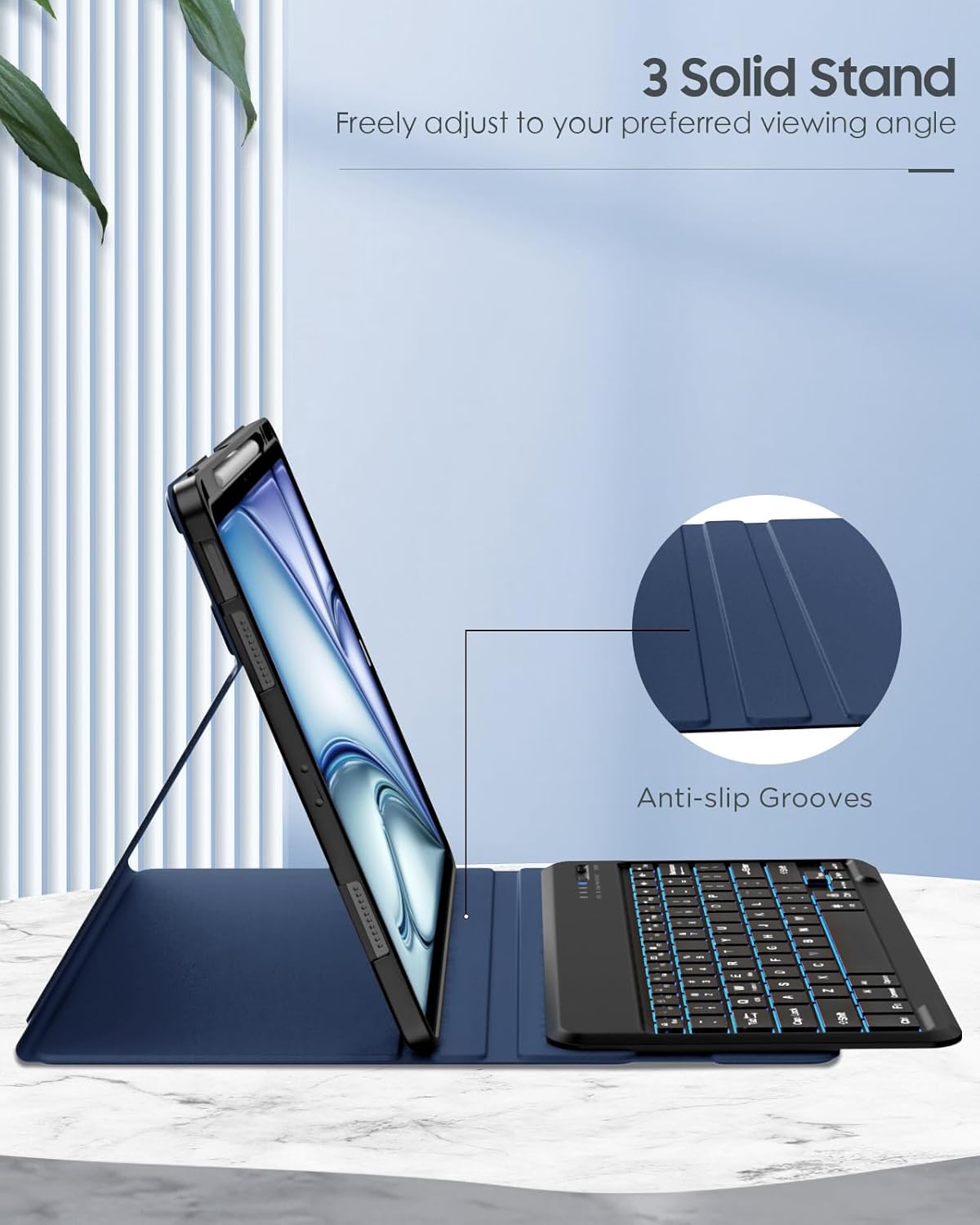
Image: The MoKo Keyboard Case set up in a multi-angle stand configuration, showcasing the three non-slip grooves for adjustable viewing.
5.2 Using the Detachable Keyboard
The wireless Bluetooth keyboard is magnetically attached to the case. You can easily detach it for more flexible use or keep it attached for a laptop-like experience. The strong magnets ensure the keyboard stays securely in place during use.

Image: The detachable Bluetooth keyboard magnetically secured to the case, illustrating its flexible design.
5.3 Backlight Control
The keyboard features 7 different backlight colors and 3 adjustable brightness levels. Use the dedicated backlight key (often represented by a light bulb icon) to cycle through colors and adjust brightness to suit your environment.

Image: The keyboard displaying its 7-color backlight feature with three adjustable brightness levels, enhancing visibility in low-light conditions.
5.4 Shortcut Keys
The keyboard includes a range of time-saving shortcut keys for quick access to common functions, improving your productivity. Refer to the keyboard layout for specific key functions (e.g., media control, volume, search).

Image: The keyboard layout emphasizing time-saving shortcut keys for efficient operation.
5.5 Built-in Pencil Holder
The case features a built-in pencil holder to keep your Apple Pencil (or compatible stylus) safe and readily available. It supports Apple Pencil Pro magnetic charging.

Image: The integrated pencil holder, designed to securely store and charge your Apple Pencil.
6. Maintenance
6.1 Cleaning the Case
To clean the PU leather exterior, gently wipe with a soft, damp cloth. For the microfibre lining, use a dry, soft cloth to remove dust. Avoid using harsh chemicals or abrasive cleaners, as these can damage the material.

Image: Detailed view of the case materials, emphasizing its wear-resistant PU leather, scratch-resistant microfibre lining, and impact-resistant TPU back for comprehensive protection.
6.2 Keyboard Care
Keep the keyboard free from dust and debris. Use a soft brush or compressed air to clean between keys. Avoid spilling liquids on the keyboard. When not in use, ensure the keyboard is powered off to conserve battery life.
7. Troubleshooting
7.1 Keyboard Not Connecting
- Ensure the keyboard is powered on and fully charged.
- Verify Bluetooth is enabled on your iPad.
- Make sure the keyboard is in pairing mode (Bluetooth indicator flashing).
- Forget the device from your iPad's Bluetooth settings and attempt to re-pair.
- Restart both your iPad and the keyboard.
7.2 Backlight Not Working
- Ensure the keyboard is powered on.
- Press the backlight key (light bulb icon) to cycle through colors and brightness levels.
- If the issue persists, charge the keyboard fully.
7.3 Keys Not Responding
- Check if the keyboard is properly connected via Bluetooth.
- Ensure the keyboard is charged.
- Clean any debris from around the keys.
- Restart the keyboard and iPad.
8. Specifications
| Brand: | MoKo |
| Model: | Keyboard Case for iPad Air 13 Inch / iPad Pro 12.9 |
| Compatibility: | iPad Air 13 Inch M3 2025 (A3268, A3269, A3271), M2 2024 (A2898, A2899, A2900); iPad Pro 12.9 2022/2021/2020/2018 (A2436, A2764, A2437, A2766, A2378, A2461, A2379, A2462) |
| Connectivity: | Wireless Bluetooth |
| Keyboard Layout: | QWERTY |
| Backlight: | 7 Colors, 3 Brightness Levels |
| Material: | PU Leather, Microfibre, TPU (Polycarbonate) |
| Special Feature: | Rechargeable, Detachable Keyboard, Multi-Angle Stand, Built-in Pencil Holder (supports magnetic charging) |
| Item Weight: | 1.72 pounds |
| Product Dimensions: | 11.3 x 9.33 x 0.98 inches |
| Batteries: | 1 Lithium Metal battery required |
9. Warranty and Support
For warranty information and customer support, please refer to the product packaging or contact MoKo customer service directly through their official website or the retailer where the product was purchased. Keep your purchase receipt for warranty claims.
MoKo is committed to providing quality products and excellent customer service. If you encounter any issues or have questions, please do not hesitate to reach out.
Related documentsKeyboard Case for iPad Air 13 Inch (2024/2025) and iPad Pro 12.9 (2018-2022)

Ask a question about this manual
Ask about setup, troubleshooting, compatibility, parts, safety, or missing instructions. Manuals+ will review the question and use this page’s manual context to help answer it.