
1. Introduction
Thank you for purchasing the Omikamo Foldable Bluetooth Keyboard with Touchpad. This device offers a compact, portable, and versatile typing solution for various operating systems. This manual provides essential information for setting up, operating, and maintaining your keyboard.

Image 1.1: The Omikamo Foldable Bluetooth Keyboard in its compact, folded state.
2. Product Overview
The Omikamo Foldable Bluetooth Keyboard features a JIS standard Japanese layout, providing a familiar typing experience similar to a laptop. Its foldable design ensures portability without compromising key size. The integrated high-precision touchpad allows for mouse-like control, enhancing productivity across multiple devices.
Key Features:
- JIS Standard Japanese Layout: Designed for comfortable and accurate Japanese input.
- Multi-System Compatibility: Supports iOS, Windows, Android, Mac, and Google operating systems.
- Multi-Device Pairing: Connects to up to 3 devices simultaneously, allowing seamless switching.
- Integrated Touchpad: Large, high-precision touchpad with left and right click functions.
- Compact & Portable: Foldable design for easy transport and storage.
- 14 Function Keys: Dedicated row for quick access to common functions like copy, cut, and volume control.
- Pantograph Key Mechanism: Provides a responsive and comfortable typing experience.

Image 2.1: The keyboard's foldable design for enhanced portability.

Image 2.2: The keyboard unfolded, highlighting the integrated touchpad.
3. Setup
3.1 Charging the Keyboard
Before initial use, fully charge the keyboard. Use the provided USB-C cable to connect the keyboard to a power source (e.g., computer USB port, USB wall adapter). The charging indicator light will show the charging status.
- Charging Time: Approximately 2 hours
- Usage Time: Approximately 90 hours
- Battery Capacity: 180mAh

Image 3.1: Connecting the keyboard for charging using the USB-C cable.

Image 3.2: Battery level can be checked using the indicator lights.
3.2 Bluetooth Pairing
- Unfold the keyboard to power it on. The indicator light will flash.
- Press the Fn key and the Z key simultaneously to enter pairing mode. The Bluetooth indicator light will start blinking rapidly.
- On your device (smartphone, tablet, computer), enable Bluetooth and search for available devices.
- Select "Omikamo Keyboard" (or similar name) from the list of found devices.
- Follow any on-screen prompts to complete the pairing process. The indicator light on the keyboard will stop blinking once connected.
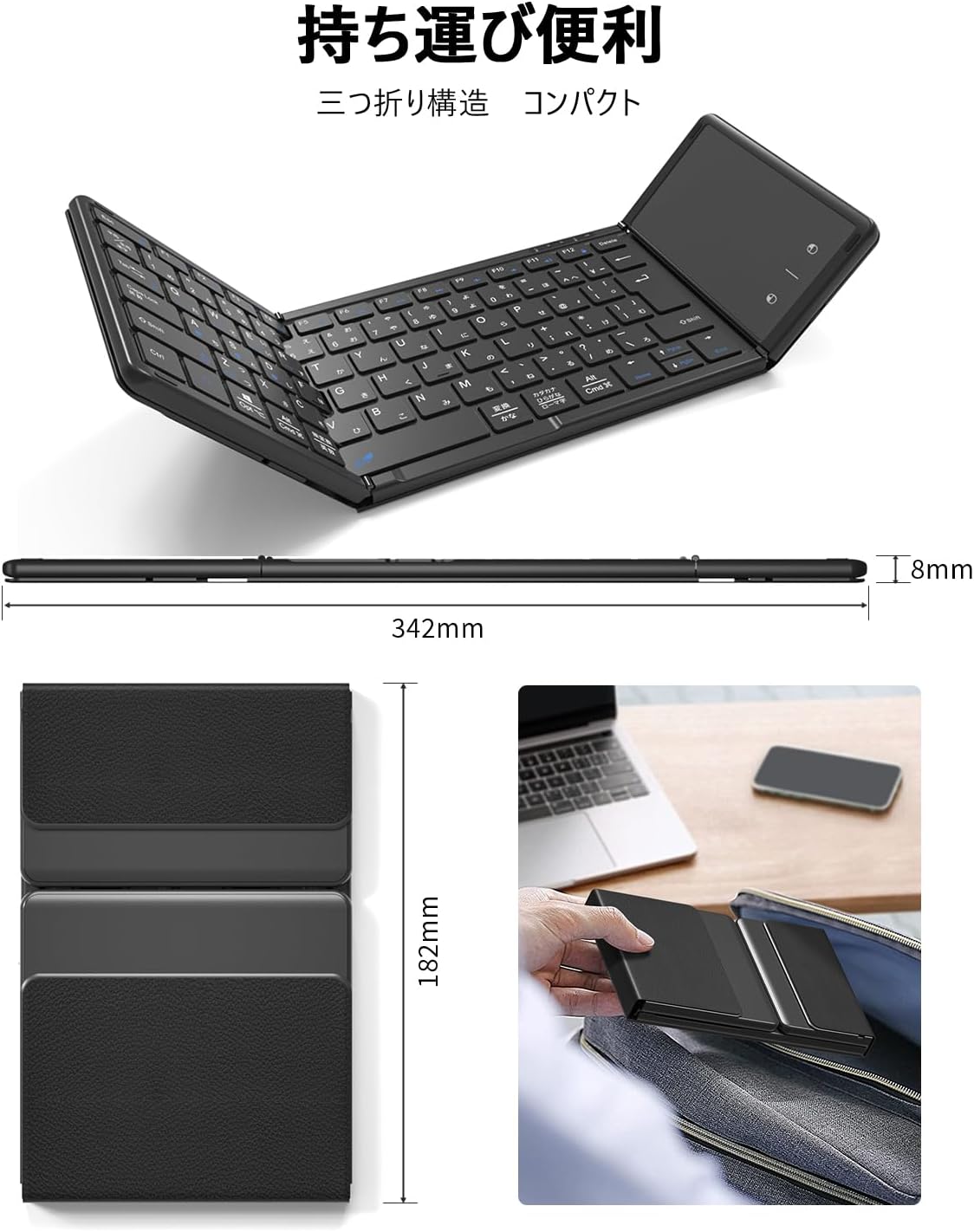
Image 3.3: The keyboard can be paired with up to three devices.
3.3 Switching Between Devices (Multi-Pairing)
The keyboard supports multi-pairing with up to three devices. Once paired, you can switch between them easily:
- Press Fn + A to switch to Device 1.
- Press Fn + S to switch to Device 2.
- Press Fn + D to switch to Device 3.

Image 3.4: Switching between paired devices and supported operating systems.
3.4 System Compatibility
The keyboard is compatible with a wide range of operating systems:
- iOS
- Windows
- Android
- Mac
- Google (Chrome OS)

Image 3.5: The keyboard's full layout, compatible with various systems.
4. Operating Instructions
4.1 Keyboard Layout and Function Keys
The keyboard features a JIS standard Japanese layout with dedicated function keys for enhanced productivity. The key size is standard, providing a comfortable typing experience.

Image 4.1: Detailed view of the JIS Japanese layout and key functions.
The top row includes 14 function keys for quick access to common commands such as copy, cut, and volume control. These keys operate directly without needing to press the Fn key simultaneously.
4.2 Touchpad Usage
The integrated touchpad provides precise cursor control. It supports standard left and right click functions. The touchpad dimensions are approximately 10.1 x 5.9 cm.

Image 4.2: The touchpad with its approximate dimensions.
Disabling the Touchpad:
To prevent accidental touches during typing, the touchpad can be disabled. Press the Fn key and the Space key simultaneously to toggle the touchpad on or off.
5. Maintenance
- Cleaning: Use a soft, dry cloth to clean the keyboard surface. For stubborn dirt, slightly dampen the cloth with water or a mild cleaning solution. Avoid excessive moisture.
- Storage: When not in use, fold the keyboard to protect the keys and touchpad from dust and damage. Store in a cool, dry place away from direct sunlight and extreme temperatures.
- Battery Care: To prolong battery life, avoid fully discharging the keyboard frequently. Charge it regularly, even if not in constant use.
6. Troubleshooting
6.1 Connection Issues
- Keyboard not pairing: Ensure the keyboard is fully charged and in pairing mode (Fn + Z). Check that Bluetooth is enabled on your device and try searching again.
- Intermittent connection: Ensure the keyboard is within the effective range of your device (typically 10 meters). Avoid obstacles that may interfere with the Bluetooth signal.
- Input lag: Ensure there are no other devices causing Bluetooth interference. If issues persist, try re-pairing the keyboard.
6.2 Touchpad Issues
- Touchpad unresponsive: Ensure the touchpad is enabled (Fn + Space). Clean the touchpad surface to remove any dirt or debris.
- Touchpad sensitivity: Adjust touchpad sensitivity settings on your connected device if available.
6.3 Other Issues
- Keys not responding: Check battery level. If low, charge the keyboard. Ensure the keyboard is properly connected to your device.
7. Specifications
| Feature | Detail |
|---|---|
| Brand | Omikamo |
| Model Name | BZ-B099T-B |
| Connectivity Technology | Bluetooth |
| Compatible Devices | iOS, Windows, Android, Mac, Google |
| Special Feature | Foldable |
| Color | Black |
| Product Dimensions (L x W x H) | 12 x 8 x 2.7 cm (folded) |
| Item Weight | 0.3 grams |
| Included Components | USB Cable |
| Number of Keys | 65 |
| Keyboard Layout | JIS Standard Japanese (QWERTY) |
| Battery Capacity | 180mAh |
8. Warranty and Support
The Omikamo Foldable Bluetooth Keyboard comes with a 1-year manufacturer's warranty. For any questions, concerns, or support needs, please contact our customer support team.
Contact Information:
- Email: omikamo_no3@163.com
- LINE: @123blepn
- Phone Support (Japan): 070-2819-3161
- Phone Support Hours: 10:00-12:00 / 14:00-17:00 (excluding weekends and national holidays)

Image 8.1: Our customer support team is available to assist you.