
1. Introduction
This manual provides detailed instructions for the installation, operation, and maintenance of your Erisin 9-inch Android Car Stereo Navigation System, Model ES5591V. Please read this manual thoroughly before using the product to ensure proper functionality and to prevent damage. Keep this manual for future reference.
Safety Precautions: Always prioritize safety. Do not operate the device in a way that distracts you from driving. Ensure all connections are secure before driving. Consult a professional for installation if you are unsure.
2. Product Overview
The Erisin ES5591V is an advanced 9-inch Android car stereo designed for select VW, Skoda, and Seat vehicles. It features a powerful Android 16 operating system, an Octa-Core processor, 4GB RAM, and 64GB ROM, providing a responsive and smooth user experience. Key features include:
- 9-inch IPS Capacitive Touch Screen with 1280*720 resolution.
- Integrated Wireless Apple CarPlay and Wired/Wireless Android Auto.
- Built-in Digital Sound Processor (DSP) with 32-band Equalizer.
- Bluetooth 5.0 for hands-free calling and audio streaming.
- Dual-band Wi-Fi (2.4GHz and 5GHz) for internet access.
- GPS Navigation with support for online and offline maps.
- Steering Wheel Control compatibility.
- Split Screen function for multitasking.
- AM/FM Radio Tuner with RDS.
- Support for optional accessories like DVR, Rear Camera, DAB+, TV, OBD2, and TPMS.

Image: Front view of the Erisin 9-inch Android Car Stereo.
3. Package Contents
Verify that all items are present in the package:
- 1x Erisin 9-inch Android Car Stereo Unit
- 1x English User Manual
- 1x AV RCA Connection Cable
- 1x Camera Input and Control Cable
- 1x Power Cable with Quadlock Harness
- 1x Power Cable with ISO Connector
- 1x Special CANBus Decoder Box
- 1x Din to Fakra Radio Antenna Adapter Cable
- 2x Rear USB Adapter Cables
- 1x USB Adapter Cable for original car USB connector
- 1x External Microphone
- 1x 4G Antenna
- 1x GPS Antenna

Image: Overview of included accessories and wiring diagram.
4. Compatibility
This car stereo is designed for specific vehicle models. Please measure your car's dashboard size and confirm the platform type before purchase to ensure proper fitment.
Compatible Models (with PQ Platform):
- VW: Amarok, Beetle, Bora (Jetta), Caddy, EOS, Golf 5, Golf 6, Golf Plus, Jetta V, Jetta VI, Passat B6, Passat B7, Passat CC, Polo 6R, Scirocco, Magotan, Sharan, Touran, Tiguan, T5 Multivan, T5 Transporter, T5 Caravelle, Vento.
- SEAT: Alhambra, Altea, Altea XL, Leon Mk2, Toledo.
- SKODA: Fabia, Fabia Combi, Roomster, Octavia, Yeti, Superb.
If your vehicle has a Quadlock 40-pin PQ platform connector, this unit is plug-and-play.
Incompatible Models (with MQB Platform):
This unit will not fit vehicles with a factory car radio that matches the MQB platform. If your vehicle's power port is a Quadlock 52-pin MQB platform connector, you will need to order an adapter cable (MQB-52P) to aid in the installation. An alternative product (ES8552) may be available for MQB platform vehicles.

Image: Visual guide for applicable and inapplicable car models based on radio platform.
5. Installation
Professional installation is recommended. Ensure the vehicle's battery is disconnected before beginning installation.
General Installation Steps:
- Disconnect Battery: Disconnect the negative terminal of the car battery to prevent electrical shorts.
- Remove Old Unit: Carefully remove the existing car radio or navigation system from the dashboard.
- Connect Wiring: Connect the provided power cables, RCA cables, USB cables, GPS antenna, 4G antenna, and external microphone to the corresponding ports on the Erisin unit and your vehicle's wiring harness. Utilize the CANBus decoder box as instructed for vehicle integration. Refer to the wiring diagram provided in the package contents.
- Test Connections: Before fully securing the unit, reconnect the battery and perform a basic test of the unit's functions (power on, audio, radio, GPS signal).
- Secure Unit: Once confirmed working, carefully slide the Erisin unit into the dashboard opening and secure it with the appropriate mounting brackets.
- Reassemble Dashboard: Reinstall any removed trim pieces or panels.

Image: Visual representation of car stereo installation before and after.
6. Initial Setup
After successful installation, follow these steps for initial setup:
- Power On: Turn on your vehicle's ignition. The unit should power on automatically.
- Language Selection: Follow the on-screen prompts to select your preferred language.
- Time and Date: Set the correct time zone, date, and time. This can often be synchronized automatically via GPS or network connection.
- Wi-Fi Connection: Go to Settings > Network & Internet > Wi-Fi. Connect to an available Wi-Fi network to enable online features and download apps.
- Steering Wheel Control Learning: If your vehicle supports steering wheel controls, navigate to Settings > Car Settings > Steering Wheel Control. Follow the instructions to program the buttons.
7. Operating Instructions
This section details the main functions and how to operate them.
7.1 Main Menu & Android OS
The main menu provides access to all applications and settings. Swipe left or right to navigate through app pages. Tap an icon to launch an application.

Image: The main menu interface of the Erisin car stereo, showing various application icons.
7.2 GPS Navigation
The unit supports both online and offline GPS navigation. You can use pre-installed map applications or download others from the Google Play Store (e.g., Waze, Sygic, iGO). Ensure the GPS antenna is properly connected for optimal signal reception.

Image: Screenshot of the GPS navigation interface displaying a map view with a location pin.
7.3 Apple CarPlay & Android Auto
Connect your smartphone for a smarter and safer way to use your phone's features while driving.
- Wireless Apple CarPlay: Connect your iPhone via Bluetooth to activate CarPlay.
- Wired/Wireless Android Auto: Connect your Android phone via USB for wired Android Auto. Some devices may support wireless Android Auto.
This feature allows access to navigation, music, calls, and messages through the car stereo's display, often with voice control.
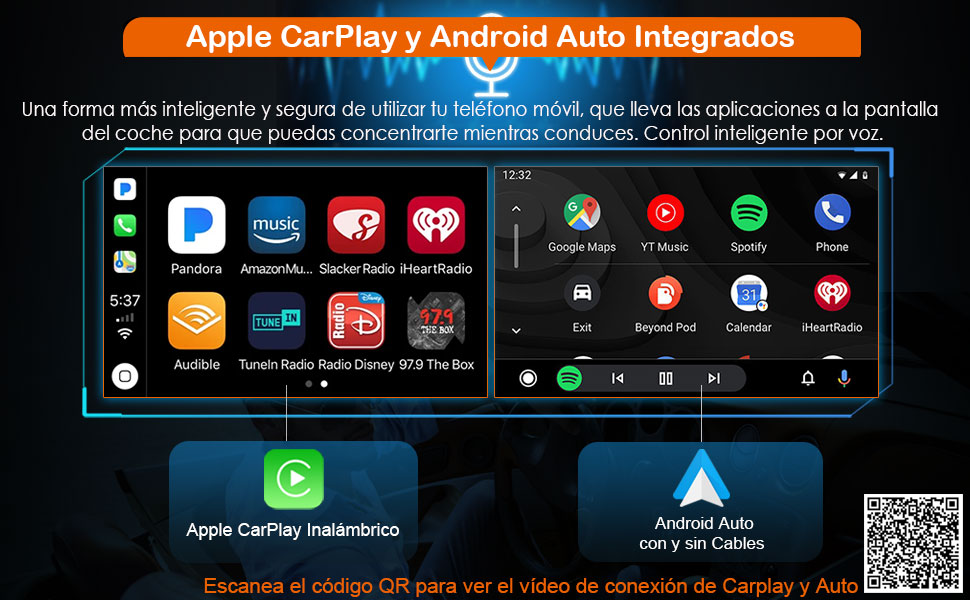
Image: Display showing integrated Apple CarPlay and Android Auto interfaces with various app icons.
For a video guide on CarPlay and Android Auto connection, visit: CarPlay & Android Auto Connection Video
7.4 Bluetooth 5.0
The built-in Bluetooth 5.0 module enables hands-free communication and audio streaming.
- Pairing: Go to the Bluetooth menu, enable Bluetooth on your phone, search for the unit (e.g., "Erisin_BT"), and pair.
- Hands-free Calls: Make and receive calls directly from the unit. Sync your phone's contacts.
- BT Music: Stream audio from your paired phone to the car stereo.

Image: Bluetooth 5.0 interface showing connected devices and music playback.
7.5 Dual Band Wi-Fi
The unit supports 2.4GHz and 5GHz Wi-Fi networks, offering stable and fast internet connectivity. Connect to a mobile hotspot or home Wi-Fi for online services, app downloads, and browsing.
- 2.4GHz: Offers wider range and better penetration through obstacles.
- 5GHz: Provides faster speeds and less interference, suitable for shorter distances.

Image: Infographic illustrating 2.4GHz and 5GHz Wi-Fi capabilities and speeds.
7.6 DSP Amplifier & Equalizer
The integrated Digital Sound Processor (DSP) allows for precise audio customization. Use the 32-band equalizer to fine-tune the sound output to your preference and vehicle acoustics.

Image: DSP equalizer interface showing various frequency bands and sound effect adjustments.
7.7 AM/FM Radio
Access the built-in radio tuner to listen to AM and FM stations. The Radio Data System (RDS) function displays station information where available.
- Scan: Automatically search for available stations.
- Presets: Save your favorite stations for quick access.
- RDS: Displays program service (PS), radio text (RT), and other information.

Image: Digital radio interface showing frequency and preset buttons.
7.8 Split Screen
The split-screen function allows you to run two applications simultaneously on the display. For example, you can view navigation on one side and control music on the other.
- Activate: Long-press the recent apps button or drag an app to one side of the screen.
- Adjust: Drag the divider to resize the application windows.

Image: Car dashboard screen showing navigation map on one side and media controls on the other in split-screen mode.
7.9 Steering Wheel Control
If your vehicle has steering wheel controls, you can program them to operate the car stereo, allowing you to adjust volume, change tracks, or answer calls without taking your hands off the wheel.
- Programming: Access the Steering Wheel Control settings in the unit's menu and follow the on-screen instructions to assign functions to your vehicle's buttons.

Image: Close-up of a steering wheel with control buttons, indicating their use for the car stereo.
7.10 USB/TF Playback
Connect USB drives or TF (microSD) cards to play audio, video, and view images. The unit supports various media formats.
- USB Ports: Use the provided rear USB adapter cables to connect USB storage devices.
- TF Card Slot: Insert a TF card into the designated slot on the unit.
7.11 Optional Functions (with additional accessories)
The Erisin ES5591V supports various expanded functions through optional accessories (sold separately).
- DVR Input: Connect a USB DVR camera to record driving footage. The unit provides a real-time display.
- Reversing Camera Input: Connect a rear-view camera (720P/1080P AHD supported) for enhanced safety when reversing. The display automatically switches to the camera view when reverse gear is engaged.
- Digital Audio Broadcasting (DAB+): Connect a DAB+ box to receive digital radio channels with improved sound quality.
- Video Output: Connect an optional USB-RCA converter to output video to external monitors (e.g., headrest screens) for passenger entertainment.
- Digital TV Input: Connect an optional DVB-T/T2 box to watch digital TV in your vehicle.
- Torque Pro (OBD2): Connect an OBD2 scan tool to monitor your car's status and retrieve diagnostic information.
- TPMS Monitor: Connect a TPMS module to monitor tire pressure and temperature in real-time.

Image: DVR input screen with a camera view and optional DVR accessory.

Image: Reversing camera view on the car stereo screen, showing parking lines.

Image: DAB+ radio interface displaying station information and optional DAB+ accessory.

Image: Digital TV display on the car stereo screen with optional DVB-T/T2 accessory.

Image: Overview of various optional accessories that expand the car stereo's functionality.
8. Maintenance
Proper maintenance ensures the longevity and optimal performance of your Erisin car stereo.
- Cleaning the Screen: Use a soft, lint-free cloth to gently wipe the screen. For stubborn smudges, slightly dampen the cloth with water or a screen-cleaning solution. Avoid harsh chemicals or abrasive materials.
- Software Updates: Periodically check for software updates via the unit's settings menu (Settings > About device > System updates). Keeping the software updated can improve performance and add new features.
- Avoid Extreme Temperatures: Do not expose the unit to extreme heat or cold, as this can affect its electronic components.
9. Troubleshooting
If you encounter issues, refer to the following common problems and solutions:
| Problem | Possible Cause | Solution |
|---|---|---|
| Unit does not power on. | Loose power connection, blown fuse, incorrect wiring. | Check all power cables and connections. Inspect vehicle fuses and the unit's fuse. Ensure correct wiring according to the diagram. |
| No sound from speakers. | Volume too low, mute activated, incorrect speaker wiring, amplifier issue. | Increase volume. Check if mute is active. Verify speaker connections. Check DSP settings. |
| GPS signal is weak or lost. | GPS antenna not properly connected or obstructed, poor satellite reception. | Ensure GPS antenna is securely connected and placed in an unobstructed location (e.g., dashboard). Move to an open area for better reception. |
| Bluetooth device cannot pair. | Bluetooth not enabled on unit or phone, device out of range, incorrect pairing mode. | Ensure Bluetooth is enabled on both devices. Place devices close to each other. Restart both devices and try pairing again. |
| Touch screen unresponsive. | Software glitch, screen damage. | Restart the unit. If the problem persists, contact customer support. |
If these solutions do not resolve the issue, please contact Erisin customer support for further assistance.
10. Specifications
Detailed technical specifications for the Erisin ES5591V unit:
| Feature | Specification |
|---|---|
| Model Number | ES5591V |
| Operating System | Android 16 |
| CPU | Octa-Core (8*A53 64-bit 2.0GHz) |
| RAM | 4GB |
| ROM | 64GB (Expandable up to 4*256GB via USB/TF) |
| Screen Size | 9 Inches |
| Display Type | IPS Capacitive Touch Screen |
| Resolution | 1280*720 |
| Connectivity | Wireless Apple CarPlay, Wired/Wireless Android Auto, Bluetooth 5.1, Dual-band Wi-Fi (2.4GHz/5GHz), 4G Module (optional), USB, Ethernet |
| Audio Output | Stereo, Built-in DSP, 32-band Equalizer |
| GPS System | GPS, Galileo (supports online/offline maps for Europe) |
| Special Functions | CANBus Decoder, Split Screen, RDS Radio Tuner, Steering Wheel Control, Rear Camera Input, DVR Input (optional), DAB+ (optional), Digital TV (optional), OBD2 (optional), TPMS (optional) |
| Dimensions | 30.5 x 28 x 20.5 cm |
| Weight | 3 kg |
11. Warranty and Support
Warranty: This Erisin product comes with a 1-year EU warranty from the date of purchase. The warranty covers manufacturing defects and malfunctions under normal use. It does not cover damage caused by improper installation, misuse, accidents, or unauthorized modifications.
Support: For technical assistance, troubleshooting beyond this manual, or warranty claims, please contact Erisin Official Shop customer service through the platform where you purchased the product. Please have your model number (ES5591V) and proof of purchase ready when contacting support.
