
1. Product Overview
The cimetech KF007 is an ultra-slim, full-size keyboard designed for multi-device connectivity. It supports dual-mode operation, allowing connections via Bluetooth 5.1 and a 2.4GHz USB receiver. This keyboard features an independent number pad, multimedia function keys, and an ergonomic design for comfortable typing. Its rechargeable lithium-ion battery provides extended use on a single charge.

Key Features:
- Dual-Mode Connectivity: Connects via Bluetooth 5.1 (2 channels) or 2.4GHz USB receiver (1 channel).
- Multi-Device Switching: Seamlessly switch between up to 3 connected devices with a single button press.
- Ultra-Slim Design: Compact and lightweight for portability and reduced desk clutter.
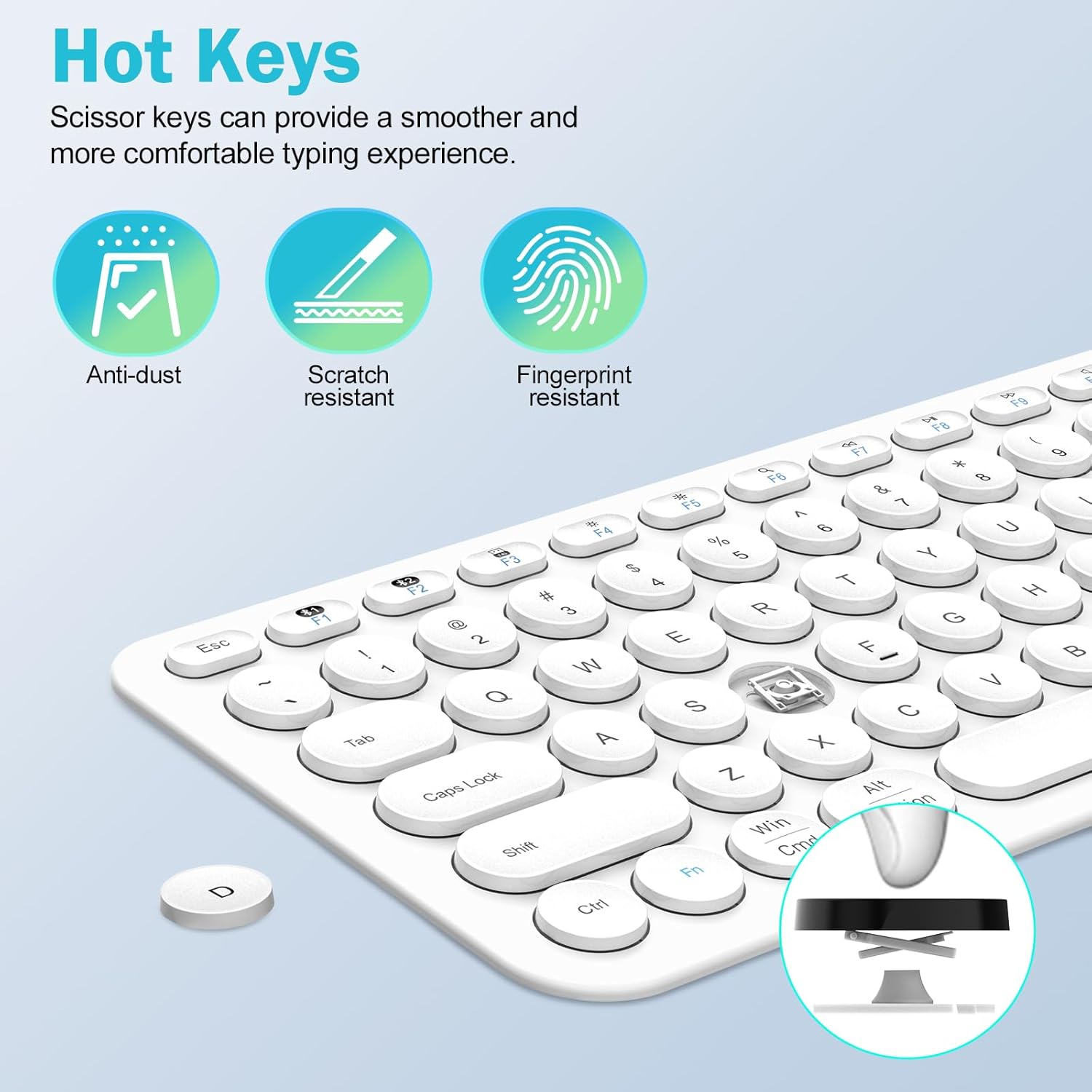
- Ergonomic Key Design: X-structure keys provide a comfortable, quiet, and responsive typing experience.
- Rechargeable Battery: Built-in lithium-ion battery offers up to 90 hours of continuous use.
- Wide Compatibility: Supports Mac OS/iOS 10.12+, Windows 8/10+, and Android 4.3+.
2. Package Contents
Please check the package for the following items:
- 1 x cimetech KF007 Dual-Mode Bluetooth Keyboard
- 1 x 2.4GHz USB Receiver (often stored in the keyboard's battery compartment)
- 1 x USB Charging Cable
- 1 x User Manual
3. Setup Instructions
3.1. Powering On and Charging
- Locate the power switch on the keyboard (usually on the side or back). Slide it to the 'ON' position.
- The keyboard uses a rechargeable lithium-ion battery. To charge, connect the provided USB cable to the keyboard's charging port and a USB power source (e.g., computer USB port, USB wall adapter). The charging indicator light will illuminate.
- When not in use, the keyboard will enter standby mode to conserve energy. Press any key to wake it up.
3.2. 2.4GHz USB Receiver Connection
This method uses the included USB receiver for a stable wireless connection.
- Locate the 2.4GHz USB receiver. It may be stored in a compartment on the back of the keyboard.
- Plug the USB receiver into an available USB-A port on your computer or device.
- Switch the keyboard to the 2.4GHz mode (often indicated by a specific channel button or switch, refer to keyboard markings). The keyboard should automatically connect to your device.
3.3. Bluetooth 5.1 Connection
The keyboard supports two Bluetooth channels (BT1 and BT2) for connecting to multiple Bluetooth-enabled devices.
- Ensure your device's Bluetooth is enabled.
- On the keyboard, press and hold the desired Bluetooth channel button (e.g., BT1 or BT2) for 3-5 seconds until the indicator light for that channel starts blinking rapidly. This indicates pairing mode.
- On your device, go to Bluetooth settings and search for new devices. Select "cimetech Keyboard" (or similar name) from the list of available devices.
- Once connected, the indicator light on the keyboard will stop blinking and remain solid for a few seconds before turning off.
- Repeat these steps to connect a second Bluetooth device using the other Bluetooth channel.

4. Operating Instructions
4.1. Switching Between Connected Devices
To switch between your connected devices, simply press the corresponding channel button (2.4G, BT1, or BT2) on the keyboard. The keyboard will quickly switch its connection to the selected device.
4.2. Function Keys and Multimedia Controls
The keyboard features a row of function keys (F1-F12) that also serve as multimedia controls. To use the multimedia functions, press the 'Fn' key simultaneously with the desired F-key. For example:
- Fn + F1: Media Player
- Fn + F2: Volume Down
- Fn + F3: Volume Up
- Fn + F4: Mute
- Fn + F5: Previous Track
- Fn + F6: Next Track
- Fn + F7: Play/Pause
- Fn + F8: Stop
- Fn + F9: Web Browser
- Fn + F10: Email
- Fn + F11: My Computer
- Fn + F12: Calculator

5. Maintenance
5.1. Cleaning
To clean your keyboard, gently wipe the surface with a soft, damp cloth. Avoid using harsh chemicals or abrasive materials that could damage the finish or key legends. Ensure the keyboard is powered off before cleaning.
5.2. Battery Care
The keyboard's built-in battery is designed for longevity. To maximize battery life:
- Charge the keyboard fully before first use.
- Avoid exposing the keyboard to extreme temperatures.
- If the keyboard will not be used for an extended period, charge it to about 50% and store it in a cool, dry place.
- The keyboard automatically enters standby mode when idle to save power. Press any key to reactivate it.
6. Troubleshooting
6.1. Keyboard Not Connecting
- Check Power: Ensure the keyboard is powered on and has sufficient battery charge.
- Correct Mode: Verify the keyboard is switched to the correct connection mode (2.4G, BT1, or BT2) for your device.
- USB Receiver: For 2.4GHz mode, ensure the USB receiver is securely plugged into your device. Try a different USB port.
- Bluetooth Pairing: For Bluetooth mode, ensure your device's Bluetooth is on and the keyboard is in pairing mode (blinking indicator light). Try re-pairing the keyboard.
- Device Compatibility: Confirm your device's operating system meets the compatibility requirements (Mac OS/iOS 10.12+, Windows 8/10+, Android 4.3+).
6.2. Keys Not Responding or Lagging
- Battery Level: Low battery can cause performance issues. Charge the keyboard fully.
- Interference: Move the keyboard closer to your device and away from other wireless devices that might cause interference.
- Re-establish Connection: Turn the keyboard off and on, or disconnect and reconnect the USB receiver/Bluetooth connection.
7. Specifications
| Feature | Detail |
|---|---|
| Model Number | KF007 |
| Connectivity | Bluetooth 5.1 (2 channels), 2.4GHz RF (USB-A receiver) |
| Compatible Devices | Laptop, PC, Smart TV, Smartphone, Tablet |
| Operating System Compatibility | Mac OS/iOS 10.12+, Windows 8/10+, Android 4.3+ |
| Battery Type | 1 Lithium Polymer battery (included) |
| Continuous Use Time | Up to 90 hours (on a single charge) |
| Keyboard Description | Ergonomic, Ultra-Slim, Full-Size |
| Special Features | Hotkeys and Media Keys, Lightweight, Portable, Rechargeable |
| Material | Plastic |
| Item Weight | 1.06 pounds |
| Package Dimensions | 15.63 x 5.28 x 1.06 inches |

8. Warranty and Support
cimetech wireless keyboard products are backed by comprehensive technical support. Our dedicated customer service team is available to assist with any technical issues or questions you may encounter during the use of your KF007 keyboard.
For technical assistance or warranty claims, please refer to the contact information provided in your product packaging or visit the official cimetech website.