
1. Introduction
Thank you for choosing the TECKNET Tri-Mode Wireless Mouse. This mouse offers versatile connectivity options (Bluetooth 5.0, Bluetooth 3.0, and 2.4G wireless) allowing seamless switching between up to two devices. Designed for comfort and efficiency, it features adjustable DPI settings for precise control and silent clicks for a quiet working environment. This manual provides detailed instructions for setup, operation, and maintenance to ensure optimal performance.
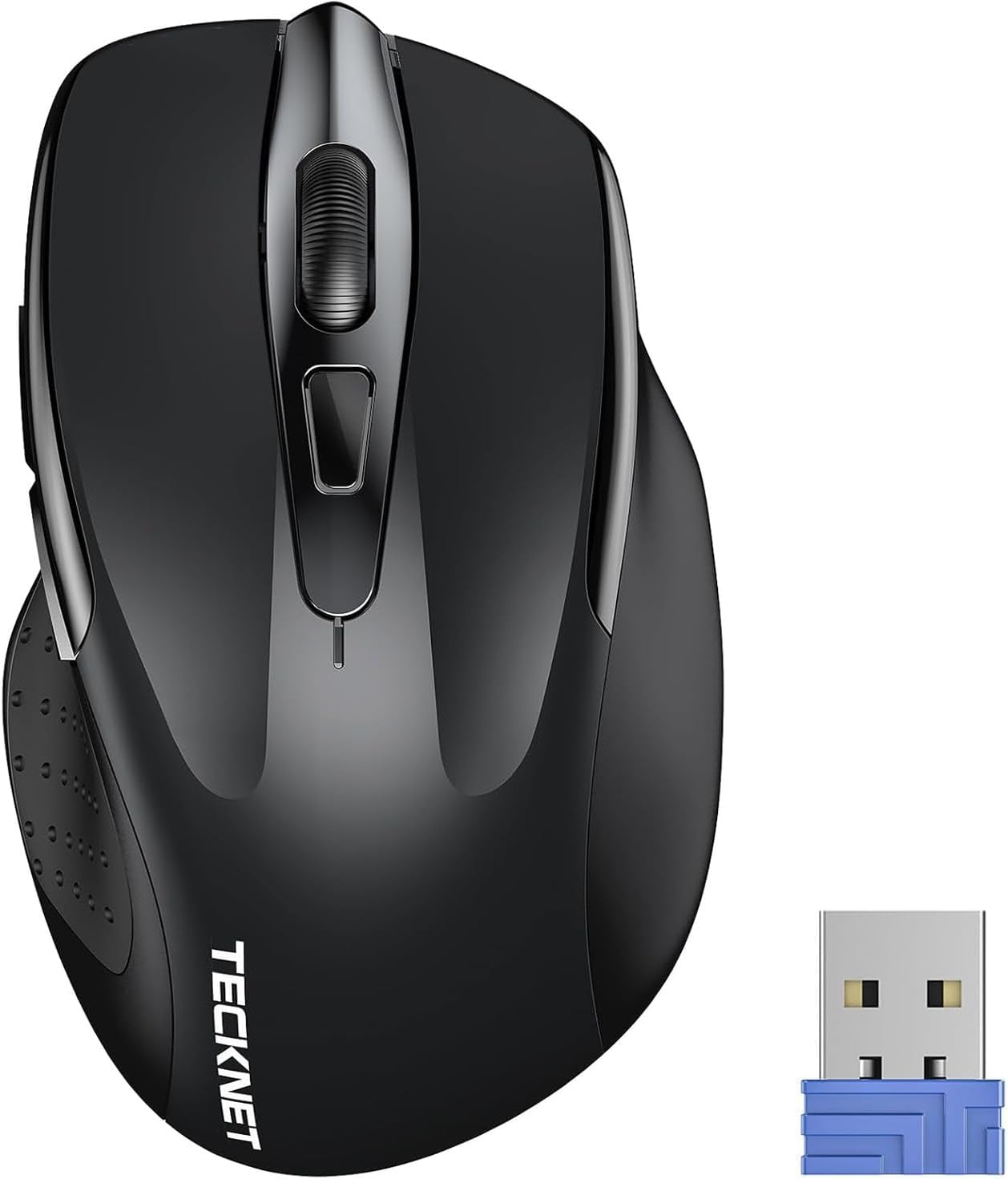
Image 1.1: TECKNET Tri-Mode Wireless Mouse and 2.4G USB Receiver.

Image 1.2: Mouse Diagram with Button Functions and USB Receiver Location.
2. Package Contents
Please check the package for the following items:
- TECKNET Tri-Mode Wireless Mouse
- 2.4G USB Receiver (stored in the battery compartment)
- User Manual
Note: AAA batteries are not included and must be purchased separately.
3. Setup Guide
3.1. Battery Installation
- Open the battery compartment cover located on the underside of the mouse.
- Insert two AAA batteries, ensuring correct polarity (+/-).
- Close the battery compartment cover.

Image 3.1: Battery Installation.
3.2. Connecting via 2.4G Wireless Mode
- Locate the 2.4G USB receiver inside the mouse's battery compartment.
- Remove the USB receiver and plug it into an available USB port on your computer.
- Slide the mode switch on the bottom of the mouse to the "2.4G" position.
- The mouse should automatically connect to your computer. The green LED indicator will light up briefly.
3.3. Connecting via Bluetooth Mode (BT 5.0 / BT 3.0)
- Slide the mode switch on the bottom of the mouse to the "BT" position.
- Press and hold the Bluetooth pairing button (usually located near the mode switch) for 3-5 seconds until the blue LED indicator starts flashing. This indicates the mouse is in pairing mode.
- On your device (computer, tablet, smartphone), go to Bluetooth settings and search for new devices.
- Select "TECKNET Mouse" (or similar name) from the list of available devices to pair.
- Once paired, the blue LED indicator will stop flashing and remain solid for a few seconds before turning off.
3.4. Switching Between Modes/Devices
The mouse supports connecting to two devices simultaneously (one via 2.4G, one via Bluetooth). Use the mode switch on the bottom of the mouse to select your desired connection:
- 2.4G: Connects to the device with the USB receiver.
- BT: Connects to the paired Bluetooth device.

Image 3.2: Easy Switching Between 2.4G and Bluetooth Devices.
4. Operating Instructions
4.1. DPI Adjustment
The mouse features 6 adjustable DPI levels (800/1200/1600/2400/3200/4800) to suit your precision needs. Press the DPI switch button, located behind the scroll wheel, to cycle through the DPI settings. Each press changes the cursor speed, allowing for precise control on various surfaces.

Image 4.1: DPI Adjustment Levels.
4.2. Silent Click Feature
The left, right, and middle click buttons are designed for silent operation, reducing click noise by up to 90%. This feature is ideal for quiet environments such as libraries, offices, or home settings where minimizing disturbance is important.

Image 4.2: Silent Click Operation.
4.3. Power Saving Features
The mouse is equipped with an automatic sleep function to conserve battery life. If the mouse is inactive for a period, it will enter sleep mode. To wake it up, simply click any button. The battery life can extend up to 30 months, depending on usage and environmental conditions.

Image 4.3: Automatic Sleep Mode and Activation.
4.4. LED Indicator
The LED indicator on the mouse provides important status information:
- Red Light: Indicates low battery or DPI change.
- Blue Light: Indicates Bluetooth mode or pairing.
- Green Light: Indicates 2.4G mode.

Image 4.4: LED Indicator Meanings.
4.5. Compatibility
The TECKNET Tri-Mode Wireless Mouse is compatible with a wide range of operating systems:
- Windows 11/10/8/7/XP/Vista
- Mac OS
- Linux
- Android
- iOS (10.4 or higher, via BT 5.0 mode)

Image 4.5: Broad Operating System Compatibility.
5. Maintenance
5.1. Cleaning
To maintain optimal performance, regularly clean your mouse:
- Use a soft, dry cloth to wipe the exterior of the mouse.
- For stubborn dirt, slightly dampen the cloth with water or a mild cleaning solution. Avoid harsh chemicals.
- Do not allow liquids to enter the mouse.
5.2. Battery Replacement
When the red LED indicator flashes or the mouse performance degrades, it's time to replace the batteries:
- Open the battery compartment.
- Remove the old AAA batteries.
- Insert two new AAA batteries, observing correct polarity.
- Close the compartment.
6. Troubleshooting
| Problem | Possible Cause | Solution |
|---|---|---|
| Mouse not responding | Low battery; Incorrect mode selected; USB receiver not connected; Bluetooth not paired. | Replace batteries; Check mode switch (2.4G/BT); Re-insert USB receiver; Re-pair Bluetooth. |
| Cursor movement is erratic or slow | Low battery; Dirty sensor; Mouse used on unsuitable surface; DPI setting too low. | Replace batteries; Clean optical sensor; Use a mouse pad or suitable surface; Adjust DPI setting. |
| Cannot pair via Bluetooth | Mouse not in pairing mode; Device's Bluetooth is off; Interference. | Ensure mouse is in BT pairing mode (flashing blue LED); Turn on Bluetooth on your device; Move closer to the device; Try pairing again. |
| 2.4G connection unstable | USB receiver too far; Interference from other wireless devices. | Move mouse closer to the USB receiver; Plug receiver into a different USB port; Avoid placing receiver near other wireless devices. |
7. Specifications
- Brand: TECKNET
- Model Number: 5056243612529
- Connectivity Technology: Bluetooth (5.0/3.0), 2.4G Wireless (USB Receiver)
- DPI Levels: 800, 1200, 1600, 2400, 3200, 4800 (Adjustable)
- Number of Buttons: 3 (Left, Right, Scroll Wheel/Middle Click) + DPI Switch + Forward/Backward buttons (if applicable to model)
- Hand Orientation: Ambidextrous
- Power Source: 2 x AAA Batteries (not included)
- Battery Life: Up to 30 months (depending on usage)
- Weight: 71.4 Grams
- Special Features: Ergonomic Design, Portable, Silent Click
- Compatible Operating Systems: Windows, Mac OS, Linux, Android, iOS (10.4+)
8. Warranty and Support
TECKNET provides a 36-month warranty for this product (for registered users). If you encounter any issues during the use of your wireless mouse, please contact our professional customer service team for assistance. Our support team is dedicated to resolving any problems you may experience.
For warranty claims or technical support, please visit the official TECKNET website or contact your retailer.