
1. Introduction
Thank you for choosing the A4TECH F.STYLER FBK11 Wireless Bluetooth Keyboard. This versatile keyboard offers dual connectivity modes (Bluetooth and 2.4 GHz wireless) and supports pairing with up to four devices simultaneously. It is designed for seamless use across various operating systems, including Windows, macOS, Android, and iOS. This manual provides detailed instructions to help you set up, operate, and maintain your new keyboard.

Figure 1: Front view of the A4TECH F.STYLER FBK11 Wireless Bluetooth Keyboard, showcasing its compact design and key layout.
2. Product Features
- Dual Connectivity: Supports both Bluetooth and 2.4 GHz wireless modes for flexible connection options.
- Multi-Device Pairing: Connect and switch between up to 4 devices (3 via Bluetooth, 1 via 2.4G wireless) seamlessly.
- Multimedia Hotkeys: Dedicated shortcut keys for quick access to media controls and other functions.
- Operating System Compatibility: Compatible with Windows, macOS, Chrome OS, Android, and iOS devices.
- Compact and Portable Design: Lightweight and easy to carry for on-the-go productivity.
- Arabic/English Layout: Features a dual-language key layout for broader usability.
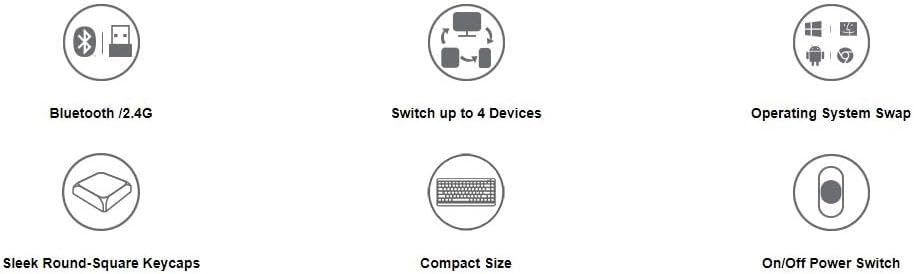
Figure 2: Visual representation of key features including Bluetooth/2.4G connectivity, multi-device switching, OS swap, sleek keycaps, compact size, and on/off power switch.
3. Package Contents
Please check the package for the following items:
- A4TECH F.STYLER FBK11 Wireless Bluetooth Keyboard
- 2.4 GHz USB Nano Receiver
- 2 x AAA Alkaline Batteries
- User Manual (this document)

Figure 3: The keyboard shown with its included accessories: the USB receiver and two AAA batteries.
4. Setup
4.1. Battery Installation
- Locate the battery compartment on the underside of the keyboard.
- Open the battery compartment cover.
- Insert the two AAA alkaline batteries, ensuring correct polarity (+/-).
- Close the battery compartment cover securely.
4.2. Power On/Off
Slide the power switch, located on the top right edge of the keyboard, to the 'ON' position to power on the keyboard. Slide it to 'OFF' when not in use to conserve battery life.
5. Operating Instructions
5.1. Connectivity Modes
The FBK11 keyboard supports two connectivity modes: Bluetooth and 2.4 GHz wireless.
5.1.1. 2.4 GHz Wireless Connection
- Insert the 2.4 GHz USB Nano Receiver into an available USB port on your computer or device.
- Turn on the keyboard.
- The keyboard should automatically connect to the receiver. The 2.4G indicator light on the keyboard will illuminate briefly.
5.1.2. Bluetooth Connection
The keyboard can connect to up to three Bluetooth devices (BT1, BT2, BT3).
- Turn on the keyboard.
- Press and hold the Fn key and then press one of the Bluetooth keys (BT1, BT2, or BT3) for 3-5 seconds until the corresponding Bluetooth indicator light starts blinking rapidly. This indicates the keyboard is in pairing mode.
- On your device (computer, tablet, smartphone), go to Bluetooth settings and search for new devices.
- Select "A4TECH FBK11" or a similar name from the list of available devices.
- Follow any on-screen prompts to complete the pairing process. The indicator light will stop blinking and remain solid for a few seconds once connected.
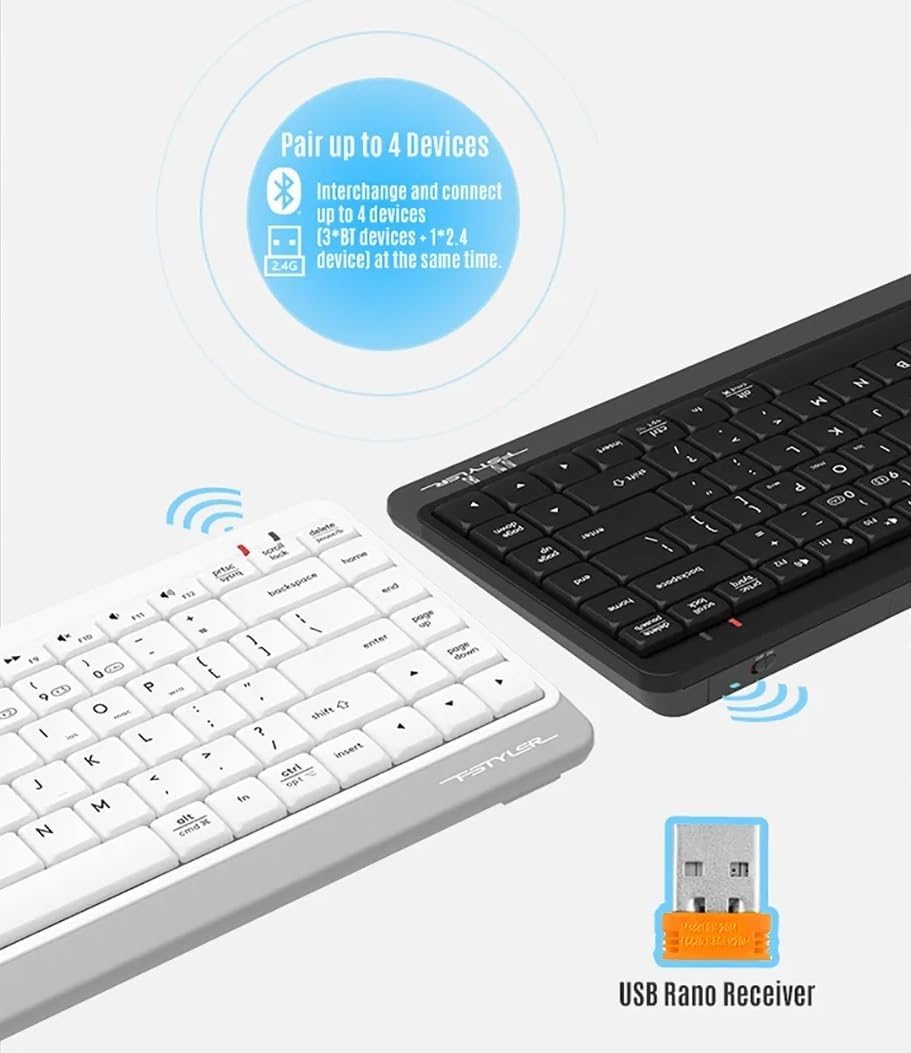
Figure 4: The keyboard demonstrating its dual connectivity options, including the USB Nano Receiver for 2.4G wireless and Bluetooth pairing capabilities.
5.2. Multi-Device Switching
To switch between connected devices:
- Press Fn + 2.4G to switch to the device connected via the 2.4 GHz USB receiver.
- Press Fn + BT1 to switch to the first Bluetooth-paired device.
- Press Fn + BT2 to switch to the second Bluetooth-paired device.
- Press Fn + BT3 to switch to the third Bluetooth-paired device.

Figure 5: Diagram illustrating how the keyboard can be paired with up to four different devices simultaneously, including a smartphone, tablet, laptop, and desktop computer.
5.3. Operating System Switching
The keyboard features dedicated keys to optimize its layout for different operating systems:
- Press Fn + Q for Android/iOS mode.
- Press Fn + W for Windows mode.
- Press Fn + E for macOS mode.
5.4. Multimedia Hotkeys and FN Lock Mode
The keyboard includes 12 multimedia and internet hotkeys (F1-F12) that can be accessed directly or by using the Fn key.

Figure 6: Overview of the keyboard's main functions, highlighting FN Locking Mode, Multimedia & Internet Hotkeys, Multi-Device Switch, Operating System Swap, and PC/MAC Dual-Function Keys.
5.4.1. FN Lock Mode
By default, after pairing, the FN shortcut is locked in FN mode. This means you can use the multimedia functions (F1-F12) directly without pressing the Fn key.
- Lock Fn Mode: No need to press the Fn key for multimedia functions.
- Unlock Fn Mode: Press Fn + ESC to switch back to standard F1-F12 key functions, requiring the Fn key to access multimedia shortcuts.
The locking FN mode is memorized when switching devices and shutting down.

Figure 7: Detailed explanation of how to lock and unlock the FN mode, allowing direct access to multimedia functions.
6. Troubleshooting
| Problem | Possible Cause | Solution |
|---|---|---|
| Keyboard not responding | Low battery; Keyboard is off; Incorrect connection mode; Device Bluetooth is off. | Replace batteries; Turn on keyboard; Switch to correct connection mode (2.4G/BT1/BT2/BT3); Enable Bluetooth on your device. |
| Cannot pair via Bluetooth | Keyboard not in pairing mode; Device is too far; Interference. | Ensure keyboard is in pairing mode (blinking light); Move keyboard closer to device; Remove potential sources of interference. |
| 2.4G connection issues | USB receiver not properly inserted; Interference. | Re-insert USB receiver; Try a different USB port; Move keyboard closer to receiver; Remove potential sources of interference. |
| Multimedia keys not working | FN Lock mode is off. | Press Fn + ESC to toggle FN Lock mode. |
7. Specifications
- Model: FBK11
- Connectivity: Bluetooth 5.0, 2.4 GHz Wireless
- Operating Range: Up to 10 meters (33 feet)
- Battery Type: 2 x AAA Alkaline Batteries
- Material: Plastic
- Color: Black
- Dimensions: Approximately 36.1 x 15.3 x 4.4 cm
- Weight: Approximately 363 grams
- Compatible OS: Windows, macOS, Chrome OS, Android, iOS
- Special Features: Lightweight, Portable, Multi-functional, Multi-device support
8. Maintenance
- Cleaning: Use a soft, dry cloth to clean the keyboard. For stubborn dirt, a slightly damp cloth can be used, but ensure no moisture enters the keyboard.
- Storage: Store the keyboard in a cool, dry place away from direct sunlight and extreme temperatures.
- Battery Care: Remove batteries if the keyboard will not be used for an extended period to prevent leakage.
- Avoid Liquids: Do not expose the keyboard to water or other liquids.
- Handle with Care: Avoid dropping or subjecting the keyboard to strong impacts.
9. Warranty and Support
This product comes with a standard manufacturer's warranty. For detailed warranty terms and conditions, please refer to the warranty card included with your purchase or contact your local A4TECH distributor or retailer.
For technical support, troubleshooting assistance, or inquiries about your A4TECH F.STYLER FBK11 keyboard, please visit the official A4TECH website or contact their customer service department. Contact information can typically be found on the product packaging or the A4TECH website.

