
Introduction
Thank you for choosing the ATTACK SHARK K85 Rapid Trigger Mechanical Gaming Keyboard. This 75% layout wired keyboard features advanced magnetic switches with adjustable actuation and rapid trigger functionality, designed for precision and speed in gaming and efficient typing. It includes a programmable multimedia knob, full RGB backlighting, and PBT keycaps for durability. This manual provides detailed instructions for setup, operation, maintenance, and troubleshooting to ensure you get the most out of your K85 keyboard.
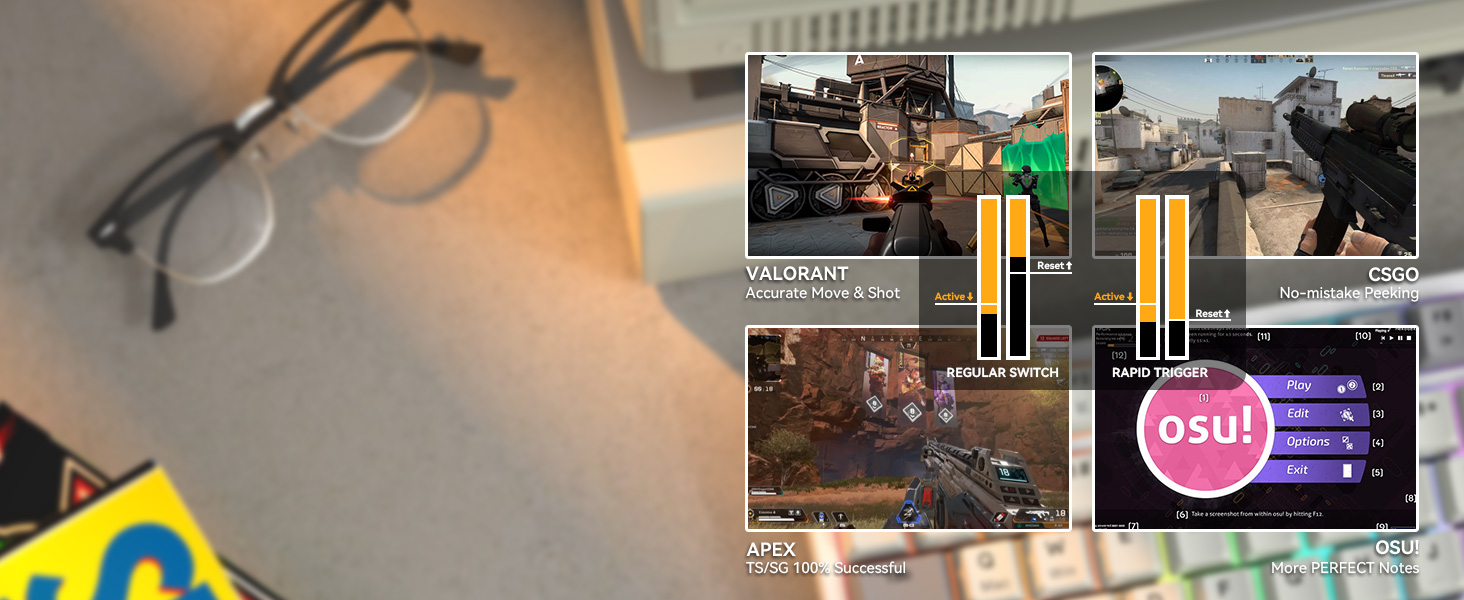
Image: Overview of the ATTACK SHARK K85 keyboard highlighting its key features.
Package Contents
Please check the package contents to ensure all items are present:
- ATTACK SHARK K85 Mechanical Gaming Keyboard
- USB-C to USB-A Cable (Braided Coiled Cable)
- Keycap Puller
- Switch Puller
- User Manual
Setup Instructions
- Connect the Keyboard: Plug the USB-C end of the provided cable into the Type-C port on the keyboard and the USB-A end into an available USB port on your computer. The keyboard is plug-and-play.
- Software Installation: For advanced customization of actuation points, rapid trigger, dynamic keystrokes, and RGB lighting, download the official ATTACK SHARK software from the manufacturer's website. Follow the on-screen instructions for installation.
- System Switching: The keyboard supports both Windows and Mac operating systems. To switch between systems, press FN + Q for Mac OS or FN + W for Windows.

Image: The Type-C port for connecting the keyboard.
Operating Instructions
1. Rapid Trigger (RT) and Dynamic Keystrokes (DKS)
The K85 keyboard features magnetic switches that allow for highly customizable actuation points and rapid trigger functionality. These features are primarily configured through the dedicated software.
- Adjustable Actuation Point: Customize the keystroke actuation point from a light 0.2mm to a strong 3.8mm. This allows you to fine-tune the sensitivity of each key to your preference.
- Rapid Trigger (RT): This function enables keys to reset and re-press faster than traditional mechanical switches. It allows for instant re-actuation upon key lift, providing a significant advantage in fast-paced games.
- Dynamic Keystrokes (DKS): Bind up to 4 functions to a single key based on different pressing depths. For example, a light press could activate one action, while a deeper press activates another.

Image: Visual representation of adjustable actuation points.

Image: Benefits of Rapid Trigger mode in various gaming scenarios.
Video: Demonstrating the ATTACK SHARK K85 Rapid Trigger Mechanical Gaming Keyboard features.
Video: Highlighting the magnetic switch technology of the ATTACK SHARK K85 keyboard.
2. Multimedia Knob
The aluminum alloy multimedia knob located in the upper right corner provides quick access to volume control and mute functions. It can also be customized via the software for other functions.
- Rotate Right: Increase volume
- Rotate Left: Decrease volume
- Press Down: Mute/Unmute
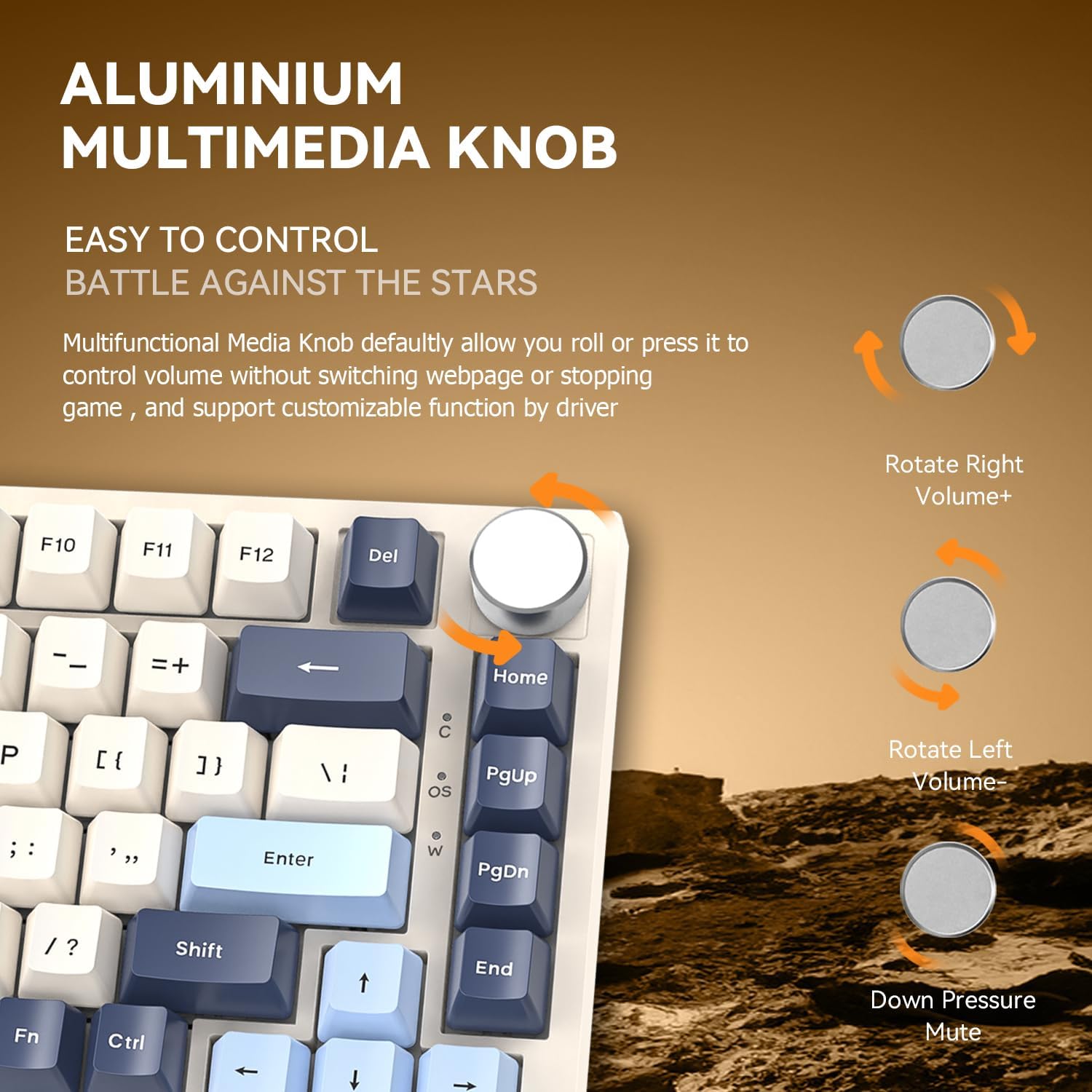
Image: Details of the aluminum multimedia knob and its functions.
3. RGB Backlighting
The K85 features full RGB backlighting with 18 pre-installed modes and 9 color options. You can customize lighting effects using the software or through FN key combinations:
- FN + < / >: Adjust Backlit Speed
- FN + Up / Down Arrow: Adjust Backlit Brightness
- FN + Del: Switch Light Mode
- FN + Home: Switch Light Color
- FN + Esc: Restore to Factory Settings
- FN + Win: Window Lock
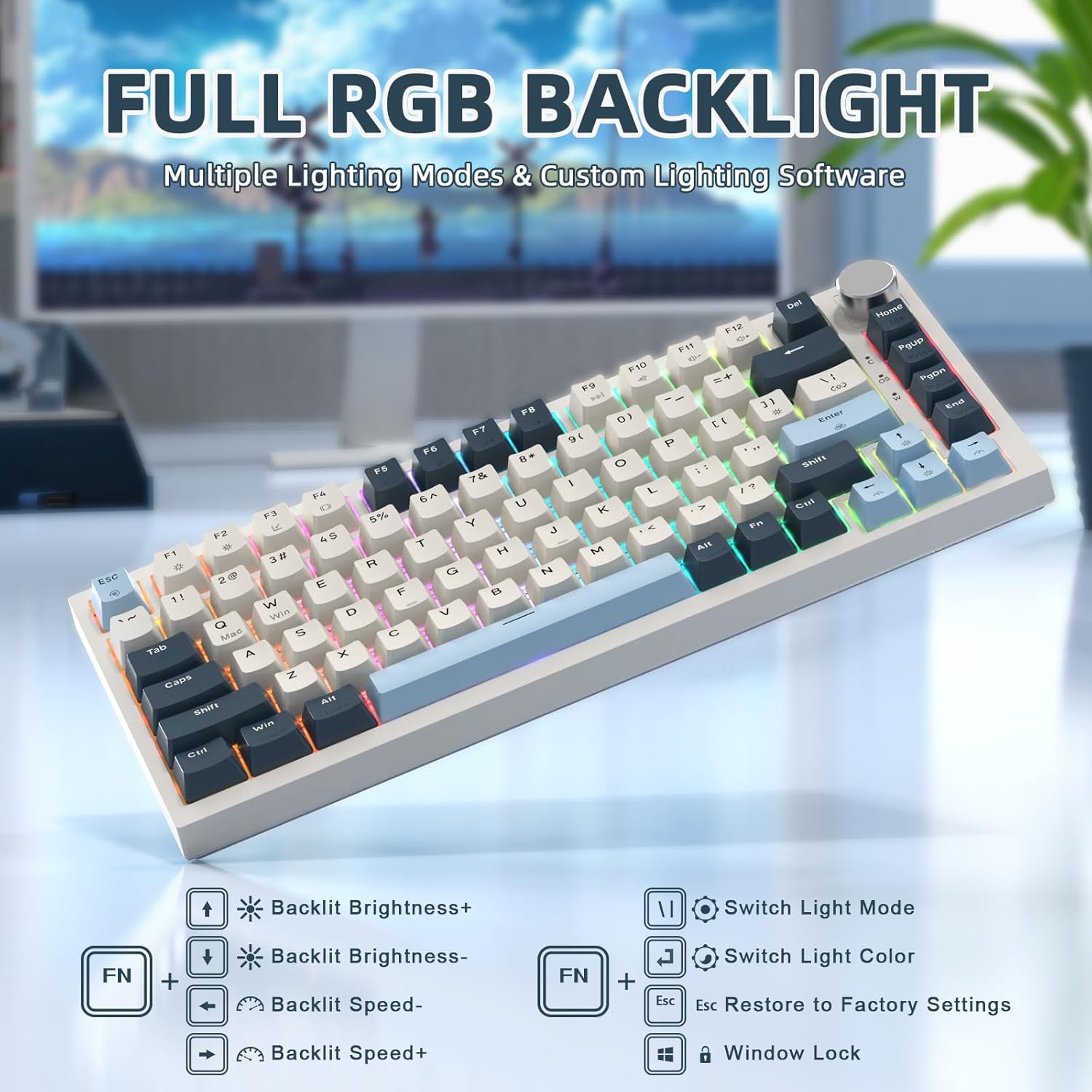
Image: RGB backlighting controls and effects.
4. Hot-Swappable Switches
The K85 keyboard features a full-key hot-swappable PCB base, allowing you to easily change switches without soldering. Please note that it is currently only compatible with Outemu magnetic switches.
Important: After replacing any Outemu magnetic switch, recalibration in the software is necessary. Navigate to the "About" section in the software, then "Maximum stroke calibration," and press "Start Calibration" by gently pressing every key.

Image: Hot-swappable switches on the K85 keyboard.
Maintenance
Proper maintenance ensures the longevity and performance of your keyboard.
- Cleaning Keycaps: Use the provided keycap puller to carefully remove keycaps. Clean them with a soft, damp cloth and mild soap if necessary. Ensure they are completely dry before reattaching.
- Cleaning Switches: Use compressed air to remove dust and debris from around the switches. Avoid spraying liquids directly into the switches.
- General Cleaning: Wipe the keyboard surface with a soft, dry cloth. Avoid abrasive cleaners or solvents.
Troubleshooting
If you encounter issues with your ATTACK SHARK K85 keyboard, refer to the following common solutions:
| Problem | Solution |
|---|---|
| Keyboard not responding | Ensure the USB-C cable is securely connected to both the keyboard and the computer. Try a different USB port or cable. Restart your computer. |
| Keys not registering or double-typing | Recalibrate the magnetic switches using the software (refer to "Hot-Swappable Switches" section). Ensure no debris is lodged under the keycaps or switches. |
| RGB lighting not working or incorrect | Check lighting settings in the software. Try resetting to factory settings using FN + Esc. Ensure the software is up to date. |
| Multimedia knob not functioning | Verify software settings for the knob. Ensure no other software is conflicting with multimedia controls. |
| Keyboard prevents computer from sleeping | This can sometimes occur with certain peripherals. Check your computer's power management settings for USB devices. You may need to adjust settings to allow the computer to put USB devices to sleep. |
| Cannot switch between Windows/Mac modes | Ensure you are using the correct key combination (FN + Q for Mac, FN + W for Windows). |
Specifications
| Feature | Detail |
|---|---|
| Model Number | K85 |
| Layout | 75% (82-key) |
| Switch Type | Magnetic Switch (Outemu compatible) |
| Actuation Point | Adjustable from 0.2mm to 3.8mm |
| Connectivity | USB-C Wired with Braided Coiled Cable |
| Keycaps | PBT Keycaps (Tri-color Theme) |
| Backlighting | Full RGB (18 modes, 9 colors) |
| Special Features | Rapid Trigger, Dynamic Keystrokes, Programmable Keys, Hotkeys, Media Keys, Metal Media Knob, Hot-Swappable |
| Compatible Devices | Laptop, PC, Mac |
| Operating System Support | Windows, Mac OS |
| Item Weight | 2.07 pounds |
| Package Dimensions | 14.13 x 7.24 x 1.93 inches |
| Material | Plastic (retro blue finish) |
Warranty and Support
The ATTACK SHARK K85 keyboard comes with a standard manufacturer's warranty. For specific warranty details, please refer to the warranty card included in your package or contact ATTACK SHARK customer support.
If you require further assistance, encounter issues not covered in this manual, or need to download the latest software, please visit the official ATTACK SHARK website or contact their customer support team. Contact information can typically be found on the product packaging or the brand's official website.


