
Introduction
The ZEBRONICS Z310 NVMe Micro-ATX Motherboard is designed for modern computing needs, supporting Intel 6th, 7th, 8th, and 9th Generation Processors with an LGA 1151 socket. It features DDR4 memory support up to 2666 MHz, an NVMe M.2 slot, 5.1 channel audio, and various connectivity options including USB 3.0, SATA, RJ45 LAN, and HDMI. This manual provides essential information for the proper installation, operation, and maintenance of your motherboard.
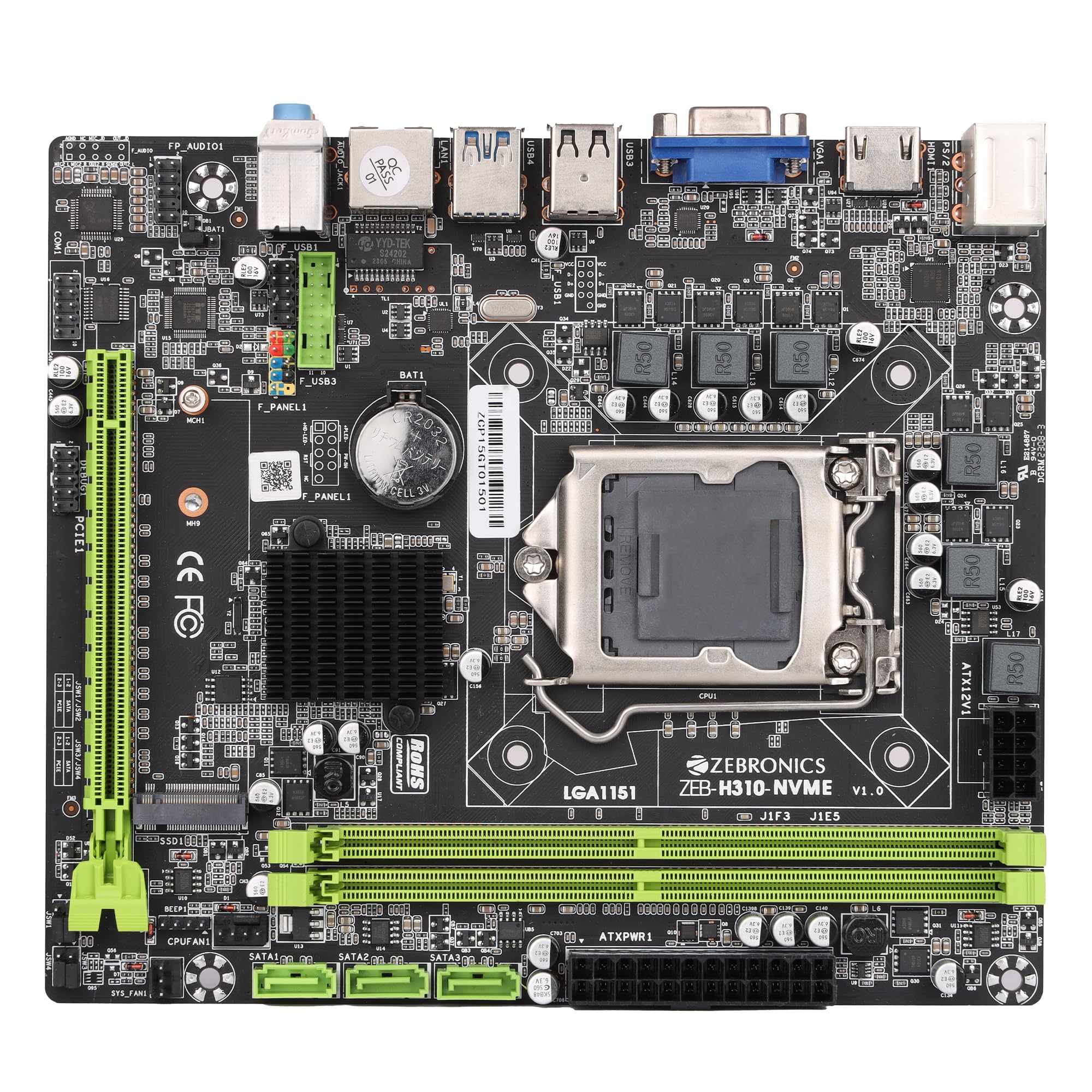
Figure 1: ZEBRONICS Z310 NVMe Micro-ATX Motherboard overview.
Key Features
- DDR4 Memory Support: Compatible with DDR4 memory modules, supporting speeds from 2133MHz to 2666MHz for optimal system performance.
- LGA 1151 Socket: Designed to support Intel 6th, 7th, 8th, and 9th Generation Processors, ensuring smooth data transfer and increased processing power.
- 5.1 Channel Audio: Provides a captivating audio experience with crystal-clear sound.
- LAN Connectivity: Equipped with 10/100/1000 Mbps LAN support for fast and reliable internet connection.
- PCIe 16 Slot: Facilitates seamless data transfer for graphics cards and other expansion cards.
- Storage Options: Includes 3 SATA ports for connecting multiple storage devices (HDDs, SSDs) and a SATA M.2 (NVMe) slot for high-speed M.2 drives.
- USB 3.0 Ports: Elevates data transfer speeds for external devices.

Figure 2: Visual representation of key features including DDR4, NVMe M.2, LGA 1151, and PCIe X16 support.
Setup and Installation
Before beginning installation, ensure your system is powered off and unplugged from the wall outlet. Wear an anti-static wrist strap to prevent electrostatic discharge (ESD) damage to components.
1. Installing the CPU
- Locate the LGA 1151 CPU socket on the motherboard.
- Open the CPU socket lever and lift the load plate.
- Carefully align the CPU with the socket, ensuring the gold triangle on the CPU matches the triangle on the socket. Do not force the CPU into place.
- Lower the load plate and secure it with the lever.

Figure 3: Top-down view of the motherboard, showing the LGA 1151 CPU socket.
2. Installing RAM (DDR4 Memory)
- Locate the two DDR4 DIMM slots.
- Open the clips at both ends of the DIMM slot.
- Align the RAM module with the slot, ensuring the notch on the RAM module matches the key in the slot.
- Press down firmly on both ends of the RAM module until the clips snap into place.
3. Installing Storage Devices
- SATA Drives: Connect SATA data cables from your storage devices (HDDs/SSDs) to the SATA ports on the motherboard. Connect power cables from your power supply to the drives.
- NVMe M.2 Drive: Locate the M.2 slot. Insert the NVMe M.2 drive at an angle and then gently push it down. Secure it with the provided screw.

Figure 4: Labeled diagram of the motherboard highlighting various ports including SATA and M.2 interface.
4. Connecting Power Supply
- Connect the 24-pin ATX power connector from your power supply to the main power socket on the motherboard.
- Connect the 8-pin (or 4-pin, depending on your PSU) CPU power connector to the ATX12V socket near the CPU. Ensure all 8 pins are connected if your PSU provides an 8-pin connector for stable operation.
5. Connecting Peripherals and Front Panel
- Connect USB devices, keyboard, mouse, and display cables to the rear I/O panel.
- Connect the front panel headers (power button, reset button, HDD LED, power LED, front USB, front audio) to their respective pins on the motherboard. Refer to the motherboard diagram for correct pin alignment.

Figure 5: Rear I/O panel with various ports including PS/2, VGA, USB, LAN, and audio jacks.
Operating Instructions
After completing the hardware installation, you can proceed with the initial boot-up and operating system installation.
- Connect your monitor, keyboard, and mouse.
- Power on your system.
- During boot-up, press the designated key (usually DEL or F2) to enter the BIOS/UEFI setup.
- Configure boot order to install your operating system from a USB drive or optical disc.
- Save changes and exit BIOS. The system will restart and begin the OS installation process.
- Install necessary drivers for the motherboard components (chipset, audio, LAN, etc.) from the provided driver CD or the ZEBRONICS website.
Maintenance
Regular maintenance helps ensure the longevity and stable performance of your motherboard.
- Keep it Clean: Periodically clean dust from the motherboard and other components using compressed air. Ensure the system is powered off and unplugged before cleaning.
- Check Connections: Ensure all power and data cables are securely connected. Loose connections can cause system instability.
- BIOS Updates: Check the official ZEBRONICS website for BIOS/UEFI updates. Update only if necessary and follow the instructions carefully.
- Environmental Control: Operate the motherboard in a well-ventilated area to prevent overheating.
Troubleshooting
If you encounter issues, refer to the following common troubleshooting steps:
- No Power:
- Ensure the power supply is connected correctly to both the 24-pin ATX and 8-pin (or 4-pin) CPU power connectors. A common issue is not fully connecting the 8-pin CPU power.
- Verify the power button is correctly connected to the front panel header.
- Check if the power supply unit (PSU) is functional.
- No Display:
- Ensure the monitor is connected to the correct video output (motherboard integrated graphics or dedicated graphics card).
- Reseat the RAM modules. Incorrectly seated RAM is a common cause of no display.
- If using a dedicated graphics card, ensure it is properly seated in the PCIe slot and has adequate power.
- System Instability/Crashes:
- Check for overheating. Ensure CPU cooler is properly installed and fans are spinning.
- Verify RAM compatibility and stability. Test with one RAM stick at a time.
- Ensure all drivers are up to date.
- Audio Issues:
- Ensure audio cables are connected to the correct jacks on the rear I/O panel or front panel.
- Install or update audio drivers.
- Check audio settings in your operating system.
For further assistance, consult the ZEBRONICS support website or contact customer service.
Specifications
| Feature | Detail |
|---|---|
| Brand | ZEBRONICS |
| Model Name | Z310 NVMe |
| CPU Socket | LGA 1151 |
| Compatible Processors | Intel Core 6th Gen, 7th Gen, 8th Gen, 9th Gen |
| Chipset Type | Intel Z310 |
| RAM Memory Technology | DDR4 |
| Memory Clock Speed | 2400 MHz (Supports up to 2666 MHz) |
| Memory Slots Available | 2 |
| Drive/Memory Storage Capacity (Max) | 32 GB |
| Total SATA Ports | 3 |
| M.2 Slot | 1 (NVMe support) |
| Graphics Card Interface | PCI Express |
| Total PCIe Ports | 1 (PCIe 16x) |
| Total USB Ports | 6 (including USB 3.0) |
| USB 2.0 Ports | 2 |
| Number of Ethernet Ports | 1 (10/100/1000 Mbps) |
| Total HDMI Port | 1 |
| Main Power Connector Type | 24-Pin |
| Item Weight | 800 Grams |
| Item Dimensions (L x W x H) | 22.1L x 5.5W x 27.5H Centimeters |
Warranty and Support
The ZEBRONICS Z310 NVMe Micro-ATX Motherboard comes with a 1-year carry-in service center warranty. For warranty claims or technical support, please contact ZEBRONICS customer service or visit their official website.
You can find more information and support resources on the ZEBRONICS Store on Amazon.in.
Product Video Overview
Video: An official product video showcasing the features and overview of the ZEBRONICS Z310 NVMe Micro-ATX Motherboard.