Introduction
This user manual provides detailed instructions for the G60S Pro BT Multi-Function Air Mouse. Please read this manual carefully before using the product to ensure proper operation and to maximize its features.
The G60S Pro BT is a versatile remote control featuring dual connectivity modes (2.4GHz wireless and Bluetooth 5.0), a full QWERTY keyboard with a touchpad, backlight, 6-axis gyroscope, and voice search capabilities. It is designed for use with various devices such as TV boxes, projectors, PCs, and Android TV boxes.
Package Contents
Upon opening the package, please verify that all the following items are included:
- 1x G60S Pro BT Remote Control
- 1x USB Receiver
- 1x USB Charging Cable
- 1x User Manual (this document)

Image: Contents of the G60S Pro BT package, showing the remote control, USB receiver, USB charging cable, and user manual.
Product Overview
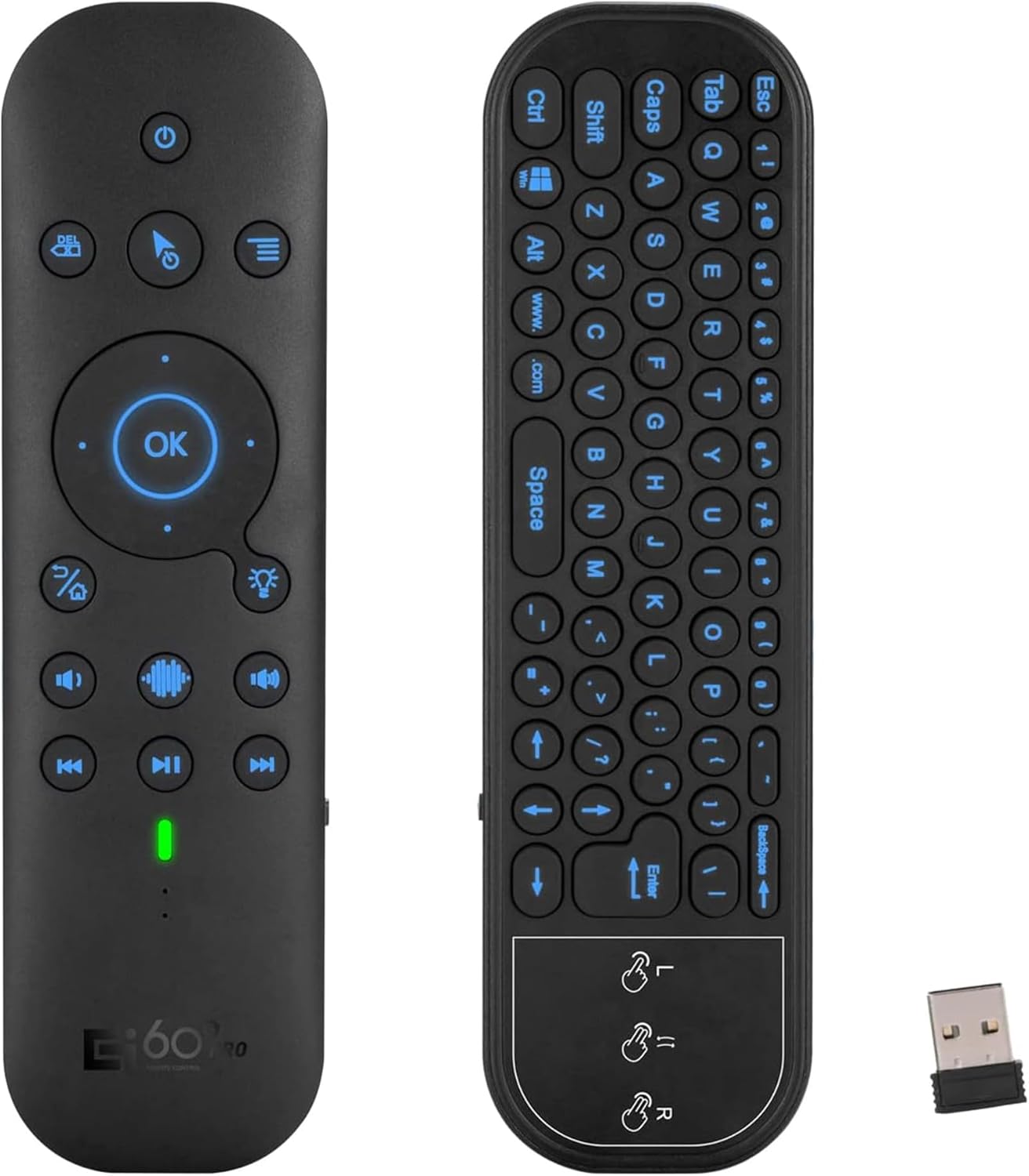
Image: The G60S Pro BT remote control showing both its front (remote) and back (keyboard with touchpad) sides, alongside its USB receiver.
The G60S Pro BT is a multi-functional air mouse remote control designed for versatile use with various smart devices. It features a dual-sided design, with a traditional remote control interface on one side and a full QWERTY keyboard with a touchpad on the other. Key features include:
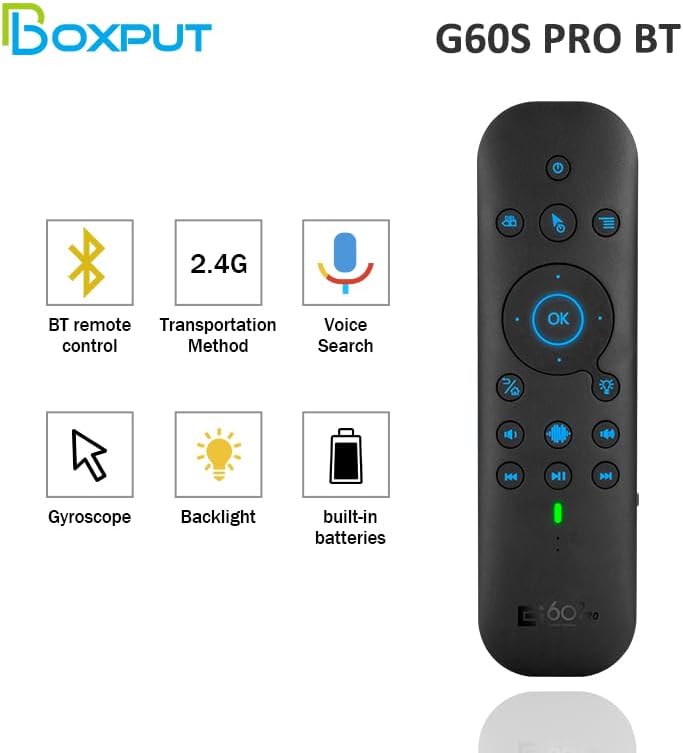
Image: Icons representing the key features of the G60S Pro BT: Bluetooth remote control, 2.4G wireless transmission, Voice Search, Gyroscope, Backlight, and Built-in batteries.
- Dual-mode Connectivity: Supports both 2.4GHz wireless (via USB receiver) and Bluetooth 5.0.
- Full QWERTY Keyboard: Integrated on the back for easy text input.
- Multi-touch Touchpad: For precise cursor control and gesture support.
- Backlight: Illuminated keys for convenient use in low-light conditions.
- 6-axis Gyroscope: Enables accurate air mouse functionality.
- Voice Search: Allows for voice commands (2.4G mode only).
- Rechargeable Battery: Built-in lithium battery, charged via USB-C.
Front Side (Remote Control)
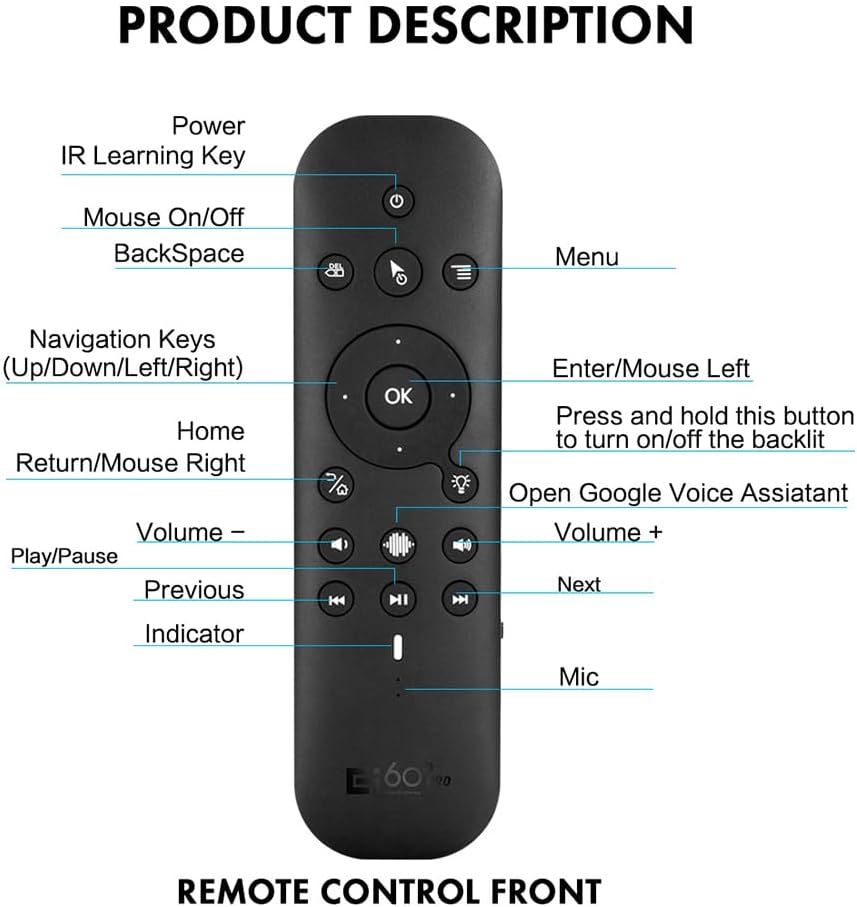
Image: Diagram of the G60S Pro BT remote control's front side, labeling buttons such as Power, IR Learning Key, Mouse On/Off, Backspace, Menu, Navigation Keys, OK, Enter/Mouse Left, Home, Return/Mouse Right, Volume -, Volume +, Play/Pause, Previous, Next, Indicator, and Mic.
- Power Button: Turns the device on/off.
- IR Learning Key: For programming infrared functions.
- Mouse On/Off: Toggles the air mouse function.
- Backspace: Deletes characters.
- Menu: Accesses menu options.
- Navigation Keys (Up/Down/Left/Right): For directional control.
- OK Button: Confirms selections.
- Enter/Mouse Left: Acts as Enter key or left mouse click.
- Home: Returns to the home screen.
- Return/Mouse Right: Acts as Back key or right mouse click.
- Volume - / Volume +: Adjusts audio volume.
- Play/Pause: Controls media playback.
- Previous / Next: Skips to previous or next media track.
- Indicator: Status light.
- Mic: Microphone for voice input.
- Backlight Button: Long press to turn on/off the backlight.
- Google Voice Assistant Button: Opens Google Voice Assistant.
Back Side (Keyboard & Touchpad)

Image: Close-up of the G60S Pro BT's keyboard and touchpad, illustrating multi-touch gestures: one-finger for left-click, two-finger drag for slide up and down, and two-finger for right-click.
- QWERTY Keyboard: Full keyboard for text input.
- Touch Panel: Supports multi-touch gestures for navigation.
- Multi-touch Functions:
- One-finger tap: Left-click function.
- Two-finger drag: Slide up and down function (scrolling).
- Two-finger tap: Right-click function.
Setup and Connection
The G60S Pro BT offers two connection methods: 2.4G wireless via USB receiver and Bluetooth 5.0.
2.4G Wireless Connection (Recommended for Voice Functionality)
- Locate the USB receiver included in the package. It is typically stored inside the battery compartment of the remote or in the packaging.
- Insert the USB receiver into an available USB port on your device (e.g., TV Box, PC, Projector).
- The remote control should automatically connect to the receiver. The indicator light on the remote may flash briefly and then turn solid or off, indicating a successful connection.
- Test the remote by moving it to control the cursor or pressing buttons.
Note: The voice search function only works when connected via 2.4GHz wireless mode. It does not function in Bluetooth mode.
Bluetooth 5.0 Connection
- Ensure your device's Bluetooth is enabled.
- On the G60S Pro BT remote, press and hold the OK button and the Volume - button simultaneously for a few seconds until the indicator light starts flashing rapidly. This indicates pairing mode.
- On your device, search for Bluetooth devices. You should see "G60S PRO" appear in the list of available devices.
- Select "G60S PRO" to pair. Once paired, the indicator light on the remote will stop flashing.
- Test the remote's functionality.
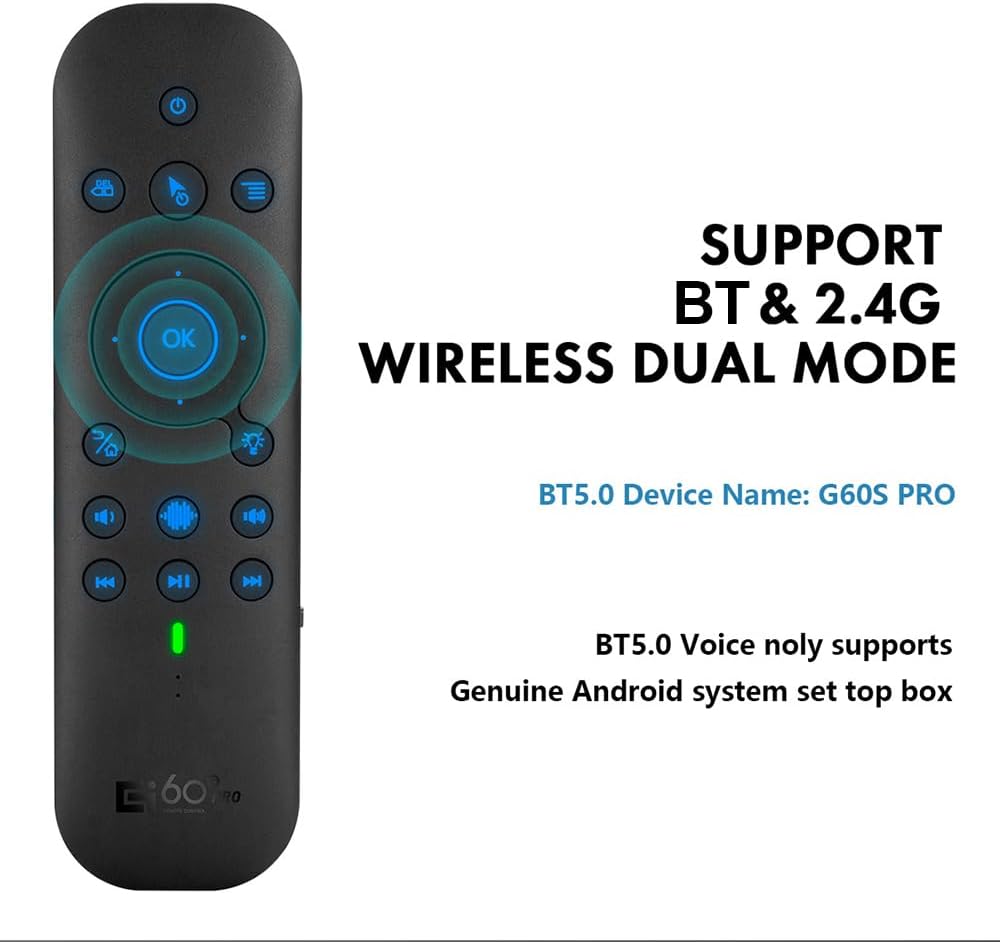
Image: Illustration showing the G60S Pro BT remote supporting both Bluetooth and 2.4G wireless dual modes. It notes that the Bluetooth 5.0 device name is "G60S PRO" and that BT5.0 voice only supports genuine Android system set-top boxes.
Note: Bluetooth 5.0 voice functionality is primarily supported on genuine Android system set-top boxes.
Operating Instructions
Air Mouse Function
The G60S Pro BT features a 6-axis gyroscope, allowing for precise air mouse control.
- To activate the air mouse, press the Mouse On/Off button (usually depicted with a mouse icon).
- Hold the remote in your hand and move it in the air to control the cursor on your screen.
- Press the OK button for left-click actions.
- Press the Return/Mouse Right button for right-click actions.
- To deactivate the air mouse, press the Mouse On/Off button again.
Keyboard and Touchpad Usage
Flip the remote to access the full QWERTY keyboard and touchpad.
- Typing: Use the individual keys for text input.
- Backlight: Long press the backlight button on the remote side to turn the keyboard backlight on or off for use in dark environments.
- Touchpad: Use the touch panel for cursor control.
- Single Finger Tap: Performs a left-click.
- Two Finger Drag: Scrolls up or down.
- Two Finger Tap: Performs a right-click.
Voice Search Function
The voice search function allows you to control your device using voice commands. This feature is only available in 2.4GHz wireless mode.
- Ensure the remote is connected via the 2.4G USB receiver.
- Press and hold the Voice Button (microphone icon) on the remote.
- Speak clearly into the microphone located on the remote.
- Release the voice button when you are finished speaking. The device will process your command.
Note: Compatibility with voice search may vary depending on the operating system and applications of your connected device.
IR Learning Function (for Power Button)
The power button on the G60S Pro BT can be programmed to learn the infrared signal from another remote control, such as your TV's power button.
- Place the G60S Pro BT remote and your original remote control head-to-head, about 1-3 cm apart.
- Press and hold the IR Learning Key (often labeled with an IR icon or a specific learning button) on the G60S Pro BT remote for 3-5 seconds until the indicator light starts flashing slowly.
- Press the power button on your original remote control. The indicator light on the G60S Pro BT remote should flash rapidly, indicating it has received the signal.
- Press the Power Button on the G60S Pro BT remote. The indicator light will turn solid, indicating successful learning.
- Test the power button on the G60S Pro BT remote to ensure it now controls your device.
Charging and Battery
The G60S Pro BT is equipped with a built-in rechargeable lithium battery.
- To charge the remote, connect the included USB charging cable to the USB-C port on the remote and the other end to a USB power source (e.g., computer USB port, USB wall adapter).
- The indicator light will typically show charging status (e.g., red while charging, off or green when fully charged).
- A full charge usually takes a few hours.
- When the battery is low, the indicator light may flash to alert you to recharge.
Compatibility
The G60S Pro BT air mouse remote is compatible with a wide range of operating systems and devices:
- Windows
- macOS
- Linux
- Android TV Box
- Projectors
- Smart TVs (some models)
- Mobile Phones (some models)
- Tablet Computers
- Desktop Computers

Image: Grid of devices illustrating the G60S Pro BT's compatibility, including TV Box, Raspberry Pi, Projector, Smart TV, Cell phone, Tablet, Computer, All-in-one PC, and HTPC.
Important Compatibility Notes:
- It is not compatible with Amazon Fire TV and Fire TV Stick.
- It may not be compatible with some Samsung, LG, Sony, and Mi smart TVs or Mi TV Boxes.
Troubleshooting
| Problem | Possible Cause / Solution |
|---|---|
| Remote not responding (2.4G mode) |
|
| Remote not responding (Bluetooth mode) |
|
| Air mouse cursor is erratic or not moving smoothly |
|
| Voice search not working |
|
| Keyboard backlight not turning on/off |
|
Specifications
| Feature | Detail |
|---|---|
| Model Number | G60S PRO BT |
| Transmission Method | 2.4G Wireless + Bluetooth 5.0 |
| Sensors | 6-axis Gyroscope (3-Gyro + 3-Gsensor) |
| Operating Distance | 8-10 meters |
| Number of Keys | 17 (remote side) + 63 (keyboard side) |
| Battery Type | Built-in Lithium Battery (Rechargeable via USB-C) |
| Material | ABS Plastic and Silicone |
| Dimensions (L*W*H) | 19.6 x 8.9 x 1.9 cm (7.72 x 3.50 x 0.75 inches) |
| Weight | 91g (3.21 ounces) |
| Special Features | Voice Control (2.4G only), Gyroscope, Backlight, Mini Keyboard, Multi-touch Touchpad, IR Learning |
| Certifications | FCC, CE, RoHS |

Image: Diagram showing the dimensions of the G60S Pro BT remote control, indicating a length of 178mm (7.01 inches), width of 50mm (1.97 inches), and thickness of 16mm (0.63 inches).
Maintenance and Care
- Keep the remote control dry. Avoid exposure to water or excessive humidity.
- Do not expose the remote to extreme temperatures (hot or cold).
- Clean the remote with a soft, dry cloth. Do not use abrasive cleaners or solvents.
- Avoid dropping or subjecting the remote to strong impacts.
- When not in use for extended periods, ensure the remote is fully charged and stored in a cool, dry place.
Warranty and Support
For warranty information and technical support, please refer to the official BOXPUT website or contact their customer service directly. Details are typically provided on the product packaging or the manufacturer's official channels.
Manufacturer: BOXPUT
For further assistance, please visit the BOXPUT Store on Amazon.