Download PDFFree PDF. The Save button below keeps a bookmark and private notes in your account.
Haulvean SmartWatch G39 User Manual
Model: G39
Introduction
Welcome to the Haulvean SmartWatch G39 user manual. This document provides essential information for setting up, operating, maintaining, and troubleshooting your new smartwatch. The Haulvean G39 is a versatile fitness tracker designed to monitor your health, track activities, and keep you connected.
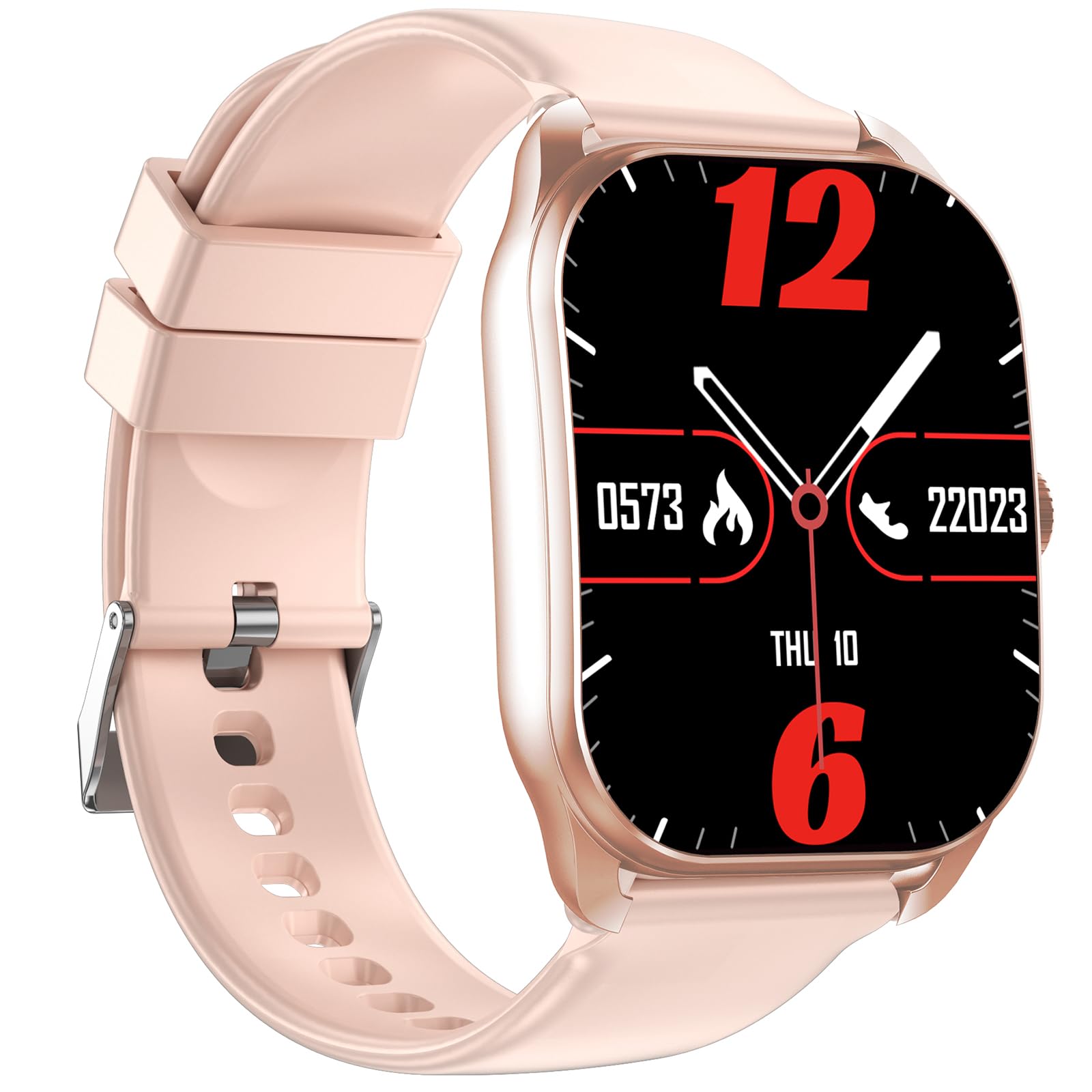
Image: Haulvean SmartWatch G39. This image displays the front view of the smartwatch, highlighting its rectangular screen and wristband.
Setup Guide
1. Unboxing and Initial Inspection
Upon opening the package, ensure all components are present:
Haulvean SmartWatch G39
Charging Cable
User Manual (this document)
2. Charging the SmartWatch
Before first use, fully charge your smartwatch.
Connect the charging cable to the charging port on the back of the smartwatch.
Plug the USB end of the cable into a standard USB power adapter (not included) or a computer's USB port.
The watch display will indicate charging status. Allow approximately 2-3 hours for a full charge.
The smartwatch uses a Lithium Polymer battery.
3. App Installation
To unlock the full functionality of your Haulvean SmartWatch G39, you need to install the companion application on your smartphone. The watch is compatible with both Android and iOS operating systems.
Scan the QR code provided in the quick start guide or search for the "Haulvean Smart" app (or similar, check packaging) in your phone's app store (Google Play Store for Android, Apple App Store for iOS).
Download and install the application.
Follow the on-screen instructions to create an account and set up your profile.
4. Device Pairing (Bluetooth)
Pair your smartwatch with your smartphone via Bluetooth for data synchronization and notifications.
Ensure Bluetooth is enabled on your smartphone.
Open the installed companion app.
Navigate to the "Device" or "Add Device" section within the app.
The app will search for available devices. Select "Haulvean G39" from the list.
Confirm the pairing request on both your phone and the smartwatch if prompted.
Important: The app may request location permissions for successful Bluetooth connection and data synchronization. Granting these permissions is often necessary for full functionality.
Operating Instructions
1. Basic Navigation
Touch Screen: The 1.85-inch display is touch-sensitive. Swipe left, right, up, or down to navigate through menus and features.
Side Button: Press the side button to wake the screen, return to the home screen, or access the main menu.
2. Health Monitoring Features
The Haulvean G39 provides continuous health monitoring.
Heart Rate Monitoring: Access the heart rate function on the watch or through the app to view your current heart rate. The watch can track heart rate 24/7.
Blood Oxygen (SpO2) Monitoring: Measure your blood oxygen levels directly from the watch.
Sleep Tracking: Wear the watch overnight to monitor your sleep patterns, including deep sleep, light sleep, and awake times. Data is synchronized with the app for detailed analysis.
Activity Tracking: Records daily steps, distance, and calories burned.
Image: Haulvean SmartWatch G39 displaying health metrics. This image shows the smartwatch screen with various health data, such as heart rate or steps, indicating its monitoring capabilities.
3. Sports Modes
The smartwatch supports over 100 sports modes to track your workouts.
Swipe to the "Sports" or "Workout" menu on the watch.
Select your desired activity (e.g., running, cycling, walking).
The watch will begin tracking your activity metrics.
End the workout by following the on-screen prompts. Data will sync to the app.
4. Call Functionality
With Bluetooth connectivity, you can make and answer calls directly from your smartwatch.
Making Calls: Access the dial pad or contact list on the watch (requires synchronization with your phone's contacts via the app).
Answering Calls: When a call comes in, the watch will display the caller ID. Tap the green icon to answer or the red icon to reject.
Maintenance
1. Cleaning Your SmartWatch
Wipe the screen and body of the watch with a soft, damp, lint-free cloth.
For the wristband, use mild soap and water if necessary, then rinse thoroughly and dry completely.
Avoid using harsh chemicals or abrasive materials, as these can damage the watch.
2. Water Resistance (IP67)
The Haulvean G39 is IP67 waterproof, meaning it is resistant to dust and can withstand immersion in water up to 1 meter for up to 30 minutes.
It is suitable for daily use, such as washing hands or light rain.
Avoid wearing it during swimming, diving, or showering with hot water, as steam and prolonged immersion can compromise the seal.
If the watch gets wet, dry it thoroughly before charging or using the buttons.
3. Battery Care
Charge the watch regularly to maintain battery health.
Avoid completely draining the battery frequently.
Use only the provided charging cable.
Store the watch in a cool, dry place when not in use for extended periods.
Troubleshooting
1. Watch Not Pairing with Phone
Ensure Bluetooth is enabled on your phone and the watch is sufficiently charged.
Make sure the companion app has been granted necessary permissions, especially location access, as this is often required for Bluetooth pairing.
Try restarting both your phone and the smartwatch.
If issues persist, try unpairing the device from your phone's Bluetooth settings and re-pairing through the app.
2. Inaccurate Health Data (Heart Rate, Steps)
Ensure the watch is worn snugly on your wrist, about one finger's width above your wrist bone.
Clean the sensor on the back of the watch regularly.
Environmental factors and individual physiology can affect sensor accuracy. For medical purposes, consult a healthcare professional.
3. Short Battery Life
Frequent use of features like continuous heart rate monitoring, bright screen settings, and call functions can drain the battery faster.
Reduce screen brightness and screen-on time.
Ensure the watch is fully charged each time.
If battery life significantly degrades, contact customer support.
4. Notifications Not Appearing
Verify that the watch is successfully paired with your phone via Bluetooth.
Check the companion app settings to ensure notification permissions are granted and specific app notifications are enabled.
Ensure your phone's notification settings allow the companion app to display notifications.
Specific warranty details for the Haulvean SmartWatch G39 may vary by region and retailer. Please refer to the warranty card included in your product packaging or contact your point of purchase for detailed information regarding warranty coverage and terms.
Customer Support
For further assistance, technical support, or inquiries not covered in this manual, please contact Haulvean customer support through their official website or the contact information provided in your product documentation.
Ask about setup, troubleshooting, compatibility, parts, safety, or missing instructions. Manuals+ will review the question and use this page’s manual context to help answer it.