
BOXPUT MT10
BOXPUT MT10 Backlit Mini Wireless Keyboard Remote Control User Manual
Model: MT10
Introduction
This manual provides detailed instructions for the BOXPUT MT10 2.4G Mini Wireless Keyboard Remote Control with Touchpad Mouse Combo. This device combines the functionality of a keyboard, mouse, and remote control, designed for use with various systems including PC, Pad, Xbox, PS3, TV Box, HTPC, IPTV, and Raspberry Pi.
The MT10 features a 2.4GHz wireless connection, a sensitive touchpad, and multi-color backlighting for enhanced usability in different environments.
Package Contents
- 1x BOXPUT MT10 Wireless Backlit Keyboard
- 1x Wireless USB Receiver
- 1x User Manual
Setup Guide
1. Battery Installation
The BOXPUT MT10 requires batteries (not included) for operation. Open the battery compartment located on the back of the device and insert the required batteries, ensuring correct polarity.
2. Connecting the USB Receiver
- Locate the wireless USB receiver included in the package.
- Plug the USB receiver into an available USB port on your device (PC, Smart TV, TV Box, etc.).
- The system should automatically detect and install the necessary drivers. No additional software installation is typically required.

Image: The BOXPUT MT10 keyboard shown with its USB receiver and various compatible devices like Smart TV, Projector, Desktop Computer, Android TV Box, and Notebook. Only one USB receiver is required for connection.
3. Powering On
Once the batteries are installed and the USB receiver is connected, turn on the keyboard using the power switch (if available) or by pressing any key. The keyboard is designed for plug-and-play functionality.
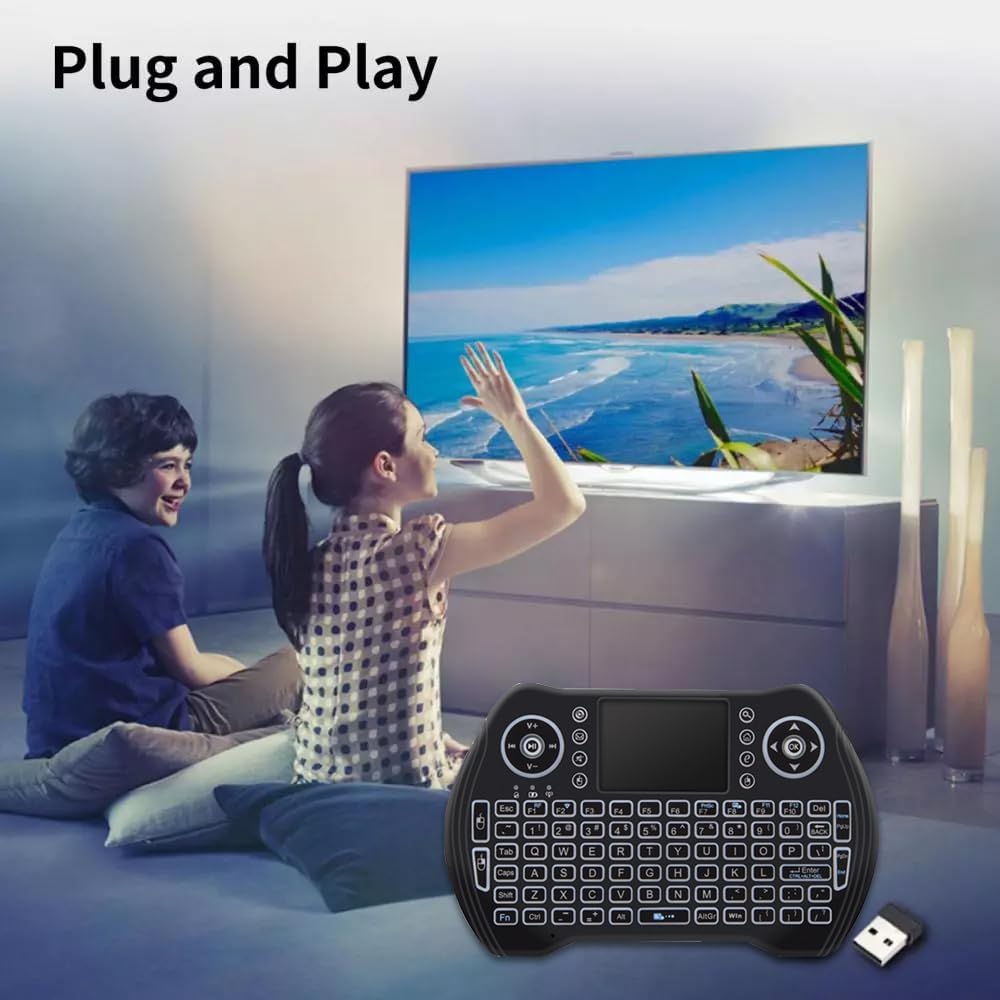
Image: Two individuals are shown comfortably using the BOXPUT MT10 mini wireless keyboard with a large screen TV, demonstrating its simple plug-and-play setup.
Operating Instructions
Basic Functions
- Keyboard Input: Use the QWERTY layout for typing.
- Touchpad Mouse: The integrated touchpad functions as a mouse.
- Single finger tap: Left mouse click
- Two finger tap: Right mouse click
- Two finger drag: Scroll
- Remote Control: The device can function as a remote, and some keys may be programmable or learnable from your TV remote. Refer to your device's manual for specific programming instructions if applicable.
Special Functions and Shortcuts
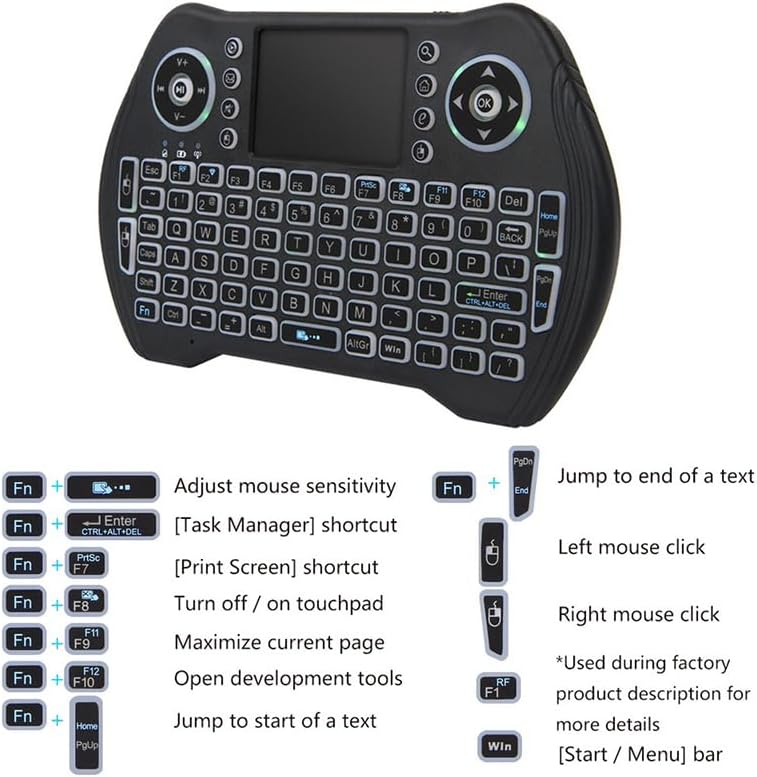
Image: A detailed view of the BOXPUT MT10 mini wireless keyboard, illustrating its full QWERTY layout, touchpad, and dedicated function keys for various shortcuts and controls.
| Key Combination | Function |
|---|---|
| Fn + Spacebar | Adjust mouse sensitivity |
| Fn + Enter | Task Manager shortcut |
| Fn + PrtSc | Print Screen shortcut |
| Fn + F8 | Turn touchpad on/off |
| Fn + F9 | Maximize current page |
| Fn + F10 | Open development tools |
| Fn + Home | Jump to start of a text |
| Fn + PgDn | Jump to end of a text |
| Win key | [Start / Menu] bar |
Backlight Control
The MT10 features multi-color backlighting. You can switch between different backlight colors at will. Refer to the keyboard layout for the specific key combination to change backlight colors (often Fn + F2 or a dedicated backlight key).

Image: Three BOXPUT MT10 mini wireless keyboards are displayed, each showing a different backlight color (blue, green, and red), illustrating the multi-color backlight feature.
Compatibility
The keyboard is compatible with a wide range of operating systems and devices, including Windows, Linux, Android, Xbox 360/PS3, and Mac OS.

Image: The BOXPUT MT10 mini wireless keyboard is centrally placed, surrounded by circular icons representing various compatible operating systems and devices: Windows, Linux, Android, Xbox 360/PS3, and Mac OS, highlighting its broad compatibility.
Maintenance
Cleaning
To clean the keyboard, use a soft, dry cloth. For stubborn dirt, a slightly damp cloth can be used, but ensure no liquid enters the device. Avoid using harsh chemicals or abrasive cleaners.
Battery Replacement
When the keyboard's performance degrades or it stops responding, it may be time to replace the batteries. Open the battery compartment, remove the old batteries, and insert new ones, observing correct polarity.
Troubleshooting
- Device not responding:
- Ensure the USB receiver is securely plugged into a working USB port.
- Check if the keyboard batteries are installed correctly and have sufficient charge. Replace if necessary.
- Verify the keyboard is powered on.
- Try plugging the USB receiver into a different USB port on your device.
- Poor wireless connection or lag:
- Ensure there are no obstructions between the keyboard and the USB receiver. The optimal operating distance is up to 10 meters.
- Avoid placing the receiver near other wireless devices or sources of electromagnetic interference.

Image: The BOXPUT MT10 mini wireless keyboard is shown alongside a "Wireless 2.4G" signal icon, illustrating its stable transmission technology. It is advised to avoid placing obstructions between the keyboard and the receiver for optimal performance.
- Keyboard enters sleep mode too quickly:
The keyboard automatically enters sleep state when not in use for a short period to conserve battery. To wake it up, press any key. If it takes 30 seconds to restart, this is normal behavior after a longer period of inactivity.
- Touchpad not working:
- Ensure the touchpad has not been accidentally turned off using the Fn + F8 shortcut.
- Clean the touchpad surface to ensure smooth operation.
Specifications
| Feature | Detail |
|---|---|
| Model Number | MT10 |
| Sensors | Touchpad |
| Transmission Method | 2.4G Wireless |
| Operating Distance | Up to 10 meters |
| Number of Keys | 92 keys |
| Material | ABS Plastic and Silicone |
| Dimensions (L*W*H) | 15.9 x 10 x 2.2 cm |
| Weight | 126g |
| Backlight | Yes (Multi-color) |
| Multi-touch | Yes |
| Certifications | FCC, CE, RoHS |
| Power Source | Battery Powered |
| Bluetooth Function | No |
Support
For any operational or usage issues that cannot be resolved using this manual, please contact BOXPUT Official Support. Our technical team is available to assist you.
You can find contact information and further support resources on the official BOXPUT website or through the platform where you purchased the product.

Image: An individual is shown at a desk, looking at a computer screen displaying the BOXPUT website, symbolizing the availability of online support for users.