
Intel RNUC12D
Intel NUC 12 Extreme Kit Desktop PC User Manual
Model: RNUC12D
1. Introduction
This manual provides essential information for the setup, operation, maintenance, and troubleshooting of your Intel NUC 12 Extreme Kit Desktop PC. Please read this manual thoroughly before using the product to ensure proper functionality and safety.
2. Safety Information
Observe the following safety guidelines to prevent damage to the device or injury to yourself:
- Ensure the power supply voltage matches the requirements specified on the device.
- Do not open the chassis unless instructed by qualified personnel.
- Keep the device away from water, moisture, and extreme temperatures.
- Place the device on a stable, flat surface with adequate ventilation.
- Disconnect power before cleaning or performing any maintenance.
3. Package Contents
Verify that all items are present in the package:
- Intel NUC 12 Extreme Kit Desktop PC (Model RNUC12D)
- Power Cable
- Keyboard
- Documentation (this manual)
4. Product Overview
The Intel NUC 12 Extreme Kit is a high-performance desktop PC designed for demanding tasks, including gaming and content creation. It features an Intel Core i7-12700 processor, NVIDIA GeForce RTX 3060 Ti graphics, 16GB DDR4 RAM, and a 2TB M.2 SSD.
4.1 Front Panel
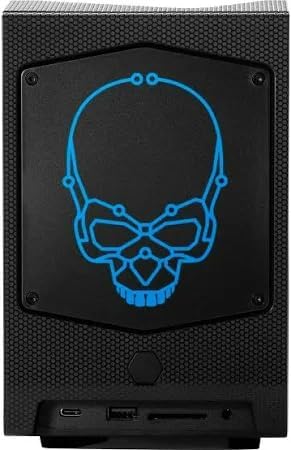
Figure 4.1: Front view of the Intel NUC 12 Extreme Kit, showcasing the illuminated blue skull logo and front I/O ports.

Figure 4.2: Front view of the Intel NUC 12 Extreme Kit, illustrating the customizable RGB skull logo.
4.2 Top and Angled View

Figure 4.3: Angled perspective of the Intel NUC 12 Extreme Kit, highlighting the top ventilation grille and the RGB skull logo.
4.3 Rear Panel and Ports
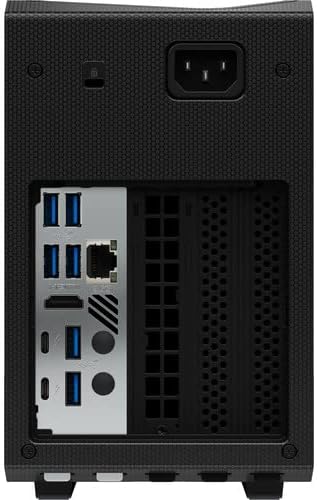
Figure 4.4: Rear panel of the Intel NUC 12 Extreme Kit, detailing the arrangement of USB, HDMI, DisplayPort, Ethernet, and power input ports.
4.4 Internal Components

Figure 4.5: Internal layout of the Intel NUC 12 Extreme Kit, revealing the graphics card, CPU module, and cooling fans.
5. Initial Setup
5.1 Connecting Peripherals
- Connect Monitor: Use an HDMI or DisplayPort cable to connect your monitor to the graphics card ports on the rear of the NUC.
- Connect Keyboard and Mouse: Plug your USB keyboard and mouse into any available USB ports.
- Connect Network (Optional): For a wired internet connection, connect an Ethernet cable to the RJ-45 port. For wireless, ensure Wi-Fi antennas are properly connected (if external).
5.2 Power Connection
- Connect the power cable to the power input on the rear of the NUC.
- Plug the other end of the power cable into a grounded electrical outlet.
5.3 First Boot
- Press the power button located on the front panel of the NUC.
- Follow the on-screen instructions to complete the Windows 11 Pro setup.
6. Operating Instructions
6.1 Power On/Off
- Power On: Press the power button.
- Power Off: Click the Start button in Windows, then select Power > Shut down. Alternatively, press and hold the power button for 4 seconds to force a shutdown (use only when necessary).
6.2 Windows 11 Pro
Your Intel NUC 12 Extreme Kit comes pre-installed with Windows 11 Pro. Familiarize yourself with the operating system's interface and features. Regular updates are recommended for security and performance.
6.3 Connectivity
- Wi-Fi 6E: Connect to wireless networks via the built-in Intel Wi-Fi 6E AX211.
- Bluetooth 5.3: Pair with Bluetooth devices such as headphones, speakers, or input devices.
- USB Ports: Utilize the various USB ports (Thunderbolt 4, USB 3.2 Gen 2) for connecting external devices and storage.
7. Maintenance
7.1 Cleaning
- Exterior: Use a soft, dry cloth to wipe the exterior surfaces. Avoid abrasive cleaners or solvents.
- Ventilation: Periodically check and clean the ventilation grilles to ensure unobstructed airflow. Use compressed air to remove dust from vents.
7.2 Software Updates
Regularly update your operating system, drivers, and applications to maintain optimal performance and security. Windows Update will handle OS updates, and Intel provides driver updates for NUC systems.
8. Troubleshooting
If you encounter issues, refer to the following common solutions:
8.1 No Power
- Ensure the power cable is securely connected to both the NUC and the electrical outlet.
- Verify the electrical outlet is functional by plugging in another device.
8.2 No Display
- Check that the monitor is powered on and the correct input source is selected.
- Ensure the video cable (HDMI/DisplayPort) is securely connected to both the NUC and the monitor.
- Try a different video cable or monitor if available.
8.3 Network Connectivity Issues
- Wired: Check the Ethernet cable connection and router status.
- Wireless: Verify Wi-Fi is enabled in Windows settings and that you are connected to the correct network. Restart your router/modem.
9. Specifications
| Feature | Specification |
|---|---|
| Model Name | NUC 12 Extreme Kit |
| Item Model Number | RNUC12D |
| Processor | Intel Core i7-12700 (12-Core, up to 4.9 GHz) |
| RAM | 16 GB DDR4 (3200 MHz) |
| Storage | 2 TB SSD |
| Graphics Coprocessor | NVIDIA RTX 3060 Ti 8GB GDDR6 |
| Operating System | Windows 11 Pro |
| Wireless Connectivity | Intel Wi-Fi 6E AX211 (2x2), Bluetooth 5.3 |
| LAN | 10/100/1000Mbps RJ-45 |
| USB Ports | 2x USB-C Thunderbolt 4, 1x USB-C 3.2 Gen 2, 7x USB 3.2 Gen 2 |
| Video Output | 1x HDMI v2.0, 3x DisplayPort (from GPU) |
| Audio | 1x Headphone/Microphone Combo Jack |
| Dimensions | 4.1 x 14.1 x 7.4 inches |
| Weight | 17.64 pounds |
| Color | Black |
10. Warranty Information
This Intel NUC 12 Extreme Kit Desktop PC is covered by a limited warranty. Please refer to the warranty card included with your product or visit the official Intel support website for detailed terms and conditions. Keep your proof of purchase for warranty claims.
11. Customer Support
For technical assistance, driver downloads, or further information, please visit the official Intel support website. You may also contact Intel customer service through the channels provided on their website.
Intel Support Website: https://www.intel.com/content/www/us/en/support/products/125499/mini-pcs/intel-nuc-kits.html
Related documentsRNUC12D


Ask a question about this manual
Ask about setup, troubleshooting, compatibility, parts, safety, or missing instructions. Manuals+ will review the question and use this page’s manual context to help answer it.