
1. Introduction
This manual provides essential information for the proper use and maintenance of your realme 12 Pro+ 5G smartphone. Please read this manual thoroughly before using your device to ensure optimal performance and longevity.
1.1. Package Contents
Upon unpacking, please verify that the following items are included:
- realme 12 Pro+ 5G Smartphone
- USB Cable
- Quick Start Guide (may vary by region)
- Safety Information (may vary by region)
If any items are missing or damaged, please contact your retailer or realme customer support.
2. Device Layout
Familiarize yourself with the physical components of your realme 12 Pro+ 5G smartphone.
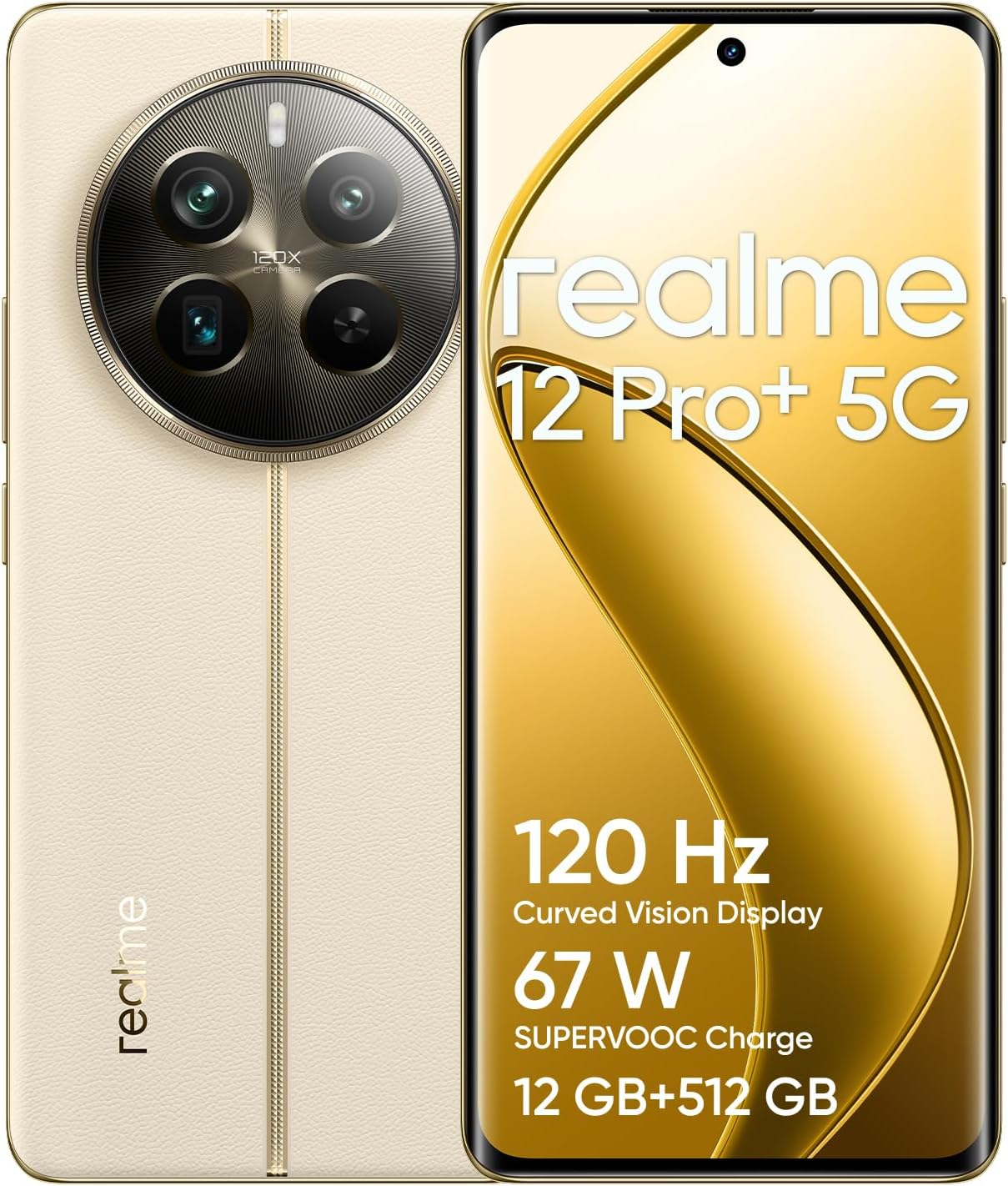
Figure 2.1: Front and back view of the realme 12 Pro+ 5G smartphone, highlighting the display, front camera, and the circular rear camera module with a textured back panel.

Figure 2.2: Close-up of the realme 12 Pro+ 5G smartphone's front display, showing the curved edges and the punch-hole front camera at the top center.

Figure 2.3: Rear view of the realme 12 Pro+ 5G smartphone, focusing on the prominent circular camera module housing multiple lenses and the realme branding at the bottom.

Figure 2.4: Side profile of the realme 12 Pro+ 5G smartphone, illustrating the power button and volume rocker on the right edge.

Figure 2.5: Top and bottom edges of the realme 12 Pro+ 5G smartphone, illustrating the USB-C charging port, speaker grille, microphone, and SIM card tray slot at the bottom, and an additional microphone at the top.
2.1. Component Identification
- Front Camera: Located at the top center of the display.
- Display: 6.7-inch AMOLED screen with curved edges.
- Power Button: On the right side of the device.
- Volume Buttons: Above the power button on the right side.
- USB Type-C Port: At the bottom for charging and data transfer.
- Speaker: Located at the bottom.
- Microphone: Primary microphone at the bottom, secondary at the top.
- SIM Card Tray: Located at the bottom edge.
- Rear Camera Module: Circular module on the back, housing multiple cameras and flash.
3. Setup
3.1. Inserting SIM Cards
- Locate the SIM card tray on the bottom edge of the device.
- Insert the SIM ejector tool (not included, use a thin pin if necessary) into the small hole next to the tray to eject it.
- Place your Nano-SIM cards into the designated slots on the tray. This device supports Dual SIM functionality.
- Carefully reinsert the SIM card tray into the phone.
Important: This smartphone is designed for GSM networks only and will not work with CDMA networks (e.g., Verizon, Sprint, US Cellular in the USA). Please verify network compatibility with your service provider before use.
3.2. Initial Power On and Configuration
- Press and hold the Power Button on the right side of the device until the realme logo appears.
- Follow the on-screen instructions to complete the initial setup, which includes selecting your language, connecting to a Wi-Fi network, setting up your Google account, and configuring security features.
4. Operating Instructions
4.1. Basic Navigation
- Touchscreen Gestures: Utilize tap, swipe, pinch-to-zoom, and long-press gestures for navigation and interaction.
- Home Screen: Access your apps, widgets, and notifications.
- Notification Panel: Swipe down from the top of the screen to view notifications and quick settings.
- App Drawer: Swipe up from the bottom of the screen to access all installed applications.
4.2. Camera Usage
The realme 12 Pro+ features a versatile camera system:
- Rear Cameras: 50MP main sensor, 64MP periscope telephoto, and 8MP ultrawide lens.
- Front Camera: 32MP sensor for selfies and video calls.
To open the camera, tap the Camera icon on your home screen or lock screen. Select different modes (Photo, Video, Portrait, Night, Pro, etc.) by swiping across the bottom of the viewfinder.
4.3. Battery and Charging
The device is equipped with a 5000 mAh non-removable battery. Use the provided USB cable and a compatible power adapter for charging. The device supports fast charging technology.
- Connect the USB cable to the phone's USB Type-C port and the other end to a power adapter.
- A charging indicator will appear on the screen.
- Avoid using non-certified chargers or cables, as this may damage the device or pose safety risks.
4.4. Connectivity
- Wi-Fi: Connect to wireless networks via Settings > Wi-Fi.
- Bluetooth: Pair with Bluetooth devices (headphones, speakers) via Settings > Bluetooth.
- Mobile Data: Enable or disable mobile data via Quick Settings or Settings > Mobile network.
- GPS: Location services are enabled by default. Manage via Settings > Location.
- NFC: For contactless payments and quick pairing, if available and enabled.
5. Maintenance
5.1. Cleaning Your Device
- Use a soft, lint-free cloth to clean the screen and body of the phone.
- Avoid using harsh chemicals, abrasive cleaners, or aerosol sprays.
- Do not expose the device to excessive moisture.
5.2. Software Updates
realme periodically releases software updates to improve performance, add features, and enhance security. It is recommended to keep your device's software up to date.
- Check for updates via Settings > About device > realme UI version (or similar path).
- Ensure your device has sufficient battery charge and a stable internet connection (Wi-Fi recommended) before performing an update.
6. Troubleshooting
If you encounter issues with your device, try the following common solutions:
- Device not responding: Press and hold the Power button for about 10-15 seconds to force a restart.
- Network issues (no signal/data):
- Ensure SIM cards are correctly inserted.
- Check if Airplane Mode is off.
- Restart the device.
- Verify network settings with your service provider.
- Battery draining quickly:
- Close unused apps running in the background.
- Reduce screen brightness.
- Disable unnecessary features like GPS, Bluetooth, or Wi-Fi when not in use.
- Check battery usage in Settings to identify power-hungry apps.
- Apps crashing or freezing:
- Force close the app and reopen it.
- Clear the app's cache and data (Settings > Apps > [App Name] > Storage).
- Update the app to the latest version.
- Uninstall and reinstall the app.
If problems persist, consider performing a factory reset (backup your data first) or contact realme customer support.
7. Specifications
| Feature | Detail |
|---|---|
| Model Name | realme 12 Pro+ (RMX3840) |
| Operating System | Android 14, realme UI 5.0 |
| Processor | Qualcomm SM7435-AB Snapdragon 7s Gen 2 (4 nm) Octa-core (4x2.40 GHz Cortex-A78 & 4x1.95 GHz Cortex-A55) |
| GPU | Adreno 710 |
| RAM | 12GB |
| Internal Storage | 512GB ROM (non-expandable) |
| Display | 6.7 inches, AMOLED, 1B colors, 1080 x 2412 pixels, 120Hz refresh rate |
| Rear Camera | 50MP (main) + 64MP (periscope telephoto) + 8MP (ultrawide) |
| Front Camera | 32MP |
| Battery | 5000 mAh (non-removable) |
| Charging | Supports fast charging (67W SUPERVOOC Charge) |
| SIM Card | Dual Nano-SIM (GSM Only) |
| Network Compatibility |
2G GSM: 850 / 900 / 1800 / 1900 3G HSDPA: 850(B5) / 900(B8) / 2100(B1) 4G FDD-LTE: 700(B28) / 850(B5) / 900(B8) / 1800(B3) / 2100(B1) 4G TDD-LTE: 2300(B40) / 2500(B41) 5G: N1 / N3 / N5 / N8 / N28 / N40 / N41 / N77 / N78 |
| Connectivity | Bluetooth, Wi-Fi, GPS, NFC |
| Audio Jack | 3.5 mm |
| Weight | Approximately 0.5 Kilograms (1.1 pounds) |
| Color | Navigator Beige |
8. Safety Information
Please read the following safety guidelines carefully to prevent injury or damage to your device:
- Battery Safety: Do not attempt to replace the battery yourself. Use only realme-approved chargers and cables. Do not expose the battery to high temperatures or puncture it.
- Charging: Charge the device in a well-ventilated area. Do not charge near flammable materials.
- Water and Moisture: This device is not waterproof. Avoid exposure to water, rain, or excessive humidity.
- Hearing Protection: Avoid prolonged listening at high volume levels to prevent hearing damage.
- Driving Safety: Do not use your phone while driving. Always prioritize road safety.
- Disposal: Dispose of the device and its battery responsibly according to local regulations. Do not dispose of in household waste.
9. Warranty and Support
For detailed warranty information, terms, and conditions, please refer to the warranty card included with your product or visit the official realme website. You can also find support resources, FAQs, and contact information for customer service on the realme official support page.
Manufacturer: Realme
Date First Available: March 14, 2024