
Introduction
Thank you for purchasing the Toptro Q10 Max Auto Focus Projector. This manual provides essential information for the safe and efficient operation of your device. Please read it thoroughly before use and retain it for future reference.
Safety Information
- LCD Panel Burn-in: There is no warranty for LCD panel burn-in. Ensure proper ventilation for the projector. High temperatures inside the projector can damage the LCD panel.
- Dust Accumulation: There is no warranty for dust-related issues inside the projector. Dust can obstruct cool airflow, leading to overheating. Keep the projector free from dust. Clean the dust filter every 15 days.
- Misuse Damage: Warranty does not cover damages resulting from product misuse, such as breakage, burns, or physical damage.
- Third-Party Repairs: Repairs performed by third parties are not covered under warranty.
Package Contents
Verify that all items are present in your package:
- 1 x Projector
- 1 x Remote Control
- 1 x Power Cable
- 1 x User Manual
- 1 x HDMI VGA Cable
- 1 x Red/Blue 3D Glasses
Product Overview
The Toptro Q10 Max is a high-performance projector designed for home entertainment, offering native 1080p resolution with 4K support, automatic adjustments, and smart features.

Figure 1: Toptro Q10 Max Projector highlighting features like 1500 ANSI Lumens, FHD 1080p, 4K support, Dolby Audio, HDMI ARC, Automatic Focus, Keystone, and Screen Fit.
Connectivity Ports
The projector offers a variety of ports for connecting external devices.
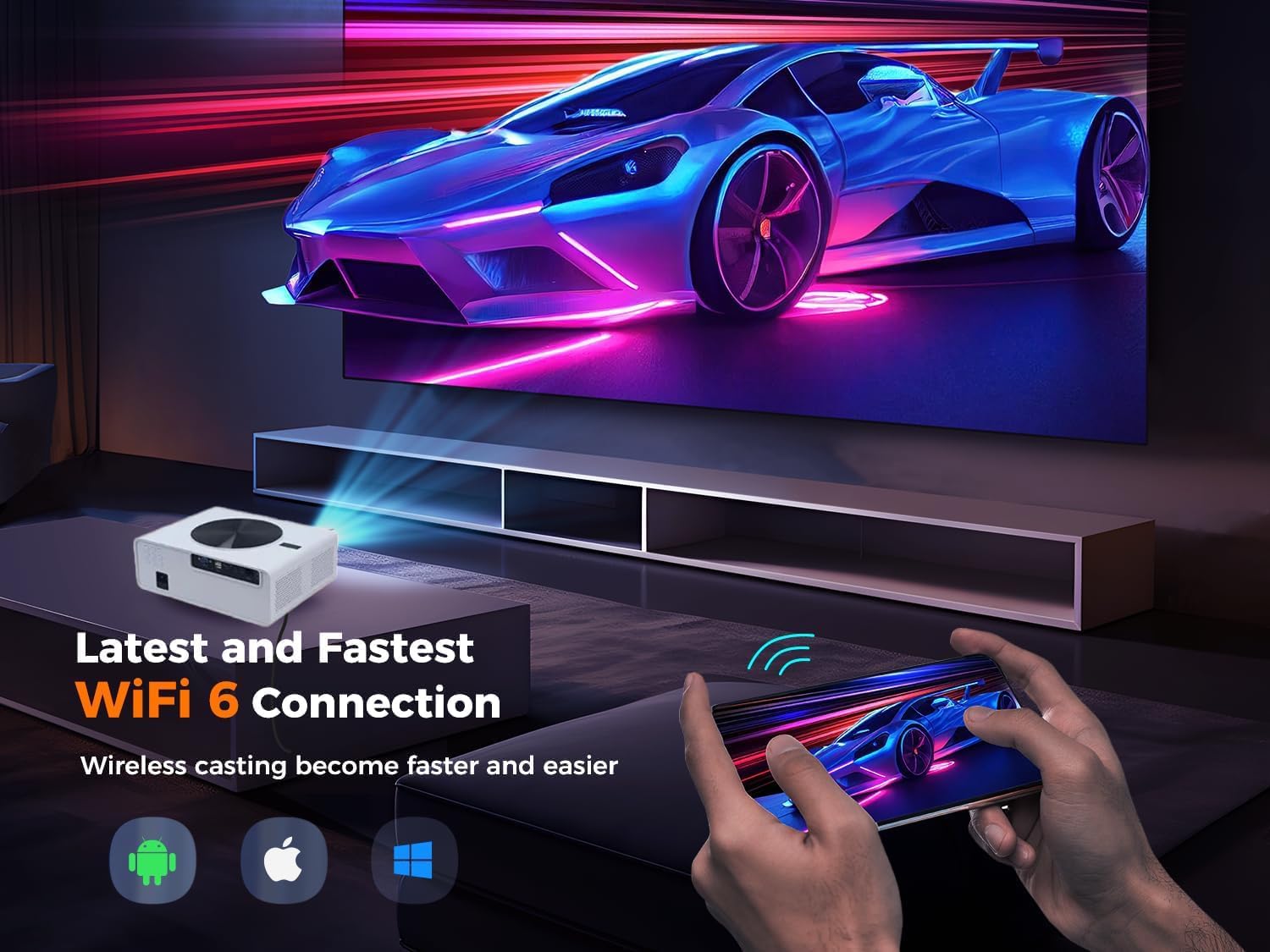
Figure 2: Rear view of the Toptro Q10 Max Projector displaying its HDMI, USB, VGA, LAN, AV, and Audio input/output ports.
Setup
1. Placement
Position the projector on a stable, flat surface or mount it to the ceiling. Ensure there is adequate space around the projector for ventilation. The projector supports ceiling installation.
2. Power Connection
Connect the power cable to the projector's power input and then to a power outlet.
3. Initial Power On
Press the power button on the projector or remote control to turn on the device. The projector will initiate its automatic focus and keystone correction.
4. Automatic Focus and Keystone Correction
The Toptro Q10 Max features automatic focus and keystone correction, along with automatic obstacle avoidance and screen fitting. This ensures a clear and properly shaped image without manual adjustments.

Figure 3: Automatic Focus and Keystone Correction in action, providing a perfect view instantly.
5. Screen Size Adjustment
The projector supports an adjustable screen size from 50 to 300 inches. You can also use digital zoom (50%-100%) and 4-corner/H/V keystone correction for fine-tuning.

Figure 4: Visual representation of the adjustable screen size and keystone correction capabilities.
Operating Instructions
1. Android 12 OS Navigation
The projector runs on Android 12.0 OS. Use the remote control to navigate through the interface, access apps, and adjust settings. Pre-installed apps include YouTube, Netflix, Prime Video, and more.

Figure 5: The Android 12 interface with popular streaming applications.
2. Connectivity
- Wi-Fi 6: Connect to your home network using dual-band Wi-Fi 6 (2.4GHz + 5GHz) for fast and stable streaming.
- Bluetooth 5.2: Pair with Bluetooth speakers, headphones, or other devices for enhanced audio.
- HDMI/USB: Connect laptops, gaming consoles, Blu-ray players, TV sticks, USB drives, and other devices via HDMI or USB ports.
- HDMI ARC: Use the HDMI ARC port to send audio from the projector to a compatible sound system.

Figure 6: Demonstrating wireless casting from a smartphone to the projector using WiFi 6.
3. Screen Mirroring
Wirelessly mirror content from your Android or iOS devices to the projector. Note that due to copyright protection (HDCP), content from Netflix, Amazon Prime Video, and similar services cannot be mirrored wirelessly. For such content, use a Fire Stick, computer, or laptop connected via HDMI.
4. Audio Output
The projector features a built-in 10W Dolby speaker. For a more immersive experience, connect external audio systems via Bluetooth 5.2 or the HDMI ARC port. The projector supports Dolby Digital Plus.
5. Usage Scenarios
The Toptro Q10 Max is versatile for various activities, including home theater, outdoor movie nights, exercise, and artistic projection.
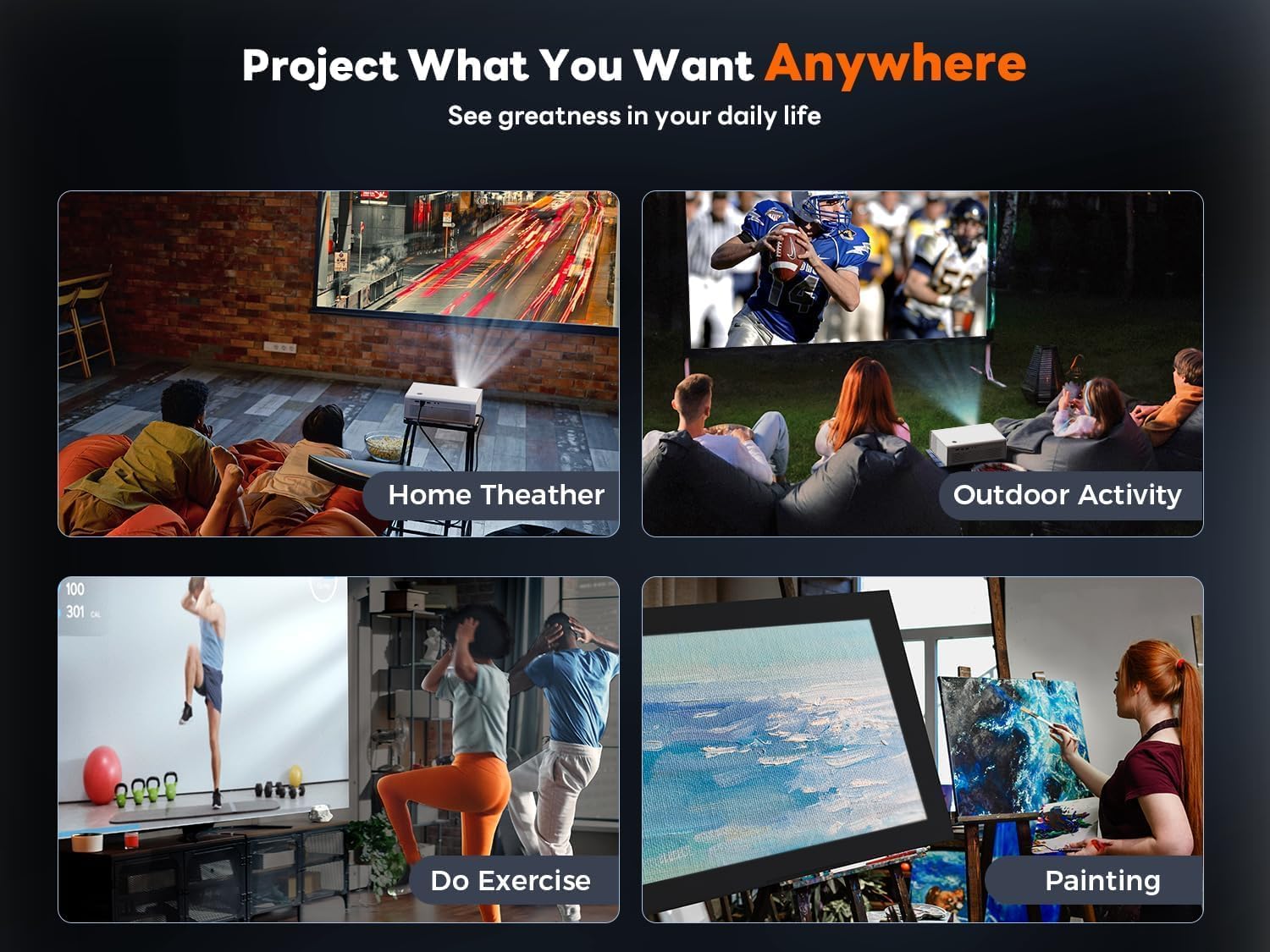
Figure 7: Examples of how the Toptro Q10 Max projector can be used in different settings.
Maintenance
1. Cleaning the Dust Filter
To prevent overheating and maintain optimal performance, clean the dust filter every 15 days. Refer to the safety information for details on potential damage from dust accumulation.
2. General Care
- Keep the projector in a cool, dry, and well-ventilated area.
- Avoid exposing the projector to direct sunlight or extreme temperatures.
- Use a soft, dry cloth to clean the exterior of the projector. Do not use liquid cleaners.
- Protect the lens from scratches by using the lens cap when not in use.
Troubleshooting
- No Image / Audio from Streaming Apps (Netflix, Prime Video): Due to HDCP copyright protection, content from these apps cannot be mirrored wirelessly. Connect a Fire Stick, computer, or laptop via HDMI to play such content. If there is audio but no image, it indicates copyright-protected content.
- No Audio when Playing Copyrighted Videos: If you experience no sound while playing copyrighted videos (e.g., Netflix), disable Dolby audio in the projector's sound settings.
- Bluetooth Pairing Issues: Ensure the projector's Bluetooth is enabled and the external device is in pairing mode. Try restarting both devices.
- HDMI ARC Not Working: Verify that your external audio device supports HDMI ARC and that the correct HDMI port is selected on both the projector and the audio device.
- Poor Image Quality / Low Brightness: Ensure the projection surface is suitable. Adjust focus and keystone correction. For optimal brightness, use the projector in a dark room.
Specifications
| Feature | Detail |
|---|---|
| Manufacturer | Toptro |
| Model Number | Q10 Max |
| Product Dimensions | 25 x 20 x 8 cm; 2 kg |
| ASIN | B0CW6H5BZW |
| Connectivity Technology | Wi-Fi |
| Native Resolution | 1920 x 1080 |
| Maximum Display Resolution | 1080p Full HD Pixels |
| Display Type | LCD |
| Mounting Type | Ceiling Mount |
| Color | White |
| Power | 10 Watts |
Warranty and Support
Warranty Terms
- A 1-year warranty is provided by Toptro from the date of purchase, covering manufacturing defects, technical faults, and software defects.
- As stated in the safety information, warranty does not cover LCD panel burn-in, dust-related issues, damages from misuse, or repairs by unauthorized third parties.
Customer Support
For support, please contact Toptro directly:
- Website: toptro.in
- Email: support@toptro.in or sreeprojectors@gmail.com
- WhatsApp: 8333031317

