
1. Overview
The UYIKOO HU-814 is an ultra-compact 4K WiFi action camera designed for versatile recording and surveillance. It features high-definition video capture, WiFi connectivity for smartphone integration, motion detection, and loop recording. Its small size makes it suitable for various applications, from personal security to capturing outdoor activities.
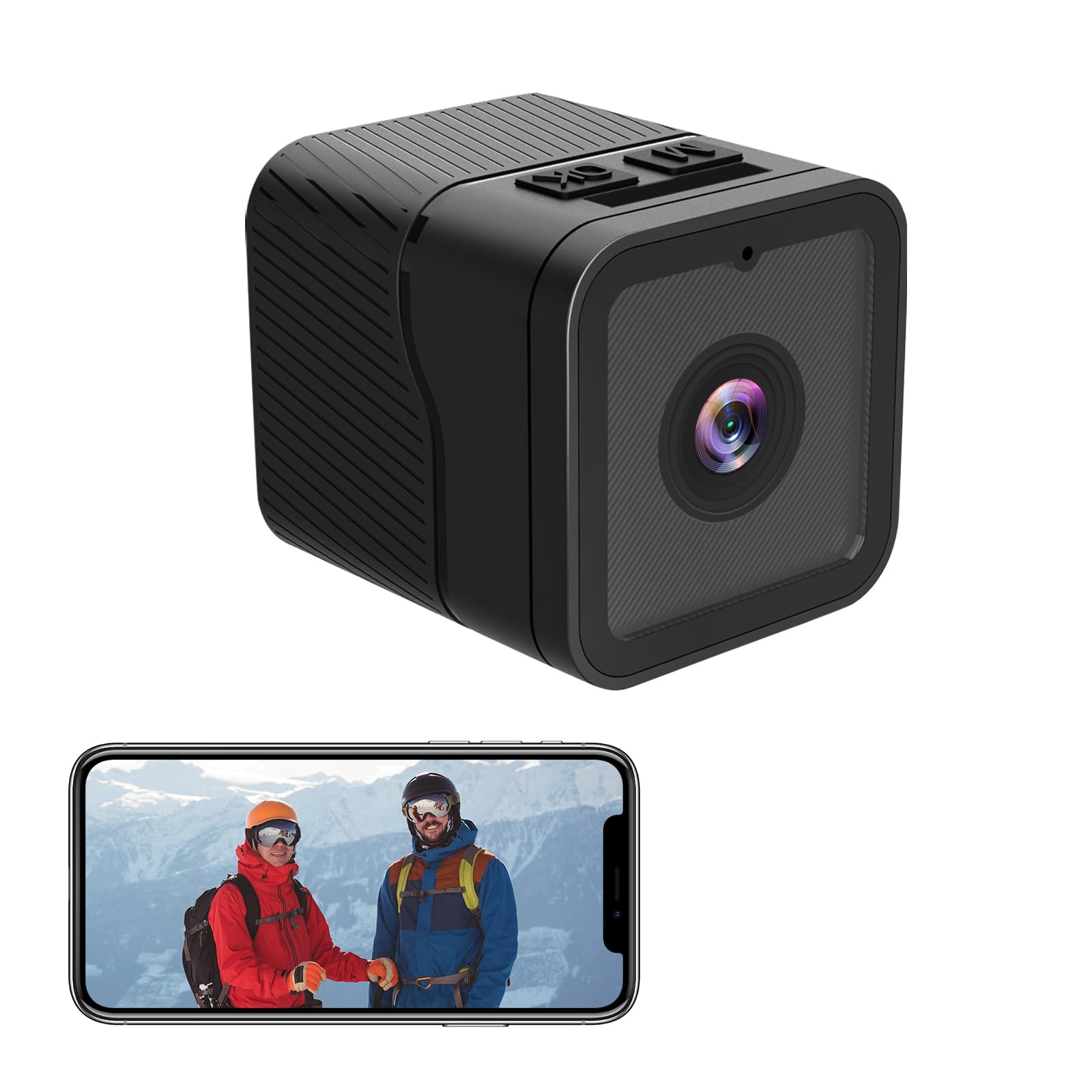
A front view of the UYIKOO HU-814 Ultra-Compact 4K WiFi Action Camera, highlighting its small size and lens.

An image showcasing the key features of the UYIKOO HU-814 camera, including 1080P resolution, WiFi support, real-time monitoring, 5-hour recording capability, 256GB storage support, easy operation, and loop recording.
2. Product Components
The UYIKOO HU-814 camera package includes the following items:
- Camera body
- USB charging cable
- USB card reader
- Instruction manual

A clear display of the UYIKOO HU-814 camera and its complete set of accessories, including the camera body, USB charging cable, USB card reader, and multiple mounting options for versatile use.
3. Setup
3.1 Inserting a microSD Card
- Locate the microSD card slot on the camera. This is typically found by opening a small cover on the side or back of the camera.
- Gently insert a compatible microSD card (8GB to 256GB, sold separately) into the slot until it clicks into place. Ensure the card is oriented correctly.
- To remove, press the card gently until it springs out.

This image highlights the camera's capabilities for extended 5-hour recording and continuous loop recording. It also shows the microSD card slot, indicating support for 8-256GB cards (sold separately).
3.2 Charging the Camera
Connect the camera to a power source using the provided USB charging cable. The charging indicator light will typically show the charging status and turn off or change color when fully charged.
3.3 Attaching Accessories
The camera comes with various attachments for flexible mounting. The bottom of the camera features a standard screw hole compatible with many camera accessories, including tripods.

This image demonstrates the camera's WiFi connectivity, allowing users to connect to the camera's hotspot and view footage on a smartphone. It also shows icons for downloading the "sports camera" app from Google Play and the App Store.
To attach the band-type mount for poles or handlebars:
- Secure the camera to the base of the mount.
- Use the band to firmly attach the mount to a pole, handlebar, or similar object.
- Adjust the camera angle as needed using the articulated joints on the mount.
4. Operation
4.1 Power On/Off
Press and hold the power button for a few seconds to turn the camera on or off. An indicator light will confirm the power status.
4.2 Recording Video
Once a microSD card is inserted and the camera is powered on, it typically begins recording automatically. The camera supports 4K resolution video and features loop recording, which overwrites the oldest footage when the memory card is full.

This image illustrates the camera's high-definition lens and 1080P image quality, with an example of recorded footage displaying a date and time stamp for evidence precision.
4.3 Connecting via Wi-Fi and Real-time Monitoring
The camera can connect to your smartphone via Wi-Fi for real-time monitoring and control.
- Download and install the "sports camera" application from your smartphone's app store (Google Play or App Store).
- Turn on the camera's Wi-Fi hotspot (refer to the specific button or menu option in the app).
- Connect your smartphone to the camera's Wi-Fi network. The network name and password can be found in the camera's settings or the app.
- Open the "sports camera" app to view the live camera feed, play back recorded videos, or delete unwanted footage directly from your phone.
This video demonstrates the real-time monitoring feature, where the camera's live feed is displayed on a connected smartphone, allowing users to view the captured scene remotely.
4.4 Motion Detection and Night Vision
The camera is equipped with motion detection capabilities, allowing it to start recording when movement is detected. It also features night vision for clear recording in low-light or dark conditions.
This video demonstrates the camera's performance in low-light conditions during a nighttime cycling trip, highlighting its ability to capture details even after dark.
5. Maintenance
5.1 Cleaning
Use a soft, dry cloth to clean the camera body and lens. Avoid using harsh chemicals or abrasive materials that could damage the surface or optics.
5.2 Storage
When not in use, store the camera in a cool, dry place away from direct sunlight and extreme temperatures. Ensure the battery is partially charged if storing for an extended period.
6. Troubleshooting
If you encounter issues with your UYIKOO HU-814 camera, please refer to the following common solutions:
- Camera not powering on: Ensure the battery is charged. Connect the camera to a power source and allow it to charge for at least 30 minutes before attempting to power it on again.
- Cannot connect to Wi-Fi: Verify that the camera's Wi-Fi hotspot is enabled. Check your smartphone's Wi-Fi settings to ensure it is connected to the correct camera network. Restart both the camera and your smartphone.
- Recording issues: Ensure a compatible microSD card is properly inserted and has sufficient free space. If the card is full, enable loop recording or transfer/delete old files. Format the microSD card if issues persist (this will erase all data).
- Poor video quality: Ensure the lens is clean and free from smudges. Check that the camera is set to the desired resolution (e.g., 4K or 1080P) in the app settings.
7. Specifications
| Feature | Specification |
|---|---|
| Model Number | HU-814 |
| Wireless Communication Technology | Wi-Fi |
| Product Dimensions (LxWxH) | 40 x 40 x 40 mm |
| Product Weight | 150 g |
| Battery Included | Yes |
| Battery Type | Lithium |
| Special Features | Motion sensor, Night vision |
| Indoor/Outdoor Use | Indoor |
| Compatible Devices | Smartphone |
| Power Source | Battery powered |
| Connectivity Protocol | Wi-Fi |
| Mounting Type | Stand |
| Video Capture Resolution | 4K |
8. Warranty and Support
For warranty information, technical support, or service inquiries, please refer to the contact details provided with your purchase or visit the official UYIKOO website. Keep your purchase receipt for warranty claims.


