
1. Introduction
This manual provides detailed instructions for the installation, operation, and maintenance of your Vrabocry Mini Bluetooth LED Controller SP621E USB. This controller is designed for use with addressable LED strips such as WS2811, WS2812B, and SK6812, offering versatile lighting control via a smartphone application.
2. Product Overview
2.1 Key Features
- Supports 5V WS2812B and 12V/24V WS2811 LED strips or chains.
- USB input for convenient power supply (5V-24V operating voltage).
- Compatible with iOS/Android app control via Bluetooth connection.
- Offers 18 music modes and 142 lighting effects.
- Music control timer function to synchronize lights with audio.
- Color calibration feature for consistent color display between app and LED strip.
- Certified by FCC, CE, RoHS, ensuring product quality and safety.
2.2 Specifications
| Brand | Vrabocry |
| Model Number | SP621E |
| Style | USB |
| Operating Voltage | USB 5V ~ 24V |
| Max Current | 2.9 A |
| Operating Temperature | -20 ℃ ~ 60 ℃ |
| Dimensions (Controller) | Approx. 35mm x 14mm x 7mm (L x W x H) |
| Item Weight | 18.1 g |
| Light Color | RGB (Addressable Pixel) |
| Controller Type | App Control (Bluetooth) |
| Indoor/Outdoor Use | Indoor |
3. Safety Information
Please read and understand all safety instructions before using this product. Failure to follow these instructions may result in electric shock, fire, or other hazards.
- Ensure the power supply voltage matches the requirements of your LED strip and controller (5V-24V).
- Do not exceed the maximum current rating of 2.9A for the controller. Overloading can cause damage or fire.
- This product is designed for indoor use only. Avoid exposure to moisture, water, or extreme temperatures.
- Do not attempt to open or modify the controller. This will void the warranty and may lead to safety risks.
- Keep out of reach of children.
4. Package Contents
The package includes:
- 1 x Vrabocry Mini Bluetooth LED Controller SP621E USB
5. Setup
5.1 Hardware Connection
- Connect the LED Strip: Identify the data (D), ground (G), and positive (+) wires on your addressable LED strip. Connect them to the corresponding pins on the SP621E controller's output connector. Ensure correct polarity.
- Connect Power: Plug the USB connector of the SP621E controller into a compatible USB power source (e.g., USB wall adapter, power bank, computer USB port) that provides 5V-24V.

Figure 1: Connection Diagram and Controller Dimensions. This image illustrates how to connect the USB power source to the controller and the controller to the LED light strip, along with the physical dimensions of the SP621E controller.
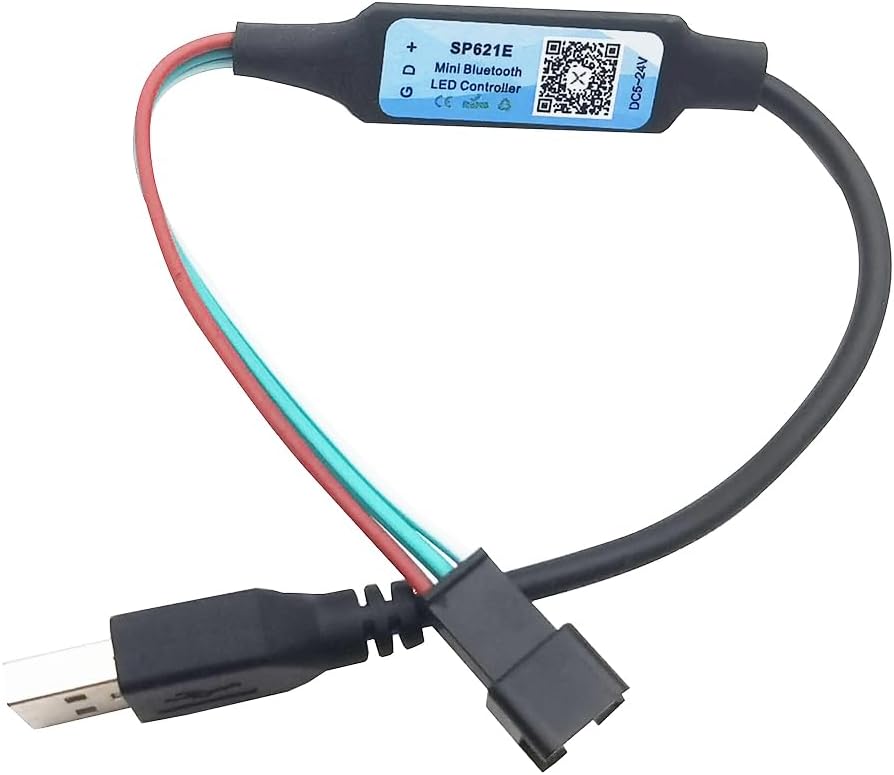
Figure 2: Vrabocry SP621E USB Controller. This image displays the compact design of the USB-powered LED controller with its input and output connectors.
5.2 App Installation and Pairing
- Download the App: Scan the QR code on the controller or visit https://download.ledhue.com/page/scenex/ to download the compatible control application for your iOS or Android device.
- Install the App: Follow the on-screen instructions to install the application on your smartphone.
- Pair with Controller:
- Ensure Bluetooth is enabled on your smartphone.
- Open the control application.
- The app should automatically detect and list available SP621E controllers. Select your controller from the list to pair.
- Once paired, the app interface will become active, allowing you to control your LED strip.
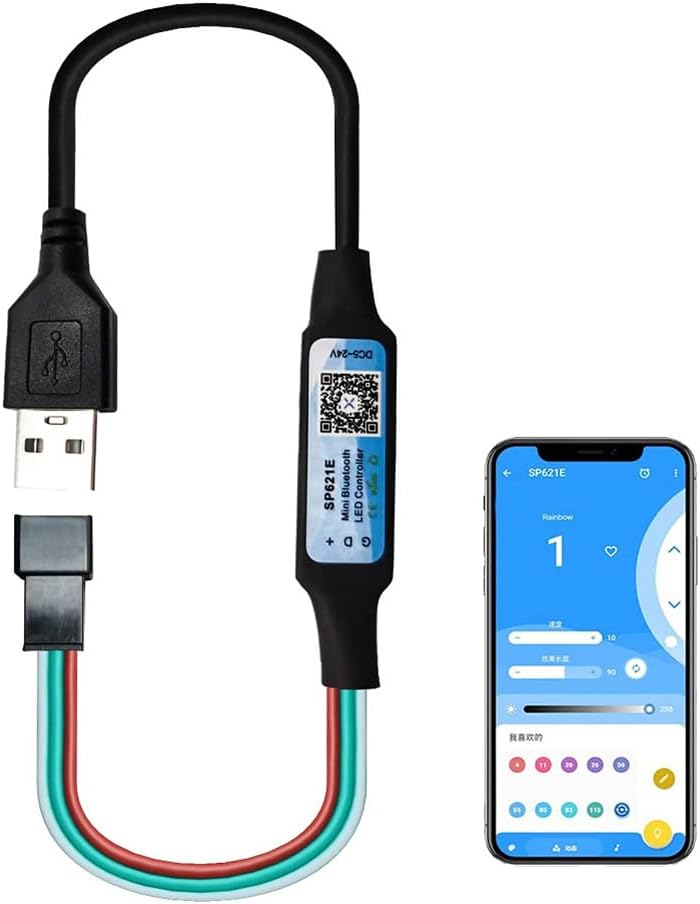
Figure 3: App Control Interface. This image shows the SP621E controller in operation, with a smartphone displaying the user interface of the control application, demonstrating how to manage lighting effects.
6. Operating Instructions
6.1 Basic Control
Once connected and paired, use the smartphone application to:
- Select Effects: Browse through 142 pre-programmed lighting effects.
- Adjust Brightness/Speed: Modify the brightness and speed of the selected effects.
- Choose Colors: Select static colors or color palettes.
6.2 Music Modes
The controller features 18 music modes that synchronize your LED lights with audio. To use this function:
- Select a music mode within the application.
- The app can utilize your phone's microphone to pick up ambient sound or integrate with your music player to create dynamic light patterns.
- Adjust sensitivity or other parameters if available in the app for optimal synchronization.
6.3 Color Calibration
If the colors displayed on your LED strip do not match the colors selected in the app, perform a color calibration:
- Navigate to the color calibration section within the app settings.
- The app will typically display a series of colors (e.g., Red, Green, Blue).
- Match the displayed color in the app to the actual color shown on your LED strip by selecting the correct option in the app. This ensures accurate color representation.
7. Maintenance
To ensure the longevity and proper functioning of your Vrabocry SP621E controller:
- Cleaning: Gently wipe the controller with a dry, soft cloth. Do not use liquid cleaners or solvents.
- Storage: Store the controller in a cool, dry place away from direct sunlight and extreme temperatures when not in use.
- Inspection: Periodically check connections for any signs of wear or damage.
8. Troubleshooting
8.1 Common Issues and Solutions
- LEDs not lighting up:
- Check if the USB power source is active and providing sufficient power (5V-24V).
- Verify that the LED strip is correctly connected to the controller (data, ground, positive).
- Ensure the LED strip is compatible with the SP621E (WS2811, WS2812B, SK6812).
- Confirm the app is paired and an effect is selected.
- Controller not pairing with app:
- Make sure Bluetooth is enabled on your smartphone.
- Ensure the controller is powered on.
- Restart the app and try pairing again.
- Try restarting your smartphone.
- Colors are incorrect or inconsistent:
- Perform a color calibration as described in Section 6.3.
- Check the wiring of your LED strip for any loose connections or incorrect polarity.
- Music mode not responding:
- Ensure your phone's microphone is not blocked and has permission for the app.
- Adjust the sensitivity settings within the app.
9. Warranty and Support
The Vrabocry SP621E controller is certified by FCC, CE, and RoHS, indicating compliance with relevant safety and environmental standards.
For technical support or further inquiries, please refer to the product's official support channels or the application download page at https://download.ledhue.com/page/scenex/.
Specific warranty details may vary by region and retailer. Please retain your proof of purchase for any warranty claims.