
Introduction
The Keychron V3 Max is a highly customizable TKL (Tenkeyless) mechanical keyboard designed for versatility and performance. It features QMK/VIA support for advanced customization, offering seamless connectivity through 2.4 GHz wireless, Bluetooth 5.1, and wired USB-C options. Built with a gasket design and sound-absorbing foam, it provides a comfortable typing experience. The keyboard is hot-swappable, allowing users to easily change switches without soldering, and is compatible with macOS, Windows, and Linux operating systems.
What's in the Box
Upon unboxing your Keychron V3 Max keyboard, please ensure all the following items are present:
- 1x Fully Assembled Keyboard (including Case, PCB, PC Plate, Sound Absorbing Foam, Stabilizers, Keycaps, and Switches)
- 1x Type-C to Type-C Cable
- 1x Type-A to Type-C Adapter
- 1x Extension Adapter for Receiver
- 1x Type-A 2.4 GHz Receiver
- 1x Type-C 2.4 GHz Receiver
- 1x Keycap Puller
- 1x Screwdriver & Hex Key

Image: Contents of the Keychron V3 Max package, showing the keyboard, various cables, adapters, and tools like a keycap puller and screwdriver.
Setup
Connectivity Options
The Keychron V3 Max offers three connection modes:
- 2.4 GHz Wireless: For a fast and stable connection with a 1000 Hz polling rate. Use the included Type-A 2.4 GHz receiver. The receiver is typically stored in the back edge of the keyboard.
- Bluetooth 5.1: Connects to up to three devices for seamless multitasking. Ideal for devices without a USB port or for switching between multiple systems.
- Wired (USB-C): A reliable connection for charging and direct data transfer. Use the provided USB-C to USB-C cable and Type-A adapter if needed.
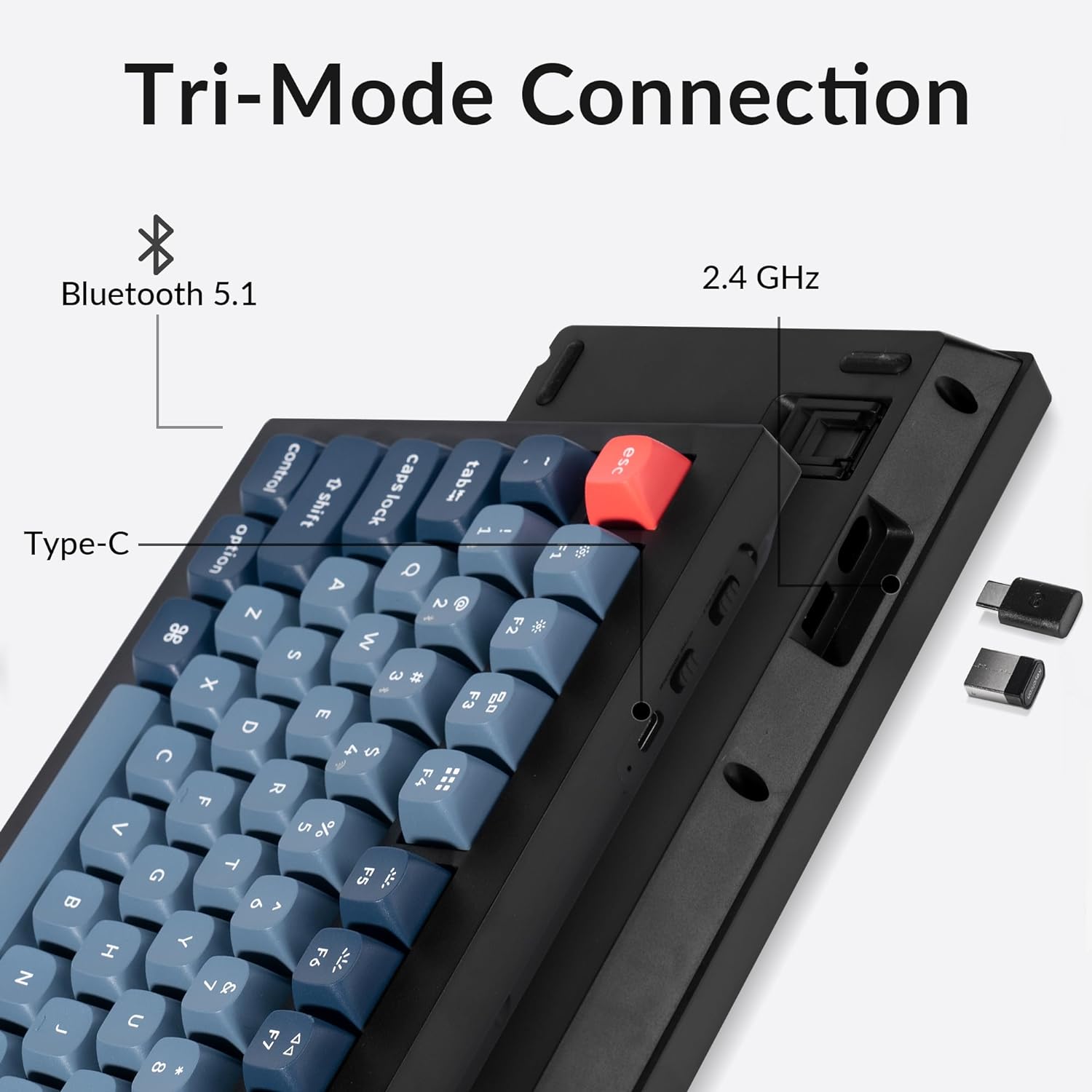
Image: Side view of the Keychron V3 Max keyboard highlighting the three connectivity options: Bluetooth 5.1, 2.4 GHz wireless (with dongle), and Type-C wired connection.
Operating System Compatibility
The V3 Max is designed for broad compatibility across various operating systems:
- macOS: Fully supported with a system toggle and additional keycaps for Mac layouts.
- Windows: Fully compatible with Windows devices.
- Linux: Supports Linux systems.
Use the system toggle switch located on the keyboard to select your operating system for optimal key mapping.

Image: A Keychron V3 Max keyboard positioned between a macOS display and a Windows display, illustrating its cross-platform compatibility.
Operating Instructions
QMK/VIA Customization
The Keychron V3 Max supports QMK/VIA, allowing for extensive customization of key functions, macros, and lighting effects. VIA is a powerful software that enables real-time key remapping and macro programming without needing to flash new firmware. Download the VIA software from the official Keychron website for your operating system.

Image: A graphical representation of the QMK/VIA software interface, showing how to remap keys and customize layers on the V3 Max keyboard.
Hot-Swappable Switches
The V3 Max features a hot-swappable PCB, meaning you can change the mechanical switches without soldering. This allows for easy customization of typing feel. The PCB supports both 3-pin and 5-pin MX-style mechanical switches.
To replace a switch:
- Use the included keycap puller to carefully remove the keycap from the desired switch.
- Use the included switch puller to gently grip the switch and pull it straight up.
- Align the pins of the new switch with the holes on the PCB and press it down firmly until it clicks into place. Ensure the pins are not bent.
- Replace the keycap.

Image: Close-up of the Keychron V3 Max keyboard demonstrating the hot-swappable feature, with several keycaps and switches removed, and a switch puller visible.
RGB Backlighting
The keyboard features south-facing RGB LEDs, designed to provide optimal illumination for non-shine-through PBT keycaps. You can customize the RGB lighting effects and colors using the VIA software or through onboard shortcuts (refer to the quick start guide for specific key combinations).

Image: A close-up of the Keychron V3 Max keyboard showing the south-facing RGB LEDs glowing beneath the keycaps, highlighting the switch mechanisms.
Keycaps
The V3 Max comes with OSA profile double-shot PBT keycaps. These keycaps are known for their durability, oil resistance, and resistance to legend fading, providing a consistent typing feel over time. The non-shine-through design complements the south-facing RGB lighting.

Image: A side profile view of the Keychron V3 Max keyboard, emphasizing the sculpted OSA profile and texture of the double-shot PBT keycaps.
Maintenance
Proper maintenance ensures the longevity and optimal performance of your Keychron V3 Max keyboard.
- Cleaning: Regularly dust the keyboard with compressed air. For deeper cleaning, remove keycaps using the provided keycap puller and wipe them with a damp cloth. Clean the keyboard plate with a soft, dry cloth.
- Switch Care: If switches feel inconsistent, they can be removed and re-seated. For persistent issues, consider replacing individual switches using the hot-swappable feature.
- Cable Management: Avoid sharp bends or excessive pulling on the USB-C cable to prevent damage.
- Storage: When not in use, store the keyboard in a clean, dry environment away from direct sunlight and extreme temperatures.
Troubleshooting
If you encounter issues with your Keychron V3 Max, refer to the following common problems and solutions:
| Problem | Possible Cause / Solution |
|---|---|
| Keys repeating or double input |
|
| Keyboard not connecting via 2.4 GHz |
|
| Bluetooth connection issues |
|
| RGB lighting not working or inconsistent |
|
| Keyboard loses programming (macros, lighting) |
|
Specifications
| Feature | Detail |
|---|---|
| Brand | Keychron |
| Model Name | V3 Max |
| Connectivity Technology | 2.4 GHz Wireless, Bluetooth 5.1, USB-C Wired |
| Compatible Devices | macOS, Windows, Linux systems |
| Keyboard Description | Customizable Mechanical TKL Keyboard |
| Special Features | Backlit (RGB), Hot-Swappable, QMK/VIA Programmable |
| Color | Brown Switch (variant specific) |
| Style | Classic TKL |
| Material | ABS Plastic Enclosure |
| Switch Type | Tactile (Gateron Brown or similar) |
| Keyboard Layout | QWERTY |
| Number of Keys | 87 |
| Polling Rate | 1000 Hz (2.4 GHz wireless and wired) |
| Keycaps | OSA Profile Double-shot PBT |
Warranty and Support
Keychron products typically come with a limited warranty covering manufacturing defects. For specific warranty terms and duration, please refer to the warranty information provided with your product packaging or visit the official Keychron website.
For technical support, troubleshooting assistance beyond this manual, or warranty claims, please contact Keychron customer support directly through their official website. Ensure you have your product model and purchase details ready when contacting support.
Official Keychron Website: www.keychron.com


