
Introduction
This manual provides detailed instructions for the setup, operation, maintenance, and troubleshooting of your Keychron K13 Max Low-Profile Wireless Mechanical Keyboard. Please read this manual thoroughly before using the product to ensure proper functionality and longevity.
What's in the Box
Verify that all items are present in the package:
- 1x Fully Assembled Keyboard
- 1x Type-C Cable
- 1x Type-A to Type-C Adapter
- 1x Type-A 2.4GHz Receiver
- 1x Keycap Puller
- Additional set of customized keycaps for both Windows and macOS systems

Image: Contents of the Keychron K13 Max package, showing the keyboard, USB-C cable, USB-A to USB-C adapter, 2.4GHz receiver, and a keycap puller.
Setup
System Compatibility Switch
The Keychron K13 Max is designed for compatibility with macOS, Windows, and Linux operating systems. Use the system toggle switch located on the back of the keyboard to select the appropriate operating system mode.

Image: Rear view of the Keychron K13 Max keyboard, highlighting the toggle switch for Windows/Android and Mac/iOS compatibility. Additional keycaps for different operating systems are also shown.
Connectivity Modes
The keyboard supports three connection modes: 2.4 GHz wireless, Bluetooth 5.1, and wired USB-C.
- 2.4 GHz Wireless: For optimal performance and a rapid 1000 Hz polling rate, use the included 2.4 GHz USB dongle. Plug the dongle into an available USB port on your computer.
- Bluetooth 5.1: For seamless multitasking, the keyboard can connect to up to 3 devices via Bluetooth. To pair, switch the keyboard to Bluetooth mode and follow your device's pairing instructions.
- Wired USB-C: Connect the keyboard directly to your computer using the provided USB-C cable for a stable wired connection and charging.

Image: The Keychron K13 Max keyboard showcasing its versatile connectivity options: Bluetooth 5.1, 2.4 GHz wireless via a USB dongle, and wired USB Type-C connection.
Operating Instructions
Key Remapping with QMK/VIA
The Keychron K13 Max supports QMK/VIA for extensive key remapping and macro commands. This allows for a highly customized workflow.
- Download the Keychron Launcher software from the official Keychron website.
- Connect your K13 Max keyboard to your device using the USB-C cable.
- Open Keychron Launcher. You can then drag and drop your favorite keys or macro commands to remap any key on any supported system (macOS, Windows, or Linux).
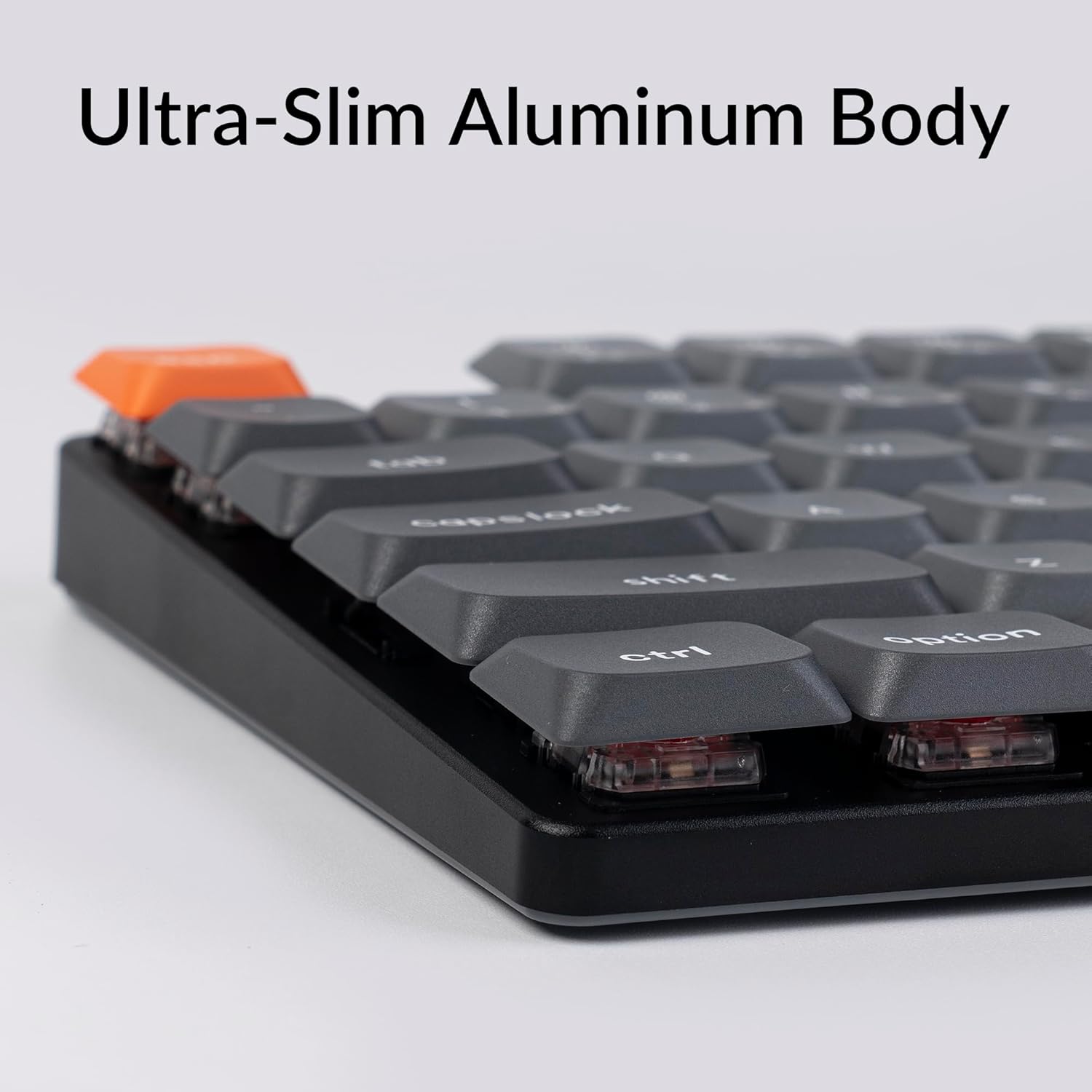
Image: A visual representation of the QMK/VIA software interface, demonstrating how users can remap individual keys and assign macro commands to customize their Keychron K13 Max keyboard.
Backlight Control
The keyboard features a white backlight. You can adjust the brightness and lighting effects using dedicated function keys or through the QMK/VIA software.

Image: A close-up view of the Keychron K13 Max keyboard, highlighting the white backlight feature that illuminates the keys for improved visibility in various lighting conditions.
Ergonomic Support
The K13 Max offers three levels of adjustable typing angle to provide long-lasting ergonomic wrist support. Adjust the feet on the underside of the keyboard to your preferred height.

Image: Side profile of the Keychron K13 Max keyboard, illustrating its adjustable feet that allow for three different typing angles to enhance ergonomic comfort.
Maintenance
Cleaning the Keyboard
- Disconnect the keyboard from all power sources before cleaning.
- Use a soft, lint-free cloth slightly dampened with water or a mild cleaning solution to wipe the keycaps and frame.
- For dust and debris between keys, use compressed air.
- Avoid using harsh chemicals or abrasive materials.
Keycap Removal and Replacement
The K13 Max comes with low-profile PBT keycaps that are durable and oil-resistant. You can remove and replace keycaps using the included keycap puller.
- Gently attach the keycap puller to the keycap you wish to remove.
- Pull straight up with even pressure to detach the keycap.
- To replace, align the keycap with the switch stem and press down firmly until it clicks into place.

Image: A detailed view of the Keychron K13 Max keyboard, emphasizing its low-profile double-shot PBT keycaps, known for their durability and resistance to oil.
Troubleshooting
| Problem | Possible Cause | Solution |
|---|---|---|
| Keyboard not responding (wired) | Loose cable connection, faulty USB port. | Ensure USB-C cable is securely connected. Try a different USB port or cable. |
| Keyboard not responding (wireless 2.4 GHz) | Dongle not plugged in, out of range, interference, low battery. | Ensure 2.4 GHz dongle is plugged in. Move keyboard closer to dongle. Recharge keyboard. |
| Keyboard not responding (Bluetooth) | Not paired, out of range, low battery, interference. | Ensure keyboard is in Bluetooth mode and paired. Recharge keyboard. Re-pair if necessary. |
| Keys double-typing or not registering | Dust/debris under keycap, switch issue, software glitch. | Clean under keycaps with compressed air. Try factory reset via QMK/VIA. Contact support if issue persists. |
| Backlight not working | Backlight turned off, low battery, software setting. | Press backlight control keys. Recharge keyboard. Check QMK/VIA settings. |
For further assistance, please refer to the official Keychron support resources or contact customer service.
Specifications
| Feature | Detail |
|---|---|
| Model Number | K13M-A1 |
| Connectivity Technology | Bluetooth 5.1, 2.4 GHz Wireless, USB-C Wired |
| Polling Rate | 1000 Hz (2.4 GHz wireless and wired) |
| Compatible Devices | macOS, Windows, Linux |
| Keycaps | Low-Profile Double-Shot PBT |
| Switches | Low-Profile Gateron Red Switch |
| Backlight | White Backlight (Single Color) |
| Number of Keys | 90 |
| Material | ABS + Aluminum frame |
| Item Weight | 2.25 pounds |
| Package Dimensions | 14.48 x 6.26 x 1.54 inches |
| Battery | 1 Lithium Polymer battery (included) |
| Battery Life | Up to 80 hours (estimated, based on typical usage) |

Image: An illustration highlighting the estimated battery life of up to 80 hours for the Keychron K13 Max keyboard on a single charge.
Warranty and Support
Keychron products are designed for durability and performance. For specific warranty information, please refer to the warranty card included with your product or visit the official Keychron website.
For technical support, troubleshooting not covered in this manual, or general inquiries, please contact Keychron customer support through their official channels. You can often find support contact information on the Keychron website or within your product packaging.
Official Keychron Website: www.keychron.com
User Guide (PDF): Download User Guide
User Manual (PDF): Download User Manual


