
1. Introduction
This manual provides comprehensive instructions for the installation, operation, and maintenance of your BoxWave ClearTouch Anti-Glare Screen Protector, specifically designed for the Icom IC-F6021 device. This screen protector is engineered to reduce glare, resist fingerprints, and provide a precise fit, enhancing the usability and longevity of your device's screen.
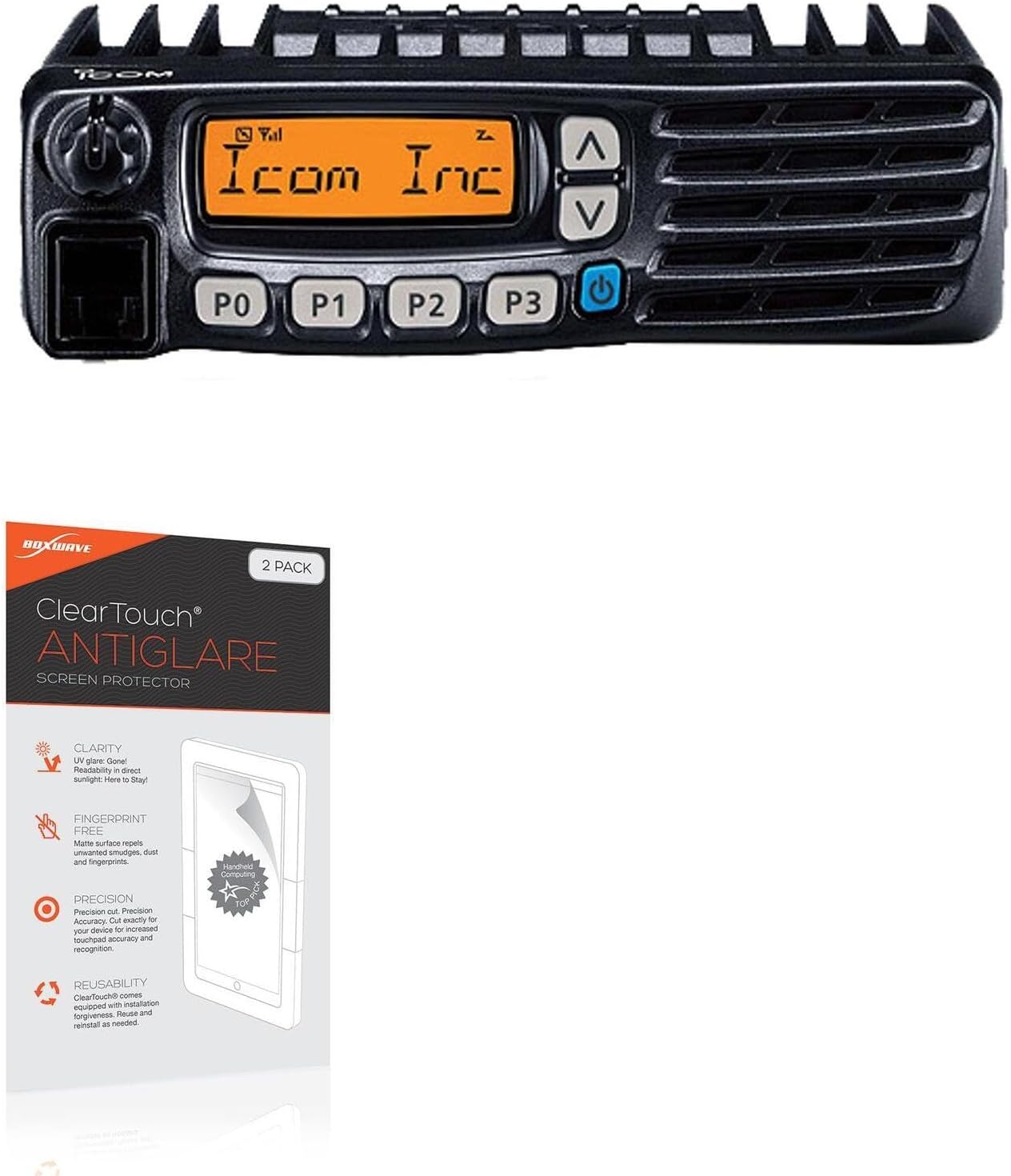
Image: BoxWave ClearTouch Anti-Glare Screen Protector packaging shown alongside the compatible Icom IC-F6021 device.
2. Product Overview
The BoxWave ClearTouch Anti-Glare Screen Protector offers advanced protection and improved visibility for your device. Key features include:
- Anti-Glare Technology: Disperses light to significantly reduce glare from natural and artificial light sources, improving screen readability. Reduces 90% UV rays to protect your eyes.
- Anti-Fingerprint Matte Surface: Features an ultra-smooth matte finish that repels smudges, dust, and fingerprints, keeping your screen clean and clear.
- Precision Cut: Each ClearTouch protector is precisely cut to match the exact dimensions, contours, and cut-outs of the Icom IC-F6021 screen, ensuring full functionality and a perfect fit.
- Glueless Adhesive: Utilizes a special glueless adhesive that ensures a clean application and leaves no sticky residue upon removal, protecting your device's screen.
- Reusable Design: Designed for reusability, allowing for repositioning during installation or reinstallation if needed.

Image: An infographic highlighting the main benefits of the ClearTouch Anti-Glare screen protector, including glare reduction, smudge prevention, the inclusion of two protectors, and a perfect fit design.
3. Package Contents
Your BoxWave ClearTouch Anti-Glare Screen Protector package includes the following items:
- Two (2) ClearTouch Anti-Glare Screen Protectors
- One (1) Applicator Card
- One (1) Microfiber Cleaning Cloth
- One (1) Dust Removing Sticker

Image: A visual representation of the package contents, showing two screen protectors, an applicator card, a microfiber cleaning cloth, and a dust removing sticker.
4. Setup and Installation
Follow these steps for optimal installation of your screen protector:
- Prepare Your Workspace: Choose a clean, dust-free environment to minimize dust particles during installation.
- Clean the Device Screen: Use the included microfiber cleaning cloth to thoroughly clean the Icom IC-F6021 screen. Ensure all dust, smudges, and fingerprints are removed. For stubborn marks, a small amount of screen cleaner can be used, then dry completely.
- Remove Dust: Use the dust removing sticker to lift any remaining dust particles from the screen. Lightly dab the sticker across the screen surface.
- Align the Protector: Carefully peel back a small portion of the protective film (usually labeled "Step 1" or "Back") from one end of the screen protector. Align the exposed edge of the screen protector with the corresponding edge of your device's screen. Pay close attention to cut-outs for speakers, buttons, or sensors.
- Apply Gradually: Once aligned, slowly lower the screen protector onto the device screen, gradually peeling off the rest of the protective film. Use the applicator card to gently smooth out any air bubbles as you go, pushing them towards the edges.
- Remove Top Film: After the screen protector is fully applied and all bubbles are removed, carefully peel off the top protective film (usually labeled "Step 2" or "Front").
- Final Polish: Use the microfiber cloth to gently wipe the newly installed screen protector, removing any smudges or fingerprints from the installation process.
Tip: If bubbles persist, gently lift the nearest edge of the screen protector and reapply, using the applicator card to push the air out.
5. Operating (Features and Benefits)
Once installed, your BoxWave ClearTouch Anti-Glare Screen Protector will immediately enhance your device experience:
- Improved Visibility: The anti-glare surface significantly reduces reflections, making your screen easier to view in bright sunlight or under strong indoor lighting. This is particularly beneficial for outdoor use of your Icom IC-F6021.
- Clean Screen: The anti-fingerprint properties minimize smudges and oils, ensuring your screen remains clear and responsive with less frequent cleaning.
- Enhanced Touch Experience: The ultra-smooth matte surface provides a comfortable touch experience, similar to writing on paper, which can improve precision for touch-based interactions.
- Screen Protection: While primarily focused on glare and fingerprints, the film also provides a layer of protection against minor scratches and abrasions from daily use.

Image: A visual comparison demonstrating the effectiveness of the anti-smudge surface, with one side of a screen appearing clean and the other covered in fingerprints.

Image: An illustration of the "paper-like feel" feature, showing a stylus interacting with a screen, suggesting a natural writing or drawing experience.
6. Maintenance
To maintain the clarity and effectiveness of your BoxWave ClearTouch Anti-Glare Screen Protector, follow these simple maintenance tips:
- Regular Cleaning: Use the included microfiber cleaning cloth to gently wipe the screen protector daily or as needed to remove dust and light smudges.
- Deep Cleaning: For more persistent marks, lightly dampen the microfiber cloth with water or a screen-safe cleaning solution. Avoid harsh chemicals or abrasive materials.
- Avoid Sharp Objects: While the protector offers some scratch resistance, avoid contact with sharp objects like keys or pens to prevent damage.
- Storage: If removing the protector for storage, ensure it is placed on a clean, flat surface or its original backing to prevent dust accumulation and damage to the adhesive side.
7. Troubleshooting
Here are solutions to common issues you might encounter:
| Issue | Possible Cause | Solution |
|---|---|---|
| Bubbles under the protector | Trapped air or dust particles. | Gently lift the nearest edge of the protector and use the applicator card to push the air/dust towards the lifted edge. Reapply slowly. For dust, use the dust removing sticker. |
| Protector not adhering properly | Screen not clean enough, or protector adhesive compromised. | Ensure the screen is completely clean and dry before application. If the adhesive is damaged, use the second protector provided. |
| Fingerprints/smudges still visible | Excessive oil or dirt, or improper cleaning. | Wipe with the microfiber cloth. For stubborn marks, use a slightly dampened cloth with water or a screen-safe cleaner. The anti-fingerprint feature reduces, but does not entirely eliminate, all marks. |
| Misalignment | Incorrect initial placement. | Carefully lift the protector and realign. If it's significantly off, it might be easier to remove and reapply, or use the second protector. |
8. Specifications
Product specifications for the BoxWave ClearTouch Anti-Glare Screen Protector:
- Compatibility: Icom IC-F6021
- Type: Anti-Glare, Anti-Fingerprint Matte Film
- Pack Quantity: 2 Screen Protectors
- Material: High-quality film with glueless adhesive
- Item Weight: 0.7 ounces (approximate, for the package)
- Manufacturer: BoxWave
- ASIN: B0CW3VYV87
- Date First Available: February 12, 2024
9. Warranty and Support
For specific warranty information regarding your BoxWave ClearTouch Anti-Glare Screen Protector, please refer to the product packaging or visit the official BoxWave website. BoxWave is committed to customer satisfaction and offers support for their products.
If you encounter any issues or have questions not covered in this manual, please contact BoxWave customer support through their official channels. Details can typically be found on the product packaging or their website.
For more information, visit: www.boxwave.com