BoxWave AllReader SD Card Reader

BoxWave AllReader SD Card Reader Instruction Manual

Model: AllReader SD Card Reader

1. Introduction

Thank you for choosing the BoxWave AllReader SD Card Reader. This versatile device is designed to provide seamless file transfer between your memory cards and various digital devices. With its multi-interface design, you can easily access and manage your photos, videos, and documents on the go.

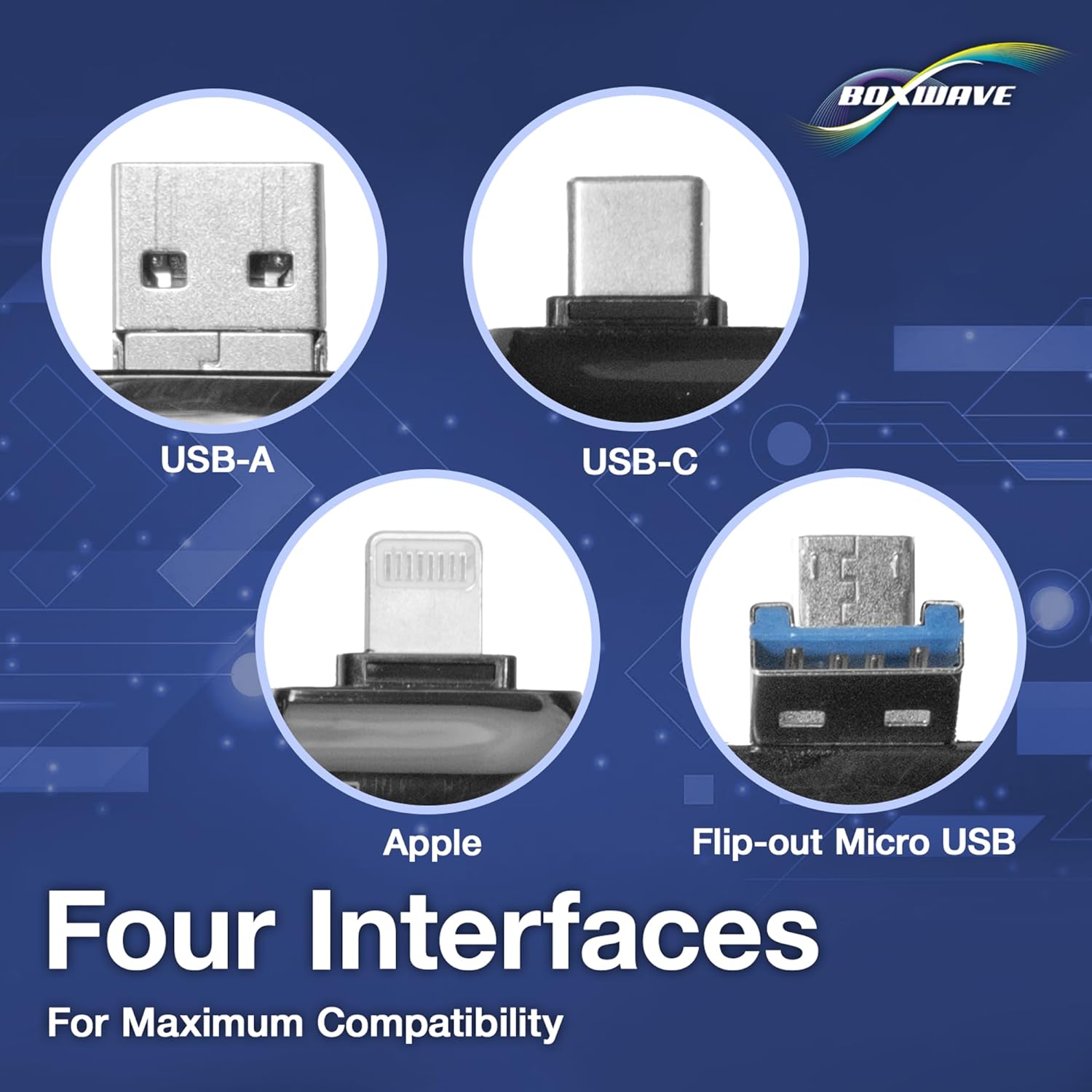
The AllReader features four distinct interfaces: USB-C, USB-A, Micro-USB, and an Apple connector, ensuring broad compatibility with smartphones, tablets, laptops, and desktop PCs. Its compact, plug-and-play design makes it an essential tool for expanding your device's storage capabilities and simplifying data management.

BoxWave AllReader SD Card Reader with multiple connectors

The BoxWave AllReader SD Card Reader, showcasing its compact design and various integrated connectors.

2. Setup

Setting up your BoxWave AllReader is straightforward. Follow these steps to begin using your device:

  1. Insert Memory Card: Locate the appropriate slot on the AllReader for your SD card or microSD card. Gently insert the card until it clicks into place. Ensure the card is inserted correctly, with the gold contacts facing down.
  2. Connect to Device: Identify the compatible port on your smartphone, tablet, laptop, or desktop PC. The AllReader features the following connectors:
    • USB-A: For standard USB ports found on most laptops and desktop PCs.
    • USB-C: For newer devices with USB-C ports.
    • Micro-USB: For older Android smartphones and tablets.
    • Apple Connector: For iPhones and iPads with a Lightning port.
    Plug the corresponding connector of the AllReader into your device's port.
  3. Device Recognition: Your device should automatically detect the AllReader and the inserted memory card. A notification or icon may appear indicating that external storage is connected.
Close-up of the four different interfaces on the BoxWave AllReader: USB-A, USB-C, Apple, and Flip-out Micro USB.

The four distinct interfaces of the AllReader, providing maximum compatibility.
BoxWave AllReader with a microSD card inserted, demonstrating compatibility.

The AllReader supports both standard SD cards and smaller microSD cards.

3. Operating Instructions

Once the AllReader is connected and recognized by your device, you can begin transferring files:

  1. Access Files: Navigate to your device's file manager,

    Related Documents - AllReader SD Card Reader

    Preview Hama OTG & USB-C Card Reader: Operating Instructions and Features
    Get detailed operating instructions for the Hama OTG & USB-C Card Reader. This guide covers system requirements for Windows, Mac, and Android, setup procedures, important safety notes, product features, care instructions, warranty information, and support contacts. Ensure compatibility and optimal performance for your memory cards.
    Preview UGREEN CM304 USB-C & USB-A SD/TF Card Reader - Model 80191
    Detailed overview of the UGREEN CM304 card reader (Model 80191), featuring USB-C and USB-A ports, SD and TF card slots, USB 3.0 speeds, and compatibility with Windows, macOS, and Linux.
    Preview Anker USB-C Hub A8388: User Manual, Specifications, and Troubleshooting Guide
    Comprehensive guide to the Anker USB-C Hub (Model A8388), detailing port specifications, usage instructions, video output capabilities, and troubleshooting tips for connectivity, charging, and more.
    Preview KiWiBiRD USB-C SD Card Reader & OTG Adapter for Seamless File Transfer
    Discover the KiWiBiRD USB-C SD and MicroSD card reader, featuring a USB 3.0 port for high-speed data transfer. This portable adapter is compatible with a wide range of devices including MacBook, iPad, iPhone, Samsung Galaxy, and Surface, enabling easy file management and on-the-go access.
    Preview ANKER USB-C Hub for MacBook - Ports, Specifications, and Troubleshooting Guide
    A comprehensive guide to the ANKER USB-C Hub (Model A8354) for MacBooks, detailing its ports, specifications, video output capabilities, and troubleshooting common issues. This document provides clear instructions for optimal use.
    Preview Satechi USB-C Multiport MX Adapter: Instructional Guide
    A guide to connecting and using the Satechi USB-C Multiport MX Adapter, detailing connections for dual 4K HDMI displays, USB-C PD charging, Gigabit Ethernet, USB 3.0 data transfer, and SD card reading.