
Introduction
This manual provides essential instructions for the proper setup, operation, and maintenance of your Binardat 1 to 2 Gigabit Network Splitter. Please read this manual thoroughly before using the device to ensure optimal performance and longevity.
Product Overview
The Binardat 1 to 2 Gigabit Network Splitter is a compact, unmanaged 3-port Ethernet switch designed to expand your network connectivity. It features one input port and two output ports, allowing two devices to share a single Gigabit network connection simultaneously without requiring manual switching.
Key Features:
- 3 x 1 Gigabit Ports: Includes one input and two output Gigabit Ethernet ports, supporting 10/100/1000Mbps auto-negotiation and auto MDI-MDIX.
- Type-C Power Supply: Utilizes a DC5V Type-C power input with a maximum power consumption of 1.5W. A USB power cable is included for connection to a USB port or power adapter.
- Simultaneous Online Operation: Both output ports can be online concurrently, sharing the input port's Gigabit rate.
- Plug & Play: Requires no configuration for immediate use.
- Compact Design: Mini size (approximately 5.1 x 5.6 x 1.8 cm) with a fanless design for silent operation.
- Wide Compatibility: Compatible with Cat 5/5e/6/7/8 Ethernet cables.
Package Contents:
- Binardat 1 to 2 Gigabit Network Splitter (White)
- USB Type-C Power Cable
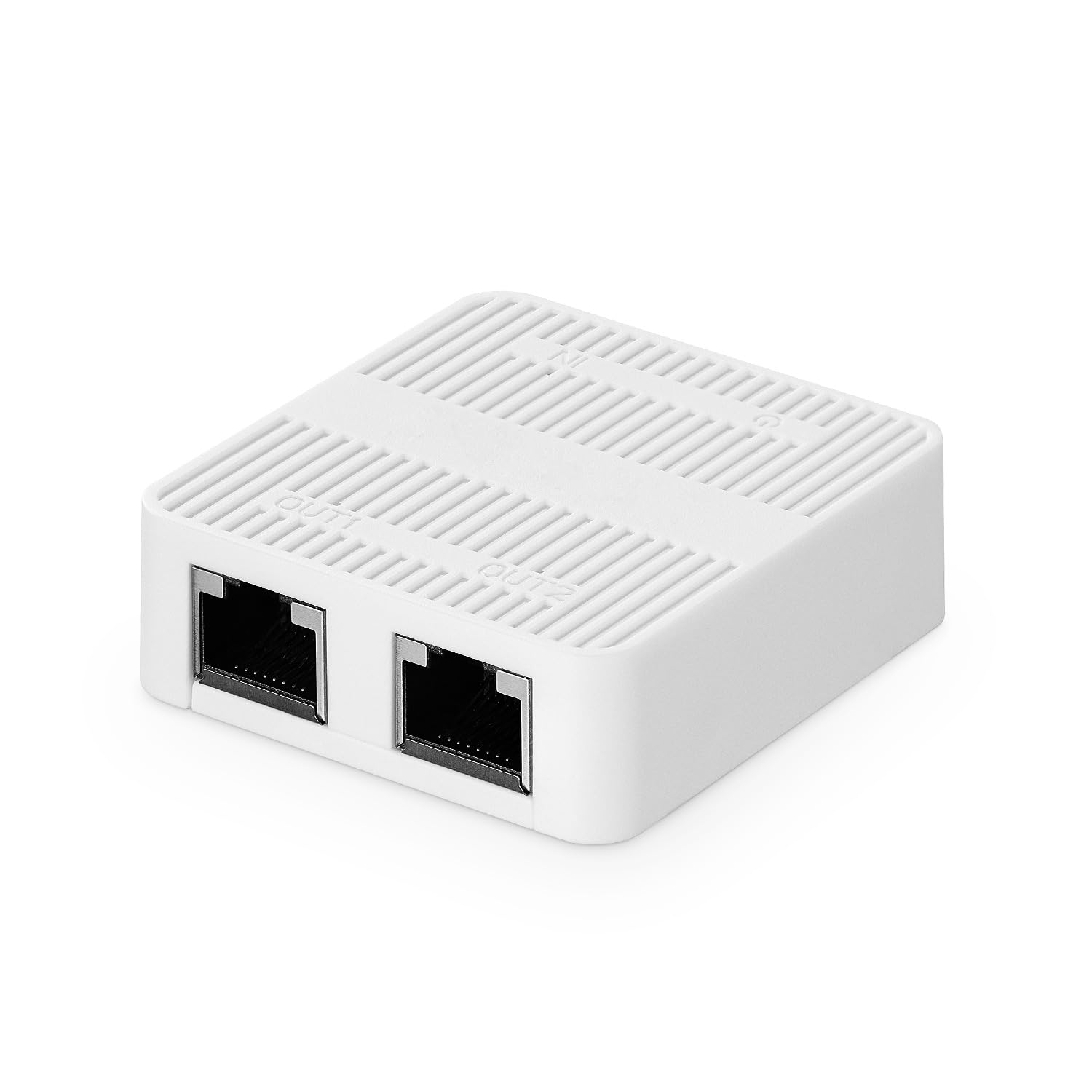
Image: The Binardat 1 to 2 Gigabit Network Splitter in white.

Image: Detailed views of the splitter's ports and Type-C power input.
Setup Instructions
The Binardat Gigabit Network Splitter is designed for simple plug-and-play operation. Follow these steps to set up your device:
- Power Connection: Connect the included USB Type-C power cable to the Type-C port on the splitter. Connect the other end of the USB cable to a 5V USB power source, such as a computer's USB port or a USB power adapter (not included).
- Input Network Connection: Connect an Ethernet cable from your uplink network source (e.g., router, modem, existing network outlet) to the IN port on the splitter.
- Output Device Connection: Connect Ethernet cables from the OUT1 and OUT2 ports on the splitter to your desired network devices (e.g., desktop computer, laptop, smart TV, game console).
- Verification: Observe the LED indicators on the splitter. These indicators provide clear visibility of the device's operational status and port activity.
No additional software installation or configuration is required.
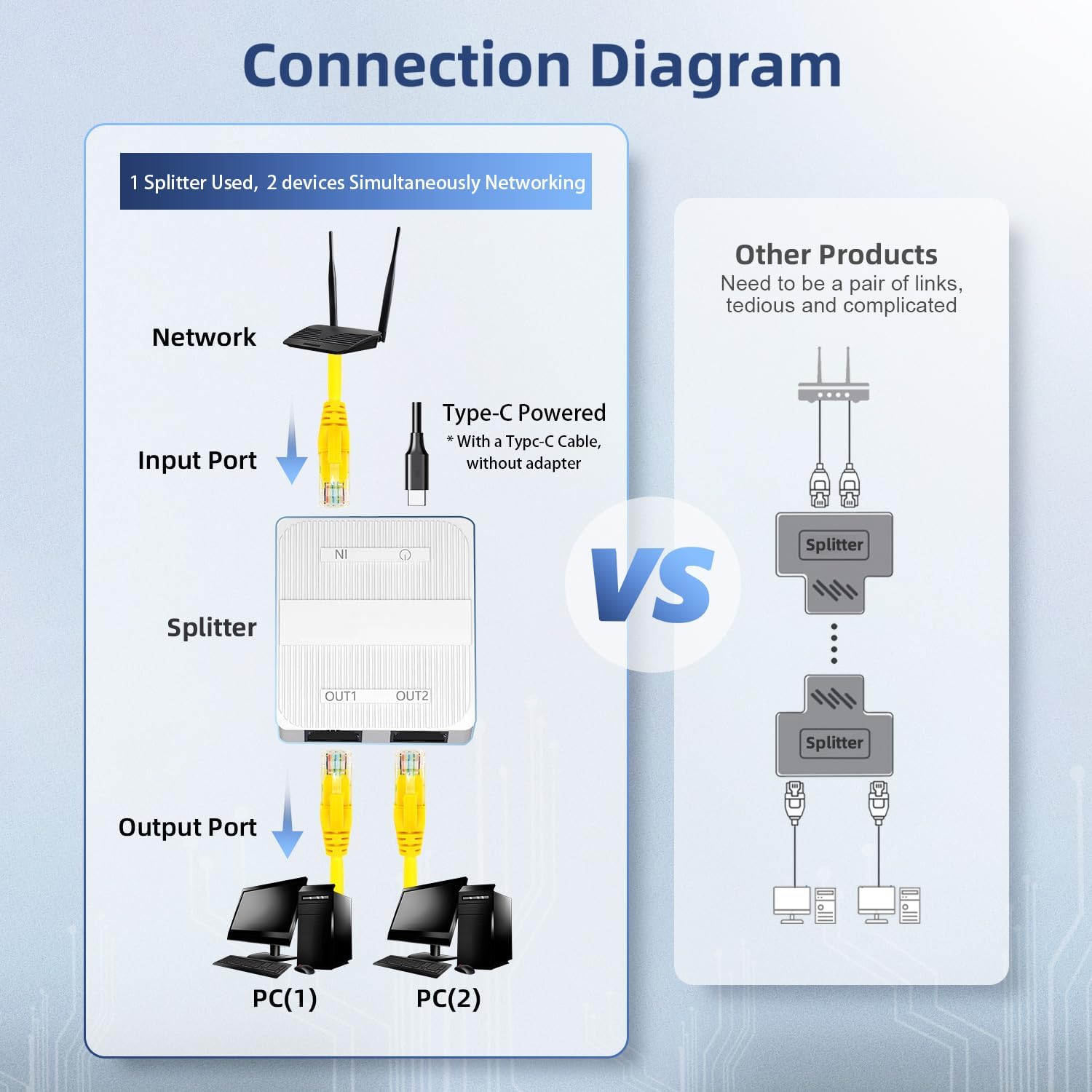
Image: Diagram illustrating the connection of the splitter to a network and two devices.

Image: Example setup with the splitter connecting two devices to a network.
Operating Instructions
Once connected as described in the Setup section, the Binardat Gigabit Network Splitter operates automatically.
- Automatic Operation: The splitter functions as an unmanaged switch, automatically detecting and forwarding network traffic between the input and output ports.
- Simultaneous Access: Both connected devices on the OUT1 and OUT2 ports will have simultaneous access to the network. The Gigabit bandwidth from the input port will be shared between the two active output devices.
- LED Indicators: The built-in LED indicators provide visual feedback on the status of the device and each port. A lit LED typically indicates a live connection, and blinking LEDs indicate data activity.

Image: The splitter highlighting its Gigabit speed capability.
Maintenance
To ensure the longevity and reliable performance of your Binardat Gigabit Network Splitter, follow these simple maintenance guidelines:
- Cleaning: Use a soft, dry cloth to clean the exterior of the device. Avoid using liquid cleaners, aerosols, or solvents.
- Environment: Operate the device in a dry, well-ventilated area. Avoid exposure to extreme temperatures, direct sunlight, moisture, or dust.
- Cable Management: Ensure all connected Ethernet and power cables are not kinked, pinched, or under excessive tension.
- Power Supply: Use only the provided USB Type-C power cable and a compatible 5V USB power source.
Troubleshooting
If you encounter issues with your Binardat Gigabit Network Splitter, refer to the following troubleshooting steps:
- No Power/LEDs Off:
- Ensure the USB Type-C power cable is securely connected to both the splitter and the power source.
- Verify that the USB power source (e.g., computer USB port, USB power adapter) is functional and providing 5V power. Try a different USB port or adapter.
- No Network Connection:
- Check all Ethernet cable connections. Ensure they are securely plugged into the IN, OUT1, and OUT2 ports, as well as into your router/modem and end devices.
- Confirm that the Ethernet cables are functional. Try testing them directly between your router and a device, bypassing the splitter.
- Verify that your uplink network source (router/modem) is operational and providing an internet connection.
- Ensure the LED indicators on the splitter are lit for active connections.
- Slow Network Speed:
- While the splitter supports Gigabit speeds, the total bandwidth is shared between the two output ports. Heavy usage on both devices simultaneously may result in reduced speed for each.
- Ensure you are using Cat5e or higher rated Ethernet cables for Gigabit performance.
- Check the speed settings on your connected devices and router.
- Intermittent Connection:
- Inspect all cables for damage.
- Ensure the splitter is placed in a stable location, away from sources of electromagnetic interference.
- Restart your router/modem, the splitter, and the connected devices.
If problems persist after following these steps, please contact Binardat customer support.
Specifications
| Brand | Binardat |
| Model Number | NSP-1T2GW |
| Number of Ports | 3 (1 Input, 2 Output) |
| Data Transfer Rate | 1 Gigabits Per Second (10/100/1000Mbps) |
| Switch Type | Unmanaged |
| Power Supply | Type-C, DC 5V |
| Power Consumption | Max 1.5W |
| Compatible Devices | Desktop, Laptop, Printer, Game Consoles, Smart TVs |
| Color | White |
| Item Dimensions (L x W x H) | 2.2" x 2.01" x 0.71" (approx. 5.6 cm x 5.1 cm x 1.8 cm) |
| Item Weight | 0.06 Kilograms |

Image: Physical dimensions of the network splitter.
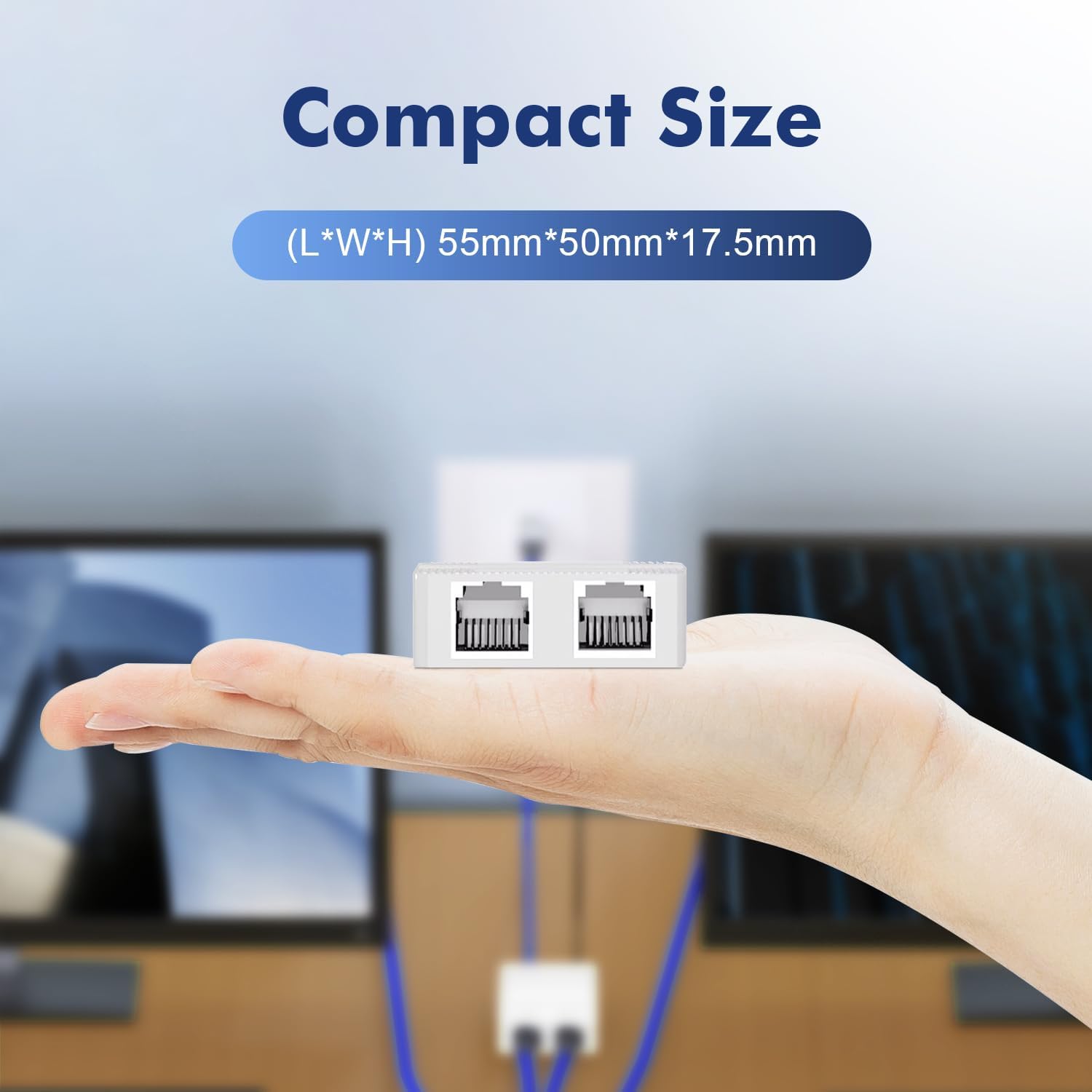
Image: The compact size of the splitter demonstrated by being held in a hand.
Warranty Information
The Binardat 1 to 2 Gigabit Network Splitter comes with a 1-Year Limited Warranty from the date of purchase. This warranty covers manufacturing defects and malfunctions under normal use. It does not cover damage caused by misuse, accidents, unauthorized modifications, or external factors.
Please retain your proof of purchase for warranty claims.
Customer Support
For technical assistance, warranty claims, or any questions regarding your Binardat Gigabit Network Splitter, please contact Binardat customer support.
You can find more information and contact details by visiting the official Binardat store on Amazon: Binardat Store
Please have your model number (NSP-1T2GW) and proof of purchase ready when contacting support.