
Introduction
Thank you for purchasing the Trust Primo Pack Wireless Keyboard and Mouse. This manual provides essential information for setting up, operating, and maintaining your new wireless peripheral set. Please read these instructions carefully before use.

Image: The Trust Primo Pack Wireless Keyboard and Mouse, showing both devices.
Package Contents
Ensure all items are present in the package:
- Trust Primo Pack Wireless Keyboard (QWERTY Spanish Layout)
- Trust Primo Pack Wireless Mouse
- USB Micro Receiver
- 2 x AA Batteries (pre-installed or included separately)
- User Manual (this document)

Image: The Trust Primo Pack Wireless Keyboard and Mouse in its retail packaging.
Setup Instructions
- Insert Batteries:
Locate the battery compartments on the underside of both the keyboard and the mouse. Insert the provided AA batteries, ensuring correct polarity (+/-). The batteries may already be pre-installed; remove any protective tabs if present.

Image: Diagram showing the single USB micro receiver and battery icons, indicating batteries are included.
- Connect USB Receiver:
Plug the single USB micro receiver into an available USB port on your computer (PC or laptop). The keyboard and mouse share this one receiver.
- Automatic Recognition:
Your operating system (Windows, macOS, Chrome OS) should automatically detect and install the necessary drivers. This process may take a few moments.
- Test Functionality:
Once installed, test the keyboard by typing and the mouse by moving the cursor and clicking. If they do not respond, ensure batteries are correctly inserted and the USB receiver is firmly connected.
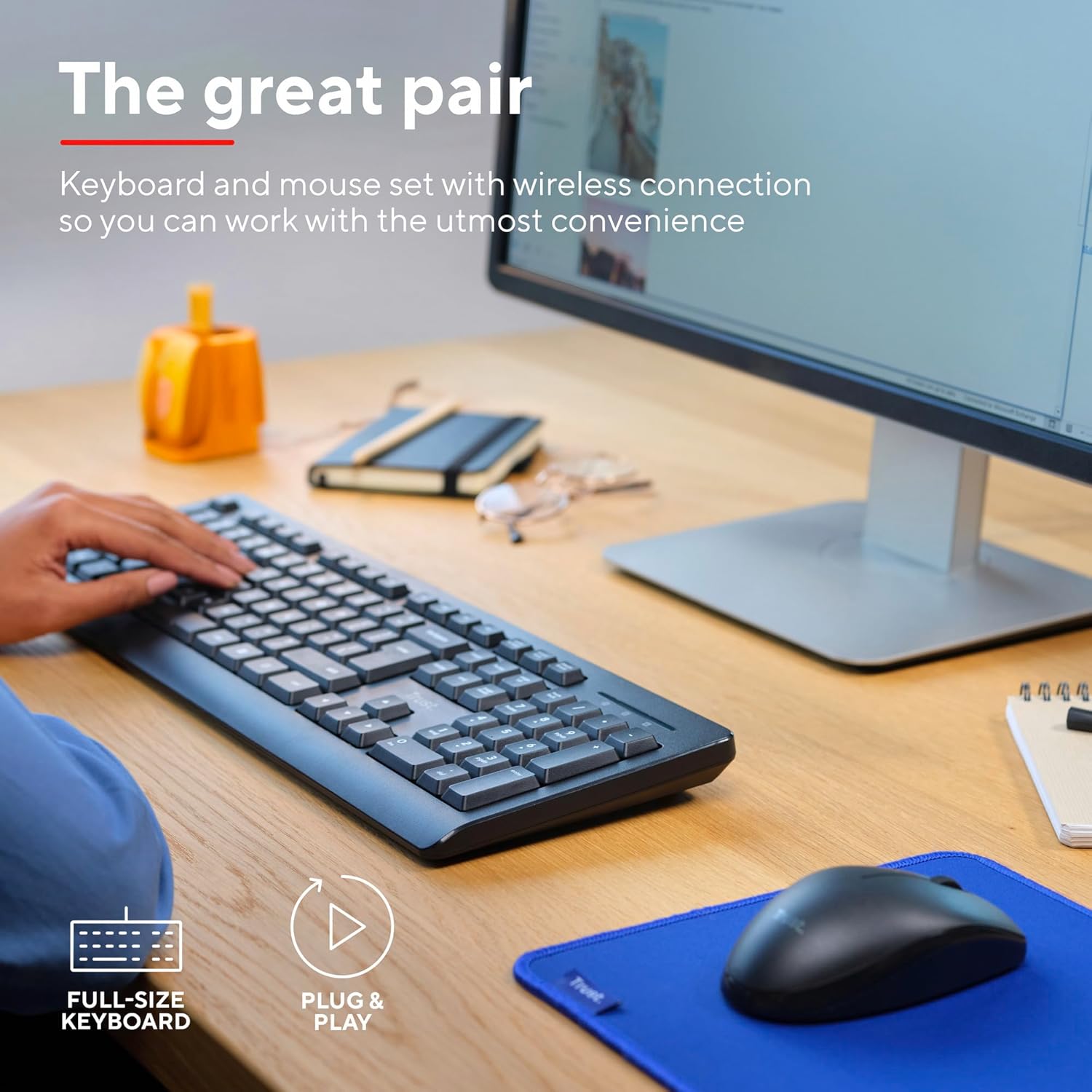
Image: A person using the full-size keyboard and mouse, illustrating the plug-and-play functionality.
Operating Instructions
Keyboard Usage
- Low-Profile Keys: The keyboard features low-profile keys designed for comfortable and efficient typing.
- Adjustable Height: Use the foldable feet on the underside of the keyboard to adjust its typing angle for ergonomic comfort.
- QWERTY Spanish Layout: The keyboard follows the standard QWERTY Spanish layout, including specific characters and key placements for Spanish language input.

Image: A top-down view of hands typing on the Trust Primo Pack keyboard, with the mouse visible on a blue mat.
Mouse Usage
- Ambidextrous Design: The mouse is designed for comfortable use by both left-handed and right-handed users.
- Optical Tracking: The mouse uses optical tracking technology for precise cursor movement.
- Cursor Speed: The mouse operates at a cursor speed of 1200 DPI, suitable for common computing tasks.
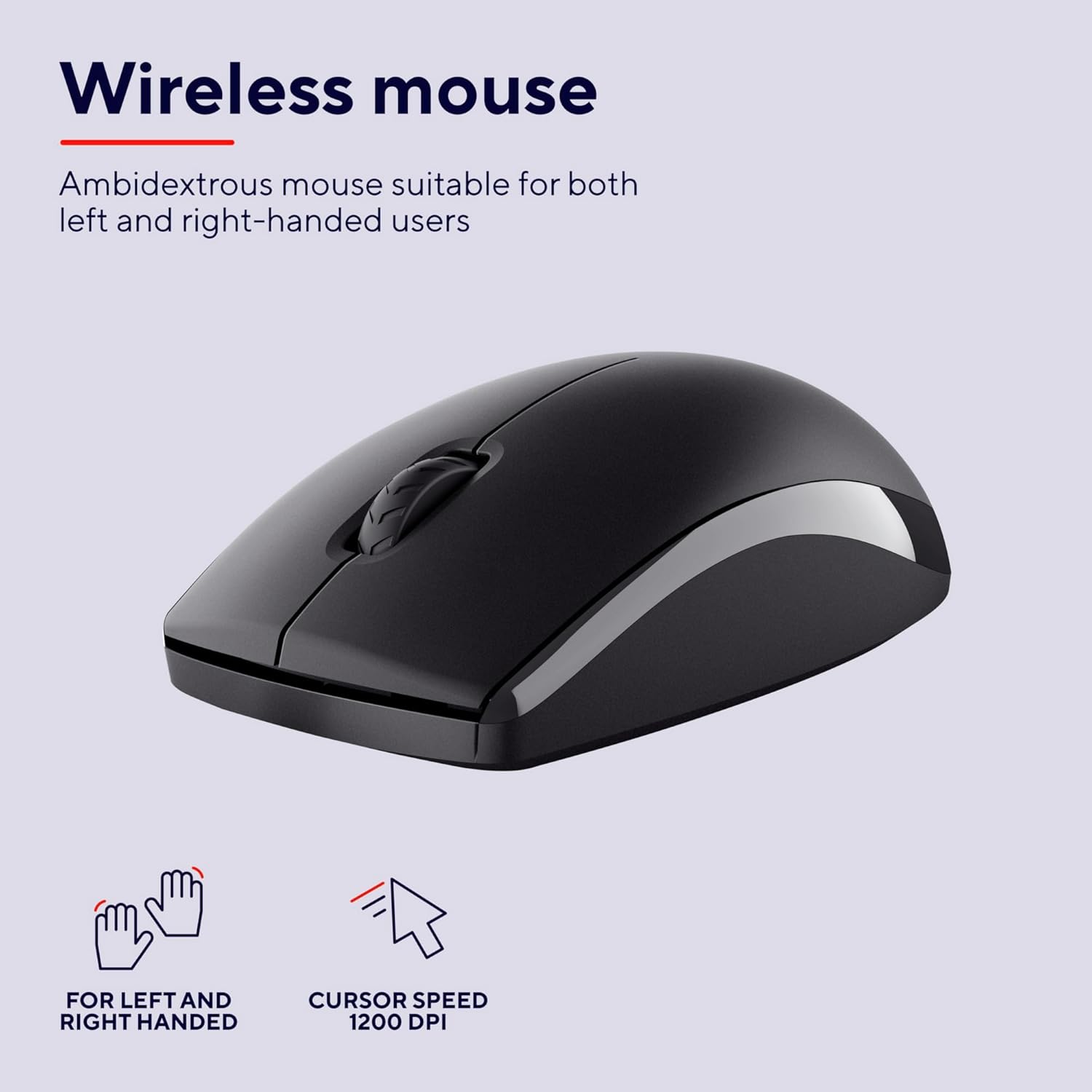
Image: A close-up of the Trust Primo Pack wireless mouse, highlighting its ambidextrous design and 1200 DPI cursor speed.
Maintenance
- Cleaning: Use a soft, damp cloth to clean the surfaces of the keyboard and mouse. Avoid harsh chemicals or abrasive materials.
- Spill-Resistant Design: The keyboard is designed to be spill-resistant. In case of accidental spills, gently wipe away the liquid immediately. Do not immerse the keyboard in water.
- Battery Replacement: When the keyboard or mouse performance degrades, replace the AA batteries. Dispose of used batteries responsibly according to local regulations.
- Storage: Store the devices in a cool, dry place away from direct sunlight and extreme temperatures when not in use for extended periods.

Image: A person holding a cup near the keyboard, illustrating the spill-resistant design feature.
Troubleshooting
| Problem | Possible Cause | Solution |
|---|---|---|
| Keyboard/Mouse not responding |
|
|
| Lagging or intermittent connection |
|
|
| Mouse cursor erratic |
|
|
Specifications
- Model Number: 25433
- Connectivity: Wireless (Radio Frequency)
- Keyboard Layout: QWERTY Spanish, Full-size, 104 keys, Low-profile, Spill-resistant
- Mouse Design: Ambidextrous, Optical tracking
- Mouse DPI: 1200 DPI
- Power Source: 2 x AA Batteries (included)
- Compatible Operating Systems: Windows 10, 11; macOS 11, 12, 13; Chrome OS
- Dimensions (Keyboard): Approximately 430 x 140 x 25 mm (based on package dimensions and typical full-size keyboard size)
- Weight (Product): 500 Grams (combined keyboard and mouse)
Warranty and Support
The Trust Primo Pack Wireless Keyboard and Mouse comes with a 5-year warranty. This warranty covers defects in materials and workmanship under normal use.

Image: A graphic indicating a 5-year warranty for Trust products.
For detailed terms and conditions, or for technical support, please visit the official Trust website:
You can also find additional support and FAQs on the Trust brand store on Amazon: Trust Amazon Store.