1. Introduction
This manual provides detailed instructions for the installation, operation, and maintenance of your SEMAITU Single Din Car Stereo Player, Model TH0029. This unit features a 7-inch motorized flip-out touchscreen, Apple CarPlay, Android Auto, Bluetooth connectivity, Mirror Link, an HD backup camera input, AUX input, and AM/FM radio. Please read this manual thoroughly before using the product to ensure proper function and safety.
2. Product Overview
The SEMAITU TH0029 car stereo is designed to enhance your in-car entertainment and connectivity. Its motorized 7-inch HD touchscreen provides clear visuals and retracts for a compact profile when not in use. Key features include:
- HD Motorized Flip-Out Touchscreen: A 7-inch display that extends and retracts, offering clear visuals for navigation and media.
- Apple CarPlay & Android Auto: Seamless integration with your smartphone for access to maps, calls, messages, and apps.
- HD Waterproof Backup Camera: Includes a high-quality rearview camera for enhanced parking safety.
- Bluetooth Connectivity: For wireless music streaming and hands-free calling.
- Mirror Link: Allows mirroring of your smartphone screen onto the stereo display.
- Multiple Connectivity Options: USB, AUX, and AM/FM radio support.

Image: The SEMAITU Single Din Car Stereo Player with its 7-inch motorized flip-out screen extended, showing the main unit and display.
3. Package Contents
Verify that all items are present in the package before proceeding with installation:
- SEMAITU Single Din Car Stereo Player (Model TH0029)
- Wire Harness
- Rear View Camera (HD Waterproof Backup Camera)
- Microphone
- Disassembly Tool
- Backup Camera Cable
- Remote Control
- User Manual (this document)
- Camera Power Cable

Image: A visual representation of the package contents, including the car stereo unit, wire harness, rearview camera, microphone, disassembly tool, backup camera cable, remote, and manual.
4. Setup and Installation
Installation of the SEMAITU TH0029 requires basic automotive electrical knowledge. If you are unsure about any steps, it is recommended to seek professional installation.
4.1 Safety Precautions
- Disconnect the vehicle's negative battery terminal before starting any electrical work.
- Ensure all wiring connections are secure and properly insulated to prevent short circuits.
- Do not obstruct airbags or other safety features during installation.
4.2 Wiring Connections
Use the provided wire harness to connect the stereo to your vehicle's electrical system. Refer to your vehicle's wiring diagram for specific connections. Common connections include:
- Yellow Wire: Constant 12V power (Battery)
- Red Wire: Switched 12V power (Accessory/Ignition)
- Black Wire: Ground
- Orange/Illumination Wire: Connect to vehicle's illumination circuit (if applicable)
- Reverse Wire: Connect to vehicle's reverse light circuit for backup camera activation.
- Speaker Wires: Connect to corresponding vehicle speakers (e.g., Front Left +, Front Left -).
4.3 Backup Camera Installation
Mount the HD waterproof rearview camera at the rear of your vehicle, ensuring a clear view. Connect the camera's video output to the stereo's camera input using the provided backup camera cable. Connect the camera's power wire to the vehicle's reverse light circuit and its ground wire to a chassis ground.

Image: A detailed view of the car stereo's rear connections, including the wire harness and inputs for the backup camera and other accessories.
5. Operating Instructions
5.1 Power On/Off and Screen Operation
- Press the power button to turn the unit on or off.
- The 7-inch screen will automatically extend upon power-on and retract upon power-off.
- You can manually adjust the screen angle (60° to 100°) using the dedicated buttons or touchscreen controls.

Image: The motorized flip-out screen demonstrating its adjustable angle feature, extending from the single din unit.
5.2 Basic Controls
- Volume Knob: Rotate to adjust volume. Press to mute/unmute.
- Mode Button: Cycle through input sources (Radio, USB, AUX, Bluetooth, CarPlay/Android Auto).
- Touchscreen Interface: Navigate menus and control functions by touching the screen icons.
5.3 Radio Operation (AM/FM)
- Select 'Radio' mode.
- Use the scan/seek buttons to find radio stations.
- Press and hold a preset button to save the current station.
5.4 USB/AUX Input
- Insert a USB drive into the USB port for media playback.
- Connect an external audio device to the AUX input using a 3.5mm audio cable.
6. Connectivity Features
6.1 Bluetooth Pairing
- Enable Bluetooth on your smartphone.
- On the car stereo, go to the Bluetooth menu.
- Search for available devices on your phone and select 'SEMAITU TH0029' (or similar name).
- Confirm the pairing code if prompted.
- Once paired, you can make hands-free calls and stream audio.

Image: The car stereo display showing the Bluetooth hands-free calling interface, with music playback controls and phone icons.
6.2 Apple CarPlay & Android Auto
Connect your iPhone or Android smartphone via a USB cable to activate Apple CarPlay or Android Auto. The stereo will automatically switch to the respective interface.
- Apple CarPlay: Access navigation, make calls, send messages, and listen to music using Siri voice control or the touchscreen.
- Android Auto: Use Google Maps, make calls, send messages, and play music with Google Assistant voice commands or the touchscreen.
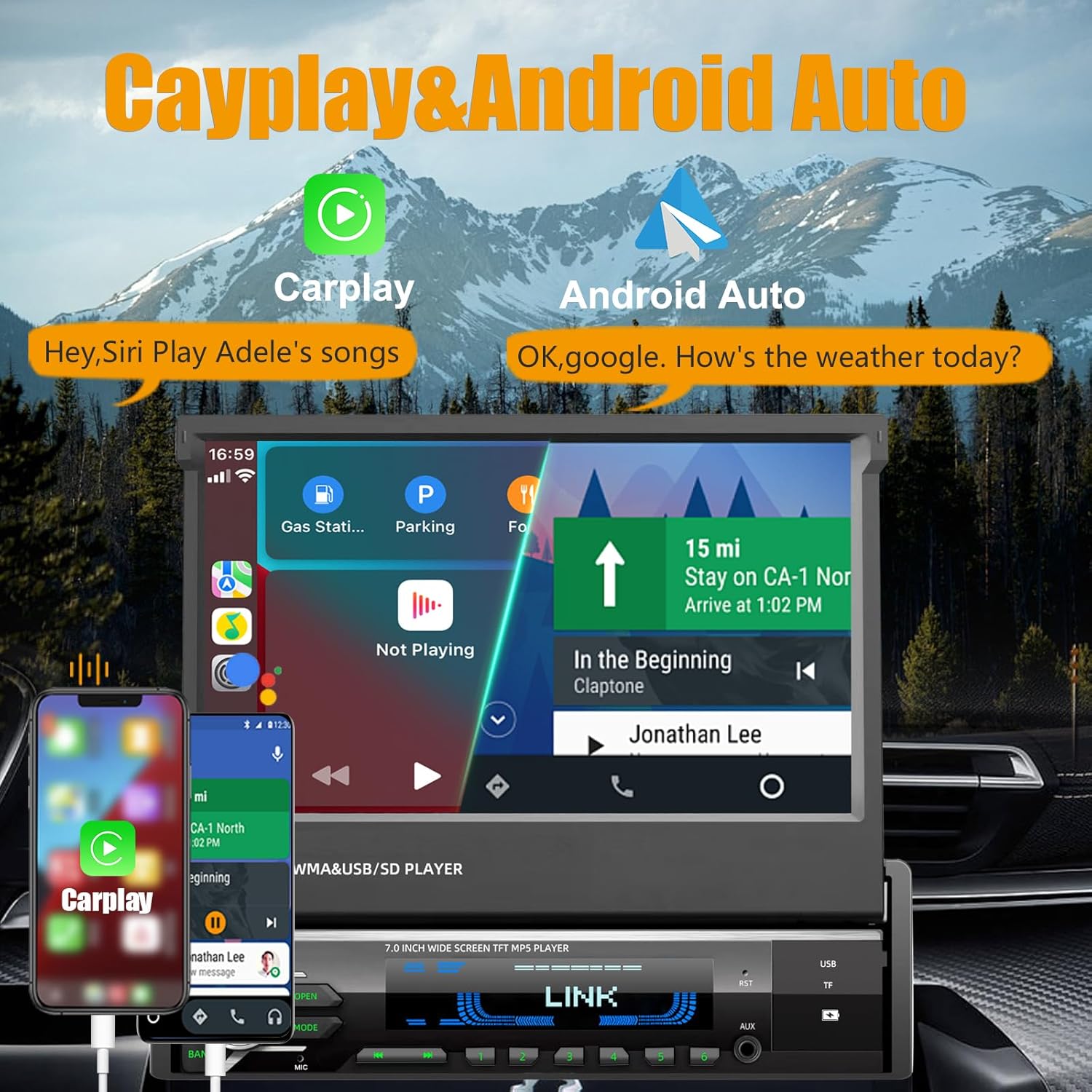
Image: The car stereo display showing both Apple CarPlay and Android Auto interfaces, with navigation and media apps visible.
6.3 Mirror Link
Mirror Link allows you to display your smartphone's screen directly on the car stereo. Connect your smartphone via USB and follow the on-screen prompts to activate Mirror Link. This feature supports both iOS and Android devices.

Image: The car stereo display showing the Mirror Link function, mirroring a smartphone's navigation screen.
7. Backup Camera Operation
When the vehicle is shifted into reverse gear, the stereo will automatically display the feed from the connected HD waterproof backup camera. This provides a clear view of the area behind your vehicle, assisting with parking and maneuvering.
- The camera offers a wide field of vision and improved night vision capabilities.
- Dynamic parking guidelines may be displayed on the screen to assist with parking.
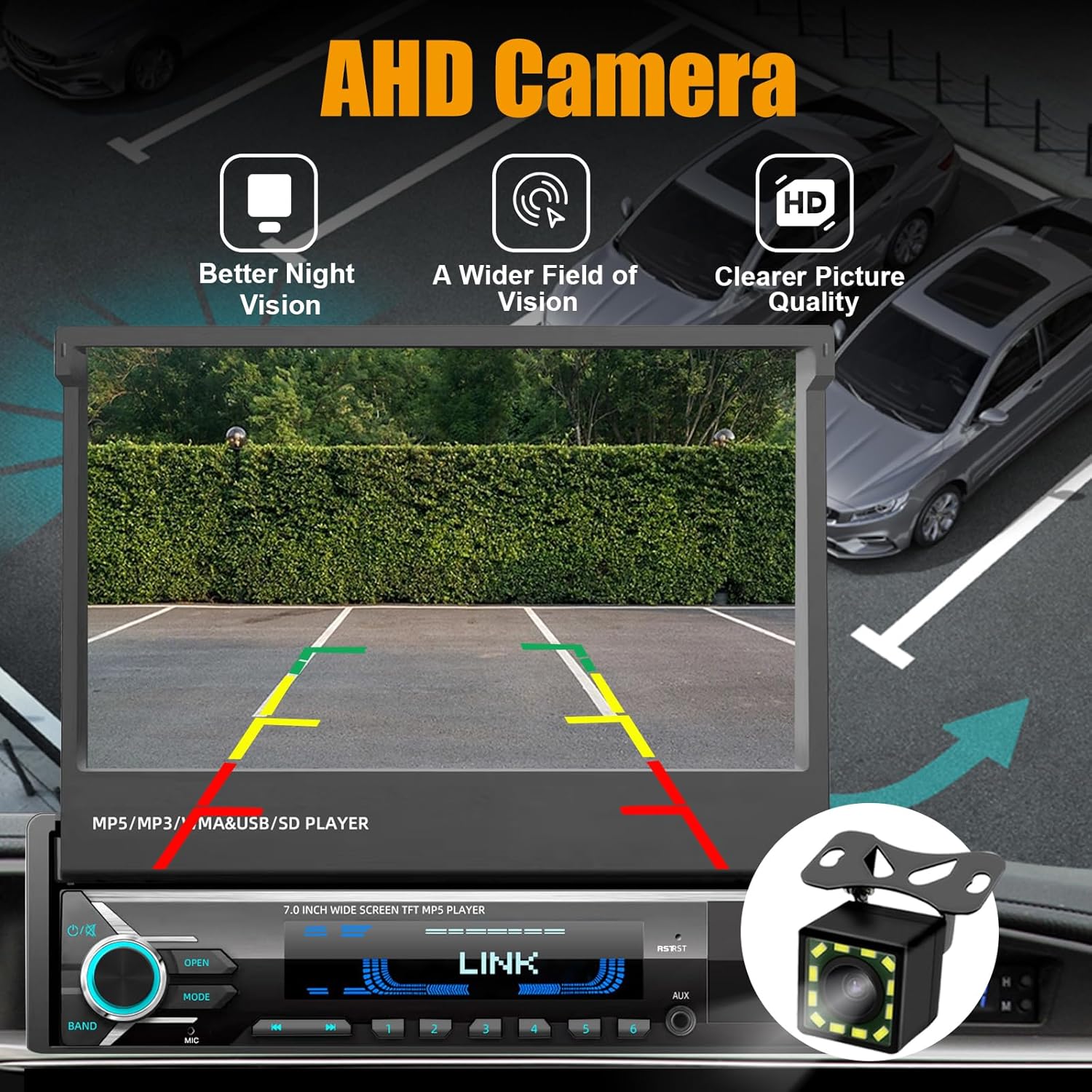
Image: The car stereo display showing the view from the AHD backup camera, with parking guidelines overlaid on the image of a parking lot.
8. Maintenance
- Screen Cleaning: Use a soft, lint-free cloth to gently wipe the touchscreen. For stubborn smudges, slightly dampen the cloth with water or a screen-safe cleaner. Avoid harsh chemicals.
- General Cleaning: Keep the unit free from dust and debris. Use a soft brush or compressed air for vents and buttons.
- Software Updates: Periodically check the SEMAITU website or contact support for any available firmware updates to ensure optimal performance and compatibility.
9. Troubleshooting
If you encounter issues with your SEMAITU car stereo, refer to the following common problems and solutions:
| Problem | Possible Cause | Solution |
|---|---|---|
| No power/Unit does not turn on | Incorrect wiring (power/ground), blown fuse, vehicle battery issue. | Check all power and ground connections. Verify vehicle fuses and the stereo's inline fuse. Ensure the vehicle battery is charged. |
| No sound or poor audio quality | Incorrect speaker wiring, volume too low, audio settings misconfigured, faulty speakers. | Check speaker connections for correct polarity. Adjust volume and audio settings (EQ, balance, fader). Test with different audio sources. |
| Apple CarPlay/Android Auto not working | Faulty USB cable, phone not compatible, software glitch, phone settings. | Use a high-quality, original USB cable. Ensure your phone's operating system is up to date. Restart both phone and stereo. Check phone settings for CarPlay/Android Auto permissions. |
| Backup camera not displaying | Incorrect camera wiring, reverse trigger wire not connected, faulty camera. | Verify camera power and video connections. Ensure the stereo's reverse trigger wire is correctly connected to the vehicle's reverse light circuit. |
| Screen not retracting/extending | Obstruction, motor issue, power supply issue. | Check for any physical obstructions. Ensure the unit is receiving consistent power. If the issue persists, contact support. |
| Radio reception is poor | Antenna not connected, damaged antenna, poor signal area. | Ensure the antenna is securely connected. Check the antenna for damage. Consider an antenna adapter if the vehicle's antenna connector does not fit properly. |
10. Specifications
| Feature | Detail |
|---|---|
| Model Number | TH0029 |
| Screen Size | 7-inch |
| Screen Type | Motorized Flip-Out Touchscreen |
| Connectivity | Bluetooth, USB |
| Controller Type | iOS (for CarPlay), Android (for Android Auto) |
| Special Features | Android Auto, Apple CarPlay, Built-In Bluetooth, DSP, Flip Out Screen |
| Compatible Devices | Smartphone |
| Connector Type | USB Type A |
| Audio Output Mode | Stereo |
| Surround Sound Channel Configuration | 4.0 |
| Item Weight | 4.19 pounds |
| Package Dimensions | 9.49 x 8.9 x 3.46 inches |
11. Warranty and Support
SEMAITU is committed to providing quality products and customer satisfaction.
11.1 Return Policy
This product is eligible for a 30-day refund/replacement return policy from the date of purchase. Please refer to the retailer's specific return guidelines for detailed information.
11.2 Customer Support
For technical assistance, troubleshooting, or warranty inquiries, please contact SEMAITU customer support. We offer:
- Quick replies within 24 hours.
- Lifetime consultation and support.
You can reach SEMAITU support through the seller's page on Amazon: Visit the SEMAITU Store


Image: Visual representation of SEMAITU's customer support commitments: 24-hour quick reply, 30-day return policy, and lifetime consultation and support.
