
JEPEErbz C9
JEPEErbz Mini Portable Inkless Thermal Printer C9 User Manual
Model: C9 | Brand: JEPEErbz
1. Introduction
The JEPEErbz Mini Portable Inkless Thermal Printer C9 is a compact and versatile device designed for convenient printing on the go. Utilizing thermal printing technology, it requires no ink cartridges, making it a cost-effective and mess-free solution for various printing needs. This printer connects wirelessly via Bluetooth to your iOS or Android smartphone, allowing you to print photos, labels, notes, and more through the dedicated 'Fun Print' application.
This manual provides detailed instructions for setting up, operating, and maintaining your JEPEErbz Mini Portable Inkless Thermal Printer C9 to ensure optimal performance and longevity.

Figure 1: JEPEErbz Mini Portable Inkless Thermal Printer C9 and accessories.
2. Setup Guide
2.1. Charging the Printer
Before initial use, ensure the printer is fully charged. The printer features a USB-C charging port.
- Connect the provided USB cable to the printer's charging port.
- Connect the other end of the USB cable to a compatible USB power adapter (not included) or a computer's USB port.
- The indicator light will show charging status (refer to LED indicator section for details). A full charge typically takes a few hours.
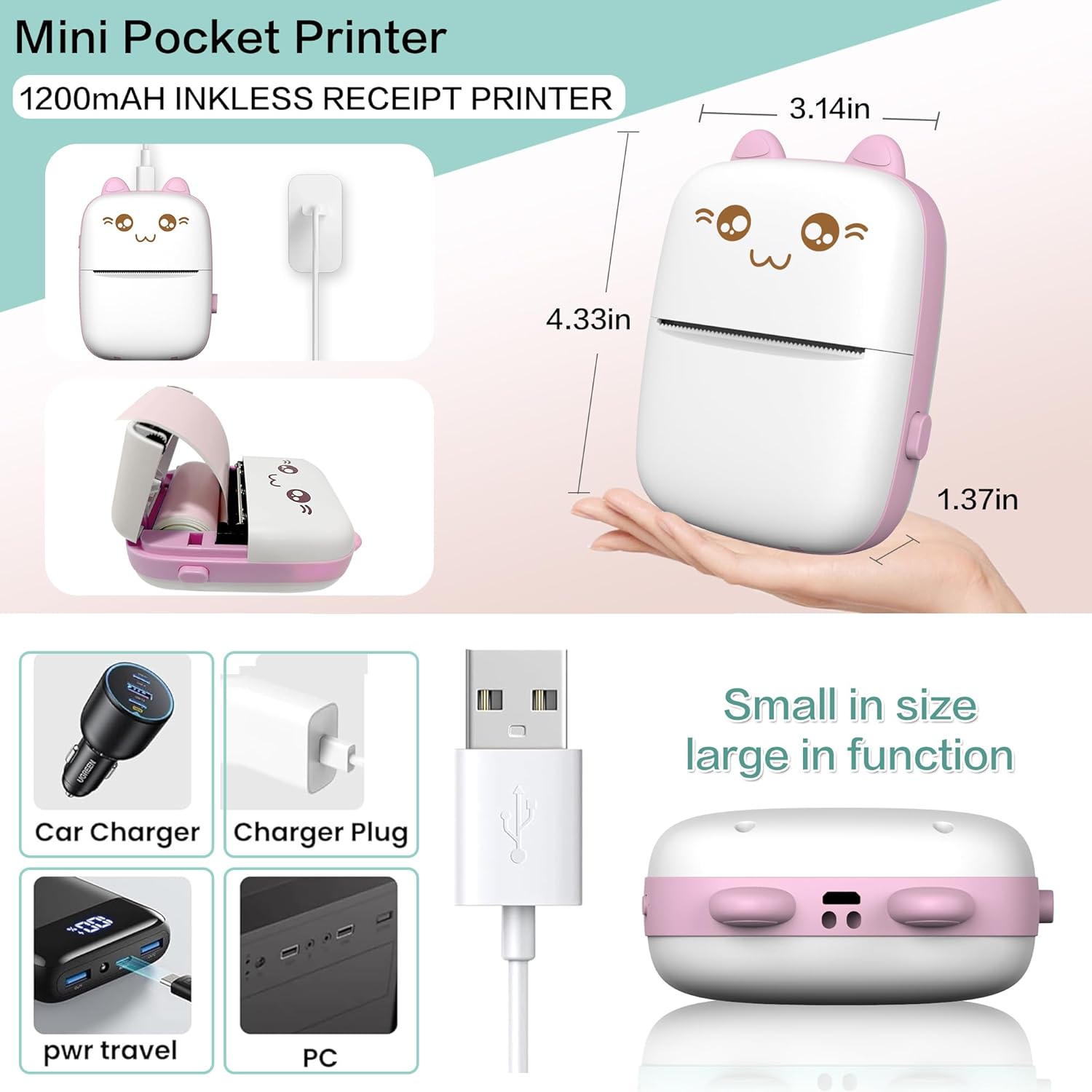
Figure 2: Printer dimensions and charging options.
2.2. Loading Paper
The printer uses thermal paper rolls. Ensure the paper is loaded correctly for proper printing.
- Turn on the printer: Long press the power button to turn on the device.
- Open the case: Press the button on the side of the printer to open the paper compartment.
- Install the paper roll: Place the thermal paper roll into the compartment, ensuring the printing side faces outwards. Leave 1-3mm of paper extending from the slot before closing the case. If printing is not successful, try reversing the paper roll as only one side is printable.
- Close the case: Gently close the printer case until it clicks securely.
Video 1: Demonstration of turning on the printer and correctly loading a paper roll.
2.3. App Download and Bluetooth Connection
The 'Fun Print' application is required to operate the printer from your smartphone.
- Download the App: Search for 'Fun Print' in the Apple App Store (for iOS) or Google Play Store (for Android) and install it.
- Enable Bluetooth: Ensure Bluetooth is enabled on your smartphone.
- Connect in App: Open the 'Fun Print' app. Navigate to the device connection section (often indicated by a Bluetooth icon or 'Connect' button). Select your printer (e.g., 'MXW01-1C27' or similar) from the list of available devices. Do NOT connect the printer directly from your phone's Bluetooth settings; connect through the 'Fun Print' app.
- Once connected, the app will indicate a successful connection, and you can begin printing.

Figure 3: Bluetooth wireless connection and USB-C fast charging.
3. Operating Instructions
The 'Fun Print' app offers a variety of functions for your thermal printer.

Figure 4: 'Fun Print' app interface with various printing options.
3.1. Printing Photos and Images
- Open the 'Fun Print' app and ensure your printer is connected.
- Select 'Picture Images' or 'Photos' from the main menu.
- Choose an image from your phone's gallery.
- Adjust print settings such as density (Light, Medium, Dark), orientation (Horizontal, Vertical), and pattern (Line Drawing, Graphics) as desired. For best quality, select 'HD' if using dedicated photo paper.
- Tap 'Print' to send the image to the printer.
Video 2: Demonstration of selecting an image from a smartphone and printing it using the thermal printer.
3.2. Creating Labels and Text
The app provides templates and text input for various uses.
- From the app's main menu, select 'Label' for pre-designed templates or 'Text' for custom text input.
- For labels, browse and select a template, then customize the text. For text printing, type your desired content.
- Adjust font size, style, and alignment within the app.
- Tap 'Print' to generate your label or text.
3.3. Using AI Features
The 'Fun Print' app includes AI-powered features for creative content generation.
- Navigate to the 'AI' section within the app.
- Choose an AI feature, such as 'AI Drawing'.
- Enter a keyword or description (e.g., 'Cute puppy with a hat') and select a preferred style (e.g., Anime style, Illustration).
- The AI will generate an image based on your input.
- Review the generated image, adjust print settings if necessary, and tap 'Print'.
Video 3: Demonstration of using the AI drawing feature to generate and print an image of a puppy with a hat.

Figure 5: Key features and uses of the JEPEErbz Mini Portable Inkless Thermal Printer C9.
4. Maintenance
4.1. Battery Care
To extend the life of the printer's built-in 1200mAh rechargeable battery, please observe the following:
- Charge the printer regularly, especially if it will not be used for an extended period.
- Avoid completely draining the battery frequently.
- Store the printer in a cool, dry place when not in use.
4.2. Cleaning the Printer
Periodically clean the printer to ensure optimal performance.
- Ensure the printer is turned off before cleaning.
- Use a soft, dry cloth to wipe the exterior of the printer.
- To clean the thermal print head, gently wipe it with a cotton swab lightly dampened with isopropyl alcohol. Allow it to dry completely before use.
4.3. Paper Replacement
When the paper roll runs out, replace it with a new 57*25mm thermal paper roll. Refer to Section 2.2 for detailed paper loading instructions.

Figure 6: Package contents and key specifications.
5. Troubleshooting
| Problem | Possible Cause | Solution |
|---|---|---|
| Printer does not turn on. | Low battery or power issue. | Charge the printer using the provided USB-C cable. Ensure the power adapter is working. |
| Cannot connect via Bluetooth. | Incorrect connection method or Bluetooth is off. | Ensure Bluetooth is enabled on your phone. Connect through the 'Fun Print' app, not directly from phone settings. Restart both printer and phone. |
| No print output or blank pages. | Paper loaded incorrectly or out of paper. | Check if the paper roll is installed with the printable side facing out. Replace the paper roll if empty. Refer to Section 2.2. |
| Print quality is poor. | Low resolution image, incorrect print settings, or dirty print head. | Use higher resolution images. Adjust density settings in the app (e.g., 'Dark' or 'HD'). Clean the thermal print head (Section 4.2). |
| App crashes or freezes. | App software issue or phone memory. | Restart the app. Clear the app's cache or reinstall it. Ensure your phone's operating system is up to date. |
6. Specifications
- Brand: JEPEErbz
- Model: C9
- Printing Technology: Thermal (Inkless)
- Connectivity: Bluetooth 4.0
- Compatible Devices: Smartphones (Android 4.0+, iOS 8.0+)
- Print Resolution: 203 dpi (Monochrome)
- Paper Type: Thermal Paper (Standard, Adhesive, Colorful)
- Paper Roll Size: 57mm (Width) x 25mm (Diameter)
- Battery: 1200mAh Rechargeable (Built-in)
- Charging Interface: USB-C
- Product Dimensions: 1.37 x 3.14 x 4.33 inches
- Item Weight: 12.6 ounces (358 Grams)
- Functions: Photo Printing, Label Creation, Text Printing, AI Drawing, Scrapbooking
7. Warranty and Support
This JEPEErbz product comes with a limited warranty. For specific warranty details, please refer to the documentation included with your purchase or contact JEPEErbz customer support.
If you encounter any issues not covered in this manual or require further assistance, please contact our customer support team through the official JEPEErbz website or the contact information provided in your product packaging.
Ask a question about this manual
Ask about setup, troubleshooting, compatibility, parts, safety, or missing instructions. Manuals+ will review the question and use this page’s manual context to help answer it.