
1. Introduction
This manual provides essential information for the installation, operation, and maintenance of your FERMAX Smart Video Intercom Kin FMX1445. Please read this manual thoroughly before using the device to ensure proper functionality and safety. Keep this manual for future reference.
2. Safety Information
Important Safety Instructions:
- Ensure all electrical connections comply with local codes and regulations.
- Installation should be performed by qualified personnel to prevent electrical shock or damage to the device.
- Do not expose the device to extreme temperatures, humidity, or direct sunlight.
- Avoid placing the device near sources of strong electromagnetic interference.
- Do not attempt to open or repair the device yourself. Refer all servicing to qualified service personnel.
- Clean the device only with a soft, dry cloth. Do not use liquid or aerosol cleaners.
3. Package Contents
Verify that all items are present in the package:
- FERMAX Smart Video Intercom Kin FMX1445 Outdoor Panel
- Mounting Bracket and Screws
- Wiring Connectors
- User Manual (this document)
- Quick Start Guide

Image 1: FERMAX Smart Video Intercom Kin FMX1445 outdoor panel. This image shows the main unit with its camera, screen, and card reader.
4. Product Overview
The FERMAX Smart Video Intercom Kin FMX1445 is an advanced video intercom system designed for secure access control and communication. Key features include:
- High-Resolution Camera: Provides clear video feed of visitors.
- Integrated Display: Shows welcome messages, time, and call status.
- Two-Way Audio: Enables communication with visitors.
- Wi-Fi Connectivity: Allows remote access and control via a smartphone application.
- Motion Detection: Alerts users to activity at the entrance.
- Access Control: Supports various methods for entry, such as card readers or facial recognition (depending on specific model configuration).
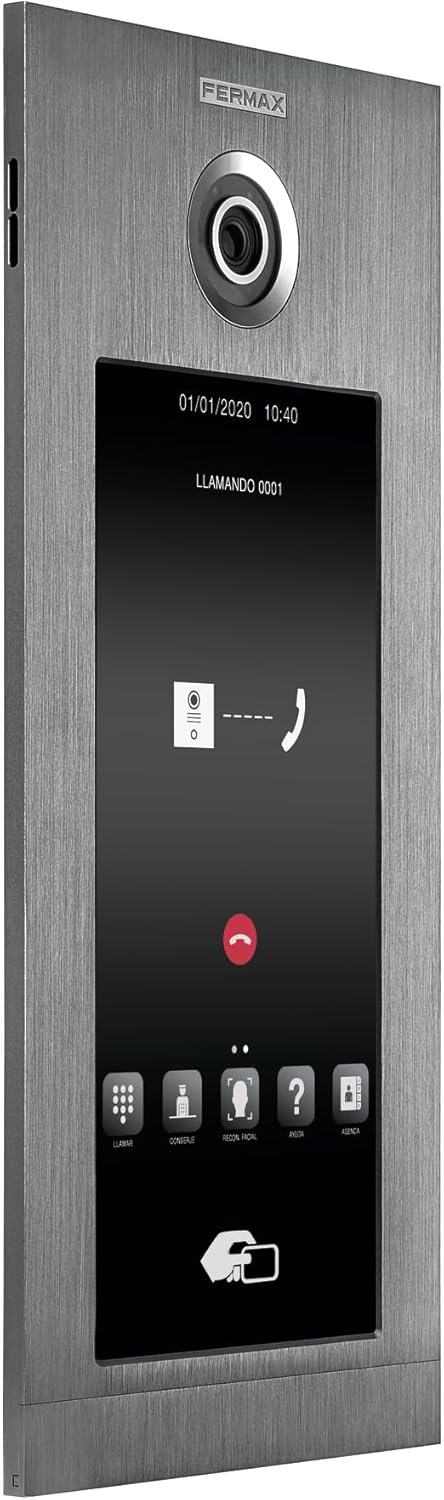
Image 2: Screen interface of the intercom during a call. This image displays the digital keypad, call buttons, and facial recognition option on the screen.
5. Setup and Installation
Proper installation is crucial for the optimal performance of your FERMAX Smart Video Intercom. It is recommended that installation be performed by a professional electrician or installer.
5.1. Mounting the Outdoor Panel
- Choose a suitable location for the outdoor panel, typically near the main entrance, at a height that allows the camera to capture visitors' faces clearly.
- Use the provided mounting bracket as a template to mark drilling points on the wall.
- Drill holes and insert wall plugs if necessary.
- Secure the mounting bracket to the wall using the provided screws.
- Route necessary wiring through the wall opening to the back of the panel.

Image 3: FERMAX Smart Video Intercom Kin FMX1445 installed on a wall next to an entrance. This image demonstrates a typical installation scenario.
5.2. Electrical Connections
- Connect the power supply wires to the designated terminals on the intercom panel. Refer to the wiring diagram in the Quick Start Guide for specific connections.
- Connect the lock control wires to your electric door strike or gate opener.
- Ensure all connections are secure and insulated.
5.3. Network Configuration (Wi-Fi)
- Power on the intercom unit.
- Follow the on-screen prompts or refer to the Quick Start Guide to connect the device to your local Wi-Fi network.
- Download the FERMAX app on your smartphone or tablet.
- Register an account and add your intercom device by following the in-app instructions. This typically involves scanning a QR code on the device or entering a serial number.
6. Operating Instructions
6.1. Answering a Call
- When a visitor presses the call button on the outdoor panel, your indoor monitor (if applicable) and smartphone app will receive a notification.
- On the indoor monitor, press the "Answer" button to establish two-way audio and video communication.
- On the smartphone app, tap the notification to open the app and answer the call.
6.2. Granting Access
- During an active call, press the "Unlock" button on your indoor monitor or smartphone app to remotely open the connected door or gate.
- For card access models, present a registered access card to the reader on the outdoor panel.
6.3. Motion Detection Alerts
- The intercom is equipped with motion detection. When motion is detected, you may receive a notification on your smartphone app.
- Adjust motion detection sensitivity and notification settings within the FERMAX app.

Image 4: A person interacting with the FERMAX Smart Video Intercom. This image illustrates the user experience with the device.
7. Maintenance
- Cleaning: Wipe the outdoor panel and screen with a soft, damp cloth. Do not use abrasive cleaners, solvents, or harsh chemicals.
- Firmware Updates: Periodically check the FERMAX app for available firmware updates to ensure optimal performance and security. Follow the in-app instructions for updating.
- Connectivity Check: Regularly verify that your intercom is connected to your Wi-Fi network and that the app is receiving notifications.
8. Troubleshooting
| Problem | Possible Cause | Solution |
|---|---|---|
| No power to the unit. | Power cable disconnected or power outage. | Check power connections. Verify power supply is active. |
| Cannot connect to Wi-Fi. | Incorrect Wi-Fi password, weak signal, or router issue. | Ensure correct password. Move router closer or use a Wi-Fi extender. Restart router. |
| No video or audio during a call. | Network issue, camera/microphone malfunction. | Check network connection. Restart the intercom. If problem persists, contact support. |
| Door lock not opening. | Wiring issue, lock malfunction, or incorrect settings. | Verify lock wiring. Test the lock independently. Check app settings for lock control. |
| Motion alerts not received. | Motion detection disabled, app notifications off, or network issue. | Enable motion detection in the app. Check phone notification settings. Ensure stable network connection. |
9. Specifications
| Feature | Detail |
|---|---|
| Model | FMX1445 |
| Brand | FERMAX |
| Wireless Communication Technology | Wi-Fi |
| Alert Type | Motion Only |
| Unit Count | 1.0 Count |
| Manufacturer | FERMAX |
| ASIN | B0CVZZPW1 |
10. Warranty and Support
FERMAX products are designed for reliability and performance. For specific warranty details, please refer to the warranty card included with your product or visit the official FERMAX website. For technical support, troubleshooting assistance, or service inquiries, please contact FERMAX customer support through their official channels.
Online Resources: For additional information, FAQs, and software downloads, please visit the FERMAX Store on Amazon or the official FERMAX website.


