1. Introduction
This manual provides detailed instructions for the installation, operation, and maintenance of your Podofo 7-inch Portable Wireless Apple Carplay and Android Auto Motorcycle Display. Please read this manual thoroughly before using the product to ensure proper function and safety.
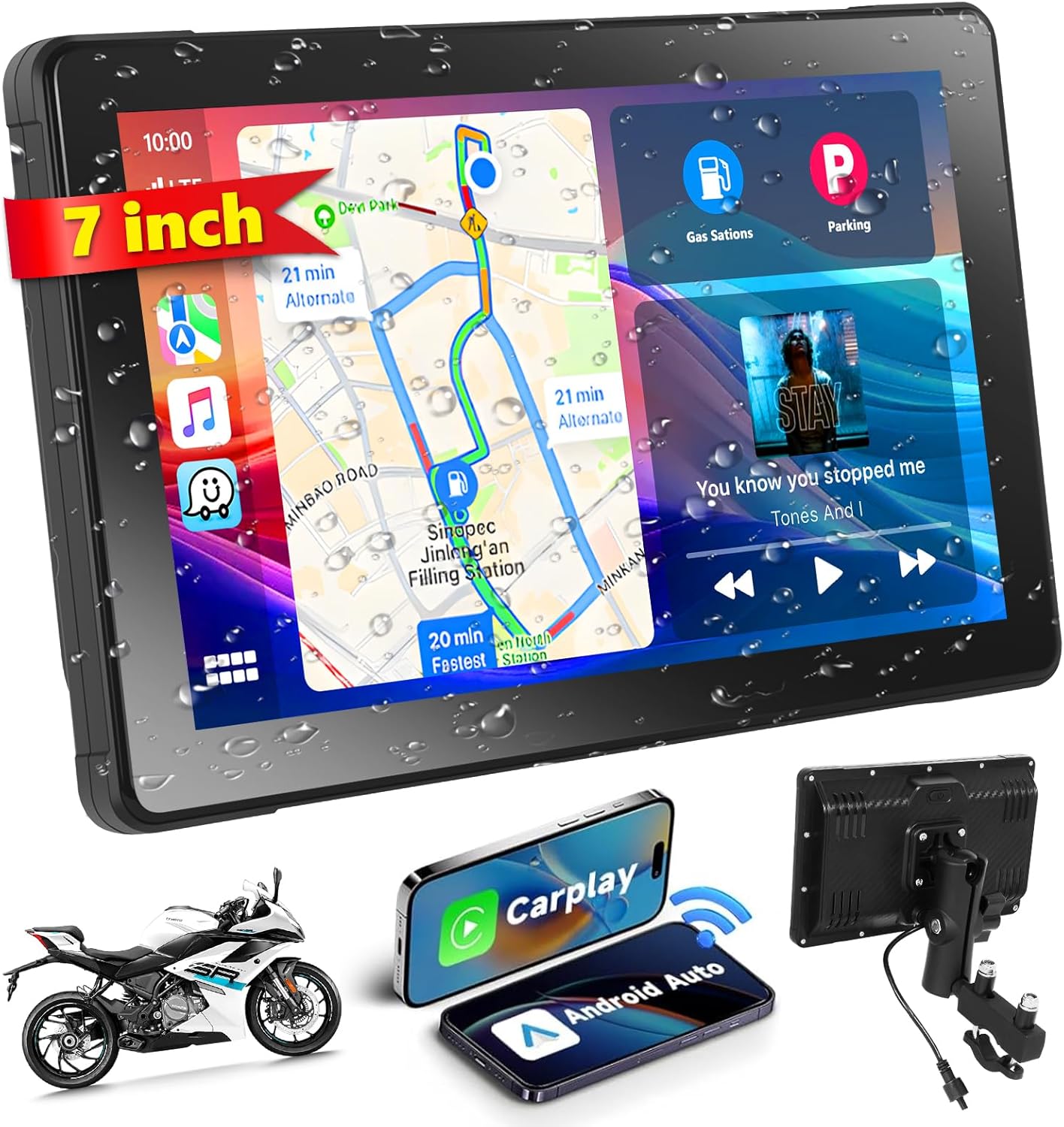
Image: The Podofo 7-inch display showing navigation and music interfaces, mounted on a motorcycle, with a smartphone and the device's rear view.
2. Product Features
- 7-inch LCD Touchscreen Display
- Wireless Apple CarPlay and Android Auto compatibility
- Bluetooth connectivity for hands-free calls and audio streaming
- Integrated GPS navigation support
- Voice Assistant integration (Siri/Google Assistant)
- IP67 Waterproof rating
- Adjustable screen brightness
- TF/USB Insert for media playback
- Built-in speaker and EQ sound adjustment
- Mirror Link / Air Play functionality
- Detachable screen design
3. Package Contents
Verify that all items are present in the package:

Image: Diagram showing the display unit, power cable, mounting accessories, and user manual.
- Main Display Unit (Host)
- Power Cable
- Mounting Accessories (Bracket, Screws)
- User Manual
4. Setup and Installation
Follow these steps to properly install the display on your motorcycle.
4.1 Mounting the Device
- Attach the Bracket: Securely install the provided mounting bracket to your motorcycle's handlebars using the screws. Ensure the bracket is stable and positioned for optimal viewing without obstructing controls.
- Mount the Display: Attach the main display unit to the installed bracket. The display is designed to be detachable for security and convenience.

Image: Step-by-step visual guide for installing the display unit and bracket onto a motorcycle handlebar.
4.2 Power Connection
Connect the power cable to your motorcycle's 12V battery. It is recommended to connect directly to the battery for stable power. Ensure proper polarity and consider adding an inline fuse for safety if not already present in the cable.
Caution: Incorrect wiring can damage the device or your motorcycle's electrical system. If unsure, consult a qualified technician.
5. Operating Instructions
5.1 Initial Power On and Setup
- After connecting power, turn on your motorcycle's ignition. The display should power on automatically.
- Follow the on-screen prompts to select your language and initial settings.
5.2 Wireless Apple CarPlay / Android Auto
This device supports wireless Apple CarPlay and Android Auto for seamless smartphone integration.

Image: Display showing various CarPlay and Android Auto applications, with icons for wireless connection.
- Enable Bluetooth: On your smartphone, enable Bluetooth.
- Pair Device: On the display, navigate to the Bluetooth settings and search for available devices. Select your smartphone from the list and confirm pairing.
- Connect CarPlay/Android Auto: Once paired via Bluetooth, the display will prompt you to connect to Apple CarPlay or Android Auto. Confirm the connection on both your phone and the display.
- Functionality: After successful connection, you can access navigation, music, calls, and voice assistants (Siri/Google Assistant) directly from the display.
Voice Commands:
- "OK, Start playing music."
- "OK, Return to Home Page."
- "Open Home Page."
- "Turn on the music."
5.3 GPS Navigation
The device supports GPS navigation through connected CarPlay or Android Auto applications.

Image: The display showing a detailed map with navigation routes and estimated travel times.
Use your preferred navigation app (e.g., Apple Maps, Google Maps, Waze) via CarPlay or Android Auto. The display will show real-time routes and directions.
5.4 Bluetooth Audio and Hands-Free Calling
Connect your Bluetooth helmet headset or external speakers for audio output and hands-free communication.

Image: The display showing a music player interface, with a Bluetooth icon connecting to a motorcycle helmet and earbuds.
- Pair your Bluetooth headset or helmet communication system with the display via Bluetooth settings.
- Once connected, all audio (music, navigation prompts, calls) will be routed to your headset.
- Make and receive calls safely without removing your hands from the handlebars.
5.5 Media Playback (TF/USB)

Image: The rear of the display showing a TF card slot, USB port, and Type-C insert.
Insert a TF card or USB drive into the designated slots on the device to play stored music or videos.
5.6 Brightness Adjustment

Image: The display showing a brightness slider, indicating automatic and manual adjustment options for visibility in various lighting conditions.
Adjust the screen brightness manually or set it to automatic mode for optimal visibility in different lighting conditions (e.g., bright sunlight, night riding).
6. Maintenance
6.1 Cleaning
- Use a soft, lint-free cloth to clean the screen.
- For stubborn marks, slightly dampen the cloth with water. Avoid harsh chemicals or abrasive materials.
6.2 Waterproofing (IP67)

Image: The display partially submerged in water, illustrating its IP67 waterproof capability.
The device has an IP67 waterproof rating, meaning it is protected against dust and temporary immersion in water. While designed for outdoor use, avoid prolonged submersion or high-pressure water jets.
7. Troubleshooting
- Problem: No sound from helmet/headset.
- Solution:
- Ensure your helmet/headset is properly paired and connected via Bluetooth to the display.
- Check the volume levels on both the display and your helmet/headset.
- Verify that the audio output is correctly routed to Bluetooth in the display's settings.
- Try unpairing and re-pairing the Bluetooth connection.
- Problem: Device does not power on.
- Solution:
- Check the power cable connection to the motorcycle battery and the device.
- Ensure the motorcycle's ignition is on.
- Inspect the power cable for any visible damage or overheating. If the cable feels hot, disconnect immediately and check for short circuits or incorrect wiring.
- Verify the battery voltage is sufficient (12V).
- Problem: CarPlay/Android Auto fails to connect wirelessly.
- Solution:
- Ensure Bluetooth is enabled on your smartphone and the display.
- Confirm that your phone's Wi-Fi is also enabled (CarPlay/Android Auto often use Wi-Fi for data transfer after initial Bluetooth pairing).
- Forget the device in your phone's Bluetooth settings and re-pair.
- Restart both your smartphone and the display unit.
8. Specifications
| Feature | Specification |
|---|---|
| Brand | Podofo |
| Model Number | 70040376-eadd-4479-b932-d46c8547f4c3 |
| Screen Size | 7 inches LCD |
| Connectivity Technology | USB, Bluetooth |
| Controller Type | Touchscreen |
| Special Features | Bluetooth, Touchscreen, Wireless CarPlay, Wireless Android Auto, GPS Navigation, Voice Assistant, IP67 Waterproof |
| Compatible Devices | iPhones and Android phones |
| Connector Type | Power Jack |
| Audio Output Mode | Stereo |
| Video Encoding | H.264, H.265/HEVC |
| Number of Channels | 2 |
| Control Method | Application, Touchscreen |
| Product Dimensions (L x W x H) | 17.78 x 17.78 x 17.78 cm |
| Product Weight | 831 grams |
9. Warranty and Support
Information regarding product warranty and customer support is not explicitly provided in the available product details. Please refer to the documentation included in your product package or contact Podofo customer service directly for assistance.
For further support, visit the Podofo Brand Store.


