
1. Introduction
This manual provides comprehensive instructions for the installation, operation, and maintenance of the ELECTROPRIME Compatiable for ZKTeco X6 Fingerprint All-in-one Password Swipe Access Control Machine. This intelligent office access control system is designed for secure and convenient entry management in various environments, including homes, offices, and residential quarters. It supports multiple door opening methods including fingerprint, card, and password.
2. Product Overview
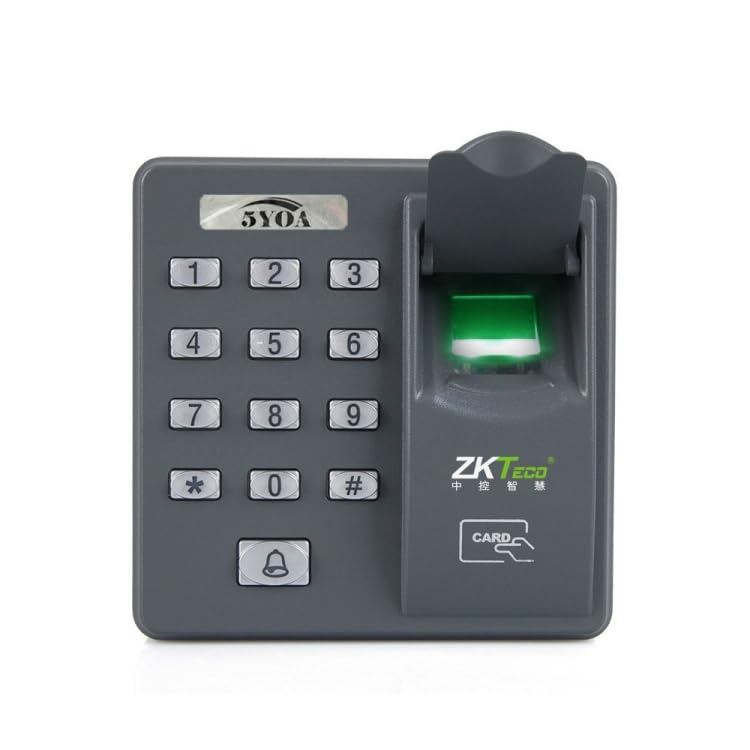
Figure 2.1: Front View (Scanner Open)
This image displays the front of the access control machine, highlighting the numeric keypad (0-9, *, #), a doorbell button, and the fingerprint scanner with its protective cover open, revealing the illuminated green scanning area. The ZKTeco logo and "CARD" indicator are visible below the scanner.
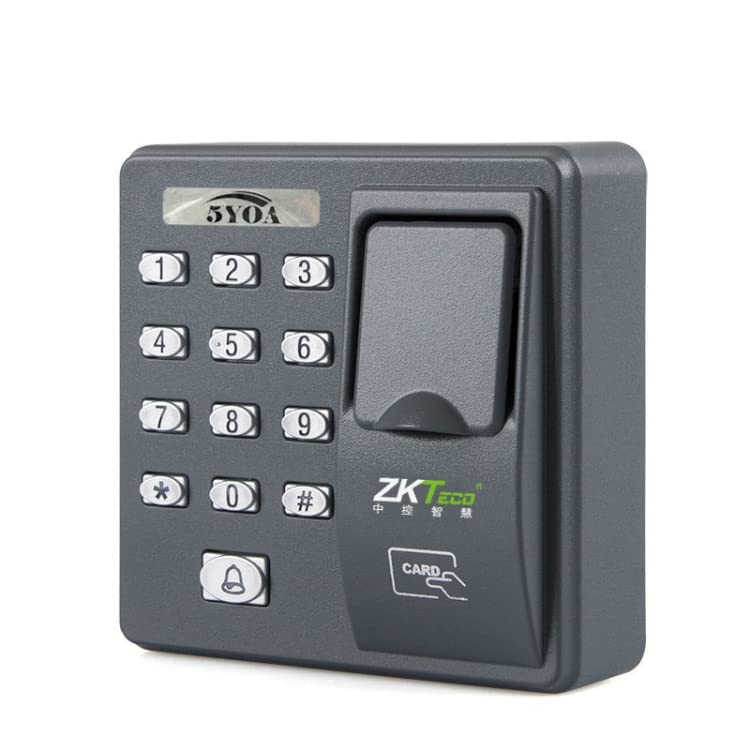
Figure 2.2: Front View (Scanner Closed)
This image shows the access control machine from the front with the fingerprint scanner's protective cover closed. The numeric keypad and doorbell button are clearly visible, indicating the compact and secure design when not in use.
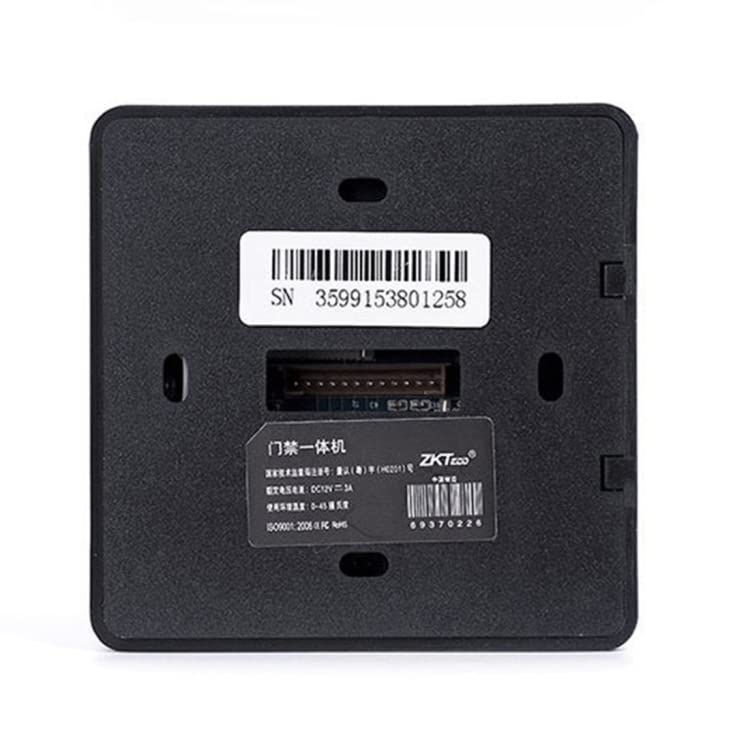
Figure 2.3: Back View
This image presents the rear side of the access control machine. It features a prominent serial number sticker (SN 3599153801258), a central connection port for wiring, and a product information label detailing specifications such as power requirements (DC 12V 3A) and environmental conditions.
3. Setup and Installation
3.1. Site Preparation
Ensure the installation location is dry, stable, and within the specified ambient temperature (0-45°C) and relative humidity (20%-80%) ranges. Avoid direct sunlight or areas with extreme temperature fluctuations.
3.2. Mounting
Mount the device securely to a wall or door frame at an appropriate height for easy access. Use the provided mounting hardware. Refer to Figure 2.3 for the mounting points on the back of the unit.
3.3. Wiring
Connect the device to a stable DC 5V 1A power supply. The central connection port on the back (Figure 2.3) is used for power and communication with the door lock mechanism and external wired doorbell. Ensure all connections are secure and correctly polarized to prevent damage.
- Power Input: DC 5V 1A
- Door Lock Output: Connect to compatible electronic door lock.
- External Doorbell: Connect to a wired doorbell for visitor notification.
4. Operating Instructions
4.1. Initial Setup and Administrator Registration
Upon first power-up, the system will prompt for administrator registration. Follow the on-screen or voice prompts to register the first administrator fingerprint, card, or password. This administrator will have full control over user management and system settings.
4.2. Door Opening Methods
- Fingerprint: Place a registered finger on the illuminated scanner pad (Figure 2.1). The system will verify the fingerprint and unlock the door upon successful match.
- Card: Swipe a registered ID card (or optional IC card) near the card reading area (indicated by "CARD" on the device). The door will unlock if the card is valid.
- Password: Enter a registered password using the numeric keypad (Figure 2.1) followed by the '#' key. The door will unlock upon correct password entry.
4.3. User Management (Adding/Deleting Users)
Access the system menu using the administrator credentials. From the menu, you can:
- Add Users: Register new fingerprints, cards, or passwords for authorized users. The system supports up to 500 fingerprints and 500 cards.
- Delete Users: Remove existing user credentials.
- Modify Settings: Adjust system parameters such as alarm settings, time, and date.
4.4. Alarm Functions
The system is equipped with alarm features for enhanced security:
- Time-out Door Not Closed: An alarm will sound if the door remains open for an extended period after being unlocked.
- Forced Entry: An alarm will activate if the door is forced open without proper authentication.
4.5. External Wired Doorbell
Press the doorbell button (bell icon on the keypad, Figure 2.1) to activate the connected external wired doorbell, signaling a visitor's presence.
5. Maintenance
Regular maintenance ensures the longevity and optimal performance of your access control system.
5.1. Cleaning
Wipe the device's surface and fingerprint scanner with a soft, dry, lint-free cloth. Do not use abrasive cleaners, solvents, or excessive moisture, as these can damage the components.
5.2. Environmental Conditions
Maintain the operating environment within the specified temperature (0-45°C) and humidity (20%-80%) ranges to prevent malfunction due to extreme conditions.
6. Troubleshooting
| Problem | Possible Cause | Solution |
|---|---|---|
| Device not powering on. | No power supply or incorrect wiring. | Check power connection (DC 5V 1A) and ensure wiring is correct as per Section 3.3. |
| Fingerprint not recognized. | Finger not placed correctly, dirty scanner, or unregistered fingerprint. | Ensure finger covers the entire scanner. Clean the scanner surface. Verify fingerprint is registered. Try re-registering if issues persist. |
| Card not recognized. | Card not registered or incorrect card type. | Ensure the card is registered in the system. Confirm it is an ID card (or compatible IC card). |
| Door does not unlock. | Incorrect credentials, faulty lock connection, or system error. | Verify credentials. Check wiring to the door lock. Restart the device if necessary. |
| Alarm sounds unexpectedly. | Door left open too long or forced entry attempt. | Ensure door closes properly. Check for any tampering. Review alarm settings in the system menu. |
7. Specifications
- Brand: ELECTROPRIME
- Model: TBD0510514 (Compatible with ZKTeco X6)
- Effective Card/Fingerprint Capacity: 500 Fingerprints / 500 Cards
- Door Opening Methods: Card / Password / Fingerprint
- Button Mode: Mechanical Button
- Card Reading Type: ID card standard (optional IC card)
- Ambient Temperature: 0-45 Celsius Degrees
- Relative Humidity: 20% ~ 80%
- Working Current: DC 5V 1A
- Other Functions: External wired doorbell support
- Dimensions (L x W x H): 86mm x 25mm x 86mm
- Package Weight: 0.23 kgs / 0.50 lb
- Package Size: 11cm x 11cm x 5cm / 4.33inch x 4.33inch x 1.97inch
8. Warranty and Support
For warranty information, please refer to the documentation provided at the time of purchase. ELECTROPRIME products are designed for reliability and performance. If you encounter any issues not covered in the troubleshooting section, please contact your retailer or the manufacturer's customer support for assistance. Keep your purchase receipt as proof of warranty.
Manufacturer: ELECTROGADGETSSTORE