
Formuler Z11 Pro
Formuler Z11 Pro Android 11 4K Streaming Media Player User Manual
Comprehensive instructions for setup, operation, and maintenance of your Formuler Z11 Pro device.
1. Introduction
This manual provides detailed instructions for the Formuler Z11 Pro Android 11 4K Streaming Media Player. Please read this manual thoroughly before using your device to ensure proper operation and to maximize your user experience. Keep this manual for future reference.
The Formuler Z11 Pro is a high-performance streaming media player designed to deliver 4K resolution content. It operates on Android 11 and comes equipped with 2GB RAM and 16GB ROM. The package includes a Universal Bluetooth Voice Remote Control (BT1 Edition), a protective case cover for the remote, an extra air remote keyboard with backlighting, and an extra magnetic mount.

Image 1.1: Formuler Z11 Pro and included accessories.
2. Package Contents
Verify that all items are present in your package:
- Formuler Z11 Pro BT1 Edition Streaming Device
- HDMI Cable
- Power Cable
- Bluetooth Voice Remote Control (BT1 Edition)
- Case Cover for Bluetooth Remote Control
- Extra Air Remote Keyboard (Backlit)
- Extra Magnetic Mount
- 2 AA batteries (for BT1 Remote Control)

Image 2.1: Formuler Z11 Pro device and BT1 remote control.
3. Setup Guide
3.1 Connecting the Device
- Connect to TV: Use the provided HDMI cable to connect the HDMI port on the Formuler Z11 Pro to an available HDMI input on your television.
- Connect Power: Plug the power adapter into the DC IN port on the Formuler Z11 Pro, then plug the adapter into a wall outlet. The device will power on automatically.
- Network Connection (Optional):
- Ethernet: For a wired connection, connect an Ethernet cable from your router to the Gigabit LAN port on the Formuler Z11 Pro.
- Wi-Fi: For a wireless connection, you will configure Wi-Fi during the initial setup process.
3.2 Remote Control Setup
The Formuler Z11 Pro comes with two remote controls: the Bluetooth Voice Remote Control (BT1 Edition) and an extra Air Remote Keyboard.
3.2.1 Bluetooth Voice Remote Control (BT1 Edition)
- Insert Batteries: Open the battery compartment on the back of the BT1 remote and insert the two AA batteries provided, ensuring correct polarity.
- Pairing: The BT1 remote should automatically pair with the Z11 Pro upon first boot. If not, navigate to Settings > Remotes & Accessories > Add accessory on the Z11 Pro and follow the on-screen instructions to pair the remote.
- Remote Case Cover: Slide the protective case cover onto the BT1 remote for added protection.

Image 3.1: BT1 Remote Control with protective case cover.
3.2.2 Extra Air Remote Keyboard
- Insert USB Dongle: Locate the small USB dongle included with the air remote keyboard. Insert this dongle into an available USB port on the Formuler Z11 Pro.
- Automatic Connection: The air remote keyboard should connect automatically once the dongle is inserted.

Image 3.2: Extra Air Remote Keyboard with USB dongle.
3.3 Initial Software Setup
Upon first boot, the Formuler Z11 Pro will guide you through an initial setup wizard. Follow the on-screen prompts to:
- Select your language.
- Connect to a Wi-Fi network (if not using Ethernet).
- Sign in with your Google Account (recommended for app access).
- Accept terms and conditions.
- Install essential updates.
4. Operating Instructions
4.1 Using the BT1 Voice Remote Control
The BT1 remote is your primary interface for the Formuler Z11 Pro. It features universal TV control, voice search, and programmable buttons.
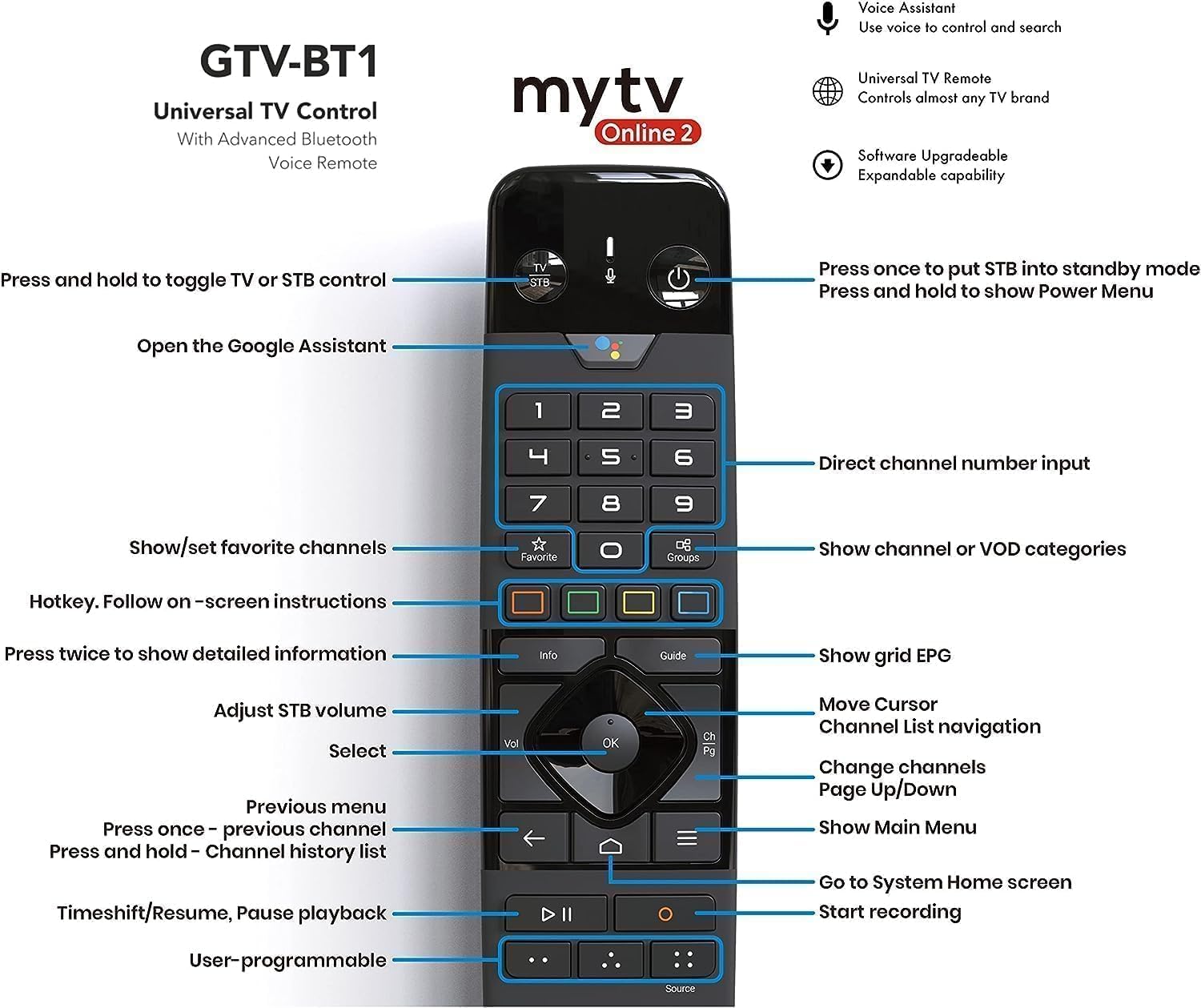
Image 4.1: BT1 Remote Control Button Layout and Functions.
- Power Button: Press once to put the device into standby mode. Press and hold to show the Power Menu.
- TV/STB Toggle: Press and hold to switch control between TV and Set-Top Box.
- Google Assistant Button: Open Google Assistant for voice commands and search.
- Navigation Pad (Up/Down/Left/Right/OK): Navigate menus and select items.
- Volume (Vol): Adjust STB volume.
- Channel (CH): Change channels, navigate channel lists.
- Back (Arrow Left): Go back to the previous menu.
- Home (House Icon): Go to the System Home screen.
- Menu (Three Lines): Show Main Menu.
- Info: Press twice for detailed information.
- Guide: Show grid EPG (Electronic Program Guide).
- Favorite: Show/set favorite channels.
- Groups: Show channel or VOD categories.
- Number Pad: Direct channel number input.
- Playback Controls (Play/Pause, Rewind, Fast Forward): Control media playback.
- Record (Red Dot): Start recording.
- Source: Change input source.
- User-programmable Buttons: Customize these buttons for quick access to functions or apps.
4.2 Using the Extra Air Remote Keyboard
The backlit air remote keyboard is ideal for text input, such as searching for content or entering login details. It also functions as a mouse with its air mouse feature.
- Keyboard Side: Use for typing text. The backlight activates automatically in low light conditions.
- Remote Side: Provides basic navigation and media control buttons.
- Air Mouse: Move the remote in the air to control a cursor on the screen. Press the dedicated mouse button to activate/deactivate the air mouse function.
4.3 Navigating Android 11 Interface
The Formuler Z11 Pro runs on Android 11, offering a user-friendly interface. You can:
- Install Apps: Download and install applications from the Google Play Store.
- Customize Home Screen: Arrange apps and widgets for quick access.
- Access Settings: Adjust display, sound, network, and device preferences.
5. Maintenance
5.1 Cleaning the Device
- Ensure the device is powered off and unplugged before cleaning.
- Use a soft, dry, lint-free cloth to wipe the exterior of the device and remotes.
- Do not use liquid cleaners, aerosols, or abrasive materials.
5.2 Software Updates
Regular software updates are released to improve performance, add features, and enhance security. It is recommended to keep your device's software up to date.
- Navigate to Settings > About > System Update on your Formuler Z11 Pro.
- Check for available updates and follow the on-screen instructions to install them.
- Ensure a stable internet connection during updates. Do not power off the device during an update.
5.3 Storage Management
The device has 16GB of internal storage. To maintain optimal performance:
- Regularly uninstall unused applications.
- Clear cache data for apps in Settings > Apps.
- Consider using external storage (Micro SD card or USB drive) for large media files.
6. Troubleshooting
If you encounter issues with your Formuler Z11 Pro, refer to the following common problems and solutions:
6.1 No Power / Device Not Turning On
- Ensure the power cable is securely connected to the device and the wall outlet.
- Verify the wall outlet is functional by plugging in another device.
- Try a different power outlet.
6.2 No Signal / Blank Screen
- Check that the HDMI cable is securely connected to both the Formuler Z11 Pro and your TV.
- Ensure your TV is set to the correct HDMI input source.
- Try a different HDMI cable or HDMI port on your TV.
- Restart the Formuler Z11 Pro by unplugging and re-plugging the power cable.
6.3 Remote Control Not Responding
- BT1 Remote:
- Replace the AA batteries.
- Re-pair the remote: Go to Settings > Remotes & Accessories and follow the pairing instructions.
- Air Remote Keyboard:
- Ensure the USB dongle is securely inserted into a USB port on the Z11 Pro.
- Try inserting the dongle into a different USB port.
- Check the batteries in the air remote keyboard.
6.4 Network Connection Issues
- Wi-Fi:
- Ensure your Wi-Fi router is on and functioning.
- Go to Settings > Network & Internet > Wi-Fi and ensure Wi-Fi is enabled and you are connected to the correct network.
- Try forgetting the network and reconnecting.
- Restart your router and the Formuler Z11 Pro.
- Ethernet:
- Ensure the Ethernet cable is securely connected to both the device and the router.
- Check the cable for damage.
- Try a different Ethernet cable or port on your router.
6.5 Device Performance Issues
- Close unused applications running in the background.
- Clear app caches (Settings > Apps > [App Name] > Clear cache).
- Ensure the device software is up to date.
- If issues persist, consider a factory reset (Settings > System > Reset options > Erase all data (factory reset)). Warning: This will delete all data and settings on the device.
7. Specifications
Key technical specifications for the Formuler Z11 Pro:
| Feature | Specification |
|---|---|
| Output Resolution | 4K (3840 x 2160) |
| RAM | 2GB DDR @2400MHz |
| Storage | 16GB eMMC |
| Operating System | Android 11 |
| Wireless Networking | Dual-Band 2x2 AC Wireless |
| Bluetooth | 5.0 |
| Ethernet | 1000M (Gigabit) |
| Ports | 1x USB 3.0, 1x USB 2.0, 1x HDMI, 1x Gigabit LAN, 1x Micro SD Card, 1x IR Extension, 1x Power Input |
| Dimensions (L/W/T) | 105mm / 105mm / 21mm |
| Color | Black |
| Item Weight | 1.72 pounds |
8. Warranty Information
Formuler products typically come with a limited manufacturer's warranty. The specific terms and duration of the warranty may vary by region and retailer. Please refer to the warranty card included with your product or visit the official Formuler website for detailed warranty information and registration procedures.
Keep your proof of purchase (receipt or invoice) as it will be required for any warranty claims.
9. Customer Support
For further assistance, technical support, or inquiries not covered in this manual, please contact Formuler customer support through their official website. You may find FAQs, troubleshooting guides, and contact information for support channels there.
Before contacting support, please have your device model (Z11 Pro) and serial number ready.
Related documentsZ11 Pro


Ask a question about this manual
Ask about setup, troubleshooting, compatibility, parts, safety, or missing instructions. Manuals+ will review the question and use this page’s manual context to help answer it.