
1. Introduction
Thank you for purchasing the Jectse Voice Recorder Pen Q96. This device is a versatile tool designed for high-quality audio recording, offering features such as intelligent noise reduction, voice activation, and large storage capacity. It also functions as an MP3 player and a portable U-disk. This manual provides detailed instructions on how to set up, operate, and maintain your device to ensure optimal performance.

Image: The Jectse Voice Recorder Pen Q96, a sleek black pen with silver accents, designed for discreet recording and writing.
2. Product Features
- Noise Reduction: Equipped with digital intelligent noise reduction technology and two omnidirectional stereo microphones for clear, high-quality audio recordings.
- Voice Activated Recording: Features an automatic voice detection function that initiates recording when sound is detected and pauses during silence, optimizing storage space and time.
- Large Capacity Storage: Capable of storing up to 800 hours of recording files or 30,000 songs (for 8GB model). Files can be easily transferred to a computer via the included USB cable.
- Easy to Use: Simple one-click operation for recording, saving, and playback, ensuring you capture important moments effortlessly.
- Versatile Functionality: Functions not only as a voice recorder but also supports writing and can be used as a portable U-disk for data storage. The integrated clip allows for easy attachment to clothing or notebooks.

Image: An infographic highlighting the key features of the Jectse Voice Recorder Pen Q96, including high-end portable design, metal appearance, HD noise reduction, recording while writing, voice activated recording, recording playback, interchangeable refill, MP3 play, local delete, and U disk function.
3. Package Contents
Please check the package for the following items:
- Jectse Voice Recorder Pen Q96
- Earphones
- USB Charging/Data Cable
- Ink Refills (typically 3-4)

Image: The complete package contents of the Jectse Voice Recorder Pen Q96, showing the pen, white earphones, a black USB cable, and four ink refills.
4. Product Overview and Components
Familiarize yourself with the main components of your voice recorder pen:
- Pen Tip: Standard ballpoint pen for writing.
- Microphone: Integrated for audio recording.
- Power/Recording Switch: A sliding switch on the pen body to turn the device on/off and start/stop recording.
- USB Port: Located at the top of the pen, used for charging and data transfer.
- Headphone Jack: For connecting the included earphones for audio playback.
- Indicator Light: Provides status feedback (e.g., charging, recording, low battery).
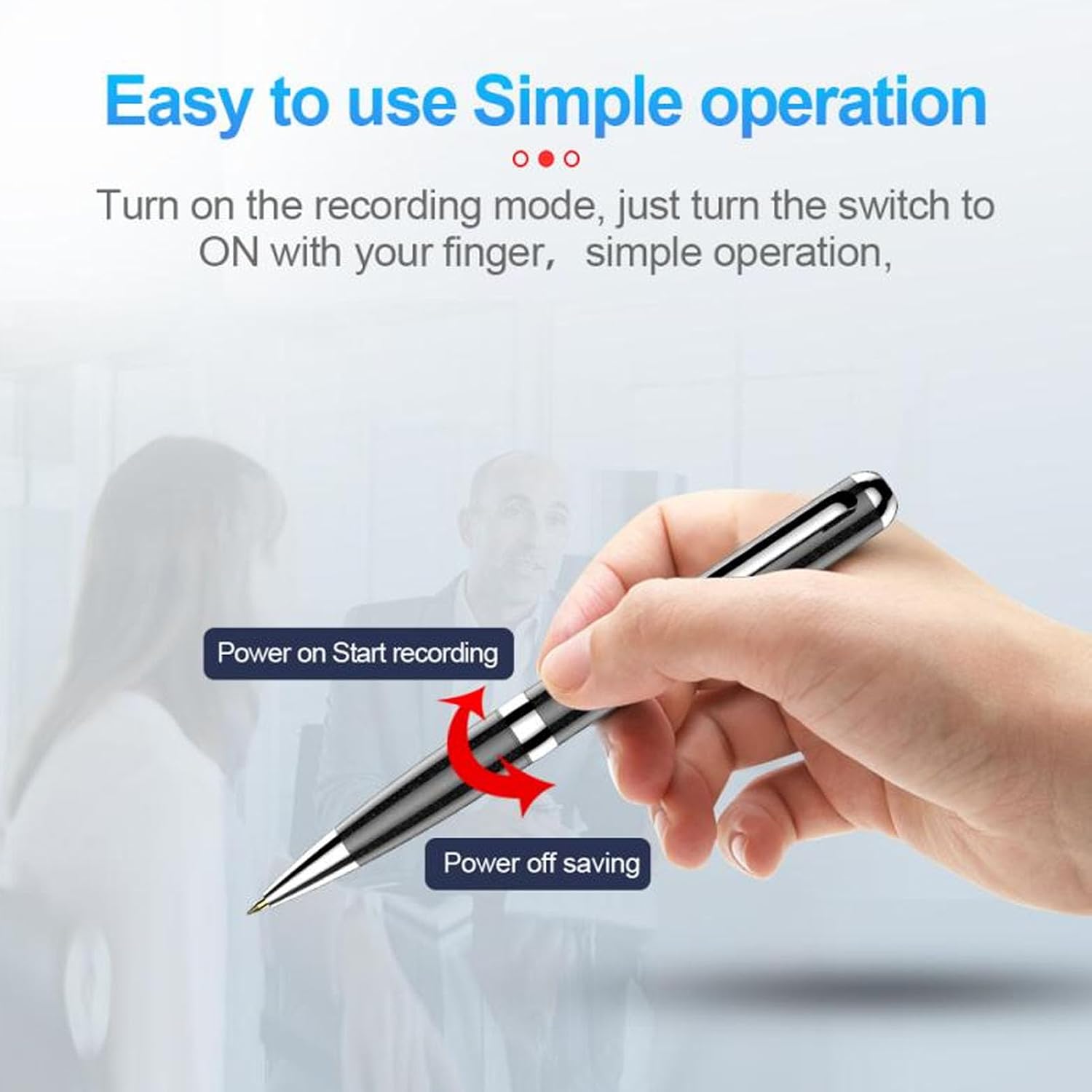
Image: A hand demonstrating the simple operation of the Jectse Voice Recorder Pen Q96, showing the sliding switch for "Power on Start recording" and "Power off saving".
5. Setup
5.1. Charging the Device
- Connect the small end of the USB cable to the USB port on the top of the pen.
- Connect the larger end of the USB cable to a computer's USB port or a USB wall adapter (not included).
- The indicator light will show the charging status. Once fully charged, the light will change or turn off.
5.2. Initial Power On
Slide the power/recording switch to the "ON" position. The indicator light will briefly illuminate, indicating the device is ready for use.
6. Operating Instructions
6.1. Recording Audio
- Ensure the pen is charged and powered on.
- Slide the power/recording switch to the "ON" position. The device will automatically begin recording (or enter voice-activated mode if enabled).
- To stop recording, slide the switch to the "OFF" position. The current recording will be automatically saved.
6.2. Voice Activated Recording
The device features an intelligent voice activation system. When enabled, recording will automatically start when sound above 30 decibels is detected and pause when silent (below 30 decibels), saving storage space.

Image: An illustration depicting the intelligent voice activated recording feature of the Jectse Voice Recorder Pen Q96, showing sound waves and people in a meeting setting.
6.3. Playing Back Recordings
- Connect the included earphones to the headphone jack on the pen.
- Power on the device. It will typically enter playback mode.
- Use the pen's controls (if any, or connect to a computer/phone for easier navigation) to select and play recordings.
6.4. Transferring Files to Computer
- Connect the pen to your computer using the supplied USB cable.
- The pen will be recognized as a removable disk (U-disk).
- Navigate to the pen's drive to access your recorded files. Files are typically saved with a timestamp for easy organization.
- Copy and paste files to your computer as needed.
6.5. Connecting to a Smartphone (OTG)
The device supports OTG (On-The-Go) functionality, allowing direct connection to compatible smartphones for file management and playback.
- Obtain an OTG adapter (not included) compatible with your smartphone.
- Connect the pen to the OTG adapter, then connect the adapter to your smartphone.
- Your phone should recognize the pen as external storage, allowing you to play and manage files directly.

Image: The Jectse Voice Recorder Pen Q96 connected to a smartphone via an OTG adapter, demonstrating how to play and manage files directly on the phone.
6.6. Using as a U-Disk
When connected to a computer, the pen functions as a standard USB flash drive. You can store any type of file on it, not just audio recordings.
6.7. Writing Function
The pen functions as a regular ballpoint pen. Simply twist the barrel to extend or retract the pen tip for writing.

Image: Multiple scenarios showing the Jectse Voice Recorder Pen Q96 being used for writing, such as by students in a classroom, during business conversations, and in academic settings, highlighting its dual functionality.
7. Maintenance
7.1. Cleaning
Wipe the pen with a soft, dry cloth. Do not use liquid cleaners or solvents, as they may damage the device.
7.2. Ink Refill Replacement
When the ink runs out, replace the refill with one of the included spares. Twist the pen barrel to separate the two halves, remove the old refill, and insert a new one. Reassemble the pen by twisting the halves back together.
8. Troubleshooting
- Device not turning on: Ensure the battery is charged. Connect to a power source and try again.
- Not recording: Check if the power/recording switch is in the correct position. Ensure there is sufficient storage space.
- Poor audio quality: Ensure the microphone is not obstructed. Record in a quieter environment.
- Cannot connect to computer/phone: Try a different USB port or cable. Ensure the device is powered on. For phones, verify OTG compatibility and adapter functionality.
- Files not saving: Ensure the device is powered off correctly after recording to trigger automatic saving.
9. Specifications
| Feature | Description |
|---|---|
| Item Type | Digital Voice Recorder |
| Model | Q96 |
| Material | Aluminum Alloy, Electronics |
| Storage Capacity | 8GB (stores approx. 800 hours of recording or 30,000 songs) |
| Microphone | Built-in, Omnidirectional Stereo |
| Interface | USB |
| Dimensions | Approx. 17 x 11 x 3 cm (packaged) |
| Weight | Approx. 65 g (packaged) |