
1. Introduction
Thank you for choosing the KINGDANS A28 64GB 1080P Hidden Camera Pen. This device is designed for discreet video recording, offering 1080P resolution and a built-in 64GB storage capacity. It is suitable for various indoor monitoring and documentation purposes. Please read this manual thoroughly before operating the device to ensure proper use and optimal performance.
1.1 Package Contents
Verify that all items listed below are included in your package:
- KINGDANS A28 Camera Pen
- USB-C Charging Cable
- OTG Adapter for Android Devices
- 64GB Built-in Memory Card (pre-installed)
- 5 x Ink Refills
- User Manual (this document)
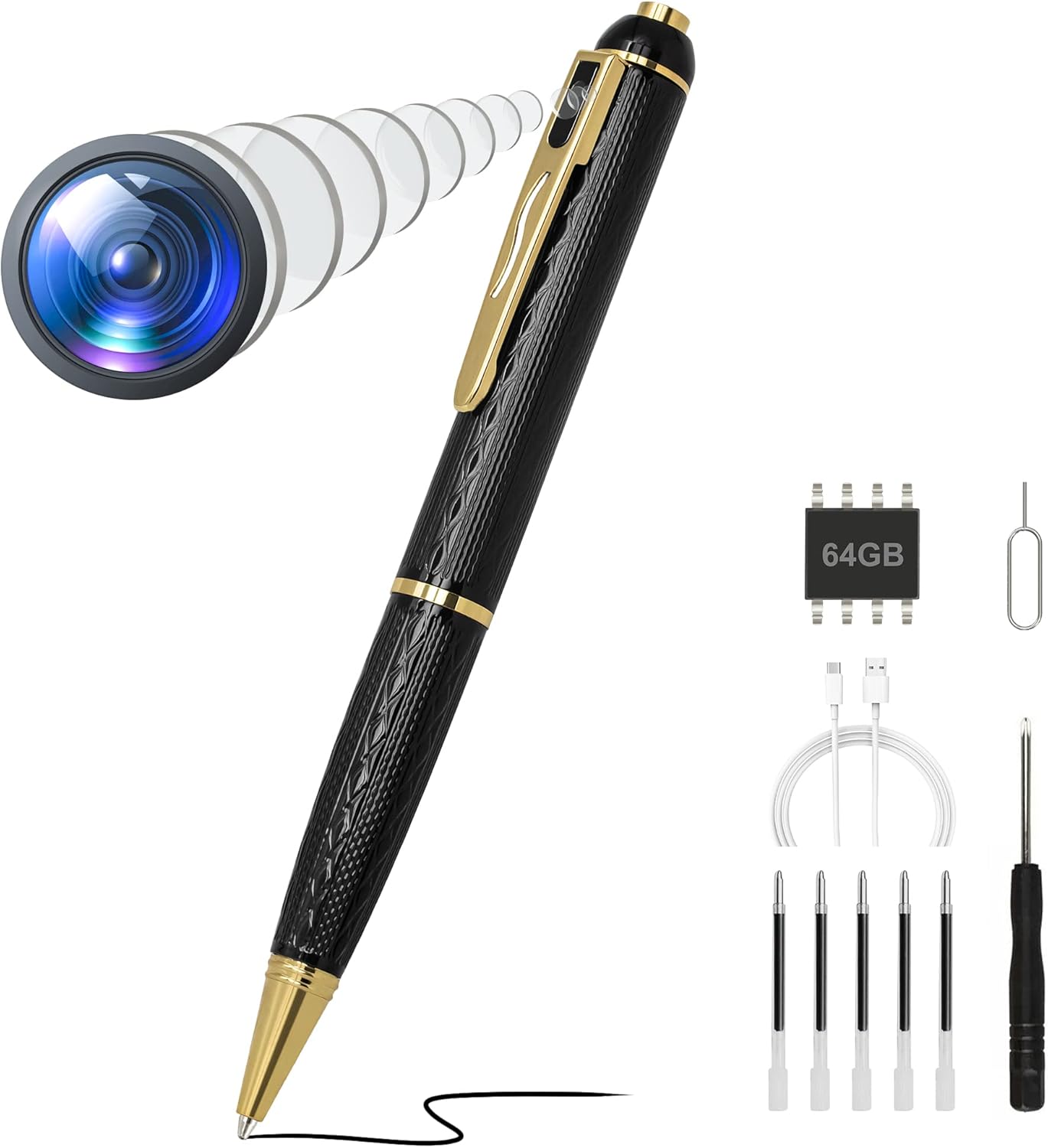
Image 1.1: The KINGDANS A28 Camera Pen along with its included accessories, such as the USB-C cable, OTG adapter, ink refills, and a reset pin.
2. Product Features
- 1080P HD Video Recording: Captures clear video footage at 1920x1080 resolution.
- Built-in 64GB Storage: Ample memory for extended recording sessions, with automatic loop recording.
- Long Battery Life: Up to 2-3 hours of continuous recording on a single charge.
- USB-C Fast Charging: Convenient and efficient charging via a modern USB-C port.
- OTG Playback: Easy access to recorded files on Windows, Mac, and Android devices using the included OTG adapter.
- No Audio Recording: Designed without a microphone to comply with privacy regulations.
- Easy One-Button Operation: Simple controls for power and recording functions.

Image 2.1: An exploded view of the camera pen highlighting its key components such as the HD camera lens, operation button, indicator light, USB-C port, and built-in 64GB memory.
3. Setup
3.1 Initial Charge
Before first use, fully charge the camera pen. Connect the included USB-C charging cable to the pen's USB-C port and plug the other end into a USB power adapter (not included) or a computer's USB port. The indicator light will show charging status.
- Red Light: Charging
- Green Light: Fully Charged
- Flashing Red Light: Battery Low
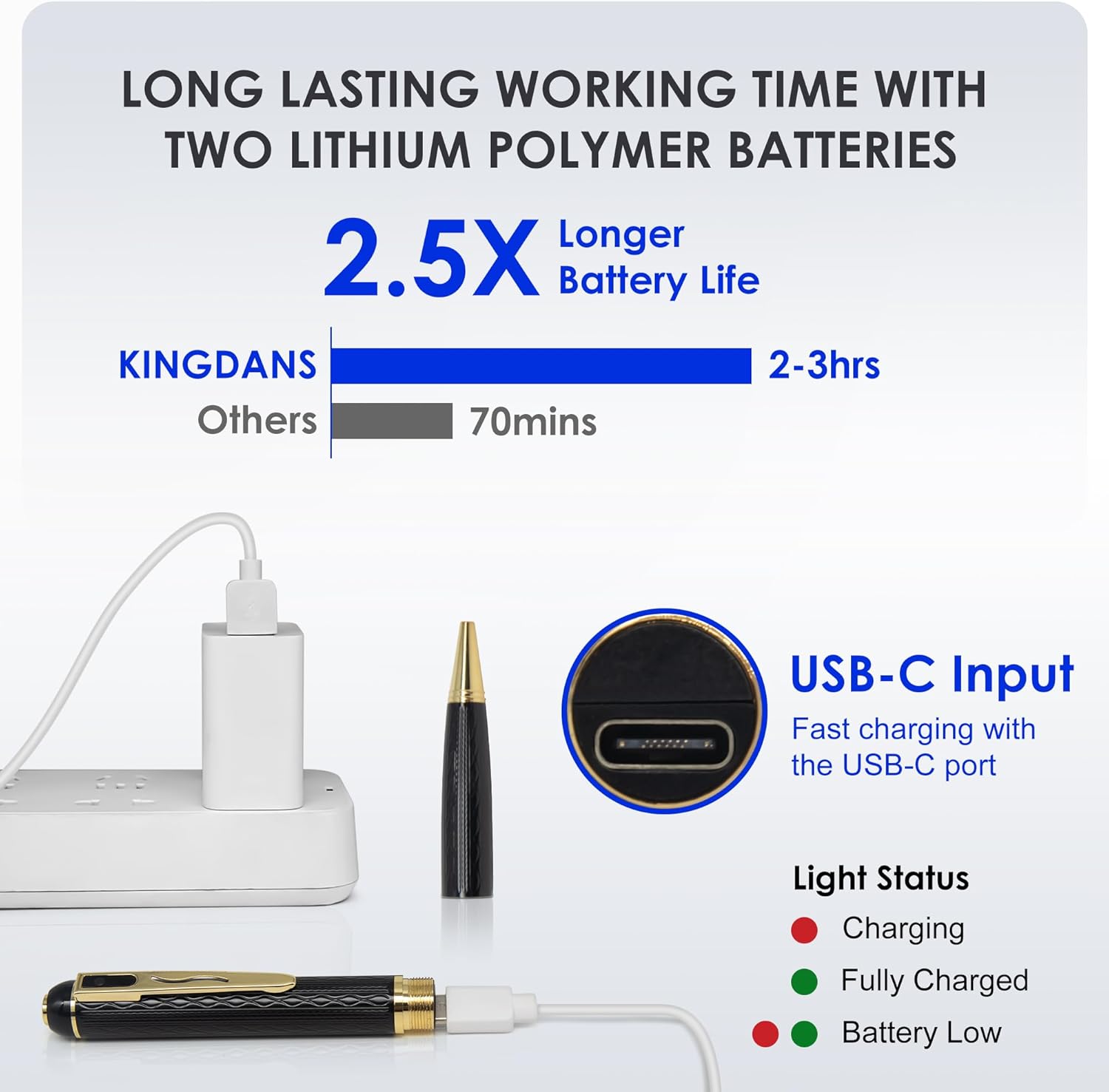
Image 3.1: The camera pen connected to a USB-C charger, illustrating the charging process and indicator light status.

Image 3.2: Illustration of the internal battery configuration, indicating a working time of 3-4 hours from two 300mAh cells.
3.3 Inserting Ink Refill
The pen functions as a regular writing instrument. To replace the ink refill, twist the pen tip counter-clockwise to remove it, replace the old refill with a new one, and twist the tip back on clockwise.
4. Operating Instructions
The KINGDANS A28 camera pen features a simple one-button operation located at the top of the pen.
4.1 Power On / Start Recording
- Press and hold the operation button for 2-3 seconds.
- The green indicator light will flash 3 times, then turn off. This indicates that the camera is now recording.
- All indicator lights will be off during recording to ensure discretion.
4.2 Pause Recording
- While recording, press the operation button once.
- The red indicator light will remain on. This indicates that recording is paused.
- If recording is not resumed within 5 minutes, the camera will automatically power off to save battery.
4.3 Resume Recording
- While paused (red light on), press the operation button once.
- The green indicator light will flash 3 times, then turn off. Recording will resume.
4.4 Power Off
- Press and hold the operation button for 2-3 seconds.
- The red indicator light will flash 3 times, then the camera will turn off.
- The last recorded video will be automatically saved before powering off.
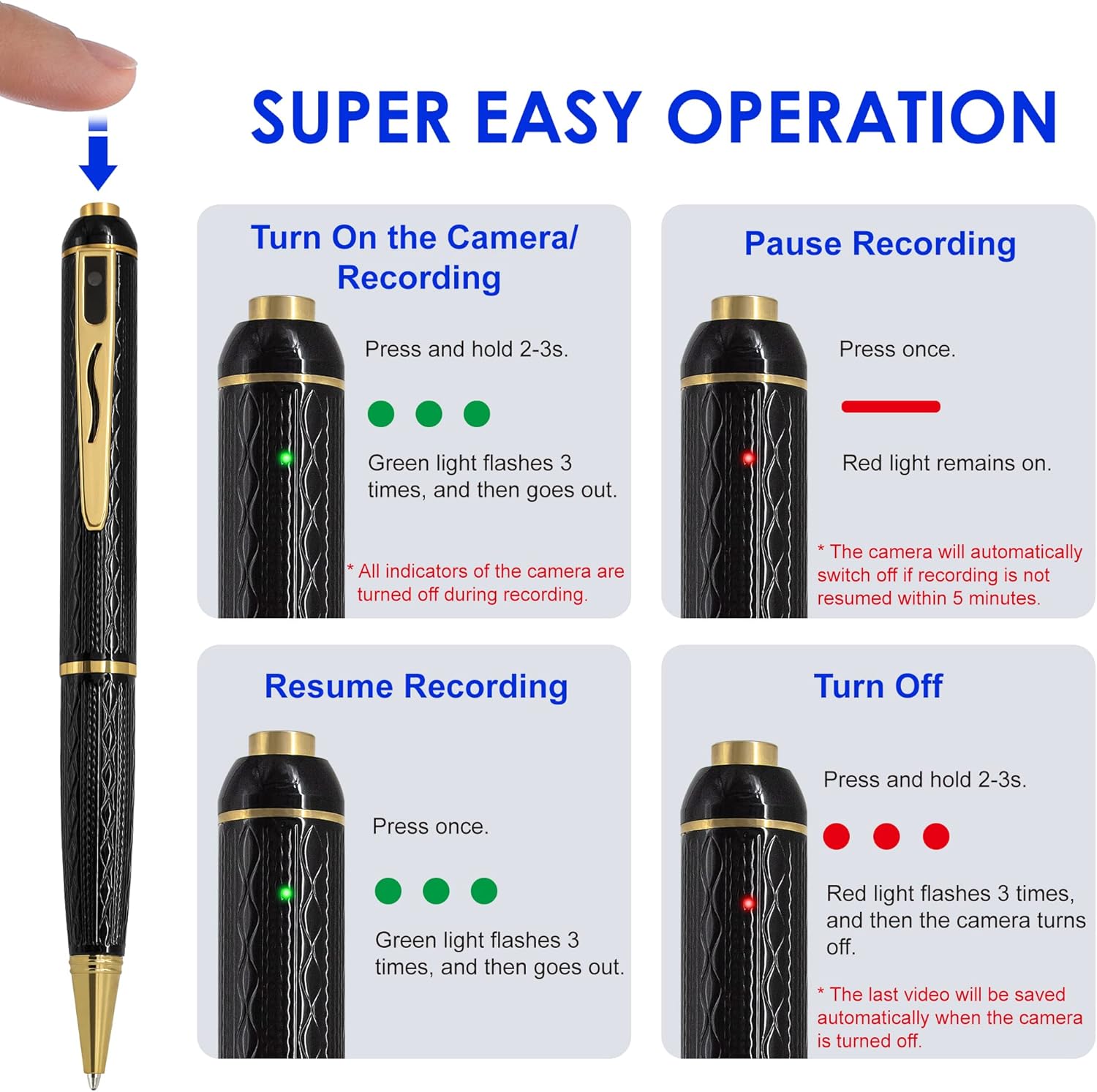
Image 4.1: Visual guide to the one-button operation for turning on, pausing, resuming, and turning off the camera pen, with corresponding indicator light behaviors.
5. Data Transfer and Playback
To access recorded video files, connect the camera pen to a computer or compatible Android device.
5.1 Connecting to a Computer (Windows/Mac)
- Ensure the camera pen is powered off.
- Connect the camera pen to your computer using the provided USB-C cable.
- The pen will be recognized as a removable disk. Open the disk to access the video files (AVI format).
- You can copy, move, or delete files as needed.
5.2 Connecting to an Android Device (OTG)
- Ensure the camera pen is powered off.
- Connect the camera pen to the included USB-C OTG adapter.
- Plug the OTG adapter into your Android smartphone or tablet.
- Your device should recognize the pen as external storage, allowing you to view and manage files.
Note: For iPhone users, a separate Lightning OTG adapter (not included) is required for direct connection.
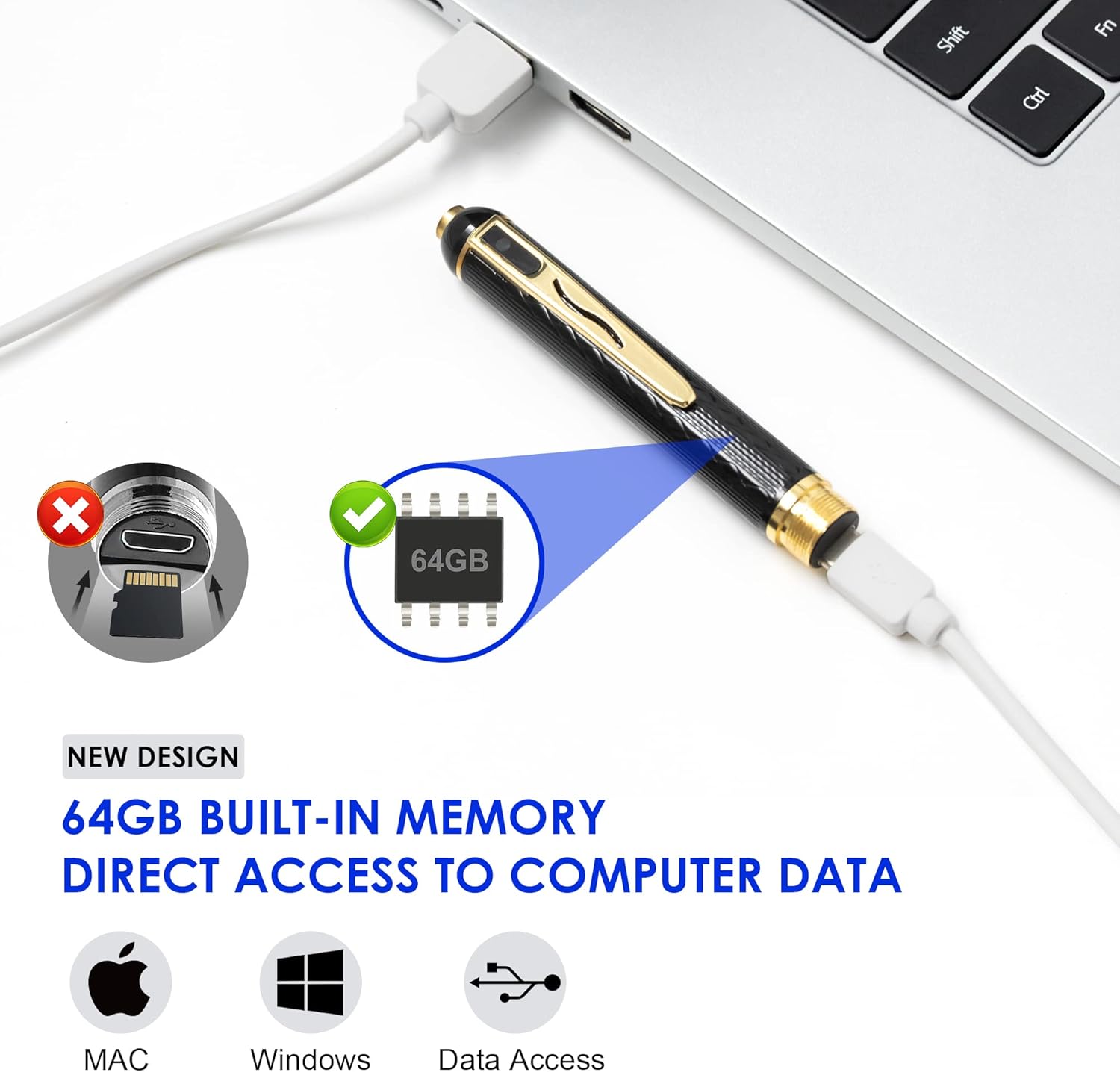
Image 5.1: The camera pen connected to a laptop via USB-C, demonstrating direct access to recorded data without needing a separate memory card reader.

Image 5.2: Illustration highlighting the built-in 64GB memory and the absence of an external SD card slot, emphasizing direct USB-C data access.
6. Maintenance
6.1 Cleaning
Wipe the pen's exterior with a soft, dry cloth. Do not use liquid cleaners or solvents, as they may damage the device or lens.
6.2 Ink Refill Replacement
When the ink runs out, replace it with one of the provided ink refills. Twist the pen tip counter-clockwise to remove, insert a new refill, and twist the tip back on clockwise.
6.3 Storage
Store the camera pen in a cool, dry place away from direct sunlight and extreme temperatures. If storing for an extended period, ensure the battery is partially charged (around 50%) to prolong its lifespan.
7. Troubleshooting
| Problem | Possible Cause | Solution |
|---|---|---|
| Device does not turn on. | Low battery. | Charge the device fully using the USB-C cable. |
| Cannot record video. | Insufficient storage space; Device not powered on correctly. | Ensure the device is powered on (green light flashes then off). The 64GB memory has loop recording, but ensure it's not full if you expect specific older files. |
| Computer does not recognize the device. | Loose connection; Incorrect cable; Device not powered off. | Ensure the pen is powered off before connecting. Use the provided USB-C cable. Try a different USB port or computer. |
| Video quality is poor. | Low light conditions; Dirty lens. | Ensure adequate lighting. Gently clean the camera lens with a soft cloth. |
| Device freezes or becomes unresponsive. | Software glitch. | Use the reset pin (included) to press the reset button (refer to Image 2.1 for location). |
8. Specifications
| Model | A28 64GB |
| Video Resolution | 1080P (1920x1080) |
| Frame Rate | 30 frames per second |
| Video Format | AVI |
| Storage | Built-in 64GB |
| Battery Capacity | 600mAh (approx. 2x 300mAh cells) |
| Recording Time | 2-3 hours (continuous) |
| Charging Port | USB-C |
| Compatibility | Windows, Mac, Android (via OTG) |
| Dimensions | 7.48 x 4.33 x 0.66 inches |
| Weight | 3.84 ounces |
| Color | Black |
| IP Rating | IP65 |
9. Safety Information
- This device is intended for legal and ethical use only. Ensure compliance with all local laws and regulations regarding recording.
- The camera pen does not record audio to comply with privacy policies.
- Do not expose the device to extreme temperatures, direct sunlight, or moisture.
- Keep out of reach of children.
- Do not attempt to disassemble or modify the device, as this will void the warranty and may cause damage.
- Use only the provided USB-C cable for charging and data transfer.
10. Warranty and Support
For warranty information or technical support, please refer to the contact details provided with your purchase or visit the official KINGDANS website. Please have your model number (A28 64GB) and purchase date available when contacting support.