
1. Product Overview
The WEILAILIFE Wireless Security Camera System provides comprehensive surveillance for your property. This system features 5-megapixel cameras with a 130-degree ultra-wide-angle lens, ensuring clear and broad coverage. Equipped with two-way audio, you can communicate with visitors or deter intruders directly through the camera. Enhanced WiFi signal strength via dual antennas ensures stable video transmission. Advanced PIR and dual detection technology accurately identifies human movement, reducing false alarms from environmental factors. The system supports a free mobile application for remote monitoring without any monthly fees. It includes a 3TB hard drive for continuous recording and offers flexible storage options.

Image: Overview of the WEILAILIFE Wireless Security Camera System components.
2. Package Contents
Please verify that all items listed below are included in your package:
- 5-megapixel Wireless Cameras x 4
- Camera Antennas 3DB x 8
- Network Video Recorder (NVR) Power Supply 12V2A x 1
- Instruction Manual x 1
- Warning Labels x 1
- Camera Mounting Screws Pack x 4
- Wireless 5-megapixel 10-channel Network Video Recorder with 3TB Hard Disk Drive (HDD) built-in x 1
- Wireless Camera Power Supply 12V1A x 4
- Camera Extension Antenna 3 meters x 1
- HDMI Connection Cable 1 meter x 1
- Remote Control x 1
Unboxing Video
Video: Unboxing the OHWOAI 5MP 4-camera mini NVR security system. This video demonstrates the contents and initial presentation of a similar WEILAILIFE security camera system.
3. Setup
3.1 NVR and Monitor Connection
Connect the Network Video Recorder (NVR) to your router using an Ethernet cable. Then, connect a monitor to the NVR via the HDMI or VGA port. Plug in the USB mouse to the NVR's rear panel. Finally, connect the NVR to a power source.
3.2 Camera Connection
Connect each camera to its respective power supply. Ensure the antennas are securely tightened to the cameras for optimal wireless signal reception.
3.3 Mobile App Setup
Download the 'Honestview' or 'Eseecloud' app from your smartphone's App Store (iOS) or Play Store (Android). Register a new account using your email address or phone number. Follow the prompts to set a password. To add your device, tap the '+' icon in the app and scan the QR code displayed on your NVR's monitor. Alternatively, you can manually input the device's cloud ID. Once added, you can name your device and begin remote monitoring.

Image: Plug-and-play setup illustration, showing easy connection of NVR and camera, and monitoring via the Honestview app on multiple devices.

Image: Remote access via smartphone, desktop, and tablet, showing live feeds from multiple cameras.
Setup and App Connection Video
Video: Demonstrates how to add a device using the EseeCloud app, including account registration and scanning the QR code.
Video: A guide on the connection methods and operation for a 5MP security camera system.
4. Operating Instructions
4.1 Two-Way Talk
Utilize the dedicated app on your smartphone, tablet, or computer to engage in two-way communication with individuals near the camera. This feature allows you to speak and listen, providing real-time interaction.

Image: Two-way talk in action, demonstrating communication between a smartphone user and a person at the camera's location.
4.2 Motion Detection and Alerts
The system employs advanced recognition algorithms and infrared detection (PIR) to send real-time notifications to your device when unusual activity is detected. This dual detection minimizes false alarms from non-human movements like leaves or animals, significantly improving performance over traditional motion sensors.
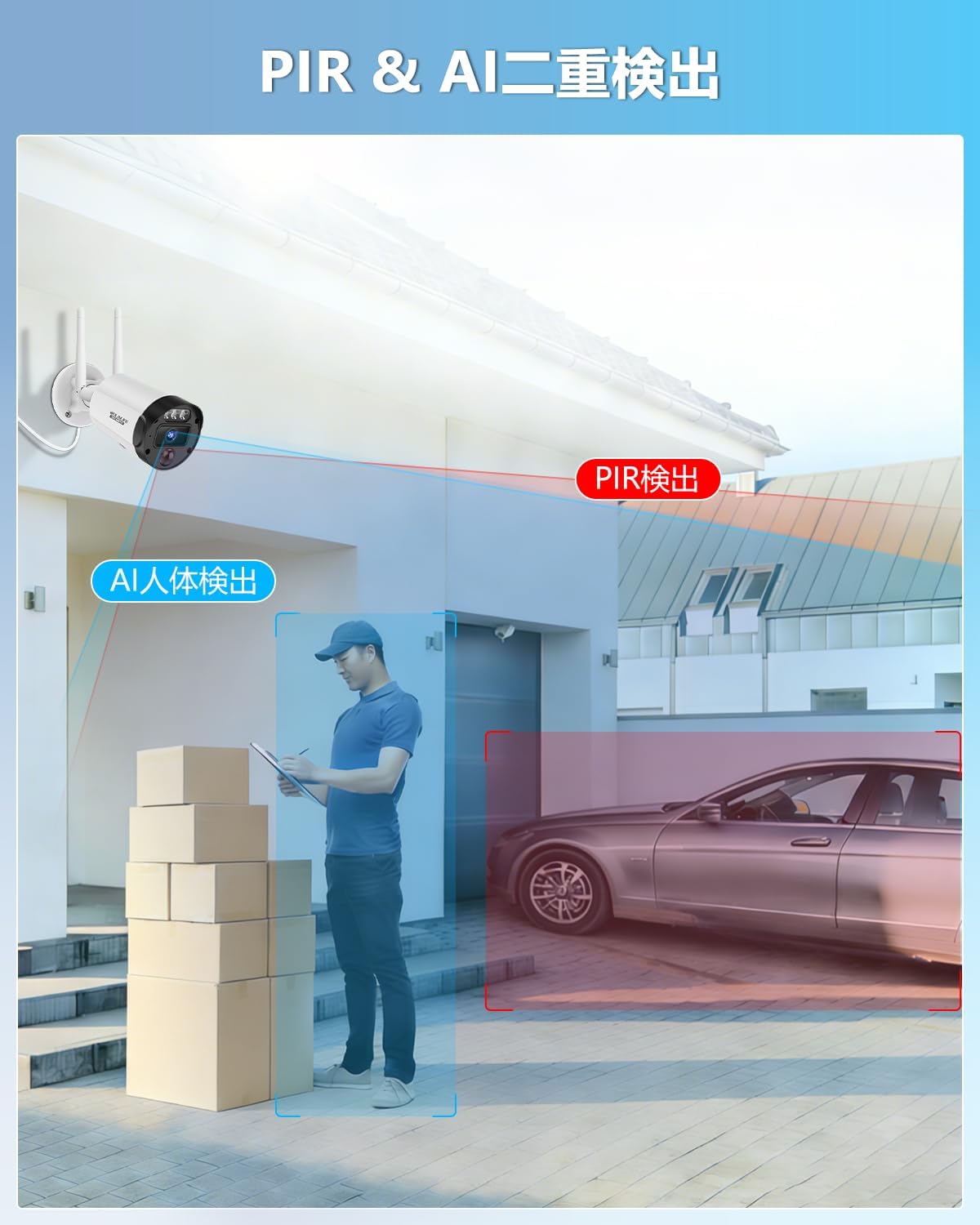
Image: PIR and AI dual detection system, showing how it distinguishes between humans and other objects to reduce false alarms.
4.3 Remote Control
The system can be controlled remotely using the included remote control or through the mobile application. This allows for convenient management of your surveillance system from anywhere.

Image: Remote control functionality, showing a user managing multiple camera views on a television.
4.4 Night Vision Modes
The cameras feature super night vision with 845nm 3 infrared dot matrix lamps, allowing visibility up to 24 meters in darkness. The IR-LED system automatically activates infrared mode in low-light conditions, ensuring continuous 24/7 security.
4.5 Recording Modes
The system supports various recording modes including scheduled recording and manual recording. The built-in 3TB hard drive allows for extensive storage of footage.

Image: Illustration of continuous recording, scheduled recording, and motion detection recording modes.
Operating Functions Video
Video: Demonstrates various functions of a 4-camera security camera set, including live view and playback.
5. Features
- 3K 5-Megapixel Ultra HD: Provides 2592 x 1944 high-resolution images for clear 24/7 surveillance.
- 130° Ultra-Wide-Angle Lens: Captures a broad field of view, minimizing blind spots and enhancing monitoring capabilities.
- Dual Antenna for Enhanced WiFi: Improves wireless signal strength by approximately 50%, ensuring smoother and clearer video transmission.
- PIR & Dual Detection: Utilizes advanced recognition algorithms and infrared detection to send real-time notifications for abnormal activity, effectively filtering out non-human movements.
- Free APP & No Monthly Fees: Access live feeds and recordings via the 'Honestview' or 'Eseecloud' app without any subscription costs.
- IP66 Waterproof: Designed for outdoor use, providing reliable surveillance in various weather conditions, from hot to cold.
- Flexible Storage: Features a built-in 3TB hard drive and H.265+ compression technology, reducing required storage capacity by 50% while maintaining clear images.
- AI WDR Function: Adjusts the balance between bright and dark parts of surveillance footage to improve image clarity.
- Expandable up to 10 Channels: The system supports expansion to up to 10 cameras, suitable for various indoor and outdoor settings like offices, shops, and villas.

Image: Visual comparison demonstrating the expanded coverage of a 130-degree ultra-wide-angle lens.

Image: IP66 waterproof camera operating effectively in rainy outdoor conditions, highlighting its durability across temperatures.
6. Maintenance
To ensure optimal performance and longevity of your WEILAILIFE Wireless Security Camera System, regular maintenance is recommended:
- Clean Lenses: Periodically clean camera lenses with a soft, lint-free cloth to prevent dust and smudges from affecting image clarity.
- Check Connections: Ensure all power and network cables are securely connected to the NVR and cameras.
- Firmware Updates: Check for and install any available firmware updates for the NVR and cameras to benefit from improved features and security patches.
- Review Recordings: Regularly review recorded footage to ensure the system is capturing events as expected and to identify any potential issues.
- Power Cycle: If you experience any issues, try power cycling the NVR and cameras by disconnecting them from power for a few minutes and then reconnecting.
7. Troubleshooting
If you encounter problems with your WEILAILIFE Wireless Security Camera System, please refer to the following common troubleshooting steps:
- No Video Feed:
- Ensure all cameras and the NVR are powered on and connected.
- Check network cables and Wi-Fi connection for stability.
- Verify that the cameras are properly paired with the NVR.
- Poor Image Quality:
- Clean camera lenses.
- Ensure cameras are within optimal range of the NVR for strong signal.
- Adjust camera position to avoid glare or obstructions.
- App Connectivity Issues:
- Ensure your smartphone has a stable internet connection.
- Verify the NVR is connected to the internet.
- Restart the app or reinstall it if problems persist.
- Check if the device's cloud ID is correctly entered in the app.
- False Motion Alerts:
- Adjust motion detection sensitivity settings in the NVR or app.
- Define specific detection zones to exclude areas with frequent non-human movement.
- HDD Issues (e.g., not recording):
- Check the HDD status in the NVR settings.
- Ensure the HDD is properly installed and recognized.
- If the HDD is old or showing errors, consider replacing it.
If these steps do not resolve the issue, please contact customer support for further assistance.
8. Specifications
| Feature | Specification |
|---|---|
| Brand | WEILAILIFE |
| Model Number | 日CSWL-07SW5MP03-4ch+3.5"3TB-BW |
| Connectivity Technology | Wired IEEE802.11a/n/f, Wireless Wi-Fi 2.4G/5.8G |
| Video Capture Resolution | 1920p, 2.7K 1920P (5 Megapixel) |
| Special Features | 130° Ultra-Wide Angle, PIR & Dual Detection, Dual Antenna for Enhanced WiFi, Two-Way Audio, Free APP & No Monthly Fees |
| Number of Channels | 10 |
| Max Memory Capacity | 3 TB (Built-in HDD) |
| Power Type | Corded Electric |
| Operating System | Linux |
| Compatible Devices | Camera, Smartphone, Tablet, TV, Desktop PC |
| Signal Format | Digital |
| Night Vision | 845nm 3 Infrared Dot Matrix Lamp Super Night Vision |
| Night Vision Range | 20 meters |
| Antenna Type | Fixed |
| Frame Rate | 15 fps |
| Recording Mode | Scheduled, Manual |
| Optical Sensor Technology | CMOS |
| USB Ports | 2 |
| Hardware Interface | HDMI, USB, VGA |
| Lens Type | Wide Angle |
| Video Input | Network Camera, Wireless Digital Video Camera |
| Field of View | 130 degrees |
| Recommended Uses | Outdoor, Indoor |
| Product Weight | 3.9 kilograms |
| Product Dimensions | 18 x 30 x 26 cm |
9. Warranty and Support
WEILAILIFE is committed to providing high-quality products and excellent customer service. Our products undergo strict quality control during manufacturing and inspection.
- Warranty: This product comes with a 12-month quality guarantee.
- Customer Service Center: We have a service center located in Chiba, Chiba City, Inage Ward, Tendai 5-8-9 Rose Avenue Inage Tendai 1F, Japan.
- Contact Support: If you have any questions during consideration or use, or if you encounter any issues, please feel free to contact us. Our Japanese-speaking support team is available via email and aims to respond within 24 hours.
- Email: info-jp@weilailifetech.com
- LINE Service: For quick support and updates, you can also connect with us via LINE.

Image: QR code for accessing WEILAILIFE's LINE service for customer support.


