
1. Introduction
The Aubess Mini Smart Wi-Fi Switch 16A (Model WSM02) is designed to integrate seamlessly into your smart home ecosystem. This device enables remote control of connected appliances via your smartphone or tablet, offering convenience and enhanced energy management. It features an integrated energy monitor that provides real-time consumption data, helping you make informed decisions about your energy usage.
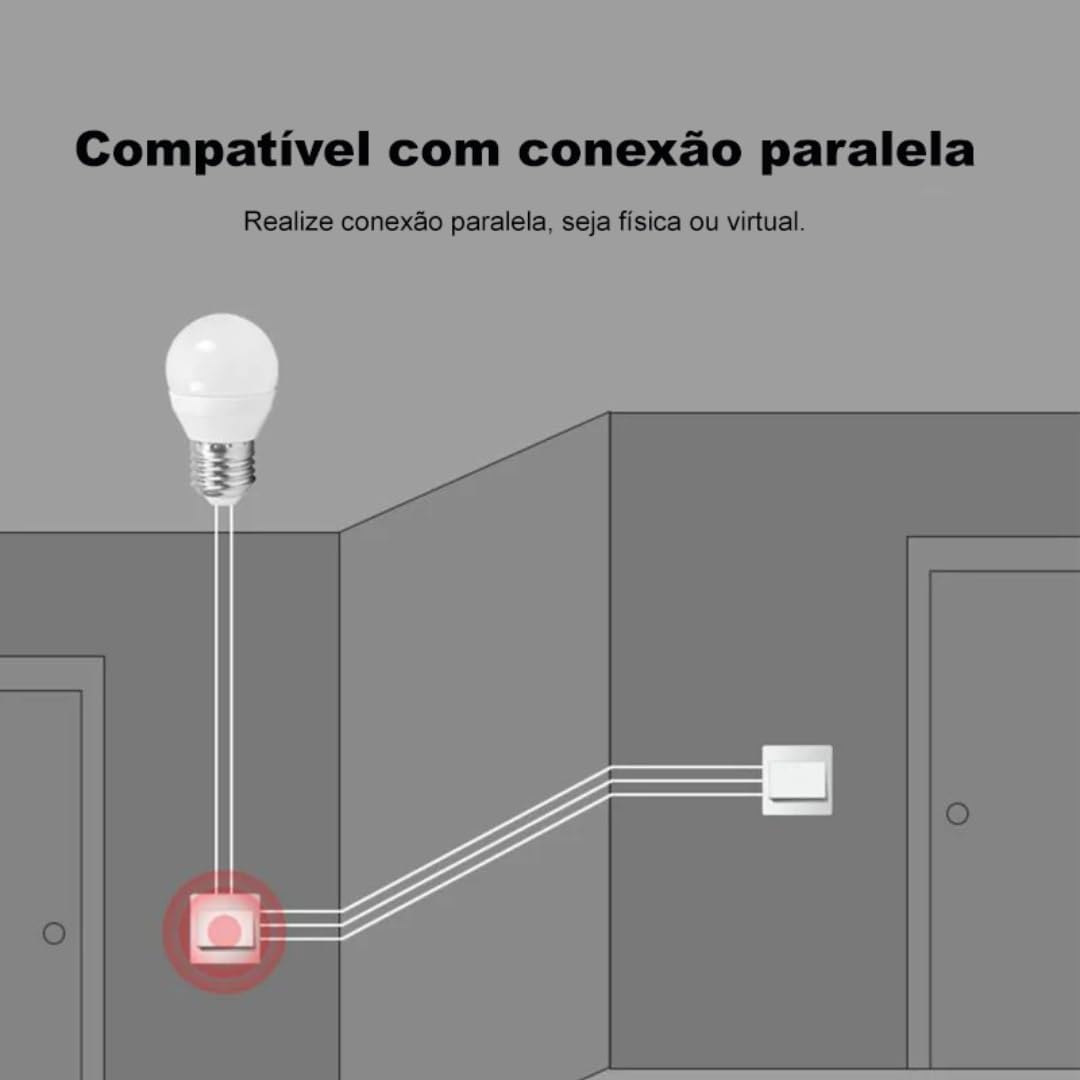
The switch is compatible with popular voice assistants such as Amazon Alexa and Google Home, and works with smart home platforms like Tuya Smart, Smart Life, and Home Assistant. Its compact design allows for simple and quick installation, including parallel installation with existing switches.
2. Safety Information
WARNING: Electrical installation should only be performed by a qualified electrician to ensure safety and compliance with local electrical codes. Incorrect installation can lead to electric shock, fire, or device damage.
- Always disconnect power at the circuit breaker before installation or maintenance.
- Ensure the device is used within its specified voltage and current ratings (110V, 16A, 1600W).
- Do not expose the device to moisture or extreme temperatures.
- This device is designed for indoor use only.
3. Package Contents
- 1 x Aubess Mini Smart Wi-Fi Switch
- 1 x User Manual
4. Product Features
- Wi-Fi Connectivity: Operates on 2.4GHz Wi-Fi networks for remote control.
- Energy Monitoring: Provides real-time and historical energy consumption data.
- Voice Control: Compatible with Amazon Alexa and Google Home for hands-free operation.
- App Control: Works with Tuya Smart and Smart Life applications for comprehensive management.
- High Power Rating: Supports up to 16 Amperes and 1600 Watts.
- Parallel Installation: Designed to facilitate parallel wiring with existing traditional switches.
- Compact Design: Small form factor for easy integration into electrical boxes.


5. Specifications
| Specification | Value |
|---|---|
| Operation Mode | On-Off |
| Current Rating | 16 Amperes |
| Operating Voltage | 110 Volts |
| Contact Type | Normally Closed |
| Connector Type | Clamp |
| Switch Type | Slide |
| Terminal | Screw |
| Circuit Type | 1-way |
| Mounting Type | Wall Mount |
| Number of Positions | 2 |
| Maximum Temperature Rating | 55 Degrees Celsius |
| Control Type | Amazon Alexa, Push Button, Google Assistant |
| Control Method | Application, Remote, Touch, Voice |
| Connectivity Type | Wi-Fi (2.4GHz) |
| Power | 1600 Watts |
| Color | White |
| Item Dimensions | 41 x 20 x 41 millimeters |
| Unit Count | 1 Unit |
| Quantity of Items | 1 |
| Material | Plastic |
| Contact Material | Metal |
| International Protection Rating | IP00 |
| Compliant Specification | CE, RoHS |
| Manufacturer | Aubess |
| Part Number | WSM02 |
6. Setup and Installation
6.1 Wiring Instructions
Important: Ensure power is disconnected at the circuit breaker before proceeding with any wiring. Professional installation is highly recommended.
- Identify Wires: Locate the Live (L), Neutral (N), and Load (L1, L2, etc.) wires in your electrical box. The Aubess switch requires a Neutral wire for operation.
- Connect Wires: Connect the Live wire from your power source to the 'L' terminal on the switch. Connect the Neutral wire to the 'N' terminal. Connect the Load wire(s) (to your light fixture or appliance) to the 'L1' (and 'L2' if applicable) terminal(s).
- Secure Connections: Ensure all wire connections are secure and properly insulated.
- Mount Switch: Carefully place the switch into the electrical box and secure it.
- Restore Power: Once installation is complete and verified, restore power at the circuit breaker.
6.2 App Pairing
To control your Aubess Mini Smart Wi-Fi Switch, you need to pair it with the Tuya Smart or Smart Life application.
- Download App: Download the 'Tuya Smart' or 'Smart Life' app from your smartphone's app store (iOS or Android).
- Register/Login: Open the app and register for a new account or log in if you already have one.
- Add Device: Tap the '+' icon in the top right corner of the app to add a new device.
- Select Device Type: Choose 'Electrical Switch' or 'Switch (Wi-Fi)'.
- Enter Wi-Fi Details: Ensure your phone is connected to a 2.4GHz Wi-Fi network. Enter your Wi-Fi password in the app.
- Put Device in Pairing Mode: Power on the switch. If the indicator light is not blinking rapidly, press and hold the reset button on the switch for 5-10 seconds until it blinks rapidly.
- Confirm Blinking: In the app, confirm that the indicator light is blinking rapidly.
- Connect: The app will begin searching for the device. Once found, you can rename it and complete the setup.
7. Operating Instructions
7.1 App Control
Once paired, you can control the switch from anywhere using the Tuya Smart or Smart Life app:
- On/Off: Tap the switch icon in the app to turn the connected appliance on or off.
- Scheduling: Set schedules or timers for automatic operation.
- Scenes: Create custom scenes to control multiple devices simultaneously.
7.2 Voice Control (Alexa/Google Home)
To enable voice control, link your Tuya Smart/Smart Life account with Amazon Alexa or Google Home:
- Open the Alexa or Google Home app.
- Navigate to 'Skills & Games' (Alexa) or 'Works with Google' (Google Home).
- Search for 'Tuya Smart' or 'Smart Life'.
- Enable the skill/service and link your account using your app credentials.
- Discover devices. You can now control your switch using voice commands like: "Alexa, turn on the living room light" or "Hey Google, turn off the fan."
7.3 Energy Monitoring
The integrated energy monitor allows you to track power consumption:
- In the Tuya Smart/Smart Life app, select your Aubess switch.
- Look for the 'Energy Monitoring' or 'Power Statistics' section.
- View real-time power usage (Watts), current (Amperes), and voltage (Volts).
- Access historical data, including daily, weekly, or monthly consumption graphs.

8. Maintenance
- Cleaning: Use a soft, dry cloth to clean the device. Do not use harsh chemicals or abrasive cleaners.
- Firmware Updates: Periodically check the Tuya Smart/Smart Life app for available firmware updates to ensure optimal performance and security.
- Environmental Conditions: Ensure the device is kept within its operating temperature range (max 55°C) and away from excessive humidity.
9. Troubleshooting
- Device Not Responding:
- Check if the device has power.
- Verify your Wi-Fi network is active and stable (2.4GHz).
- Ensure your smartphone has an internet connection.
- Try restarting the switch by cycling its power at the circuit breaker.
- Unable to Pair:
- Make sure the switch's indicator light is blinking rapidly (pairing mode). If not, reset it by holding the button for 5-10 seconds.
- Confirm your Wi-Fi network is 2.4GHz. 5GHz networks are not supported.
- Ensure your Wi-Fi password is entered correctly.
- Move the switch closer to your Wi-Fi router during pairing.
- Voice Control Not Working:
- Verify that the Tuya Smart/Smart Life skill/service is enabled and linked correctly in your Alexa/Google Home app.
- Ensure the device name in the smart home app matches the name you are using in voice commands.
- Try rediscovering devices in your Alexa/Google Home app.
10. Warranty and Support
For warranty information, technical support, or service inquiries, please contact Aubess customer support through their official website or the contact information provided at the point of purchase. Please have your product model (WSM02) and purchase details ready when contacting support.