
1. Introduction
Thank you for choosing the Zgrmbo Digital Wall Clock Model 5502. This multifunctional clock features a large, clear digital display, remote control operation, auto-dimming, night light, Daylight Saving Time (DST) functionality, date, week, and temperature display. It is designed for easy readability and versatile use in various indoor environments.
This manual provides detailed instructions for the proper setup, operation, and maintenance of your new digital wall clock. Please read it thoroughly before use and retain it for future reference.
2. What's in the Box
- Zgrmbo Digital Wall Clock Model 5502
- Remote Control
- USB Power Cable (DC adapter not included)
- User Manual (this document)
Note: A 5V/1A or 5V/2A DC adapter and 1 AAA battery for backup are required but not included.
3. Setup
3.1 Power Connection
- Connect the provided USB power cable to the clock's power input port.
- Plug the other end of the USB cable into a compatible 5V/1A or 5V/2A DC power adapter (not included).
- Plug the DC power adapter into a wall outlet. The clock will power on and display the time.
Important: This clock is USB powered and requires continuous power from an adapter. It is NOT battery operated for primary function.

Image: The Zgrmbo Digital Wall Clock connected to a power adapter, emphasizing that it is USB powered and not battery operated.
3.2 Backup Battery Installation
To retain time and alarm settings during a power outage, install one AAA battery (not included) into the battery compartment on the back of the clock. Note that when operating on backup battery power, the screen will turn off, and alarms will not sound.
3.3 Mounting Options
The clock can be placed on a tabletop or mounted on a wall. Ensure stable placement for tabletop use or secure wall mounting using appropriate hardware (not included) for wall installation.
4. Operating Instructions
The Zgrmbo Digital Wall Clock is primarily operated using the included remote control. Ensure the remote has batteries and is pointed towards the clock for optimal functionality.

Image: The Zgrmbo Digital Wall Clock displayed with its remote control, highlighting remote operation.
4.1 Setting Time and Date
Refer to the remote control for specific buttons to enter time/date setting mode. Use the navigation buttons (e.g., '+' and '-') to adjust values and 'OK' or 'Set' to confirm.
- 12/24 Hour Format: Use the dedicated button on the remote to switch between 12-hour and 24-hour time display.

Image: The clock showing both 12-hour and 24-hour time formats, demonstrating the switchable display.
4.2 Brightness Adjustment and Auto-Dimming
The clock features 10 levels of brightness and 8 glow-in-the-dark modes. It also has an auto-dimming function controlled by a light-sensitive chip.
- Manual Brightness: Use the 'Light' button or '+' / '-' buttons on the remote to cycle through the 10 brightness levels.
- Auto-Dimming: The clock automatically adjusts brightness based on ambient light conditions.

Image: The clock displaying 'L-AU' for auto-dimming and illustrating the 10-level brightness adjustment options.
4.3 Daylight Saving Time (DST)
To enable or disable Daylight Saving Time, long-press the '-' button on the remote control. This feature helps reduce the need for manual time adjustments.
4.4 Alarm Function
The clock supports setting two independent alarms. It includes a memory function to retain alarm settings even after a power interruption (when backup battery is installed).
- Refer to the remote control for buttons to set and activate alarms.
4.5 Countdown/Count-up Timer
The clock features both forward and backward counting functions, supporting up to 99 minutes and 99 seconds. This is suitable for kitchen use, gym workouts, or other timed activities.
- Use the dedicated timer buttons on the remote to set and start the countdown or count-up.
4.6 Ambient Light Modes
The clock offers 8 different ambient light color modes to suit your preference or decor.
- Use the 'Color' or 'RGB' button on the remote to cycle through the available ambient light colors.

Image: The clock showcasing its 8 distinct ambient light color modes.
4.7 Center Blinking Dots
For users who prefer a static display, the two blinking dots in the center of the clock (separating hours and minutes) can be turned on or off.
- Access the settings page and short press the '+' and '-' buttons on the remote control to toggle the blinking dots (FL OF / FL ON).
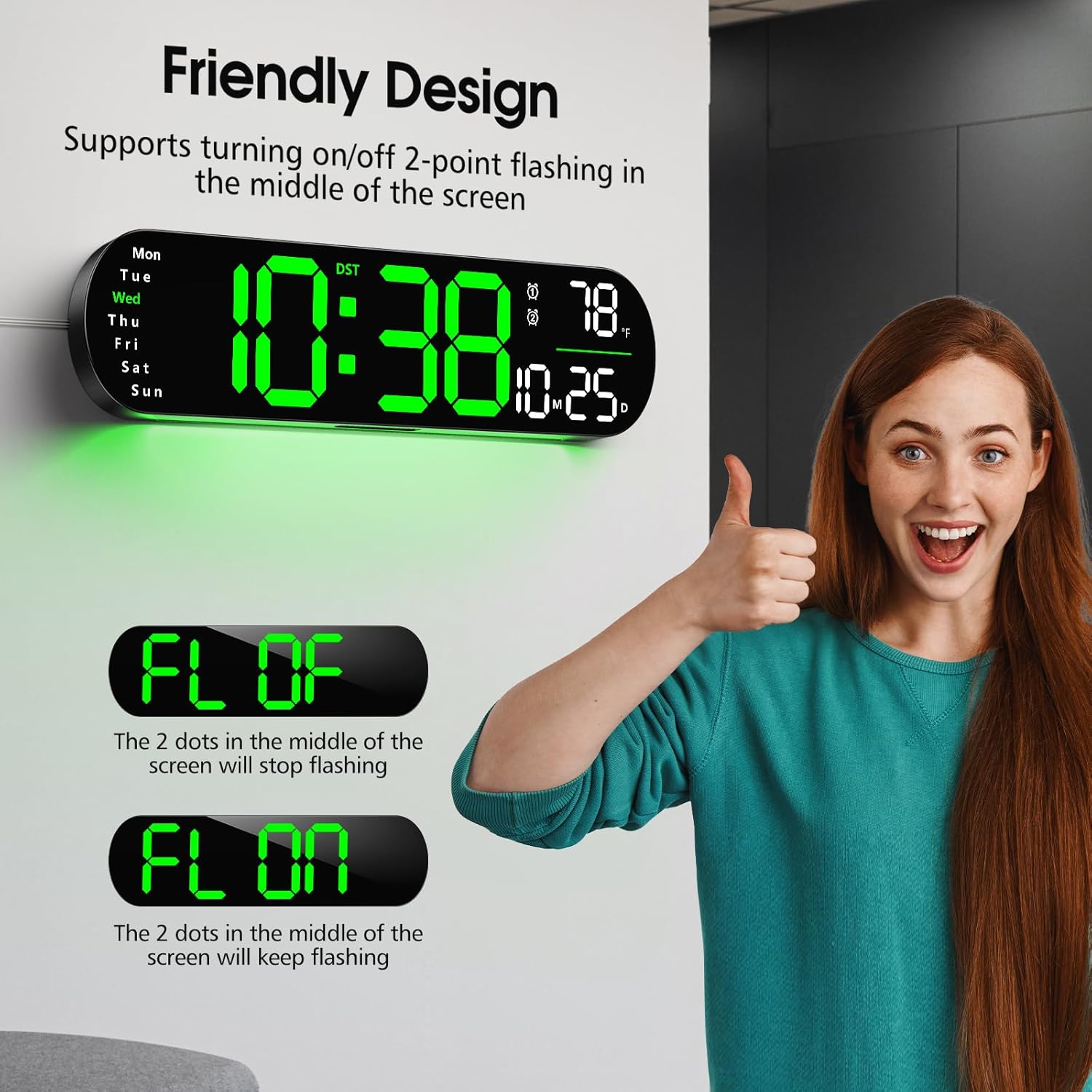
Image: The clock displaying options to turn the center blinking dots 'FL OF' (off) or 'FL ON' (on).
5. Maintenance
- Cleaning: Use a soft, dry cloth to clean the clock's surface. Avoid abrasive cleaners or solvents that may damage the finish.
- Backup Battery: Replace the AAA backup battery annually or if you notice settings are not retained during power outages.
- Power Cable: Ensure the power cable is not bent, twisted, or damaged.
6. Troubleshooting
- Clock not powering on: Ensure the USB power cable is securely connected to both the clock and a functional 5V/1A or 5V/2A DC power adapter, which is plugged into a live wall outlet.
- Screen is off: If the clock is only powered by the backup AAA battery, the screen will remain off. It requires continuous DC power for the display to function.
- Alarm not sounding: Alarms will not sound when the clock is operating solely on backup battery power. Ensure the clock is connected to its primary DC power source.
- Incorrect time/date: Verify that the time and date settings are correctly configured using the remote control. Check if DST is enabled or disabled as desired.
- Remote control not working: Check the battery in the remote control and replace if necessary. Ensure there are no obstructions between the remote and the clock's sensor.
7. Specifications
| Feature | Description |
|---|---|
| Brand | Zgrmbo |
| Model Number | 5502 |
| Display Type | Digital |
| Screen Size | 13 Inches |
| Product Dimensions | 13.75"W x 4"H |
| Power Source | Corded Electric (5V/1A or 5V/2A DC adapter required, not included) |
| Backup Battery | 1 x AAA (not included) |
| Special Features | Alarm, Auto-Dimming with Night Light, Daylight Saving, RGB Light, Remote Control |
| Mounting Type | Wall Mount/Tabletop |
| Item Weight | 0.52 Kilograms |
8. Official Product Video
Video: An official product video titled "5502 Digital Wall Clock" by WOBOSI, demonstrating various features and functions of the Zgrmbo Digital Wall Clock Model 5502. Duration: 0:49.
9. Warranty and Support
For warranty information and customer support, please refer to the documentation included with your purchase or visit the official Zgrmbo website. You may also contact the seller directly through the platform where the product was purchased.

